Venues
Venues is an area within the PMS that allows you to manage non‑room bookings such as weddings, business conferences, and small gatherings. Venue rooms let you oversee the entire booking, and if the customers also have accommodation, their room bookings can be linked so that a single invoice can be generated.
Venues support all the same features as standard rooms and can be updated or modified in the same way. If you have an EPOS integration, charges can be posted directly to the venue bill and settled before, during, or after the event.
Venues Topics
Creating Venues
The venues page displays all venues that have been set up for the hotel.
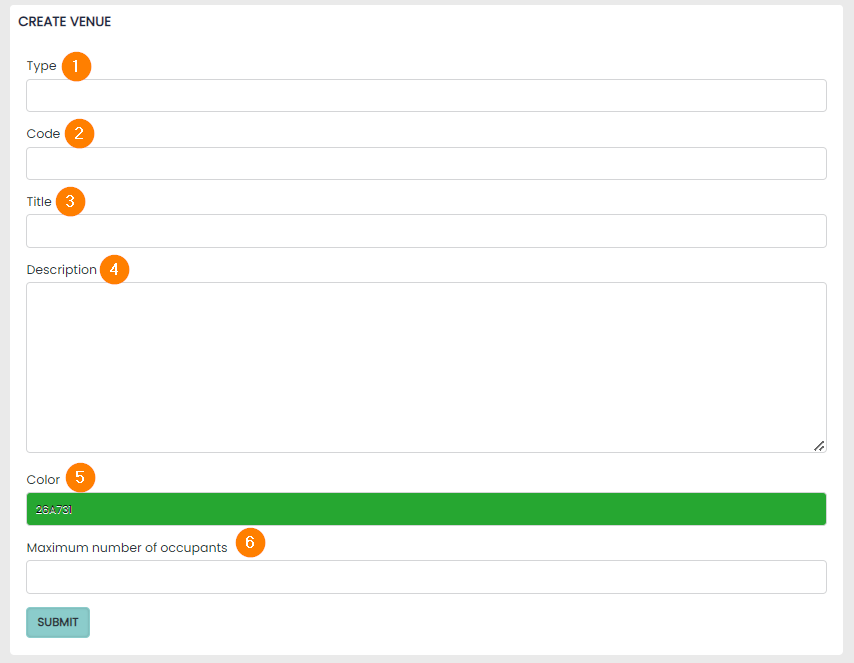
To create a venue, begin by selecting the + Create Venue button. The following then needs to be completed:
1 Enter the Type
2 Code – this is used by the PMS in the background and should be a short abbreviation of numbers and letters
3 The Title should be a copy of the Type
4 The description field is for internal use only and should help distinguish this venue for your staff users
5 The colour picker will be used for any bookings that are entered into the calendar
6 The Maximum Occupants field is used as a guide for your staff. It will not limit the occupants selected on any booking
Viewing Venue Calendars
The calendars for each of your Venues can be accessed in 3 ways:
-
Click on the calendar icon in the Venues overview page. This is located in the actions column
-
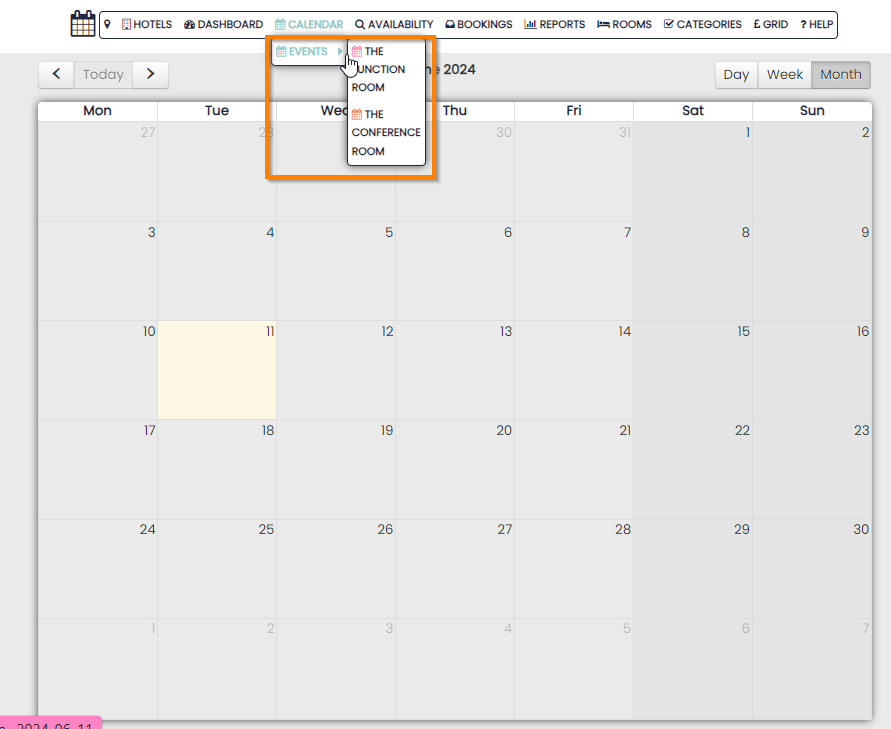
Hover over Calendar in the top navigation bar and select Events. This will show all Conferences booked in, on all Venues combined in 1 calendar. Each venue is colour coded
-
Hover over calendar in the navigation bar (as above), but click on an individual Venue. This will give you the same display as the first option
Making a Conference
Bookings in the Venue calendars are called Conferences and are made in the same way as the Accommodation Calendar i.e. Simply click on the date that you wish the Conference to take place.
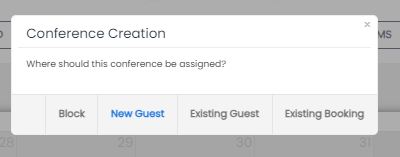
The creation panel will display allowing you to make conferences in the same 3 ways:
-
New Guest – as with accommodation bookings, conferences need to be assigned to a Guest Profile. This option will navigate the use to the Booking Engine and create a new profile if the email address is not already in use
-
Existing Guest – a conference can be assigned to an existing email address. This will create a new booking reference and assign the booking to the profile
-
Existing Booking – a conference can also be assigned to any existing booking in the system. A valid reference number must be supplied