Blocks
Blocks in the system allow you to take a room offline so it cannot be booked for a specific period of time. They are typically used for maintenance, repairs, or any situation where a room should not be available to guests. When creating a block, you can choose from several status options, and you must always provide a reason. These reasons can be reported on, giving managers clear visibility into why rooms are offline and who did it and helping them oversee property operations more effectively.
Blocking a Room
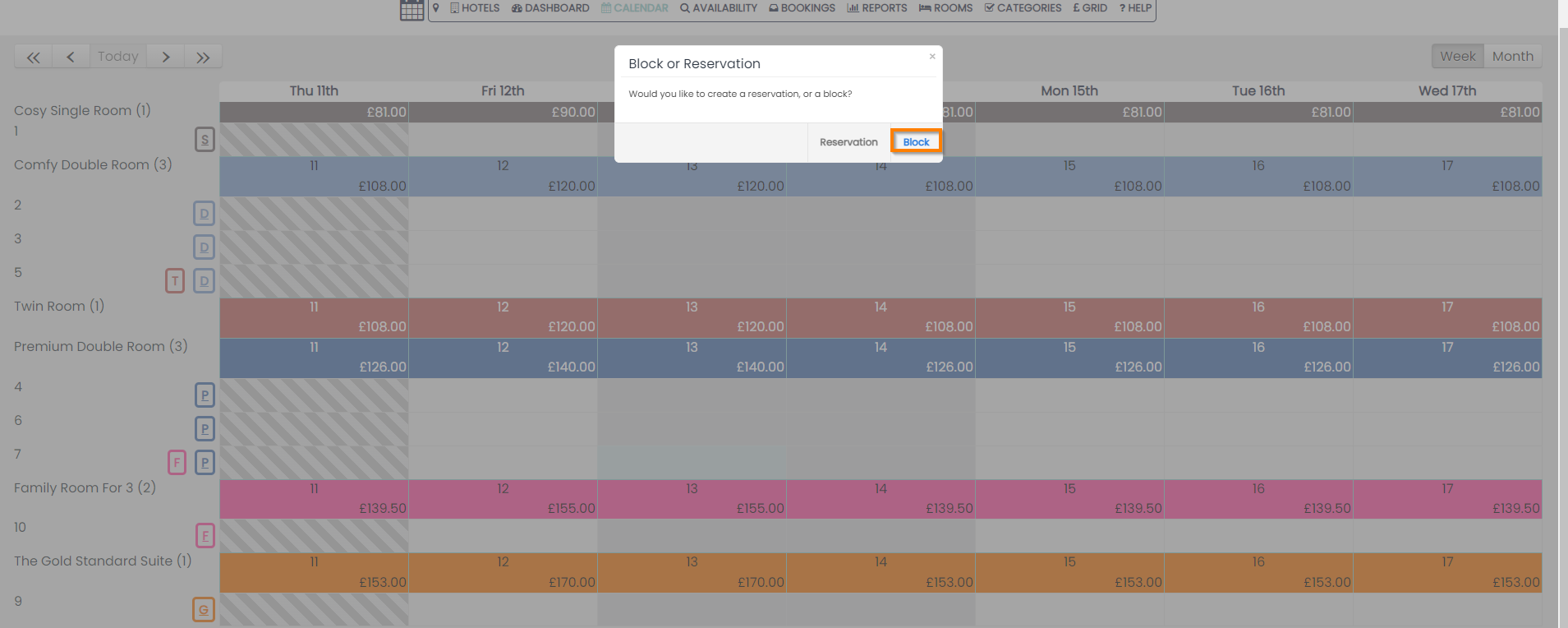
To block a room on your calendar, simply select a date or highlight multiple dates beside the room you wish to block and select Block from the Block or Reservation pop-up.
Select the reasons for the block from the following options:
Status
You can set the status to one of three options from the 'Status' drop-down:
- Outstanding - the maintenance task has not started
- In progress - the maintenance task has started
- Completed - the maintenance task has ended
Actions
You can then set the action:
- Room Out Of Service: Used for maintenance issues.
- Reduced from Stock: This is used to flag a longer-term block such as a refurb
Reason
-
You can then manually type a reason which appears on the block
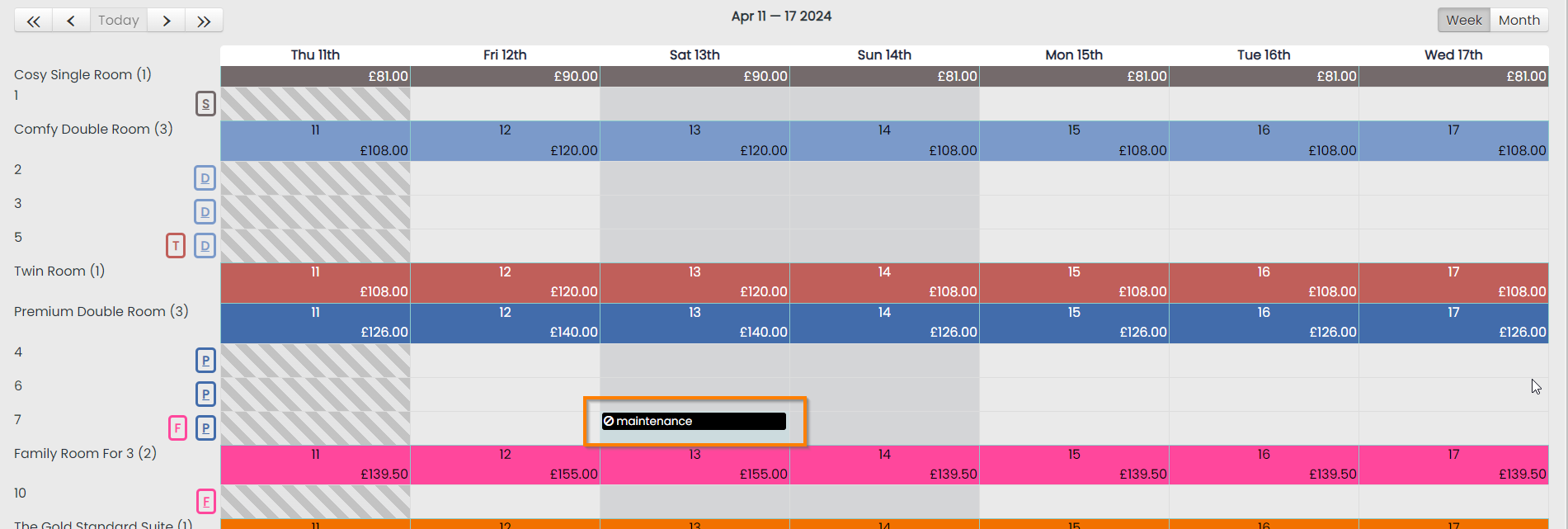
The block will then be visible in your calendar with the reason displayed:
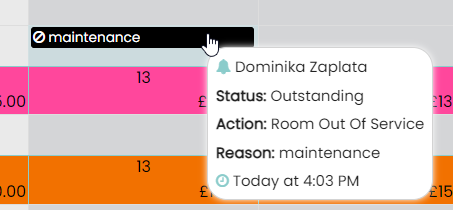
You can hover over a block to view the details:
Editing and Deleting a Block
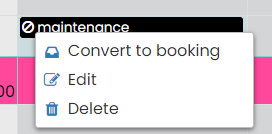
The status, action or reason for a block can be edited by clicking the block and selecting Edit. It can also be deleted by selecting Delete.
Convert a Block to a Booking
A block can be converted to a booking by firstly clicking the block and selecting Convert to booking
-
If the room has multifunctionality, you will then need to select the Room Type
-
Select the number of people staying
-
Select the rate
-
Assign the reservation to a new or existing Guest. Selecting New Guest will take you to the availability page, selecting Existing Guest will ask you for the Guests email address.