Purchases & Discounts
Purchases & Discounts Topics
Overview
A Purchase is a sale added to a Booking from your Products list. You can add a pre-set Purchase to a Reservation or create one ad-hoc if needed.
A Discount is a negative sale and will always be created and added ad-hoc.
Adding a Purchase / Discount
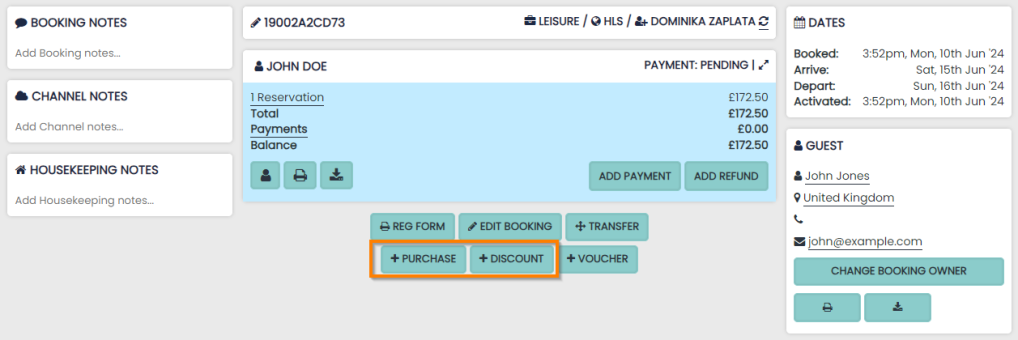
To add a Purchase or Discount item to a Reservation, go to the booking page and hit the ‘+Purchase’ or ‘+Discount’ buttons.
This will display the form to either select a pre-set item or create on ‘on the fly’.
The items will be immediately added to the booking’s balance and display in the sales reporting on the dates selected by the user.
Adding a Purchase to a Booking
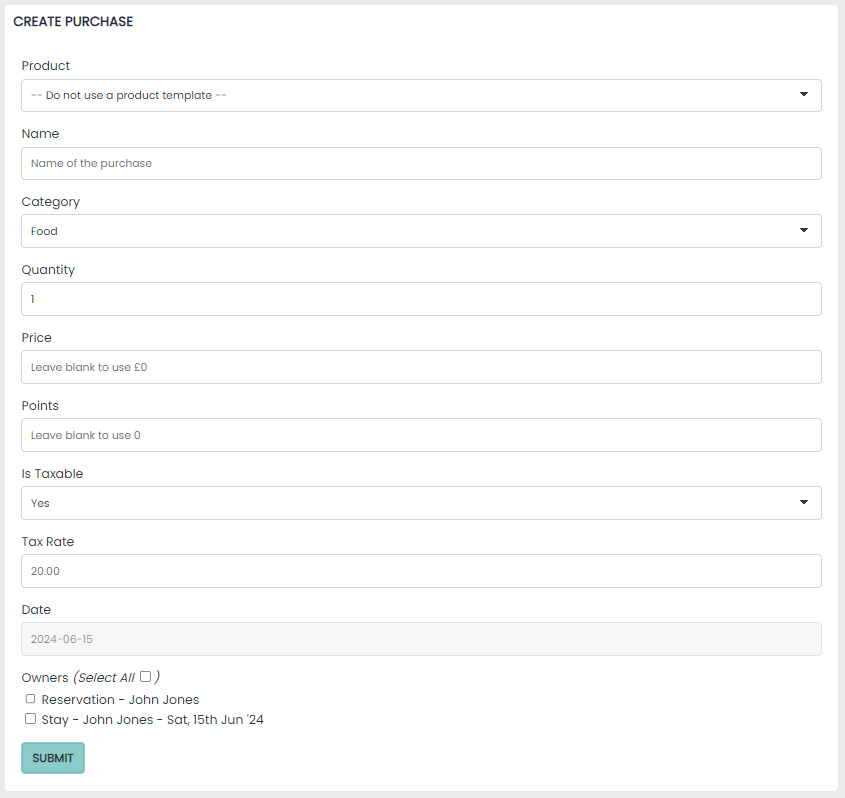
Once you have clicked the ‘+Purchase’ you will be able to choose a product pre-created products from the dropdown list.
If you would like to add an ad-hoc purchase, please select ‘– Do not use a product template–’. When selected you will be able to add a custom name to your purchase. The name given will appear on the customer Invoice.
You can then add the Purchase to either:
- The Reservation (this will be added to the first night of that Reservation
-
One of the Stay dates (the purchase will be added to that specifically)
Press ‘Submit’ and the purchase is added to the invoice and also to your reports.
Adding a Discount to a Booking
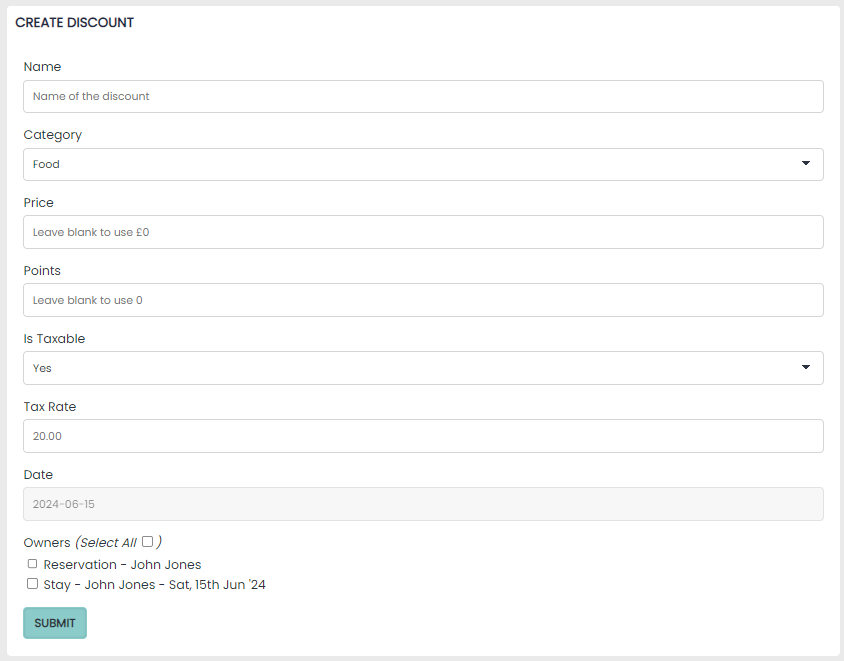
Once you have clicked the ‘+Discount’ you will be required to add an Ad-hoc name that should describe the discount.
A price for the discount is required as this is an ad-hoc discount.
You can then add the Discount to either:
-
The Reservation (this will be added to the first night of that Reservation)
-
One of the Stay dates (the discount will be added to that specifically)
Press ‘Submit’ and the purchase is added to the invoice and also to your reports.
Added Purchases or Discounts
After you have successfully added a Purchase or Discount you will be redirected to the booking page.
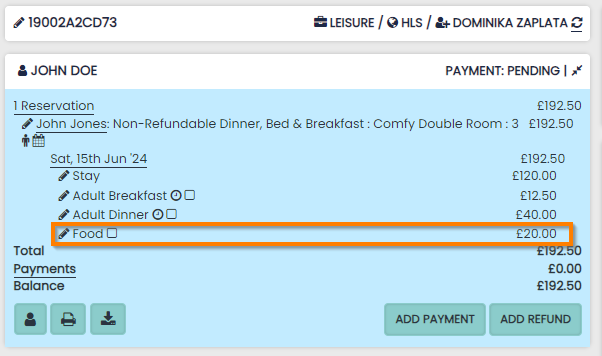
The value of the booking will have increased or decreased with the new purchase or discount added. The added item(s) will also be visible on the customer Invoice with any descriptions added.
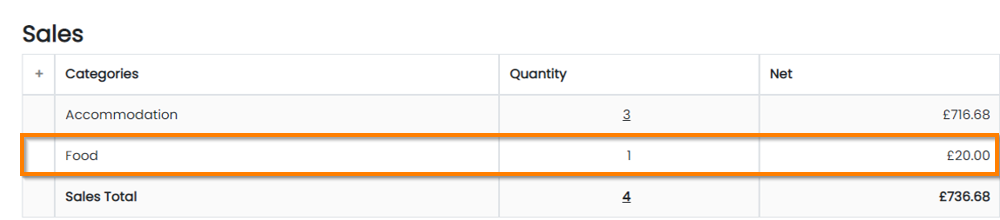
All reports will also be updated with the sale of the purchase. Daily Sales is shown below: