Assigning Reservations
Overview
All reservations that land in the system, whether they be booked directly or through an OTA, will be ‘unassigned’.
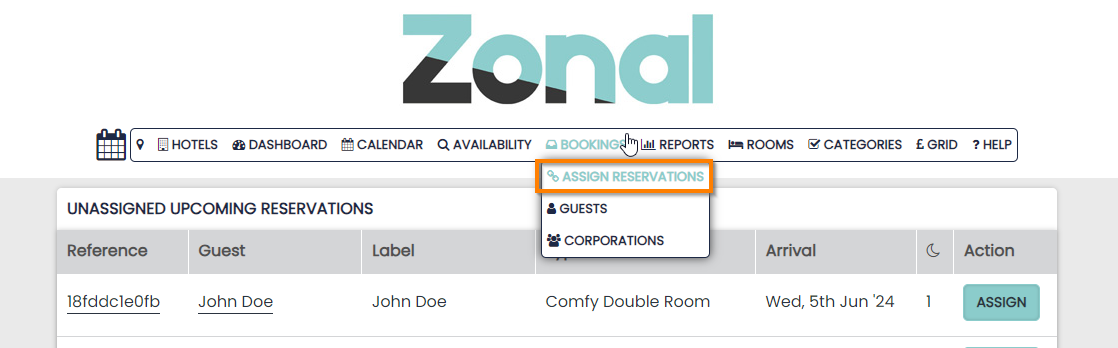
To view a list of your unassigned reservations hover over the bookings button and select Assign Reservations.
Even though a reservation will initially be ‘unassigned’ it will be fully confirmed in the system and the availability of the Room Type will be up to date.
Even if a reservation is un-assigned, the calendar will not overbook
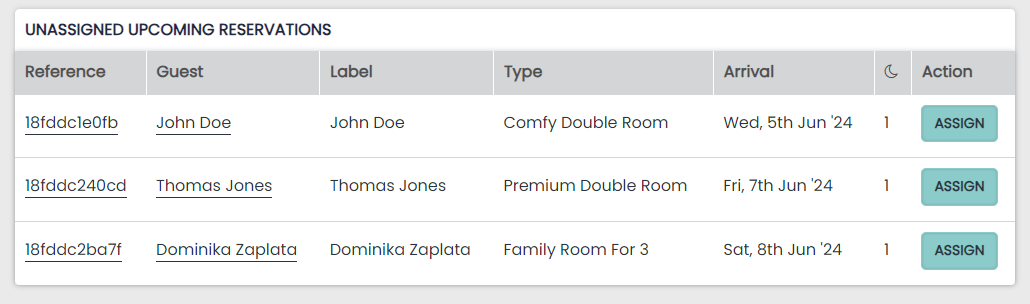
The page will display all future Reservations in the system that have yet to be assigned to a physical room in the hotel.
The reservations can be assigned from this page periodically to save on admin time. This page is also a great place to view any new reservations in the system since you last mass assigned.
Links are displayed to both the booking that holds the reservation and the guest profile. The label is also shown to help identify each room reservation.
Assigning Reservations
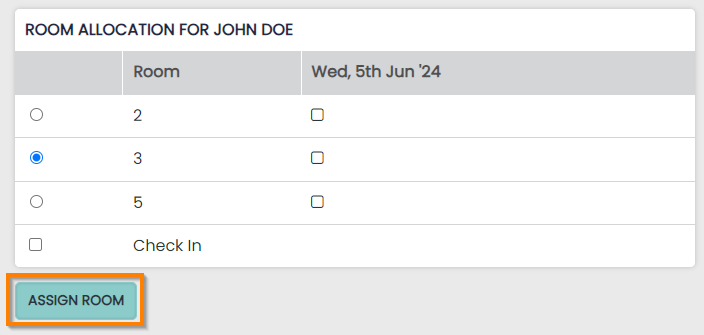
Clicking on Assign button for each reservation will take you through to the physical room selector.

Select one of the available physical rooms listed on the selection panel. Click on Assign Room to complete the process.