Booking Hub
Each Booking made or delivered to the system is displayed on it’s own Booking Hub page.
Booking Hub Topics
Overview
Below is an overview of the Booking Hub, this can be accessed in various places in the PMS by clicking any hyperlinked booking reference.
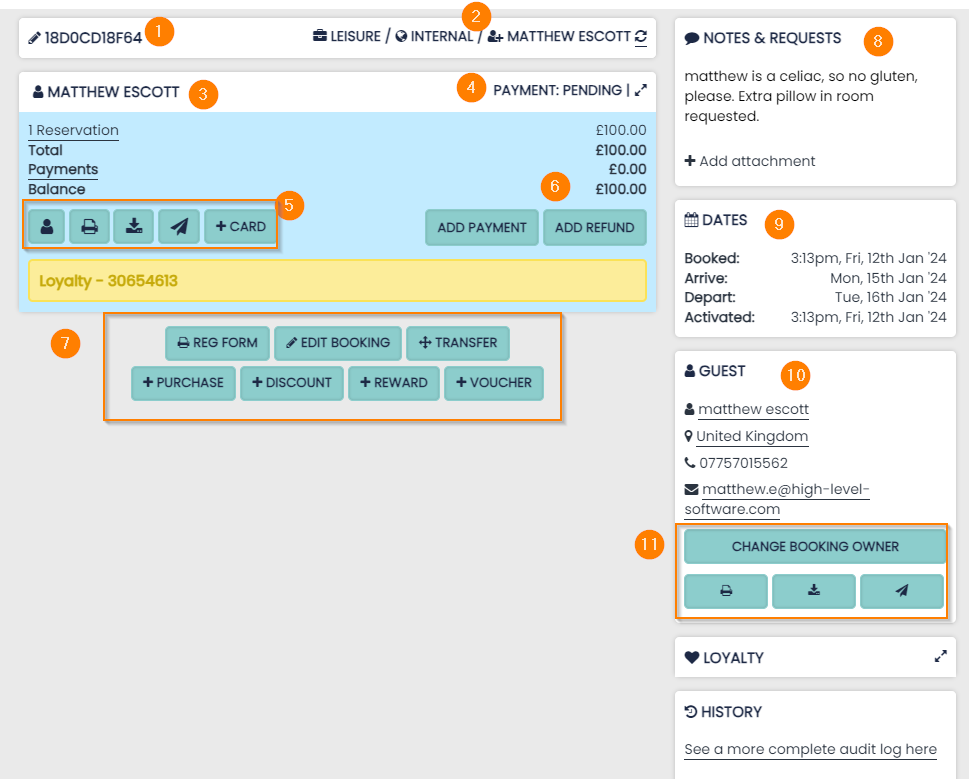
1 Unique Booking Reference - if delivered from a Third Party Channel (OTA) it will add a 3-digit prefix e.g. BDC / EXP
2 Booking Source - Internal or form a Third Party Channel (OTA)
3 Guest Profile Name - this is based on the email address used
4 Payment Status - this will affect the colour of the reservation panel (shown light blue here, colours vary depending on payment status more detail further on)
5 Invoice Options & Add Card Button - different Methods for printing / sending or mailing invoices. ‘Add Card’ to add a new or alternative credit / debit card
6 Add Payment or Refund - process or record payments and refunds on the booking, or send a pay-by-link request
7 View Registration Form, Edit & Add to Booking - here we can make amendments, transfer between group / corporate reservations, add discounts / vouchers or add additional purchases. Also if a guest has filled out a Registration Form this is another place this information will be stored
8 Notes & Requests - these are viewed internally once the booking has been created. You can add to the notes at any time during the guest’s stay
9 Dates - booked at / arrival and departure dates
10 Guest - this will show the lead booker name and contact details
11 Change booking Owner & Confirmation Options - This allows you to assign the reservation to a different person (using a new email address). In this area, you can also print / download and send the guest booking confirmation
Payment Status
The main panel on the Booking Hub will change colour depending on Payment Status.
-
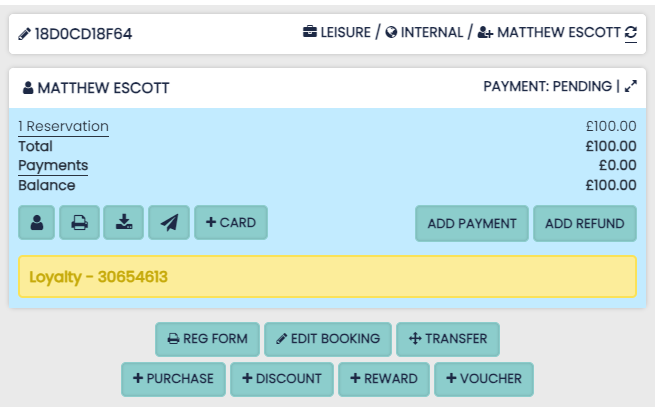
Blue - this means no payment has been recorded on the booking and it is active
-
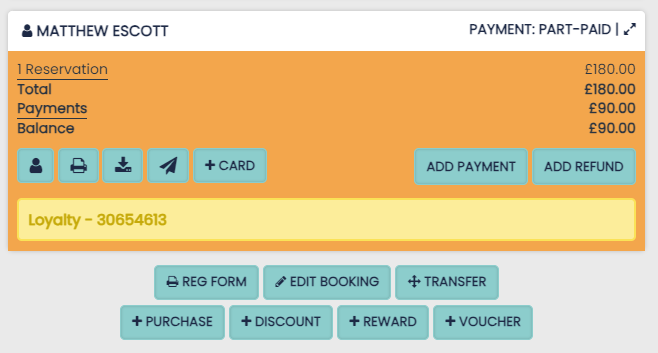
Orange - a partial payment has been made, before the check-out date or corporate grace period. (for more information on grace periods please see the Corporation information)
-
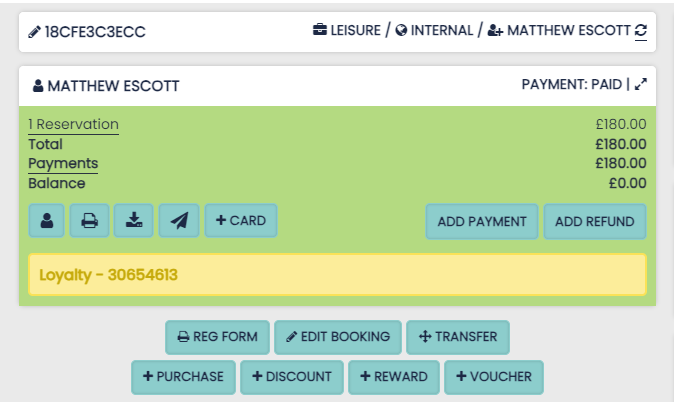
Green - when a booking is fully paid. Also if a guest is owed money (this will display as a negative balance)
-
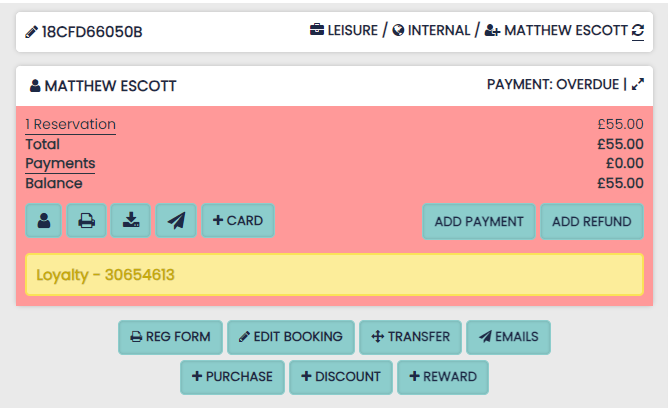
Red - when the check-out day passes and the booking has an owed balance, the status will change to ‘Overdue’
Editing Reservations
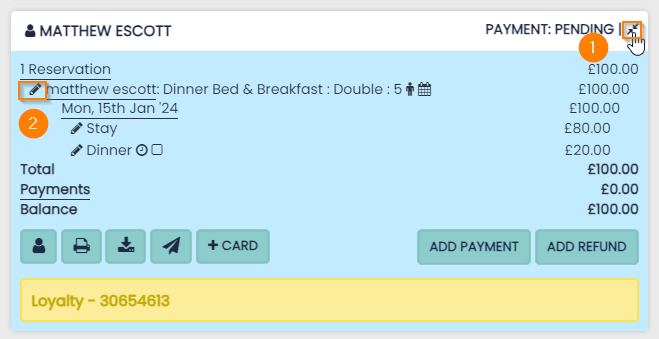
Any underlined data is a hyperlinked, will expand or navigate to reveal more information.
1 Click the expanding arrows in the top right-hand corner to display the entire booking
2 To amend a reservation select the pencil icon next to the name of the guest
Amending Reservation Price
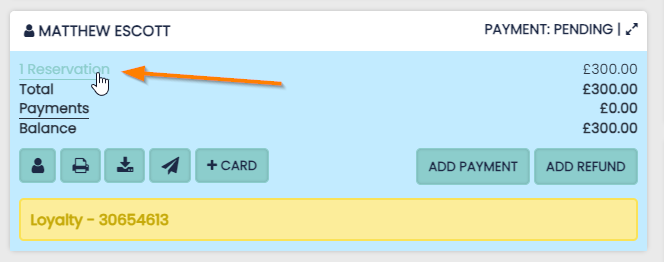
To amend the price of any reservation, click on the hyperlinked word “Reservation” to expand and display all reservations. Click the name associated with the reservation.
Step 1:
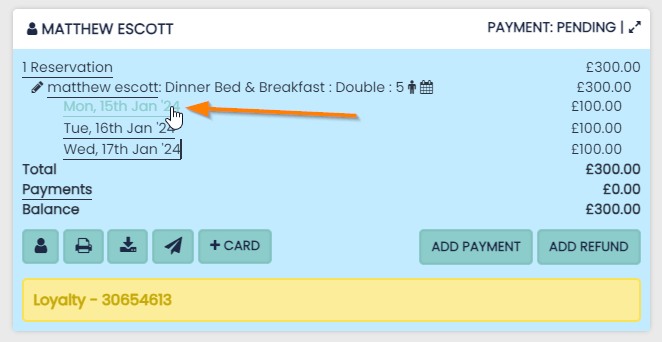
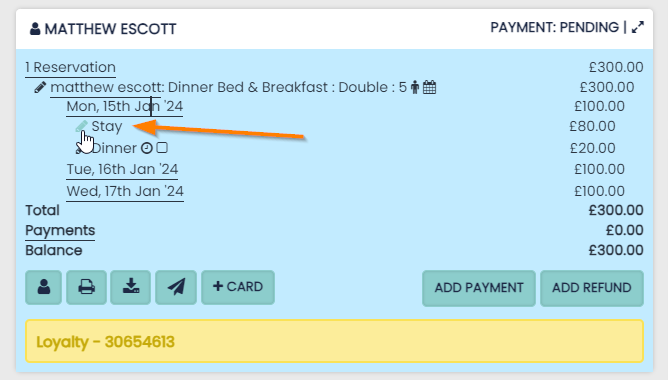
Click the date you want to edit
Step 2:
Select the pencil icon next to the stay
Step 3:
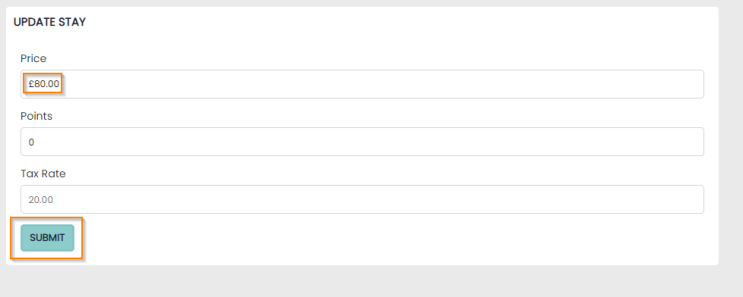
This will open a new screen where you change the price, once you click ‘submit’ any amendments are saved
Edit Booking Feature
Here you can edit the whole reservation in one place.
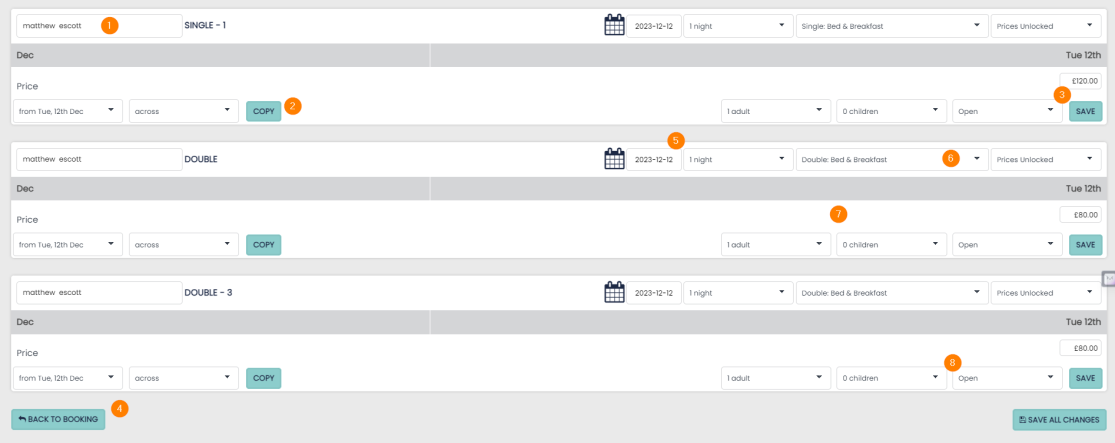
1 Reservation Label - editable guest name for each room reservation
2 Copy Tool - allows you to copy prices to multiple stays on the reservation or booking
3 Save All Changes - save all changes and amendments
4 Go Back to Booking - takes you back to the booking without saving changes
5 Arrival Date & Duration - linked to the availability in the hotel, you can change reservation stays here
6 Room Type - room type and room number shown can be changed here also
7 Adults / Children - here we can change the number of Adults or Children. Please note this will not exceed the maximum limit of people per room
8 Lock / Open Status - if you need to lock a reservation into the calendar. The Reservation can no longer be moved until unlocked