Corporations
Corporate accounts provide an efficient way to manage bookings for business customers. They allow you to assign invoices, cards, and payments directly to specific bookings, making financial tracking and reporting much simpler.
The guide below will walk you through how to create a corporate account, apply it to a booking, and manage the account effectively.
Corporations Topics
Overview
Each corporation has an email address and contact name where Invoices and Confirmations can be sent. Guests attached to the corporation can have a separate invoice for their sundries, food and drink, etc.
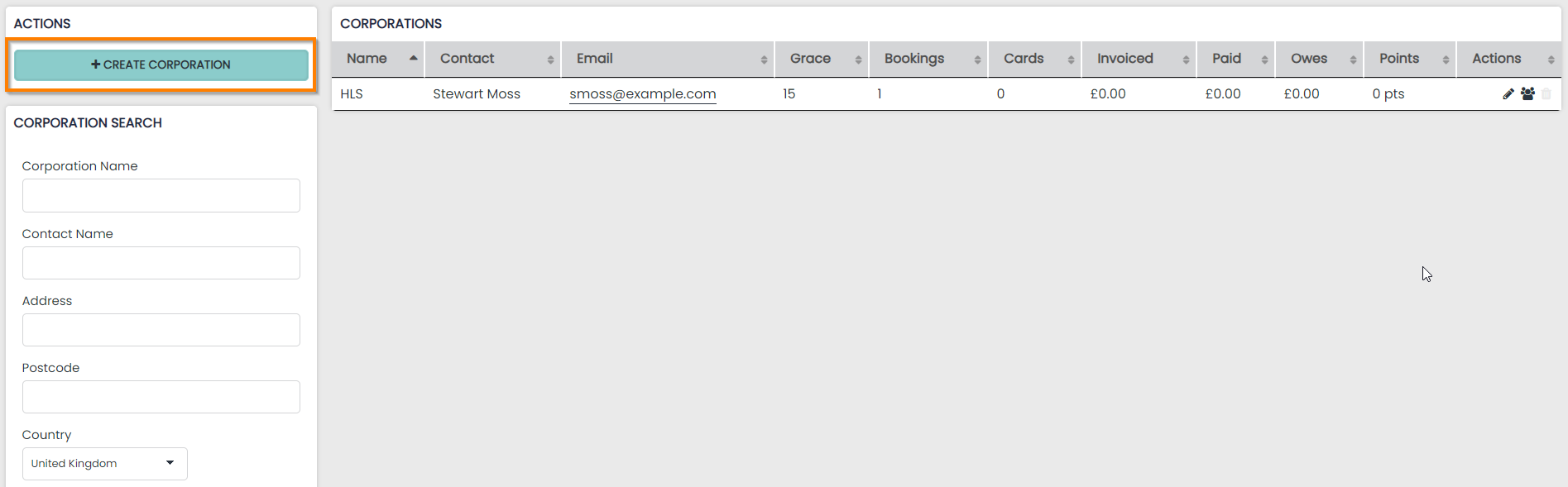
You will be presented with a list of all corporate accounts (this will of course be empty until you have created a corporate account)
Select the ‘+Create’ button in the top left hand corner and complete the form, click ‘Submit’ and the corporate account is created.
Apply Corporation
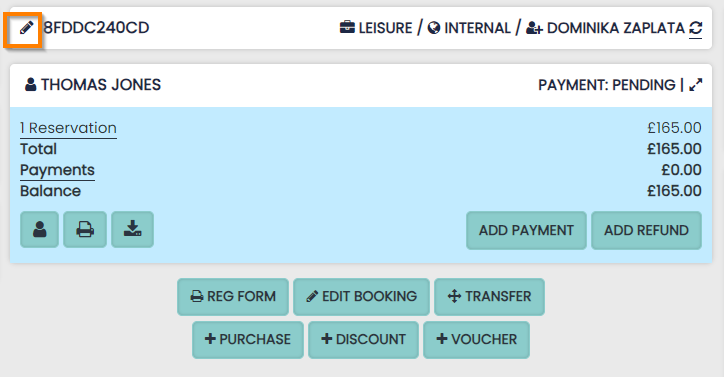
Select the booking you wish to apply a Corporate Account to and select the pencil icon next to the booking reference.
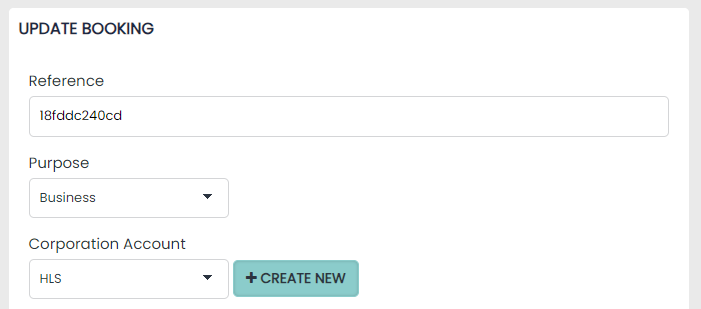
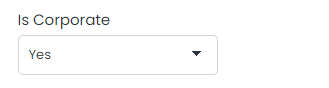
Change the purpose of the booking by selecting Business from the dropdown menu and select the relevant corporation from the ‘Corporation Account’ dropdown menu.
You will be taken to the booking page and notified of the update. The booking will then display the Corporate Account Notes that have been added to the profile page.
By applying a Corporation to a booking, all the reservation costs include any Products (extras, hireable, consumables) have been assigned to the Corporate invoice. This is indicated to you with the Corporation icon.
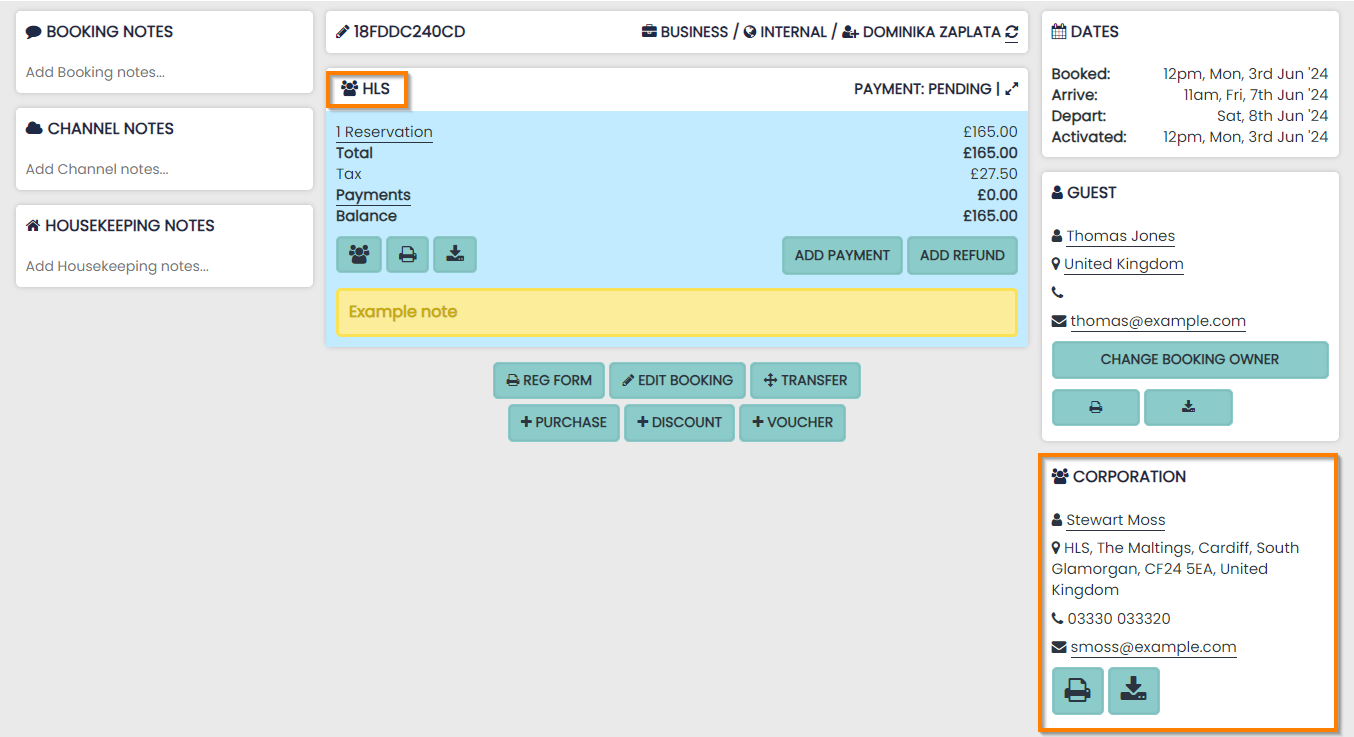
The assigned Corporate Account Profile details will be displayed in the right column.
From this point, all additional items can be either assigned to the Corporation or the guest. This is option will now be displayed on all Products when added.
Managing Corporate Profiles
Each Corporate Account has their own ‘Corporate Profile page’ which shows you:
- All bookings and invoices
- Revenue generated
- Breakdown of their spend (accommodation, products etc.)
- Notes
To edit the details of a corporation, select the ‘pencil’ icon next to the corporation name.
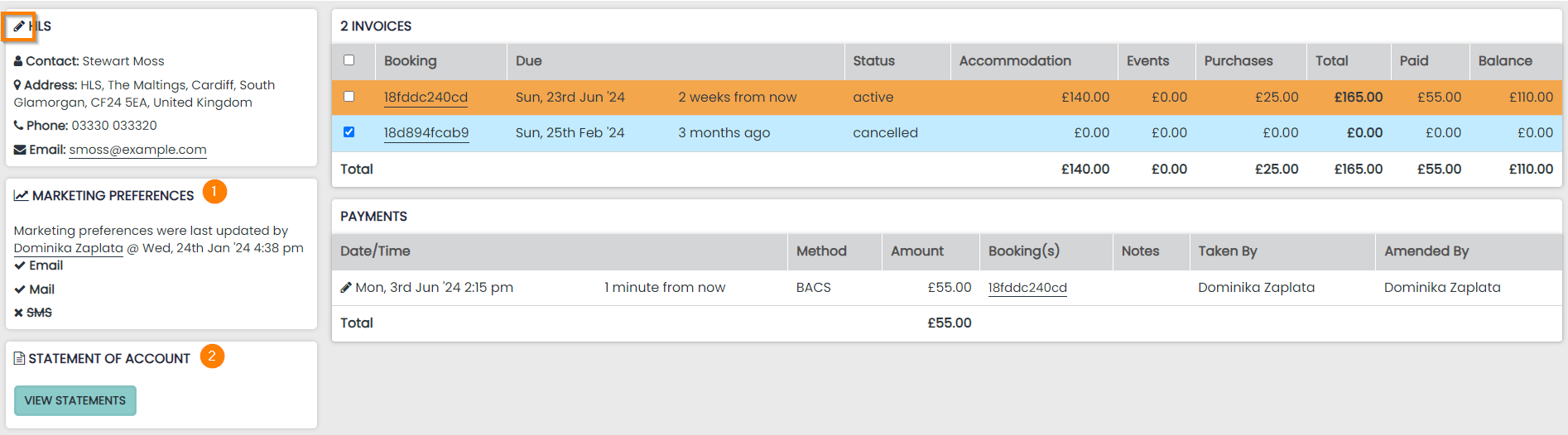
The list of invoices are colour coded as follows:
- Green – Paid
- Red – Overdue (according to grace period)
- Orange – Part paid
- Blue – Not yet due
1 Display of Marketing Preferences on the profile. These can be edited when the profile is edited using the pencil symbol above
2 A statement of Account can be generated for the profile. This involves options to display any specific dates along with an email option
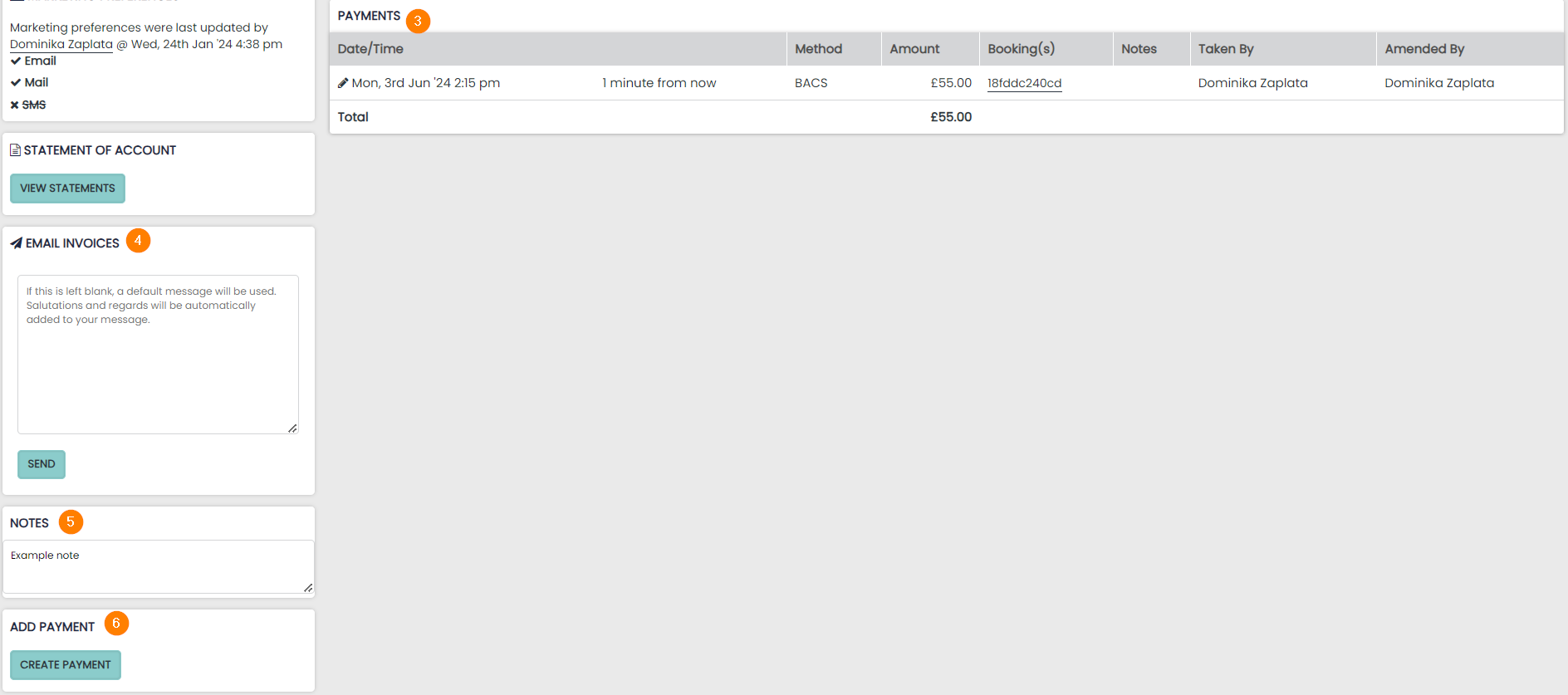
3 A list of payments made will be displayed here
4 To email any invoice (or multiple invoices) to the contact, select the one(s) you wish to send and a box will appear on the left
Enter a message and press ‘send’ and your email will be sent straight from our the PMS, with all invoices attached as PDFs
5 A space to add any notes to the Corporate Profile
6 Create a Payment for any bookings where the Corporate Profile is attached