Transfers
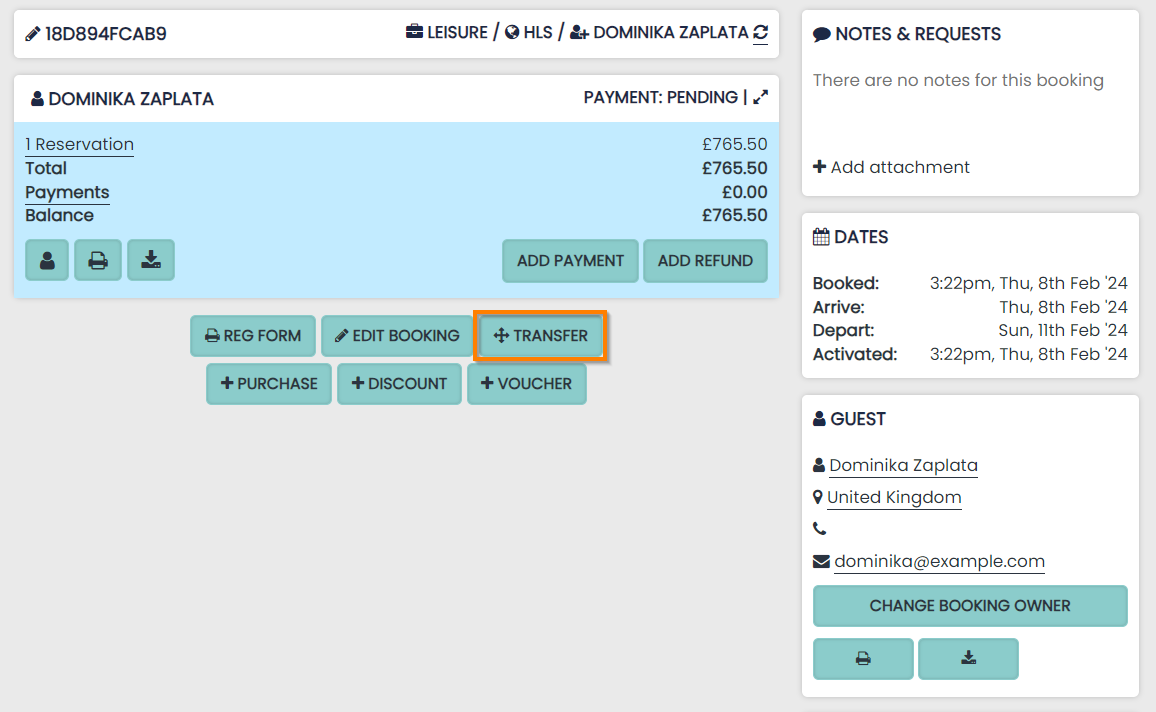
All items posted to a reservation / stay can be transferred and edited from one location.
Transfers Topics
Features
From the Transfer page you can perform the following:
- Transfer product to different reservation & stays
- Add a new product
- Delete a product
- Cancel a product item
- Change product price
- Change product quantity
- Apply product to corporation
- Apply stay to corporation
Transferring Sales – Stay dates and Reservations
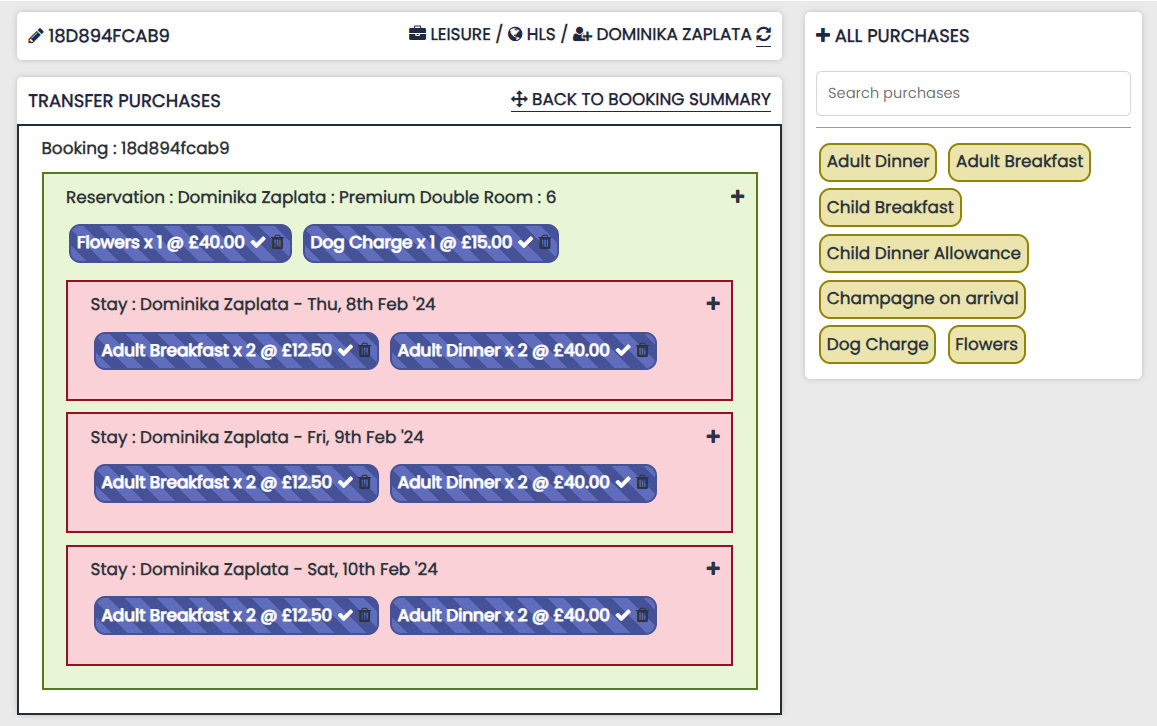
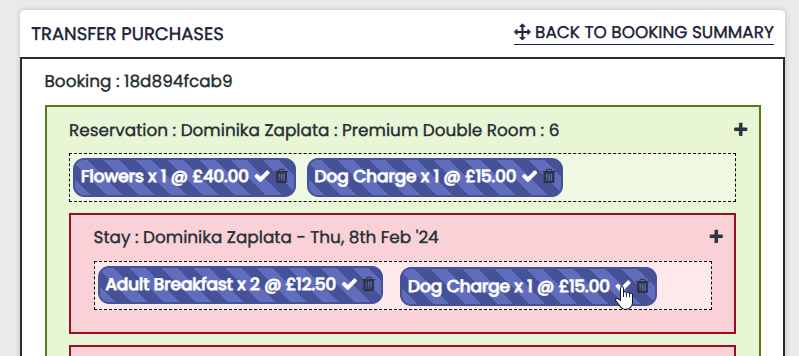
To transfer a product to another reservation or stay, simply drag and drop it onto a new location. As you can see the flowers and dog charges highlighted below in the green area are currently on the reservation but can be dragged and applied to the stay highlighted in red.
Actions
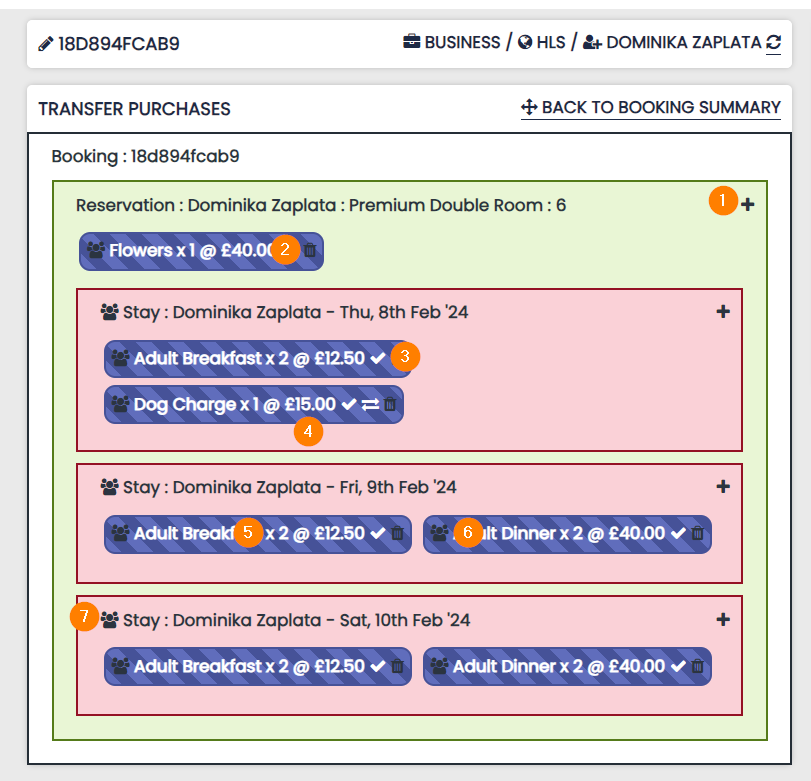
1 Add a New Product
To add a new product select the + icon presented next to the reservation or stay
2 Delete a Product
To delete a product from the guest invoice select the trash can icon and enter your password. Deleting a product will remove the product completely from the booking
3 Cancel a Product
To cancel an item on a guest bill, simply select the tick icon and change it to a no entry sign. A cancelled product will still be visible on the booking, but will be crossed out to represent it being cancelled
4 Changing Product Price
To change the price of the item select the price and enter the new figure
5 Changing Product Quantity
To change the quantity of the item select the quantity and enter the new figure
6 Assigning Product from Guest to Corporation
To change an item from the guest bill select and change the guest icon to corporation
Single head icon = Guest
Triple head icon = Corporation
7 Assigning Stay from Guest to Corporation
To bill a stay to a Corporation instead of the Guest, click the icon per point 6
Transfer Sales – Transfer to another Reservation (Invoice)
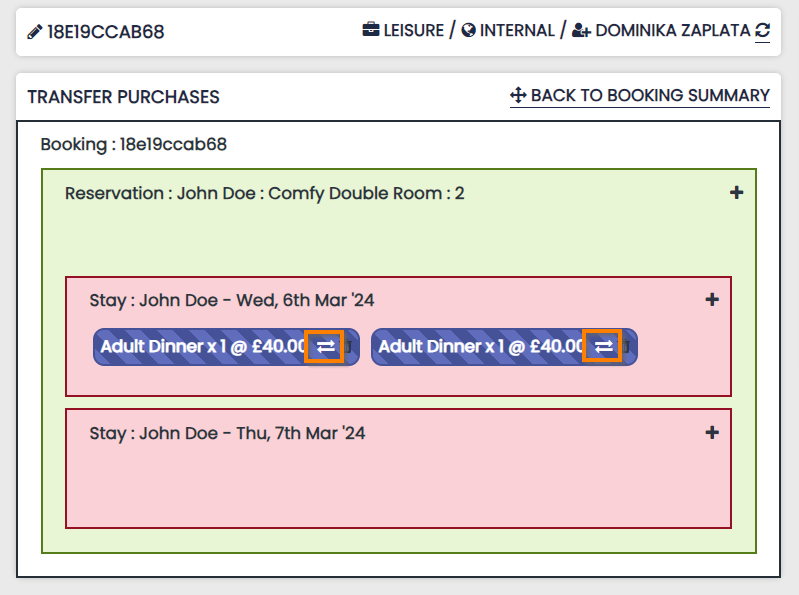
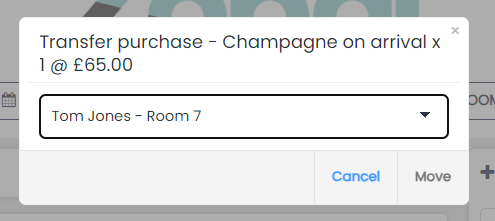
If a posting or item needs to be moved from one booking to another this is possible by clicking the two arrow button highlighted below.