Availability Page
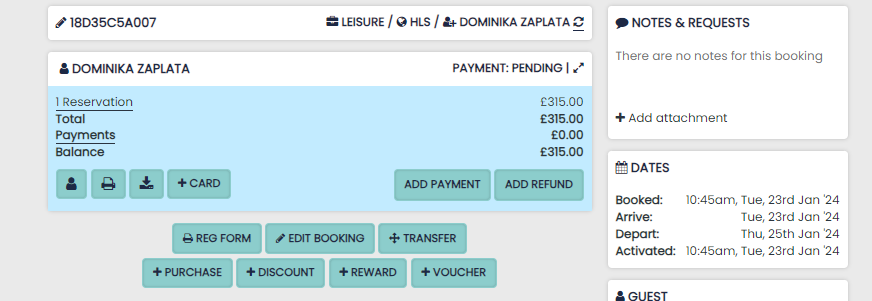
The Availability Page or Booking Engine is a guest-facing and internal page which can be used to create Bookings.
Availability Page Topics
Overview
The Booking Engine is where Guests will be taken when they click the booking button on your website.
This page will also be used internally to create bookings for new Guests.
Checking Availability
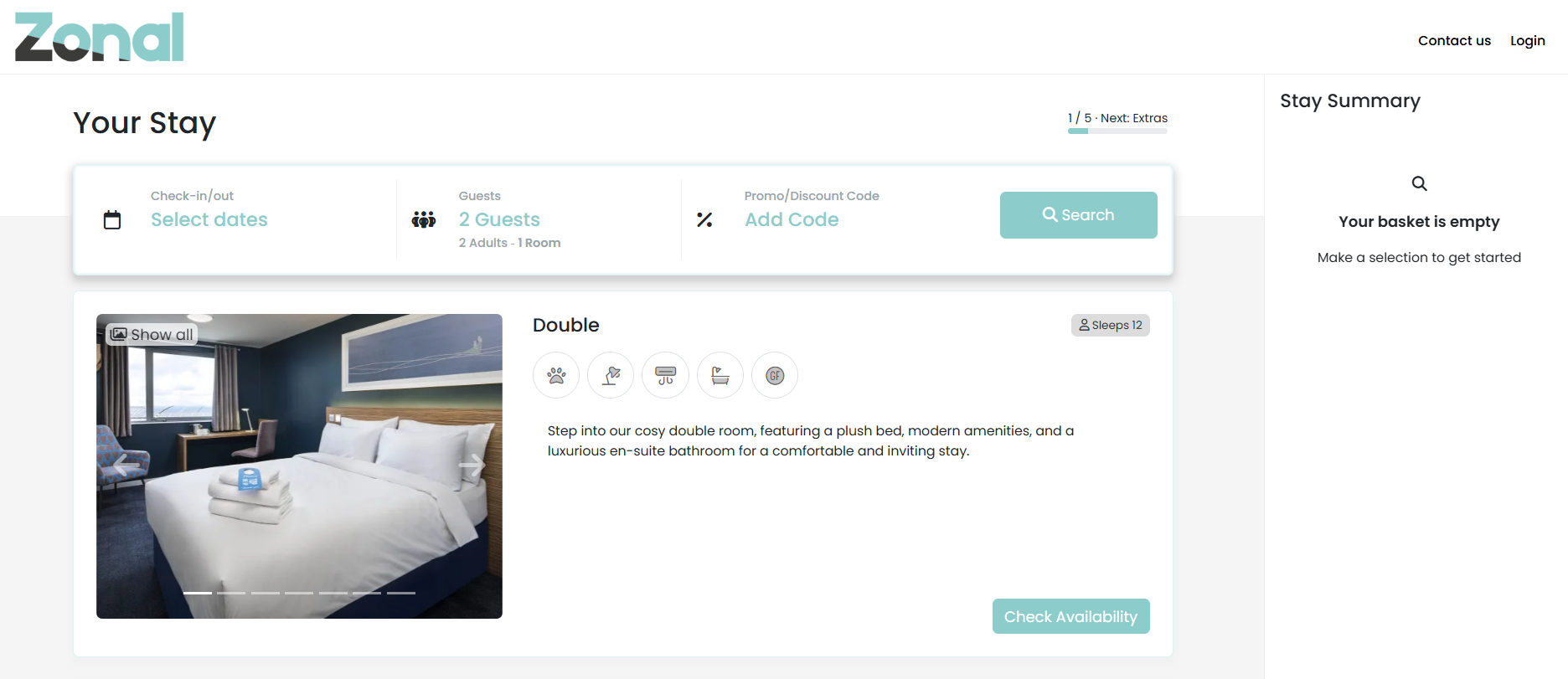
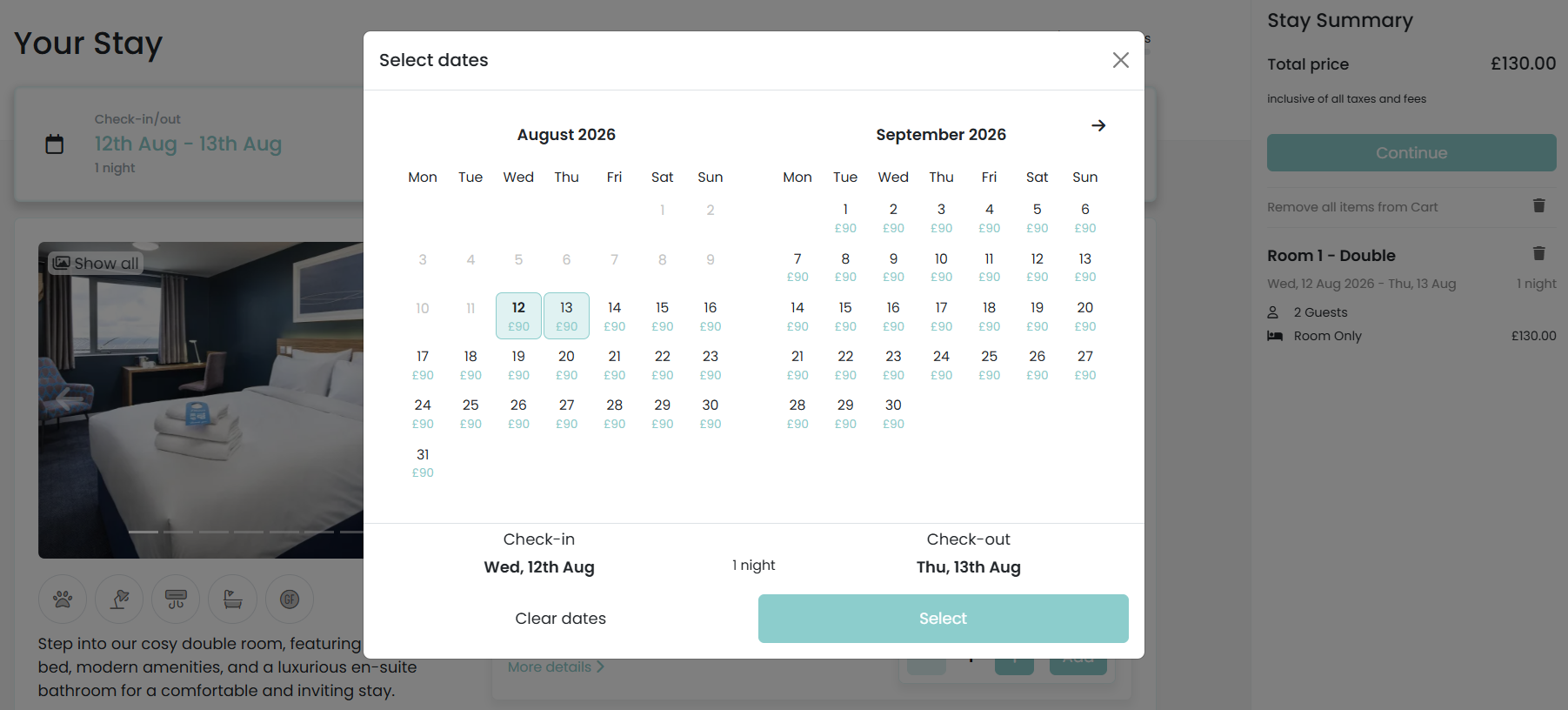
Check availability by entering your desired check-in and check-out date then selecting ‘search’.
Selecting Room Type
Once you have searched for the desired availability, all rooms available for that date will appear.
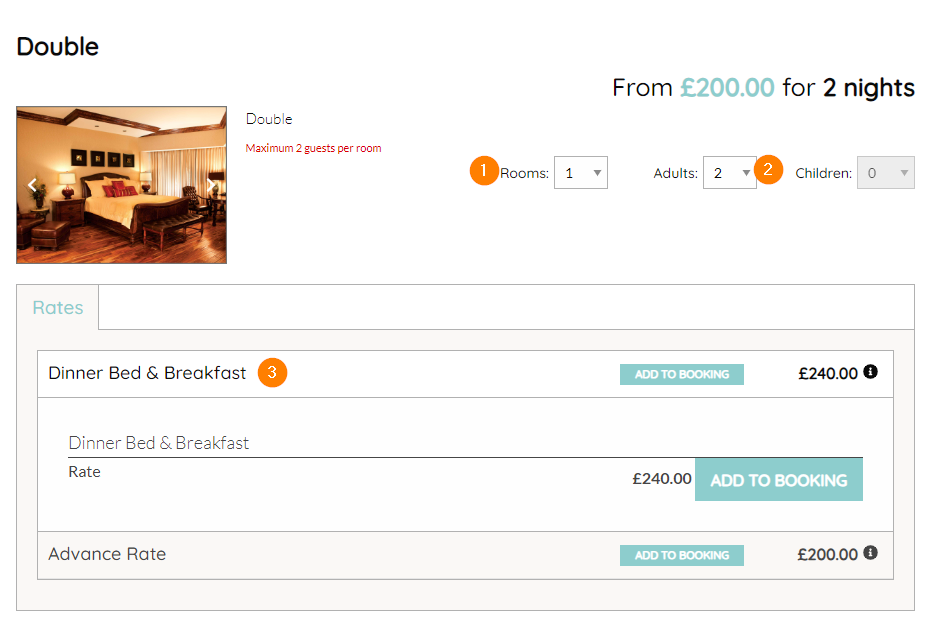
Beside the Room Type, all available rates will appear.
Here you can also select:
-
The number of rooms you’d like to book
-
View a description of the rate
Once you have selected the above, select the ‘add to booking’ to add the rate to your basket and continue with your booking journey.
Step 3: The reservation will appear under the ‘Booking Summary’, to continue to the next step select ‘next: enhance stay’.
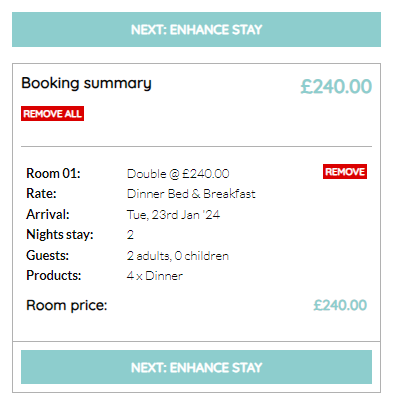
The reservation will appear under the ‘Booking Summary’, to continue to the next step select 'continue’.
Enhancing your Stay
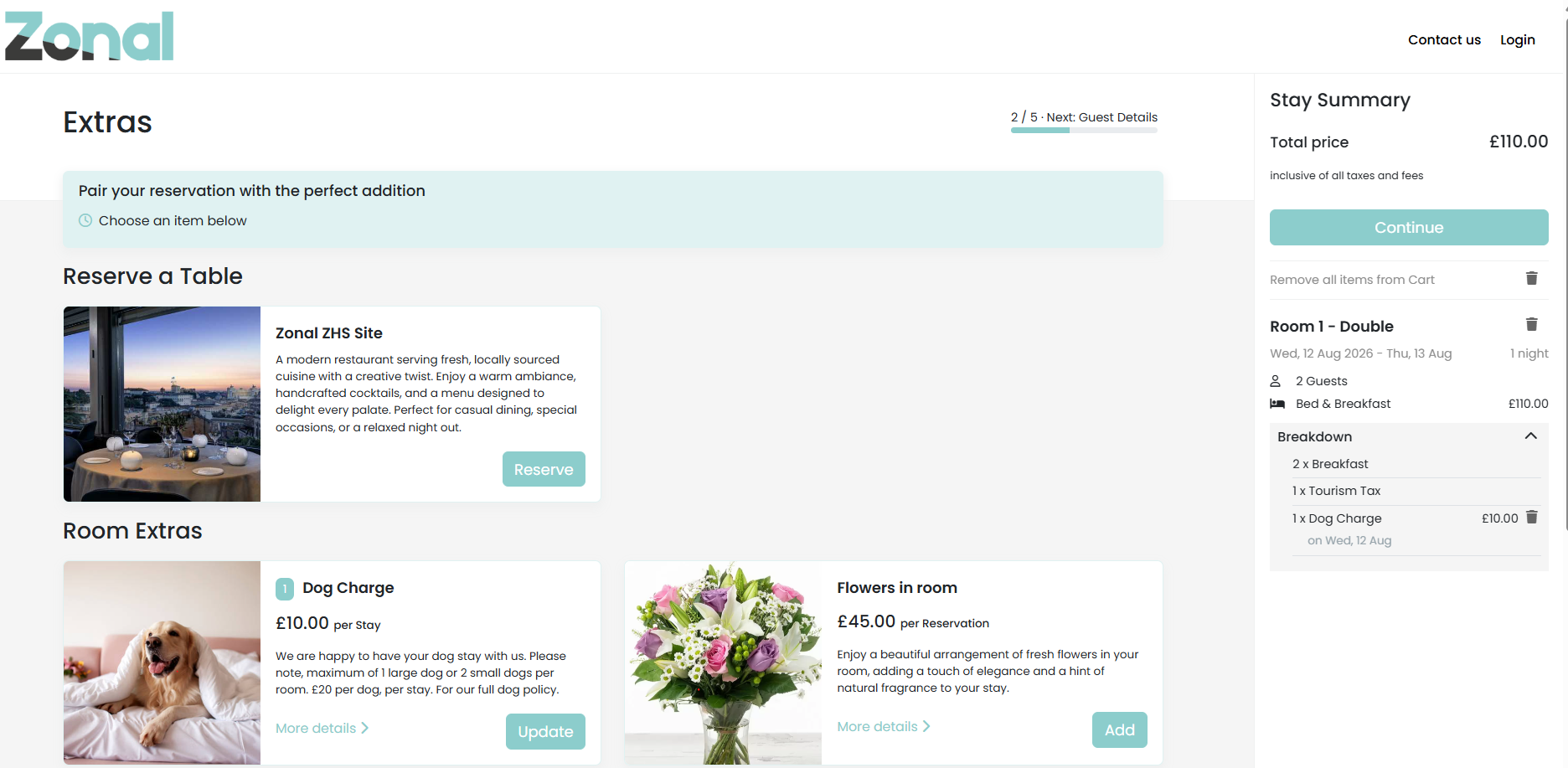
Here you will see a list of products which can be added to your booking. Click on the desired product to view a description and select quantity or simply select ‘add to booking’.
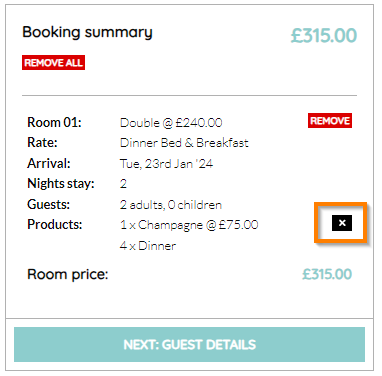
You will see the selected product within your booking summary, to remove you can click the ‘X’ button highlighted below. Clicking the red ‘Remove’ button will remove the room from the reservation.
Select ‘Continue’ to continue with your booking journey.
Guest Details
Mandatory fields are marked with an asterisk. However we recommend that you gather as much guest information as possible.
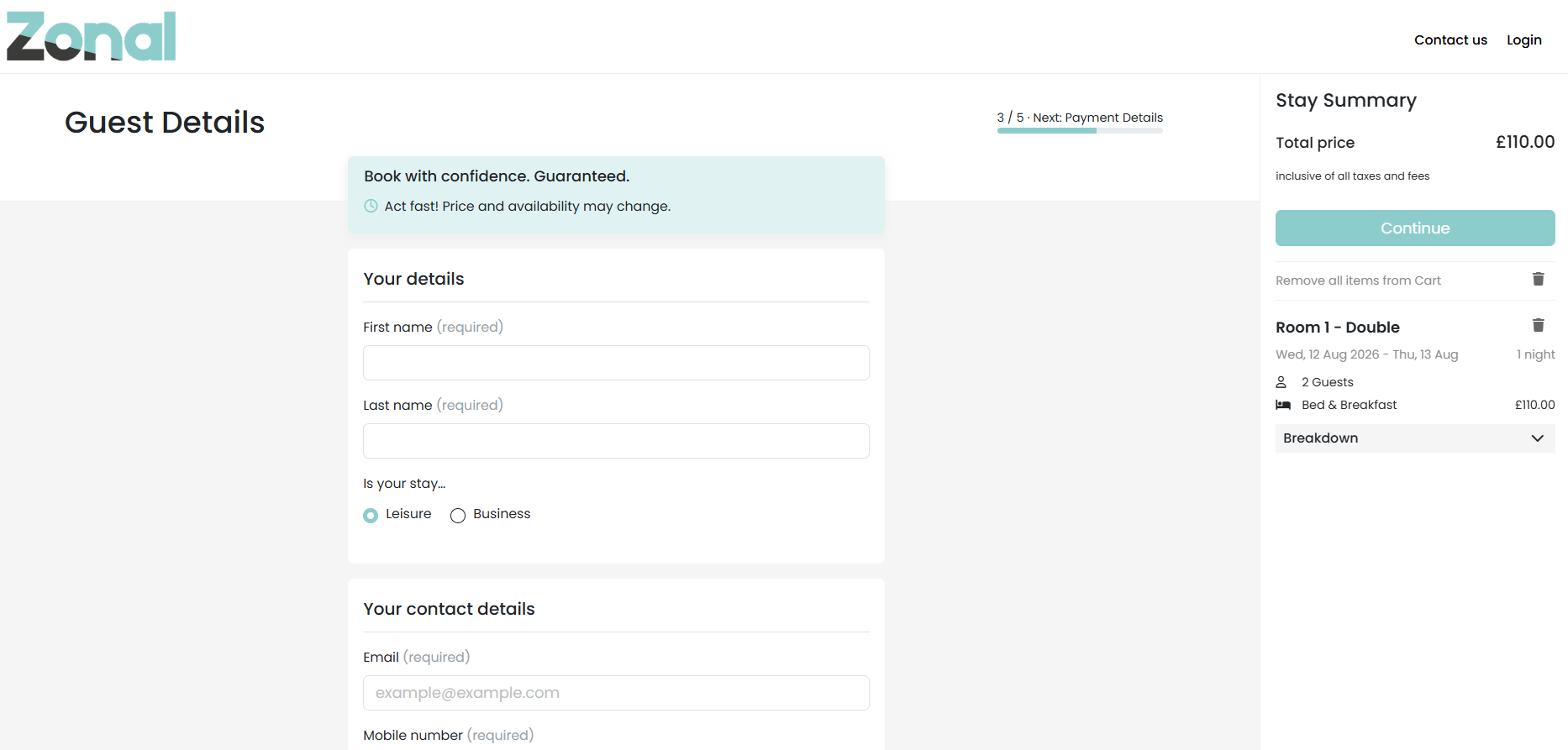
If you do not know the guests email address you can put their name@example.com, ie. joe.bloggs@example.com – this way the system knows that you have used a dummy placeholder email which removes the auto-email button from the booking.
Our postcode finder is linked to Royal Mail for an easier booking journey and will auto populate address details.
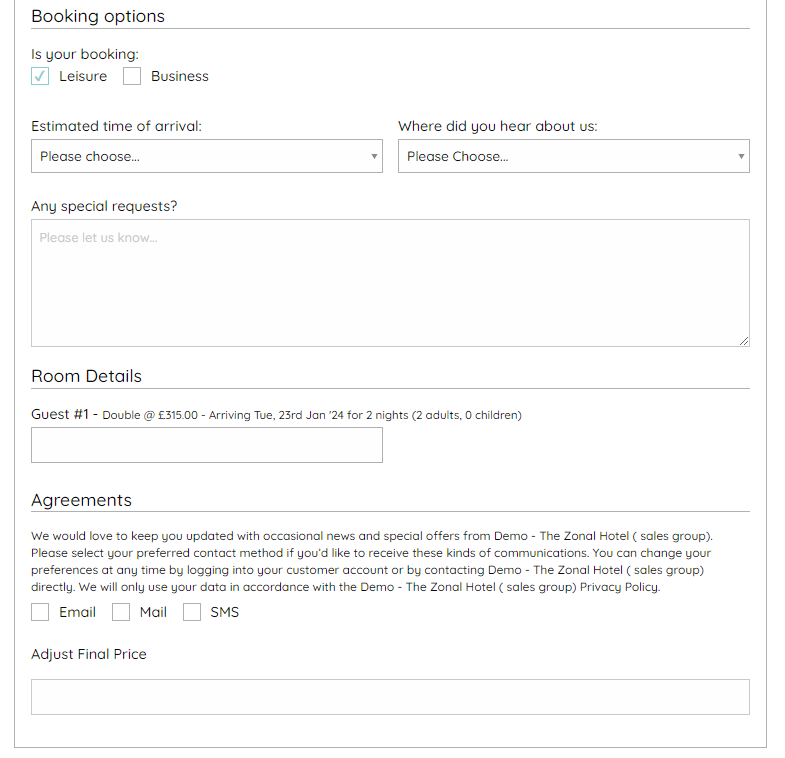
Payment Details
Staff members have the ability to skip this step by selecting ‘confirm booking’ depending on the sites settings. Guests creating reservations will have to enter payment details in order to complete their booking journey. for more information please visit our Module on Payment Gateway.
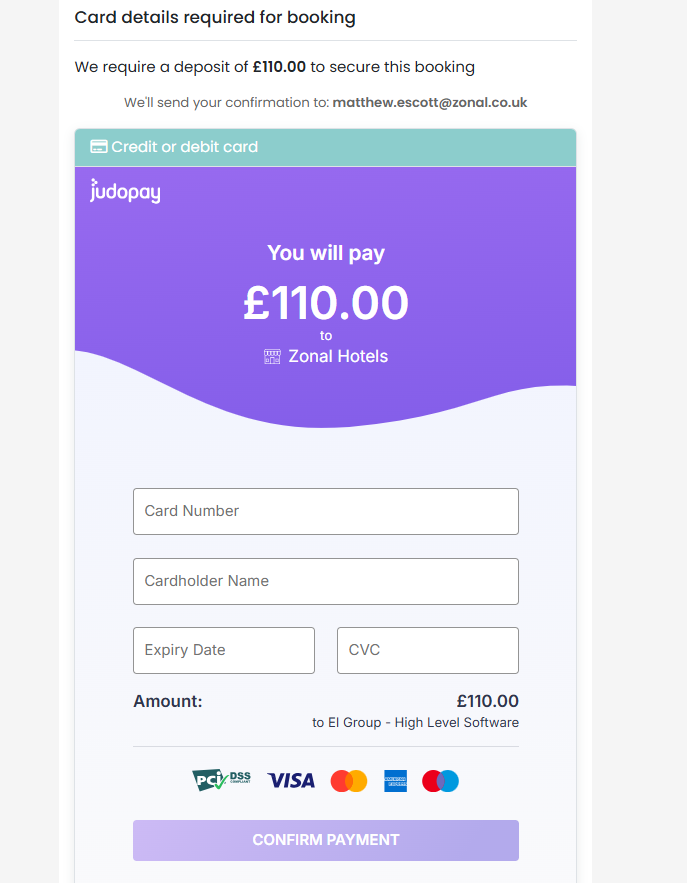
Once card details are entered, select ‘Submit’. The card will be pre-authorised by Judopay to ensure that it is valid.
If you are logged in as a staff user, once the booking journey has been completed you will be taken to the Booking Hub where you can make any desired changes. For more information please see our Module on Booking Hub.