Guest Profiles
Guest Profile Topics
Overview
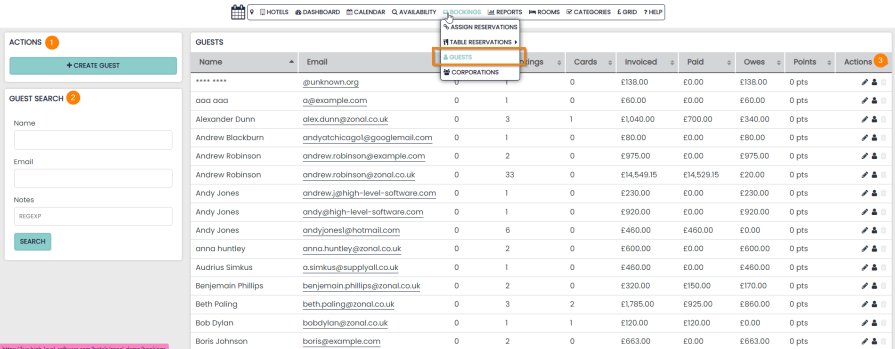
Clicking on the Guests page will display all Profiles that have been created in the PMS. They are displayed in alphabetical order.
-
A Guest Profile can also be created manually
-
The guest search panel is displayed on the left hand side and requires just 3 characters to display results
-
The Actions column on the right hand side is where you can:
-
Edit the Profile
-
View the Profile
-
Delete the Profile (only when 0 bookings exist)
-
Individual Guest Profile
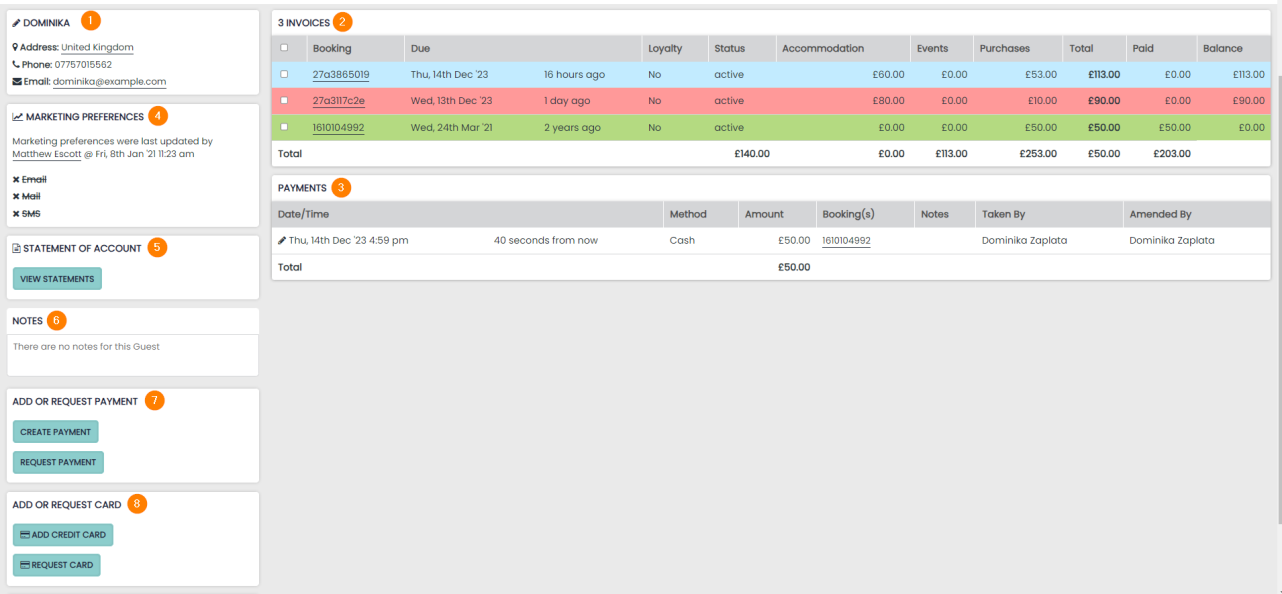
Each Profile displays the following data:
1 Profile contact details - use edit pencil to amend
2 All Bookings assigned to the Profile
- Green – Paid
- Red – Overdue
- Orange – Part paid
- Blue – Not yet due
3 All Payments made on assigned Bookings
- Links to all Bookings
- Any payment notes
4 Marketing Preferences - edited via the profile edit pencil
5 Statement of Account – more details
6 Guest Profile Notes
- These will display on all Bookings
7 Add or request payment
- Create a payment
- Request payment via email / SMS
8 Add or request card
- Add credit card
- Request credit card via email / SMS
Guest Profile Payments
To take or request a payment from the Guests profile, select the bookings which you’d like to process the payment for and then chose an option from the ‘add or request payment’ section.
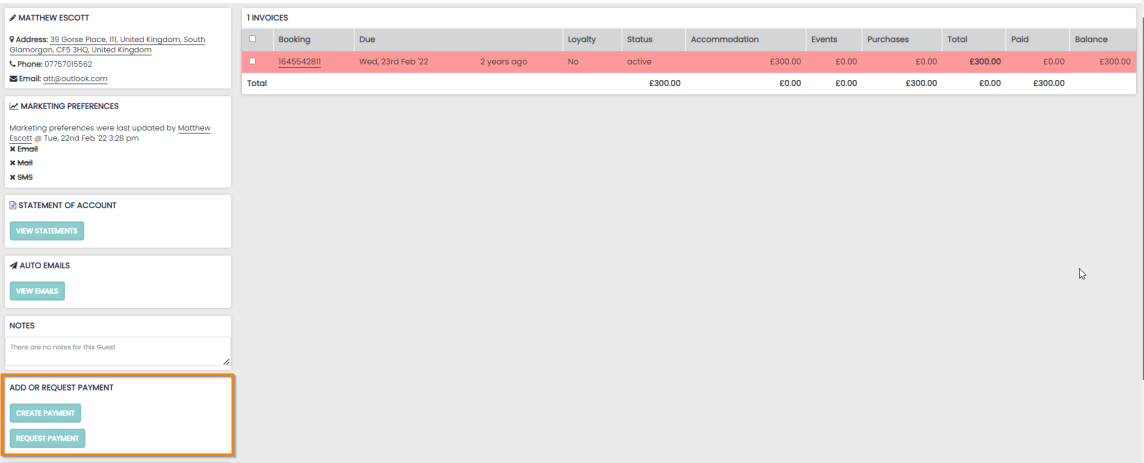
Guest Profile Payments will give the same option as any Payment logged on a Booking. Select whether you’d like to process or record a payment.
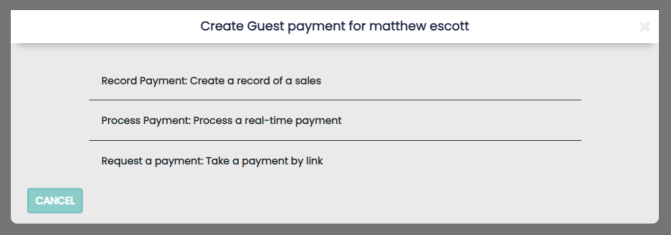
All Bookings that have an outstanding balance on the Profile will be listed and can be selected using the tick-boxes on the left hand side.
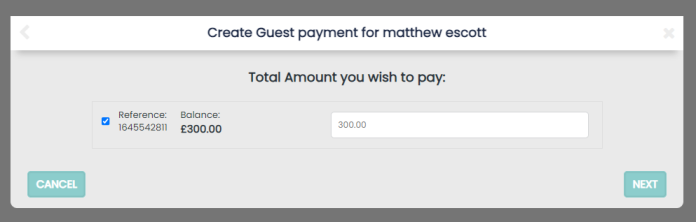
Each payment amount that is to be recorded / processed must be entered and a total will be generated and displayed at the bottom of the panel.
Update Guest Profile
To update the details attached to a Guest profile, select the edit pencil in the actions column.
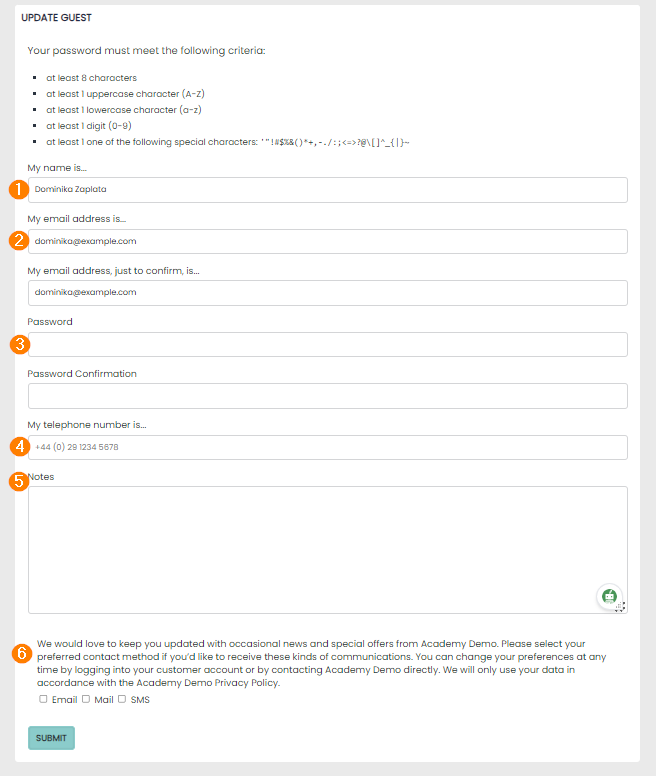
Each Profile displays the following data:
1 Guest Profile Name
2 Email Address assigned to all Bookings on the Profile
3 Password – This is the password the Guest will use if logging into the Booking Engine. This has to be updated by the hoteliers using PMS only
4 Telephone Number displaying all Bookings
5 Guest Profile Notes – These notes will display on every Booking assigned to the profile (even historical bookings). An example would be ‘VIP Guest’
6 Market Preferences – Updating the email preference will change how the Automated Emails for marketing purposes will be sent out