Pre-Order Troubleshooting
Welcome to the troubleshooting guide. This section is designed to help you quickly identify and resolve common issues, with clear explanations of possible causes and practical steps to fix them. Whether you’re dealing with errors, unexpected behaviour, or setup challenges, you’ll find straightforward solutions to get everything running smoothly again.
This page outlines some of the most common issues you may encounter, along with clear, step-by-step guidance to resolve them. Below, you’ll find a list of known problems, their possible causes, and practical solutions to help you get back on track quickly.
In many cases, errors occur because of missing or incomplete configurations. The troubleshooting steps provided below will help you identify and correct these issues.
Pre-Order Error Topics
Troubleshooting
Below we have listed the common error questions we have received. Hopefully they can help you in resolving through minor configuration changes, alternatively, if these have not helps you, you can find support details in the Support Services section at the bottom of the page.
Click on a scenarios below for it's expanded solution steps:
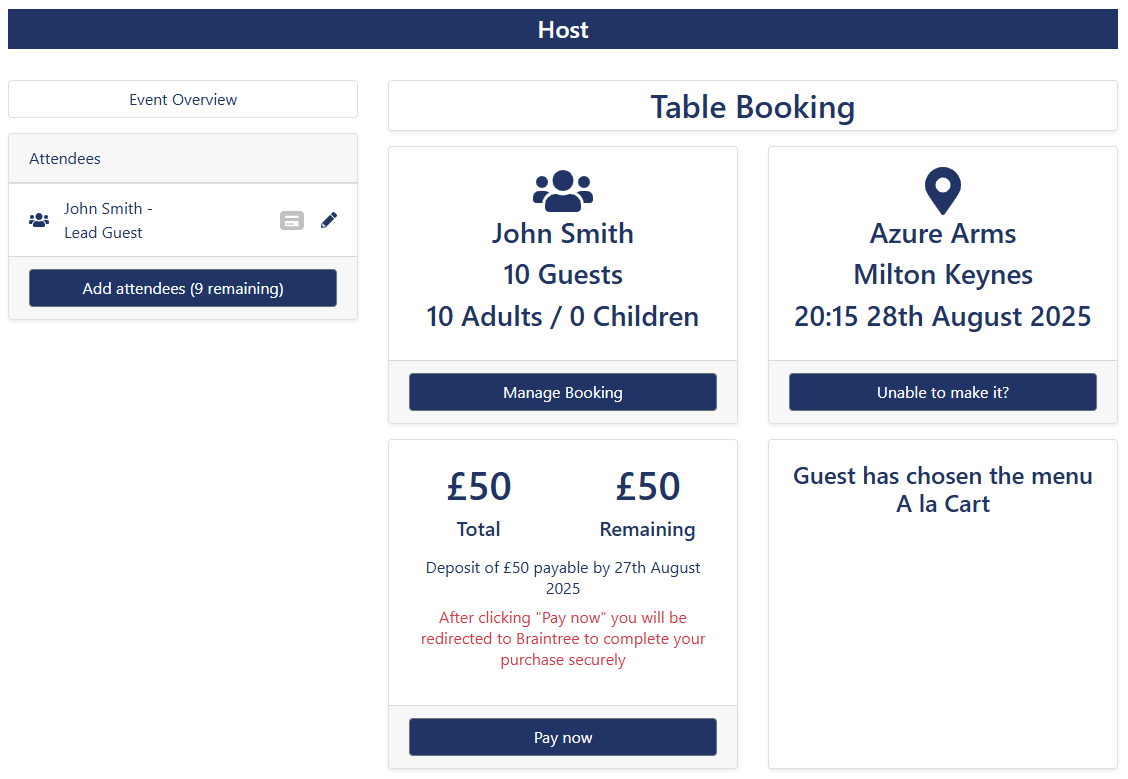
If within the Guest Portal, you can see the menu name, but there is no option to "Choose Meals", this will be due to Events being unable to pull the menu from the pre-order database. An example of how this looks within the guest view is shown below. Continue reading some of the troubleshooting steps that may help you solve this issue.
Troubleshooting this error will cover both the Events platform and the iOrder platform.
-
In Events: Check your Events Menu has been selected for "Open Pre-Orders".Navigate to Events Admin Access → Menus
-
View the Actions Column
“Open pre-orders”: This mean the menu is currently closed and requires opening for guests to make their selection. Click this to open the pre-order.
“Close pre-orders”: The menu is already open to allow pre-order selection.
If neither of the above are displaying this mean, there is no iOrder menu attached to the Events menu and so you'll need complete your configurations - go to the Creating Pre-Order Section in the Knowledge Base.
-
Select "Open Pre-Order".
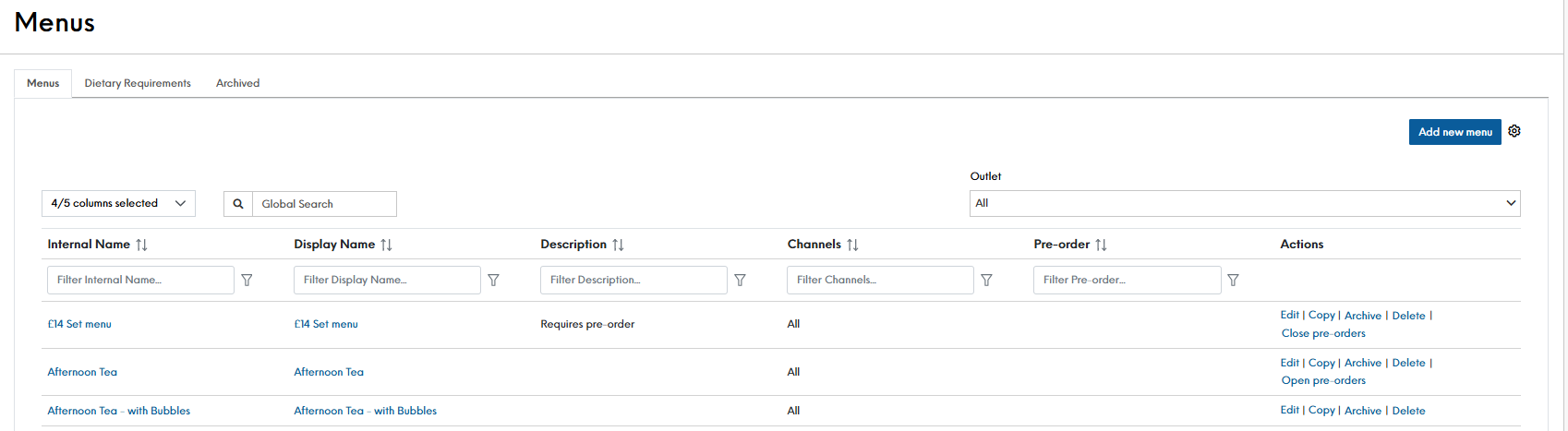
Once you select this option, we recommend making a new booking. With this new booking, check the guest portal. If the option to "Choose Meals" displays, you have resolved this issue.
-
-
In Events: Check your Pre-Order ScheduleNavigate to Events Admin Access → Menus
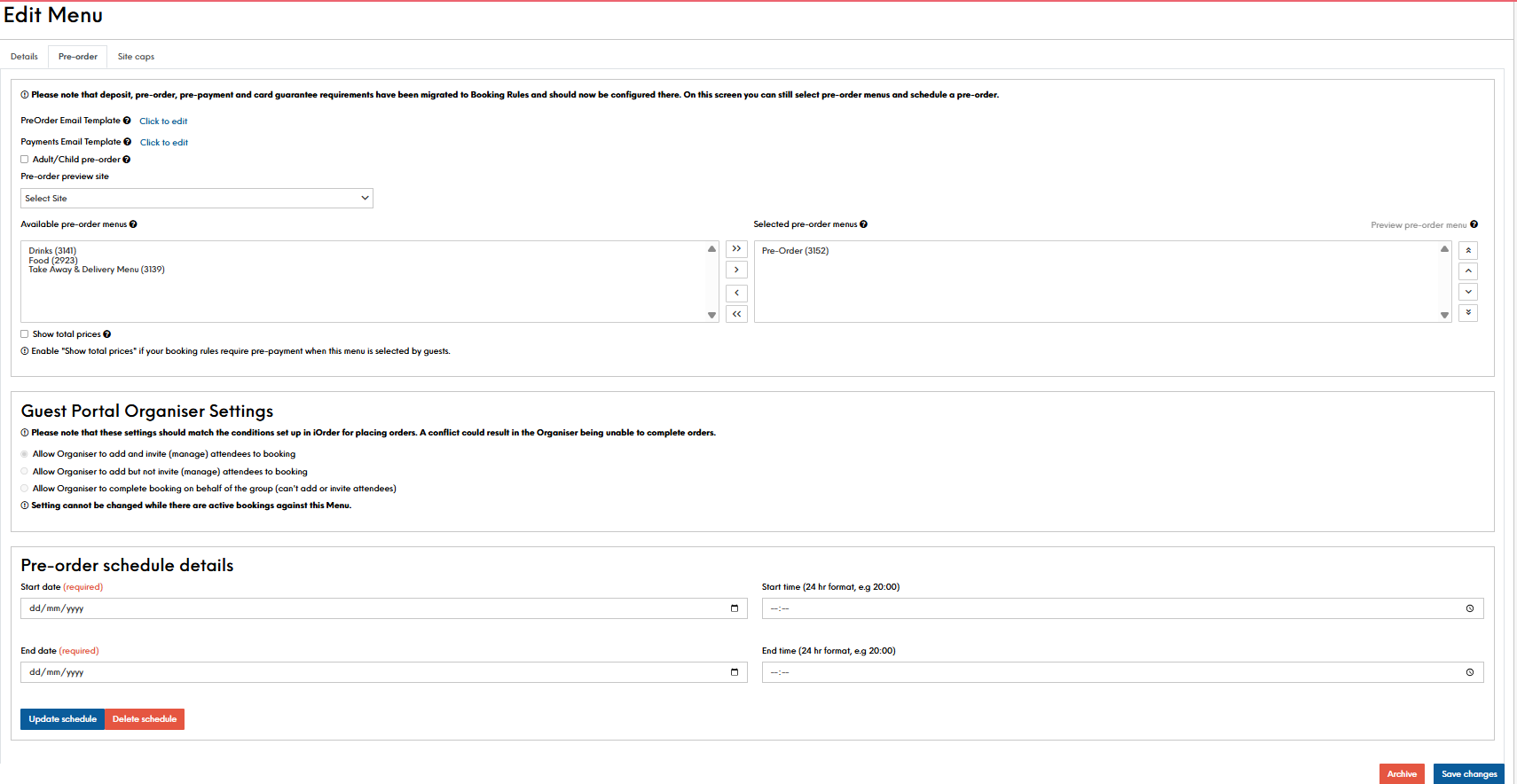
We often recommend, that in the majority of scenarios, the pre-order schedule is left blank. It's important to note, that if used, the schedule is for dates the customer dines, not when they can complete pre-order. You should check this setting to ensure you do not have a conflict in configurations.
On the pre-order tab, scroll to the bottom of the page to view the schedule details.
-
In Events: Check Booking Rules
A Booking Rule is used to define the ruling for each booking being made with a condition and an action. In the instance of a pre-order being required, you will need to have set up a Booking Rule condition stating either the number of covers or menu selected, with an action stating a pre-order is required. Check that you have created your Booking Rule and it is enabled.
Navigate to Events Admin Access → Booking RulesWhen viewing Booking Rules, you may need to run some other checks to ensure your rule is being read correctly i.e., you may need to re-order rules, or check that the conditions and actions are defined accordingly.
-
Select to Edit the Booking Rule
Review the rule and make any required changes. When editing the booking rule, under Conditions, check the correct menu is selected along with any cover rules. Ensure the pre-order action is set up with the desired requirements (x days before the booking is due to dine or x days after the booking has been made). If a deposit is also required, ensure that its set up in the same rule as an additional action.
-
Click Save Changes
If any changes are made, once saved, we recommend making a new booking. With this new booking, check the guest portal. If the option to "Choose Meals" displays, you have resolved this issue.
-
-
In Events & iOrder: Check you have assigned the correct iOrder menu to your Events menu build.Navigate to Events Admin Access → MenusNavigate to iOrder → Menu Manager → Menu Overview
To do this, you will need to identify the iOrder Menu ID:
-
Open the menu within iOrder.
In the URL, the ID can be located (the number is after “id=” at the end of the URL).

You will now need to compare this value to that within Events menu build.
-
Navigate to Events Admin Access → Menus. Select to Edit the menu.
-
Select the Pre-Order tab.
In the "Selected pre-order menus" box, check the iOrder menu ID matches the ID displayed.
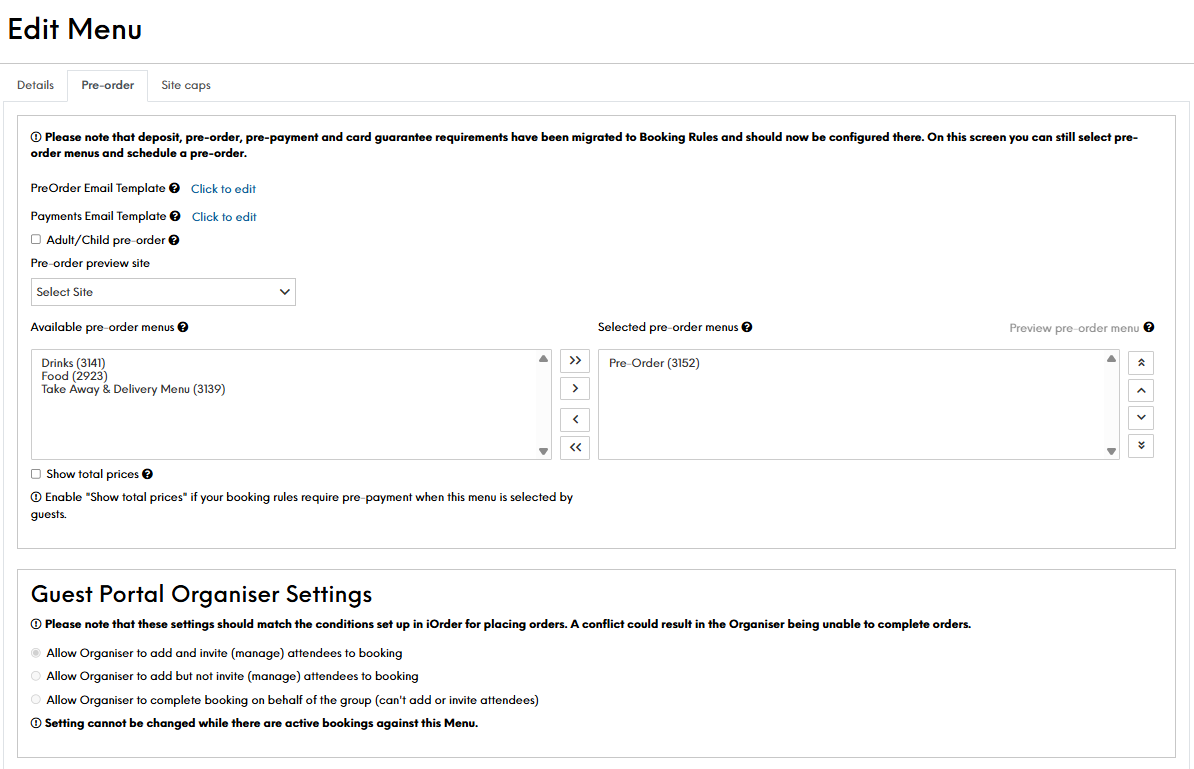
If you have selected the incorrect menu. Re-select the required menu.
-
Click Save Changes
If you have needed to change the iOrder menu, once saved, we recommend making a new booking. With this new booking, check the guest portal. If the option to "Choose Meals" displays, you have resolved this issue.
Top Tip: Within iOrder and/ or Events, within the menus builds, use the menu preview option. This also helps display any errors against Product within the menu you have built.Once fixed, Bookings already in the system (with the pre-order menu) will not be able to see the changes to that iOrder Menu change. A support request will need to be logged to update the pre-order menu for existing bookings. Once completed, any guests that have that have already ordered their choices will be removed. -
If the guest can navigate to the pre-order menu in the guest portal but products are not displaying, it is usually an error with product configuration. In the below screen shot, this error shows itself in the course not having a drop down.
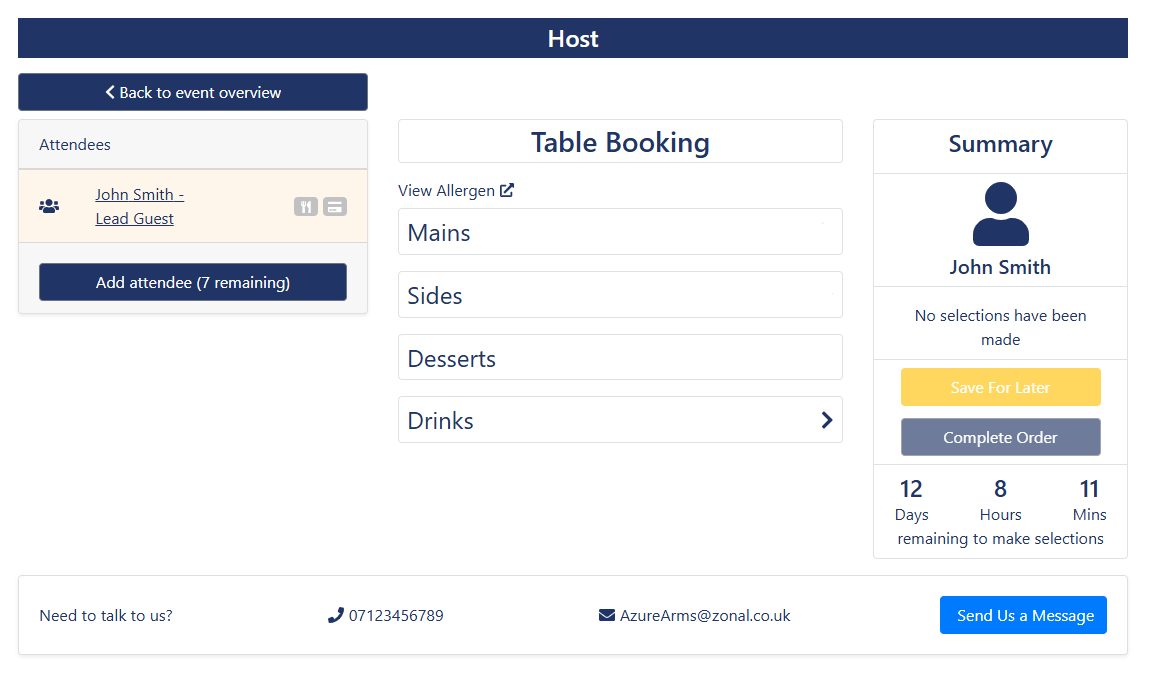
In iOrder: Check that the Products have been correctly configured iOrder.
To do this you will need to:
-
Select the required Menu
-
Select Build Your Menu
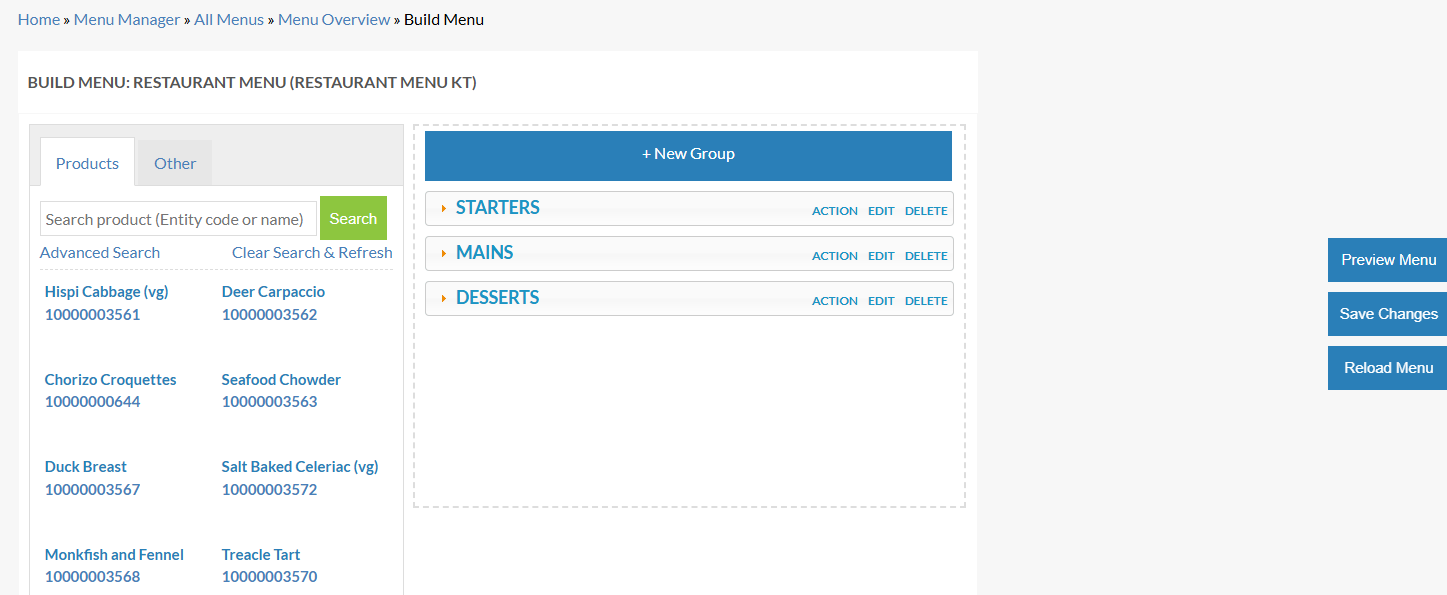
-
Select to Preview Menu
-
Select Site from the drop down
-
Select Preview Menu on the right of the page.
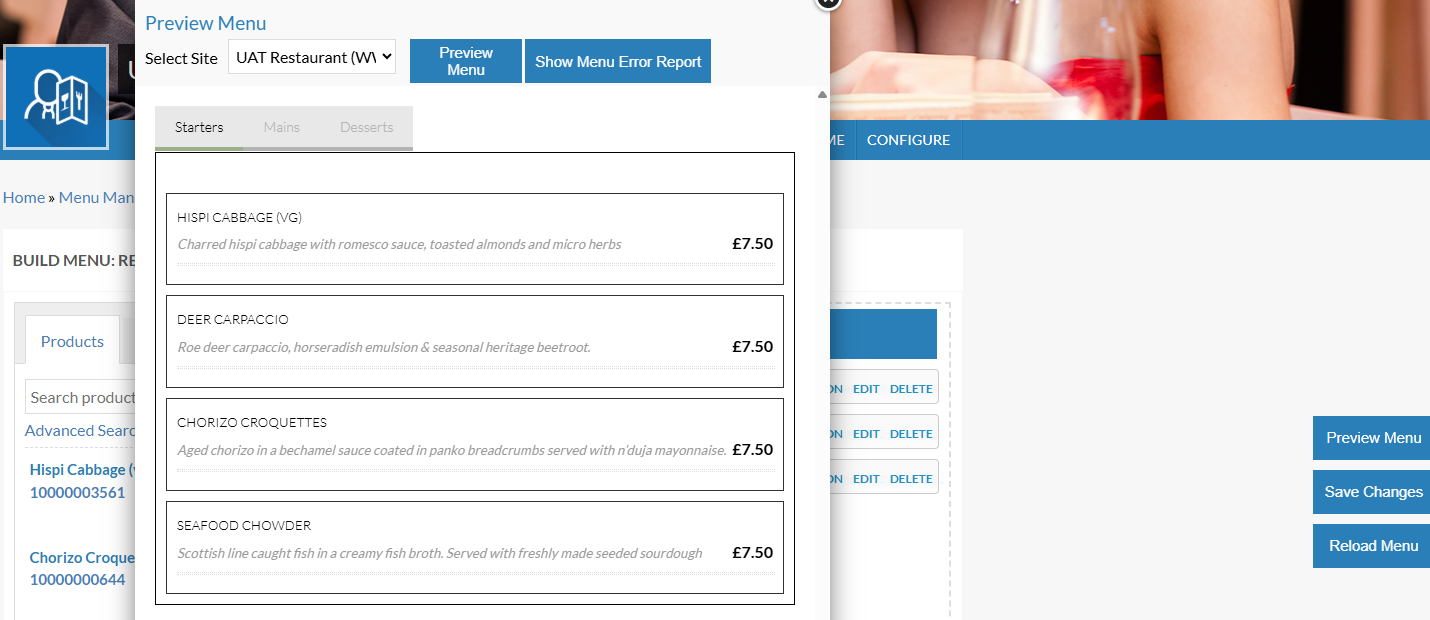
-
Select Show Menu Error Report
When attendees save their menu choices in the guest portal, a system check is done from Events to Aztec POS. In this check it looks to ensure the products are available and priced. If your items are not available and priced accordingly, you will be presented with the below error message:
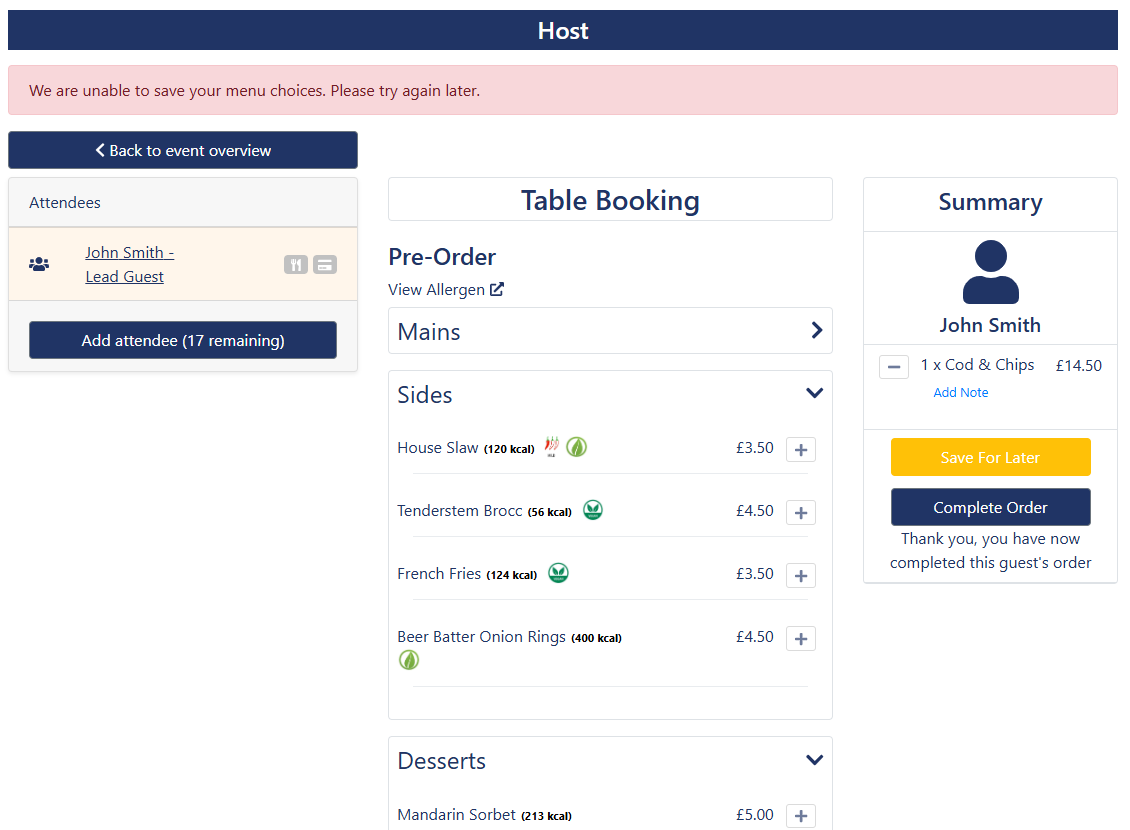
Suggested areas to check:
-
In iOrder: Check the Menu Build Preview
Check your menu build preview in the iOrder platform. Take action on any product errors that display. If no error displays within the menu preview, but you still get this message when saving, check to see if the guests order can be seen within the Events Report on the Pre-Order Report.
-
In Events & Aztec: Check the Booking History for Product PricingNavigate to Events Host Access → Bookings List
Check the bookings History. Are you able to see a ‘502 Error’? - similar to that below:

The above "502 Error" is likely due to a price missing from Aztec. To rectify this, you need to add standard pricing to your product(s).
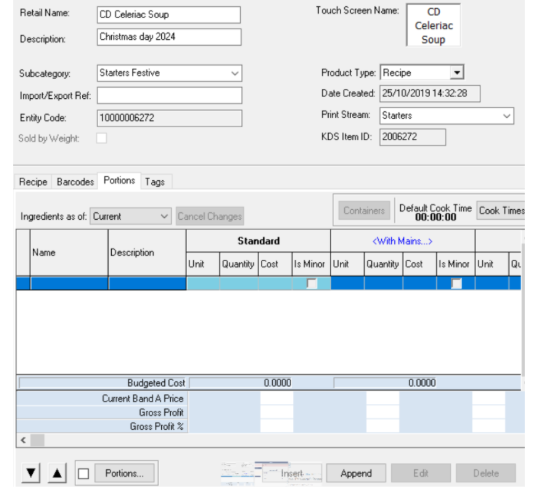
Pre-Orders made through the Events Guest Portal are sent to the POS using the defined settings of your "Send Time". This usually triggers between the hours of 4am - 7am. When pre-order attempts to send, it will display any send errors in the Host App Chef report.
Once a pre-order reaches the POS, they are stored on the till as delayed orders.
To view the orders on the POS follow the below steps:
-
Navigate to Pick up Account on the till (often found in Options).
This will display all open accounts within the sales area.
-
Use filtering at the bottom of the screen to display only Delayed Orders.
If the venue as multiple sales areas, it is recommended that the Sales Area Account filter is deselected to show all orders across the venue.
-
Ensure all bookings that have a successful pre-order are displayed.
There are multiple reasons why this message can appear, the most common being that a product is out of stock.
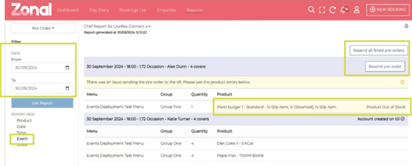
Follow the below to troubleshoot steps below for if a Product is Out of Stock:
-
Navigate to the Reports Tab.
-
From the Report Categories, select Pre-Order.
-
Using the date range selector, amend the start and end date to the current day.
All pre-orders will display. Using the Event view of the report, users are presented clearly with the reason for a pre-order not sending.
Should the reason be for "Product Out of Stock" you will need to go to the POS and put the item back in stock. -
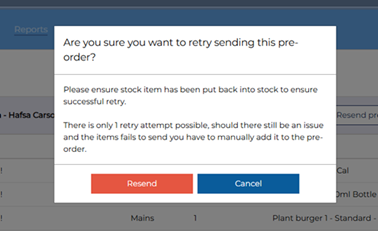
Only once your item is placed back in stock, should you then choose the option beside the booking to Resend Pre-Order.
If there are multiple bookings displaying the error and it links to the same item being out of stock, you can select to "Resend all failed pre-orders".