Archived
Auto archiving is important functionality for ensuring you are always presented with 'active' Occasions / Menus. For the Host user, once an Occasion / Menu has been Archived, it will be hidden from the booking journey and for creating a booking within the Host apps.
For the Admin user responsible for maintaining good housekeeping, this feature greatly enhances the managing of occasions and menus. As the Admin user will be presented with the correct 'Active' Occasions / Menus and be able to navigate to the Archived items. This will also have a impact on the time it takes for the items to load and make them easier to find.
Archived Topics
How to Archive
Manual Archiving
The option to archive will be in the actions column for occasions and menus as shown below:
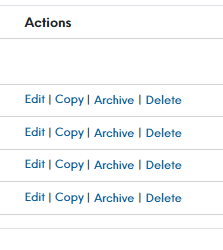
When you select to manually archive an occasion or menu, a message will pop up to either state:
-
That you can Archive, or Cancel
By selecting Archive you will be confirming you action. If you select to Cancel, it will ignore the action -
That the Occasion or Menu "cannot be archived as it is linked to active bookings"
If a future booking is allocated to the Occasion or Menu you are trying to manually archive, then you will continue to get this message. We recommend using the Bookings List to locate future bookings, along with the required filters. You will need to edit the bookings and re-assign them to an alternate occasion and/ or menu
You can also unarchive from this page as well as check when this occasion / menu was archived
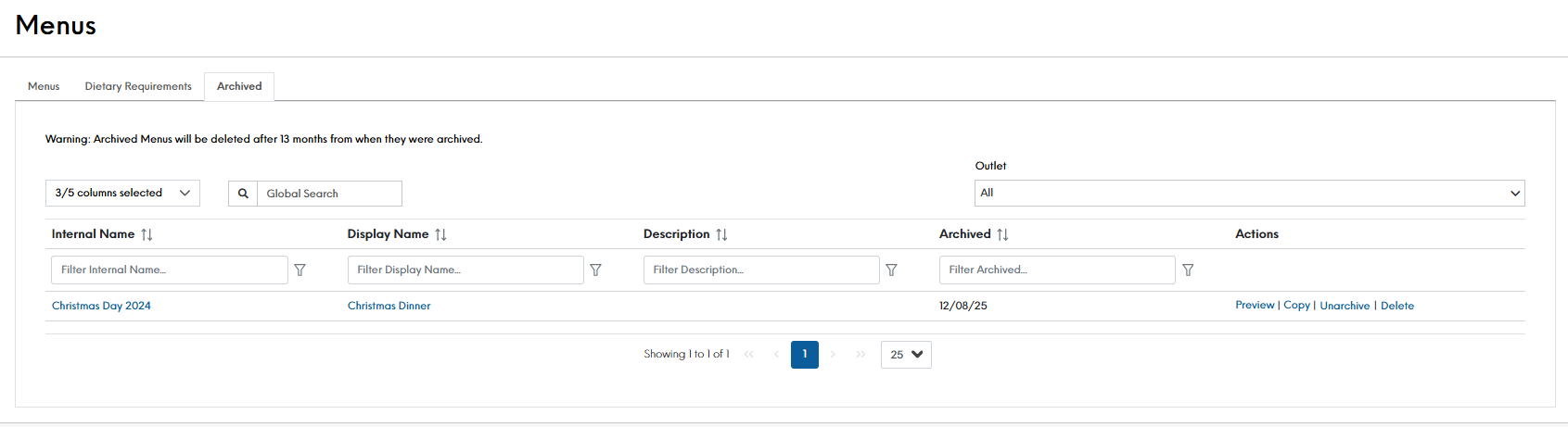
Auto Archiving
There is the ability for an occasion / menu to be automatically archived. We have tied this into the scheduler, so once the scheduled date OR recurs until date has passed, then the occasion / menu will be automatically archived.
If there is an occasion / menu that you may wish to never be archived regardless of it's schedule, there is also the option to set the occasion / menu as "Do Not Archive". This will prevent the occasion / menu from being manually or automatically archived.
Managing Archived Items
To manage Archived Occasions / Menus, you will need to go to the tab named Archived. This can be found on both the Occasion & Menus configuration sections as show below:
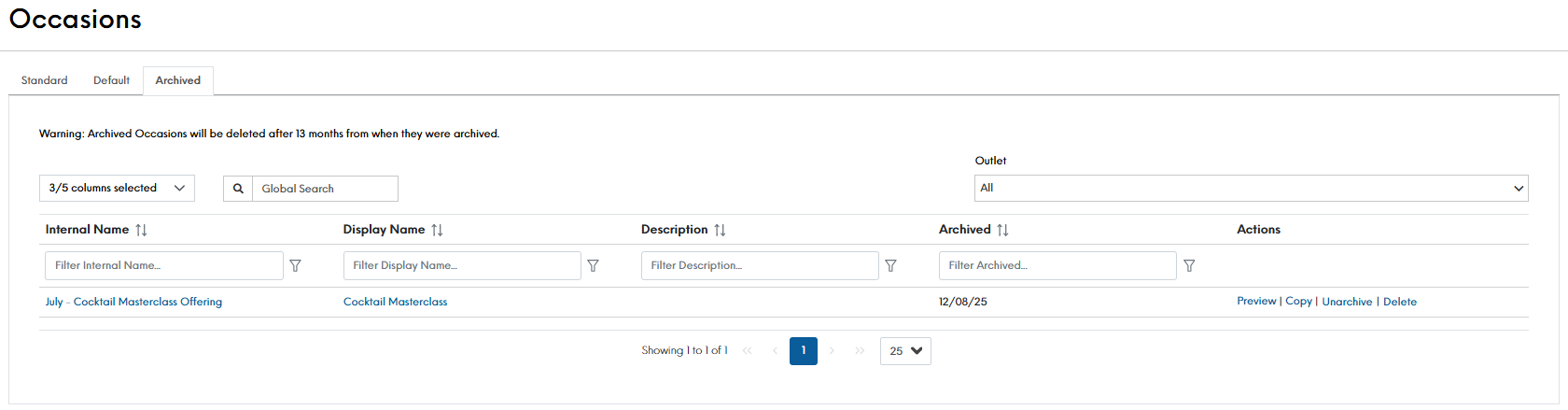
Within the Archived tabs, you have the ability to:
| Fields | Description |
|---|---|
|
Select Columns |
By default, the system will automatically display 3 out of 5 available columns. Use the drop down menu to select additional columns, including: Display Name, Description, Channels, Archived, and Auto-Delete Date |
| Global Search |
Use the search bar to quickly find items across all displayed columns |
|
Re-order Results |
Click the arrows next to a column header to sort its contents in alphabetical order. Click again to reverse the order |
|
Filter Columns |
Apply filters to any column to narrow down results. Filters can be applied individually to a single column or combined across multiple columns for more specific searches |
|
Preview |
Opens the selected item in a read-only mode, allowing you to view its configuration without making changes. To edit, you must first unarchive the item. Click Cancel to return to the Occasion or Menu overview page |
|
Copy |
Creates a duplicate of an archived item in a new window where you can edit its details. Once saved, the copied item will appear in the live list (not the archive) |
|
Unarchive |
Moves an archived item back to the live list. A confirmation message will appear; select Unarchive to proceed. If you do not update the schedule or enable the Do Not Archive option, the system may automatically archive it again |
|
Delete |
Permanently removes the item. A confirmation message will appear; select Delete to confirm. This action cannot be undone. Select Cancel to keep the item |