SMS
SMS functionality allows automated text messages to be sent directly to guests as part of their booking journey. This can include confirmations, reminders, updates, and cancellations.
SMS is important because it provides a fast, reliable, and highly visible way to communicate with guests. It reduces no-shows by reminding customers of upcoming bookings, improves customer experience through timely updates, and helps venues manage bookings more efficiently.
To enable SMS configurations within your Events system, you will need to reach out to your Account Representative. They will need to get this activated for your Estate.
SMS Topics
Configuring an SMS Template
Follow these steps to configure an SMS template:
-
From the list of template headers, click Edit
An editor window will open. From here you can edit the SMS text as well as insert from the Dynamic Input fields
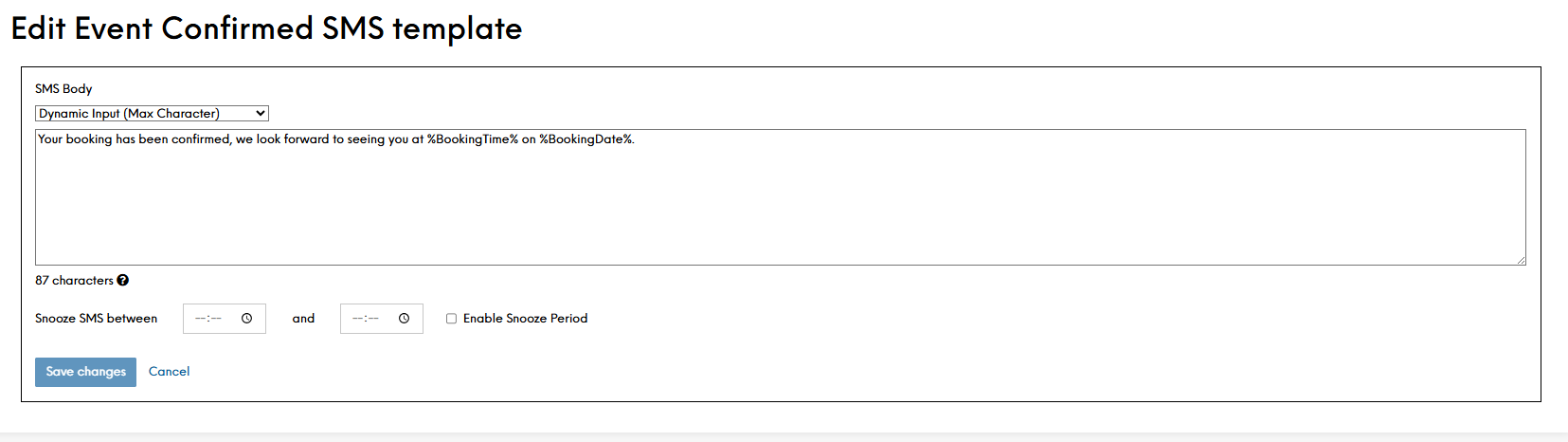
Some SMS templates will offer additional settings, similar to Email triggers, for additional reminders based on actions. Actions such as requiring a pre-order, pre-payment or deposit - additional reminders can be issued with links to the guest portal for them to complete the outstanding tasks.
-
Click Save Changes.
Enabling SMS Templates
Viewing the enabled option within the SMS tab is a quick way to view what is and is not sending for your estate. You can enable/disable each template as you like with the toggle.
Follow these steps to enable an SMS template:
-
Locate the template name
-
Tick the box in line with the template
-
Click Save Changes
Once enabled, and if the site is configured to send SMS', they will trigger automatically.
Turning SMS Sends On
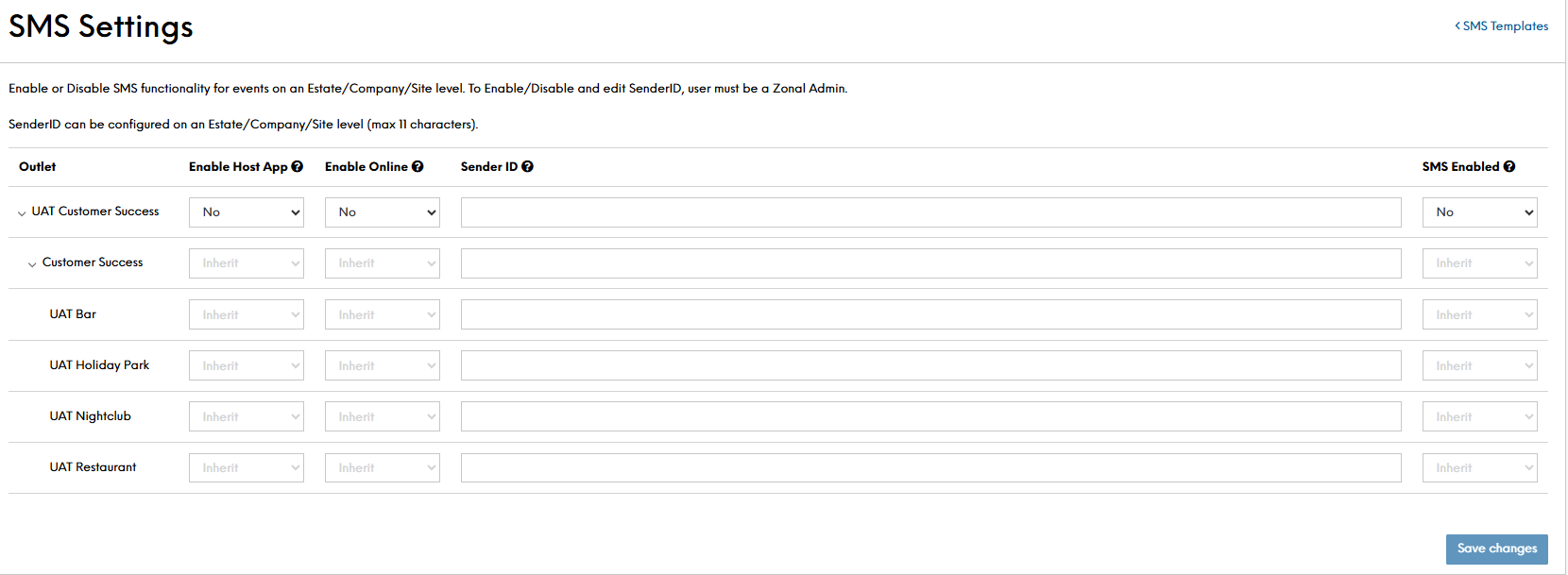
To enable SMS and allow the templates to now be sent from events, you need to navigate to the SMS settings page located at the top right of the page behind the cog:
-
Click the cog
-
Using the Outlet drop down, locate the site you want to enable
-
In the Enable Host App column, select Yes or No
If enabled, SMS messages will be sent out to customers once their booking is added via Host apps -
In the Enable Online column, select Yes or No.
In enabled, SMS messages will be sent out to customers once their booking is added via online bookings -
Enter a Sender ID
This can only be changed by a Zonal Admin User and only if SMS is not currently enabled. Max 11 characters -
In SMS Enabled column, select Yes or No
Enable or disable the SMS functionality can only be changed by a Zonal Admin User. To amend this setting, you will need t contact your Account Representative.
SMS Sender ID
In order for a Sender ID to be valid, our network provider applies a series of controls and restrictions aimed at protecting businesses and customers by reducing the likelihood of messaging scams and fraud.
In order for a Sender ID to be configured for your Estate, you will be required as part of the set up to provider two documents:
-
A signed letter of authority
-
A business registration certificate OR business utility bill in the last 3 months
To find out more about this, reach out to your Account Representative who will be able to supply templates and better help set expectations and time-frames.
Dynamic Input Fields
Dynamic input fields allow you to personalise SMS templates by automatically inserting booking-specific or customer-specific information, such as the guest’s name, booking date, time, or venue.
The main reason for using them is to make messages feel relevant and tailored - much like when building email templates. For example, instead of sending a generic reminder, a dynamic field can generate:
“Hi Sam, your table is booked for 17:30 on Fri, Sep 26 at The Oak Restaurant.”
This not only improves the guest experience but also reduces confusion and ensures that important booking details are always communicated accurately.
Dynamic fields available within SMS configurations are:
| Dynamic Field | Max Characters | Format |
|---|---|---|
| Guest First Name | 10 |
As provided within Events |
| Guest Last Name | 10 |
As provided within Events |
| Booking Date | 11 | DDD, MMM DD (e.g., Fri, Sep 26) |
| Booking Time | 5 | HH:MM |
| Booking Cancel Link | 27 | URL link to the Guest Portal |
| Booking Duration | 7 | Hh MMm (e.g., 2h 30m) |
| Booking Edit Link | 27 |
URL link to the Guest Portal |
| Card Guarantee Amount Required | 8 |
|
| Card Guarantee Cut Off Date |
20 22 |
If Estate is set for 24hr: DDD, MMM DD at HH:MM If Estate is set for AM/PM: DDD, MMM DD at HH:MMAM |
| Deposit Cut Off Date |
20 22 |
If Estate is set for 24hr: DDD, MMM DD at HH:MM If Estate is set for AM/PM: DDD, MMM DD at HH:MMAM |
|
Deposit Required |
8 |
£PP.pp (e.g., £25.00) |
|
Payment Link |
27 |
URL link to the Guest Portal |
| Pre Payment Cut Off Date |
20 22 |
If Estate is set for 24hr: DDD, MMM DD at HH:MM If Estate is set for AM/PM: DDD, MMM DD at HH:MMAM |
| Pre Order Cut Off Date |
20 22 |
If Estate is set for 24hr: DDD, MMM DD at HH:MM If Estate is set for AM/PM: DDD, MMM DD at HH:MMAM |
| Site Telephone | 15 |
Site telephone number pulled from Platform Services |
| Site Name | 30 |
Site name pulled from Platform Services (Display Name) |
| Covers | 3 |
|