Key Words
Key words enhance the booking experience for the user by showing key information for bookings in a quick glance. Things such as an area being dog friendly or a menu being gluten free. Quick, clear and reassuring, they can help guests find what matters most at a glance.
Key Word Topics
Adding Key Words
Follow these steps to add key words:
-
Click Add new key word
-
Define a Name
The name you give will be customer facing on the online guest journey -
If applicable, define an Occasion
-
If applicable, define a Menu
-
If applicable, define an Area
An example of a key word being placed against an Occasion, see below:
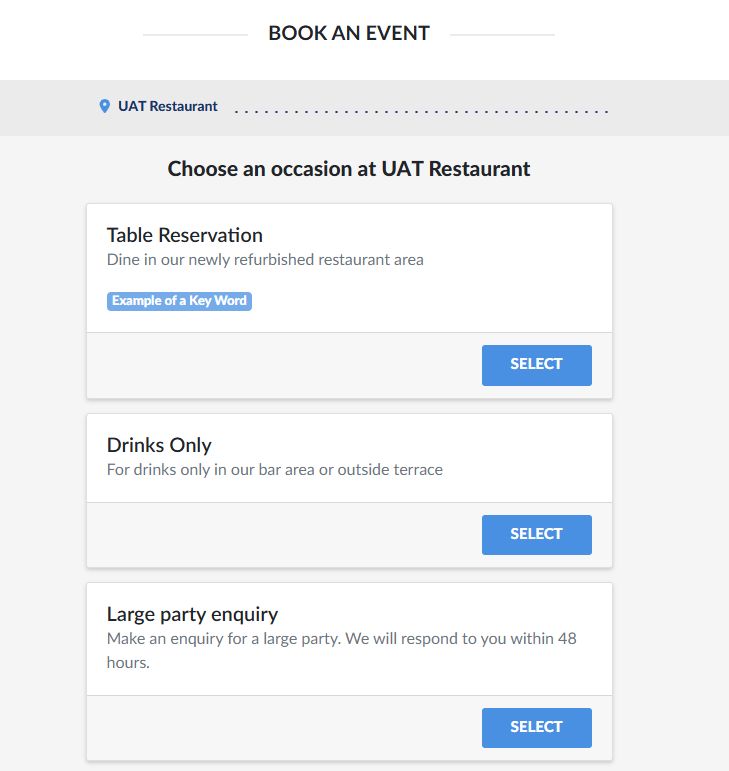 Once 5 key words can be attached to any of the above. If you have exceeded this, you will need to remove an attached key word to add another. If none of the Occasions, Menus or Areas are defined a key word, the key word will NOT appear on any journey step
 -
Click Save Changes.
Editing Key Words
Follow these steps to edit a key word:
-
In the Action column, click Edit
Make the required changes needed
-
Click Save Changes
Deleting Key Words
Follow these steps to delete key words:
-
In the Action column, click Delete
A pop up will display to ask "Are you sure you want to delete Key Word: "Name of key word"?
-
Click Delete