Dietary Requirements
Dietary Requirements within Events offers a more streamlined ability to collect guests' dietary requirements when making a reservation. This addition has the potential to ensure that every guest's dining experience is safe, while the Hosts will have the ability to prepare in advance for special dietary needs, reducing the wait times for food preparation, and minimising food waste. Ultimately, we hope that this feature will enhance the efficiency of the kitchen operations and will elevate the customer service experience.
Dietary Requirements Topics
Enabling a Dietary Requirement Prompt
-
Locate the required Estate, Company and/ or Site
-
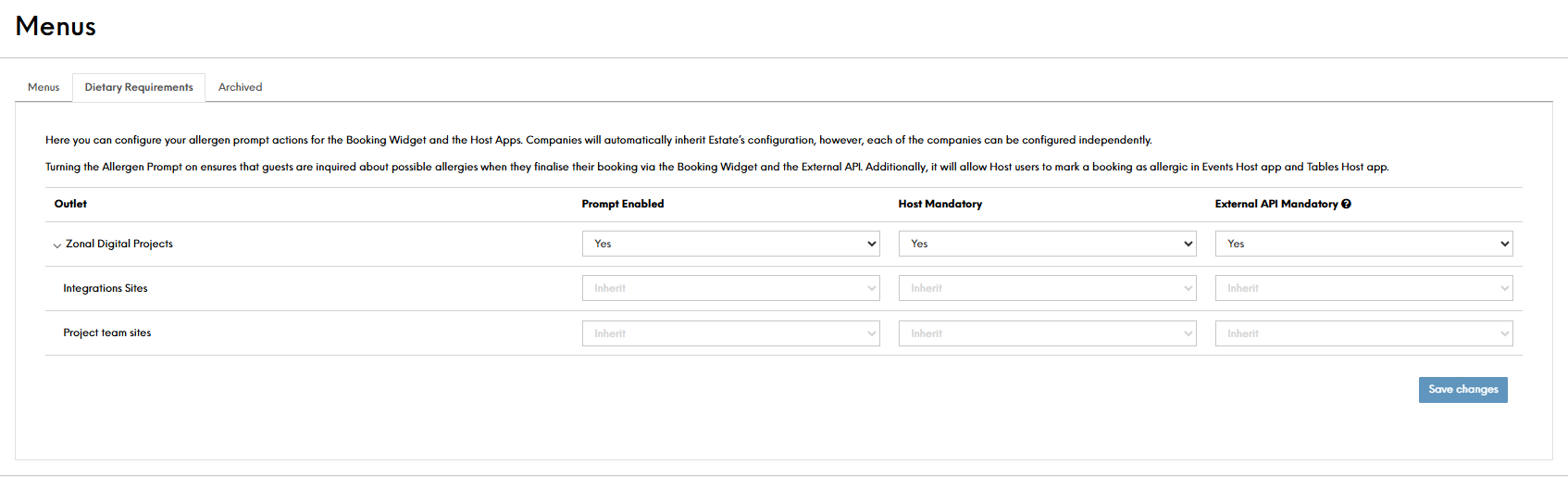
Select yes for the areas you require the prompt to display
To find out what each of the options will enabled, read the field settings and information section below -
Click Save Changes
Host App Views
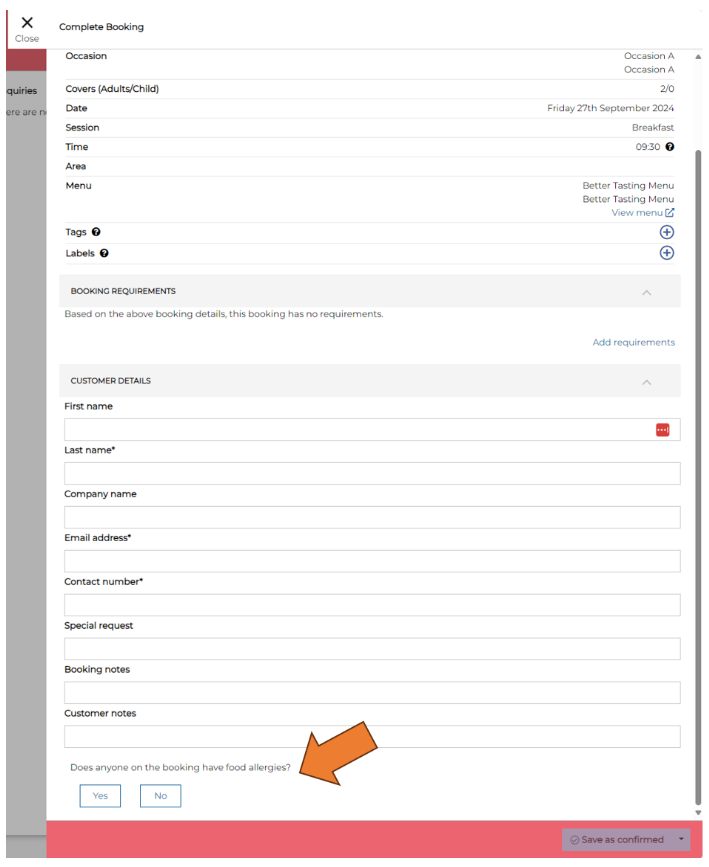
When the dietary requirements prompt has been enabled, both Events and Tables Host users will have the ability to add dietary information to any booking via a prompt on the customer details of the booking.
Viewing in Events
Within the Events Host application, you will have the ability to add dietary information to any booking via a prompt on the customer details of the booking as shown below:
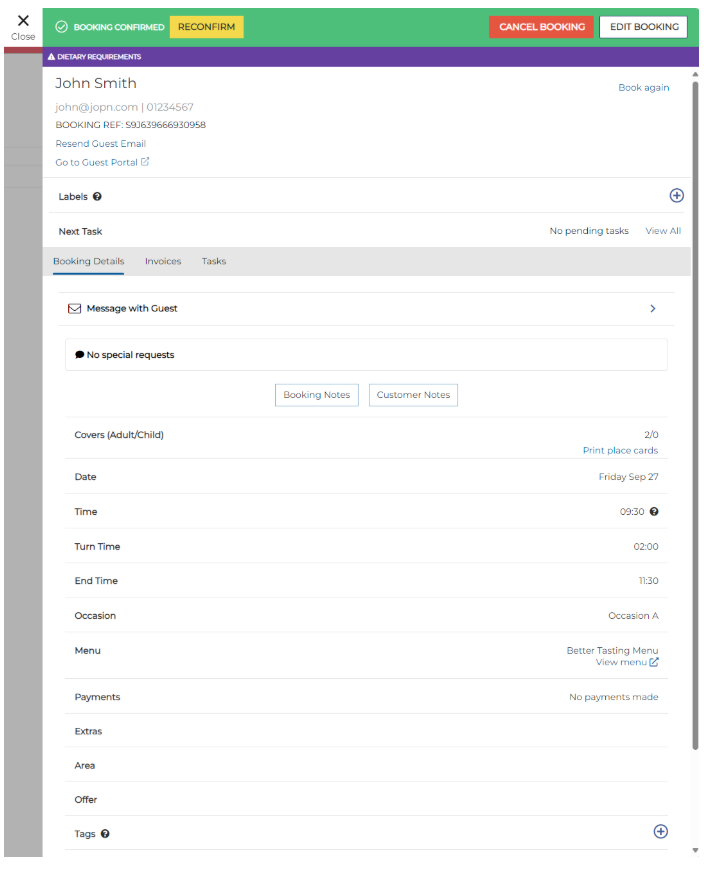
Once a booking has been marked as having dietary requirements a purple notification will appear on the Booking Details:
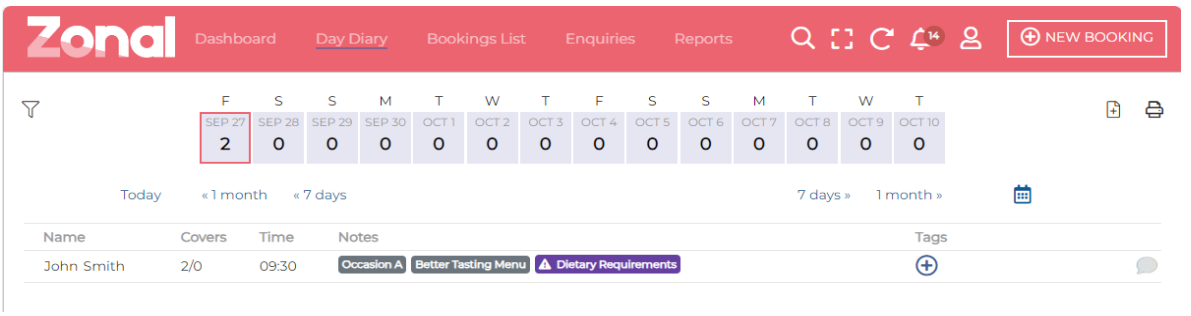
It will also appear on the Day Diary for the booking in form of a pill:
Viewing in Tables
Within the Tables Host application, you will have the ability to add dietary information to any booking via a prompt on the customer details of the booking:
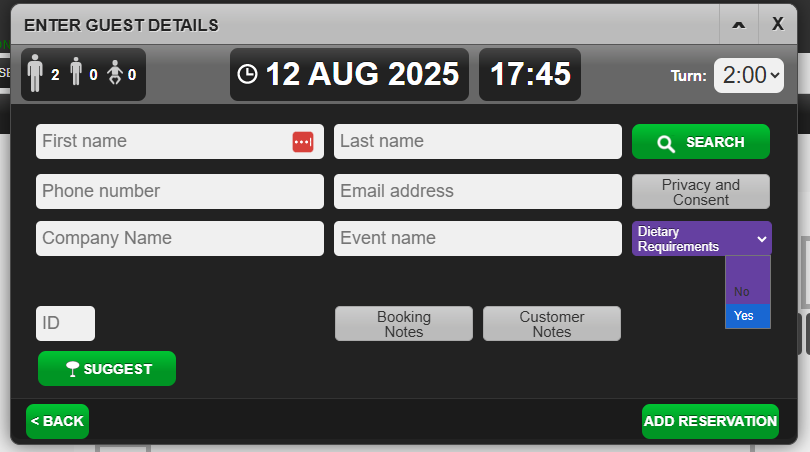
Once a booking has been marked as having dietary requirements it will appear on the Booking Details as "Yes".
It will also appear on the Reservations view for the booking in form of a pill:

Reporting Dietary Requirements
To ensure that nothing goes unnoticed, you can access multiple reporting channels for the dietary requirements:
-
The Bookings List
-
The Chef Report
-
SFTP Data Feeds - Nightly Extracts
Within the Bookings List, you will see a selectable columns named "Dietary requirements". When a booking is marked as having dietary requirements, the same purple icon will appear in said column:
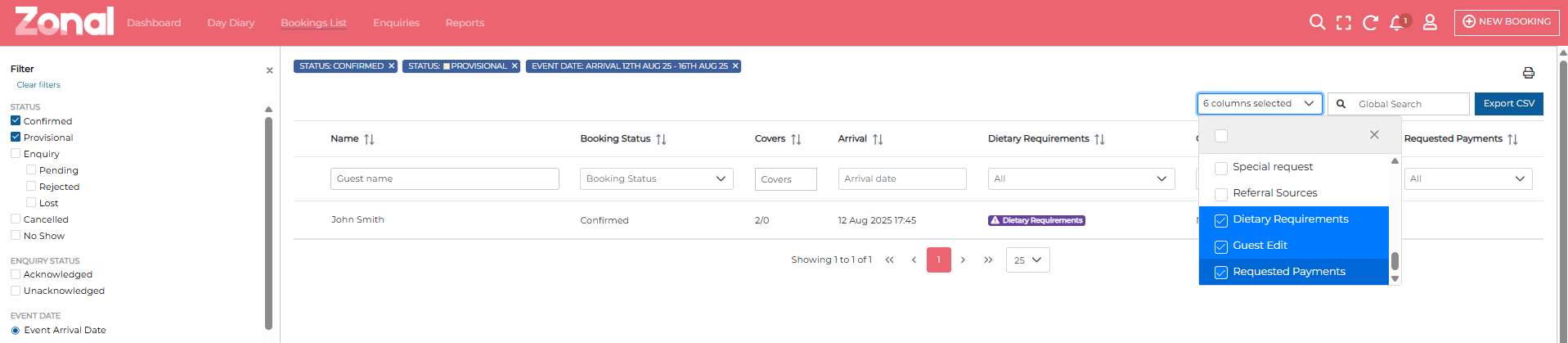
Within the Chef Report, when selecting the Events View from the Report Views, you will see in the line of the booking, in bold: "Dietary Requirements".
Tables Nightly extracts will now have a new column to the Nightly Extract called "dietary_requirements" with statuses:
"Y" - for when the booking was marked as having dietary requirements
"N" - for when the booking was NOT marked as having dietary requirements
Field Settings & Information
| Setting | Description |
|---|---|
| Prompt Enabled |
Yes / No - Controls the prompt functionality, when set to "No", the dietary requirements prompt will not appear in Host apps or the Booking Widget. Please note that when enabled, Booking Widget users will be required to provide the dietary requirements information before finalising the booking |
| Host Enabled |
Yes / No - Controls whether the Host (both Events & Tables) has to provide dietary requirements information before finalising the booking |
| External API Mandatory |
Yes / No - Controls whether dietary requirements information is mandatory for API booking journeys. Please note that if Dietary Requirements are required by External API and missing from request, it will fail and the booking won't be created |