Special Days
A Special Day is a customised configuration applied to a specific date that replaces your standard capacity rules for that day only. It’s used when you expect booking patterns to differ from your normal schedule e.g., private events or key calendar dates.
A Special Day takes priority over your Standard Day Availability, meaning the settings you configure will apply only to that specific date. This allows you to adjust capacity, seating times, layouts without affecting other days. Special Days are also recorded with a time stamp for audit tracking, such as when changes are made through the Today tab or the Tables Host screen, ensuring there’s a clear record of when and by who adjustments were made.
To find out more about Audit tracking and trails, go to the Audit section.
Special Day Topics
Creating a Special Day
Follow these steps to create a special day:
-
Enter a Special Day Name for the special day (e.g. "Christmas Eve", "Bank Holiday")
-
Select the Start Date
-
Select the End Date
This can be a single day or a range of days -
Select or deselect Available Online
-
Select of deselect Can Enquire
By deselecting the Available Online and Can Enquire, each timeslots that shows in your special day will show as being unavailable for both. Similarly, if you select this option, when creating your special day, all timeslots will pre-populate as being available for online bookings as well as available for taking enquiries -
Select Create
If you have created a single date i.e., the start and end date are the same, then once selecting create the special day template will open. From here you can make the required changes
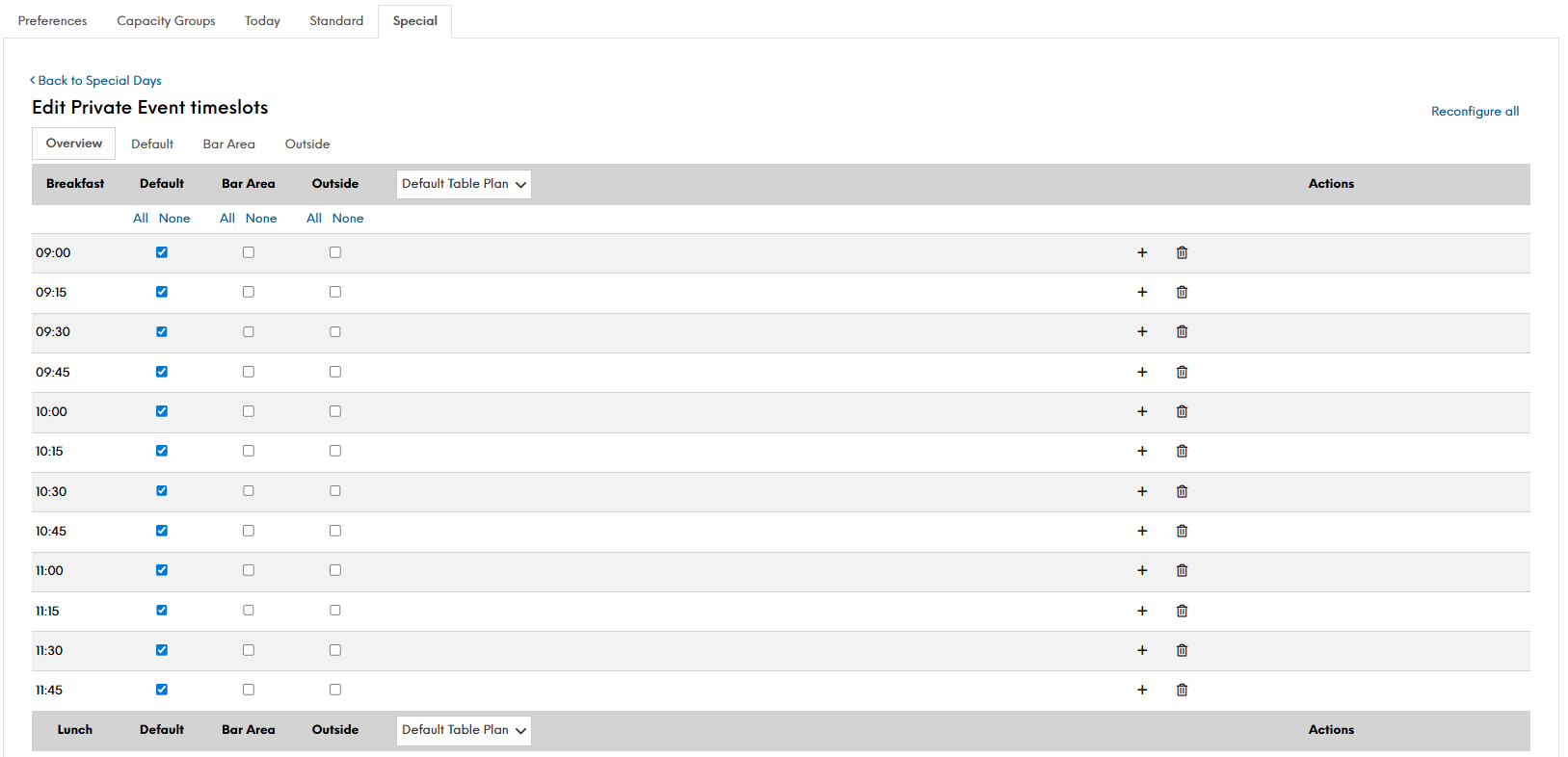
If however, you have created over a date range, your special days will display in the list format. You will then be required to go into each of the days to make your finer amendments using the Edit option.
-
Click Save Changes
Editing a Special Day
Follow these steps to edit a special day:
-
Locate the special day in the list view
-
Select Edit
-
Make the required changes
-
Click Save Changes
Deleting a Special Day
Follow these steps to delete a special day:
-
Locate the special day in the list view
-
Select Delete
A pop up message will display: "Are you sure you wish to delete special day timeslots for XXXday, DD Month YYYY"
-
Click Yes Delete
Once deleted, a confirmation message will display to state "Special day deleted successfully"
Copying a Special Day
Follow these steps to copy a special day:
-
Locate the special day in the list view
-
Select Copy.
A new page will display -
Enter a Special Day Name
-
Select the date you require copying this template to
-
Click Copy
A confirmation message will display to state "Special day for DD/MM/YYYY successfully created". You may now need to edit the special day to complete your changes.