The first section when configuring a sales item is the main details, this holds all of the primary information for this product type.
There are three options when adding a new sales item:
-
Select an existing sales item and click Add, this will automatically pre-fill various fields based on the selected item
-
Click the Add Arrow, select Empty Sales Item, this will leave all fields blank
-
Select an existing sales item and click Clone, this will copy all details from the previous selected item
When adding sales items from the All Items view:
-
Selecting an existing sales item will update the Add button to show "Add Sales Item"
-
Selecting no item will default the Add button to a drop down list where an empty sales item can be added
Main Details Topics
Completing Main Details
Follow these steps to configure this section:
-
Click Add or Clone | based on the "add option" chosen some fields will automatically be pre-populated
-
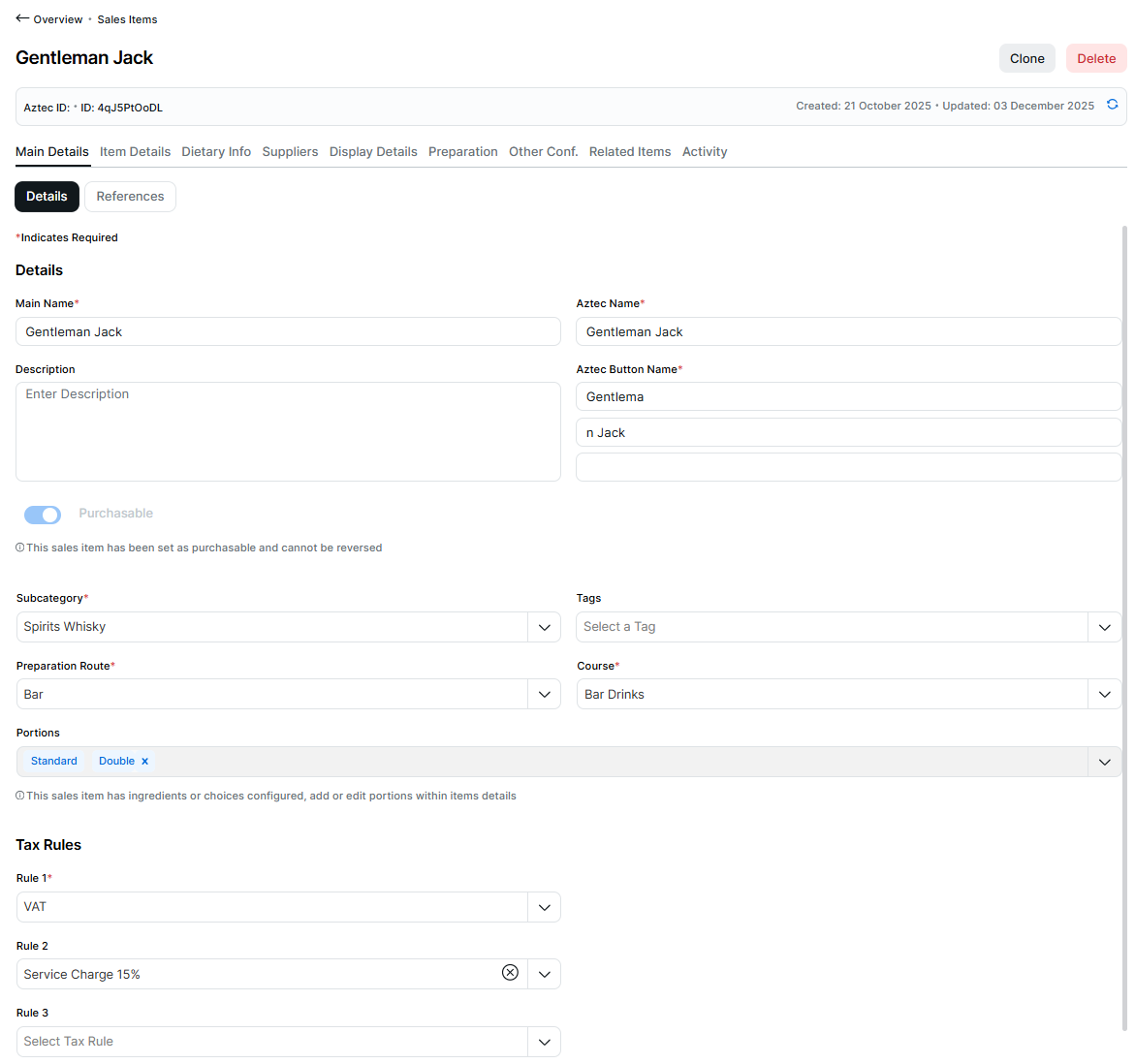
Enter the following details, Main Name | Aztec Name (update as required) | Description (optional) | Aztec Button Name (update as required)
-
Check or set the following fields Subcategory | Tags | Preparation Route | Course
-
Select the required Portions for the item
By default the standard portion will always be added and cannot be removed, a maximum of 19 additional alternative portions can be addedPortions can only be selected from the main details portion drop down if there are no configured ingredients or choices. When ingredients or choices have been added any portions associated to the sales item should be managed through the add or edit steps within item details for ingredients or choices (the portions drop down will still be displayed but only as read only field) -
If the sales item is to be a purchasable ensure the Purchasable toggle is set to on
Purchasable sales items are the equivalent of Product Modelling Standard Lines, they can only be set to be purchasable upon the initial creation of the sales item -
Check or set Tax Rule fields
-
If there any item references to be added click References tab | enter a External Reference 1, 2 or 3
The external reference 1 is the new term for an Aztec Product Modelling Import / External Ref -
Click Save
 If the item has been selected to be purchasable before saving proceed to step 2 to add suppliers and purchase units before saving
Field Settings & Information
Details
The details section allows you to set the names and other primary sales item information.
| Field | Description |
|---|---|
| Main Name | Main sales item name used across the platform and will be the initial name given to the default display record |
| Aztec Name | Shorter sales item name used by Aztec product modelling, pre-populated by entering the main name but will stop at 16 characters |
| Description | Description of the sales item |
| Aztec Button Text | Button text used for Aztec sales item |
| Purchasable | Toggle to set if the item can be purchased, only available on initial item creation |
| Subcategory | Subcategory from the product structure |
| Tags | Product tags associated to the sales item |
| Preparation Route | Preparation route of the sales item |
| Course | Course of the sales item |
| Portions | Portions of the sales item, by default standard will always be displayed and cannot be removed |
Tax Rules
The tax rules section allows you to set the 1 or more rules against the sales item.
| Field | Description |
|---|---|
| Rule 1 | The tax rules define the tax that will be calculated when the sales item is ordered, in addition to normal taxes service charge rules can also be added, typically rule 1 is for the government collected tax |
| Rule 2 | Additional tax rules for the sales item |
| Rule 3 | Additional tax rules for the sales item |
| Rule 4 | Additional tax rules for the sales item |
References
The references section allows you to set additional IDs against the sales item.
| Field | Description |
|---|---|
| External Reference 1 | Third party / optional reference of the sales item - 15 characters |
| External Reference 2 | Additional third party / optional reference of the sales item - 15 characters |
| External Reference 3 | Additional third party / optional reference of the sales item - 15 characters |