An optional feature for sales items allows you to add nutritional information. The calorie information will be synced with iOrder display records, ensuring seamless end-to-end configuration.
Dietary Info Topics
Nutrition
Step 1 of 2
Adding Nutrition
Follow these steps to add nutritional information:
-
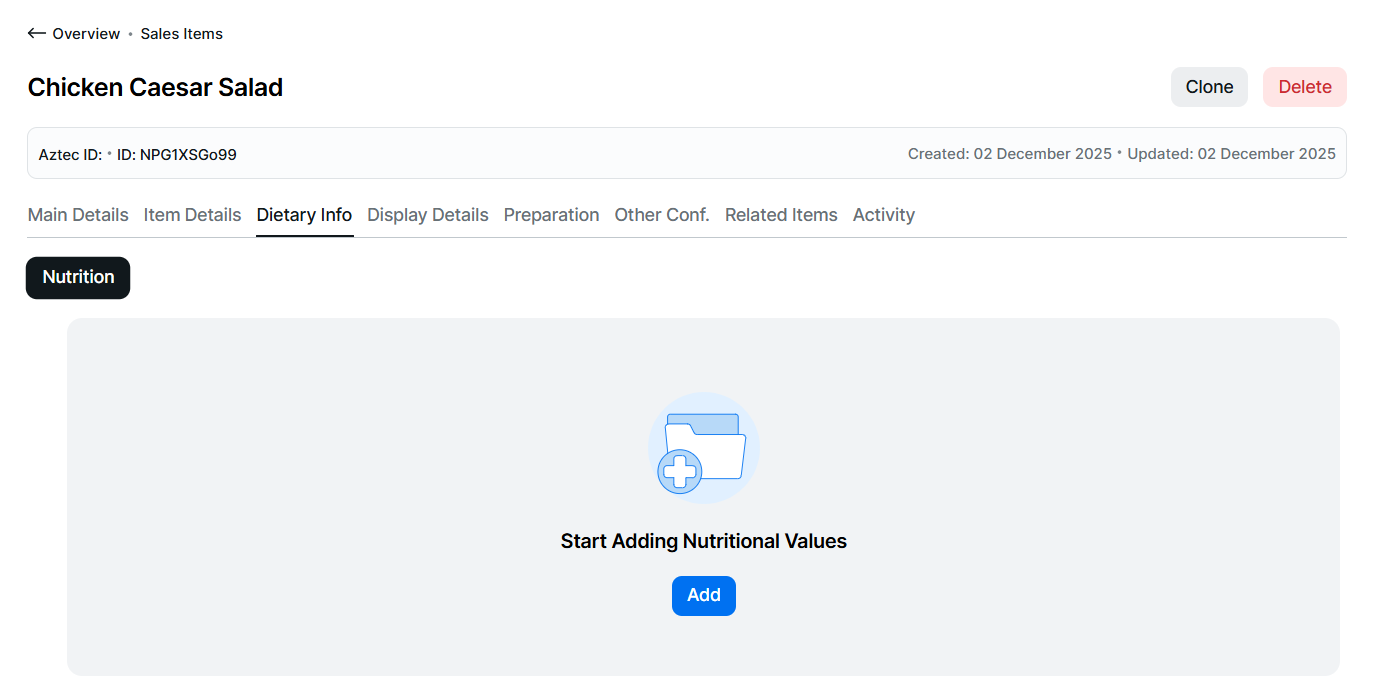
Click Add
-
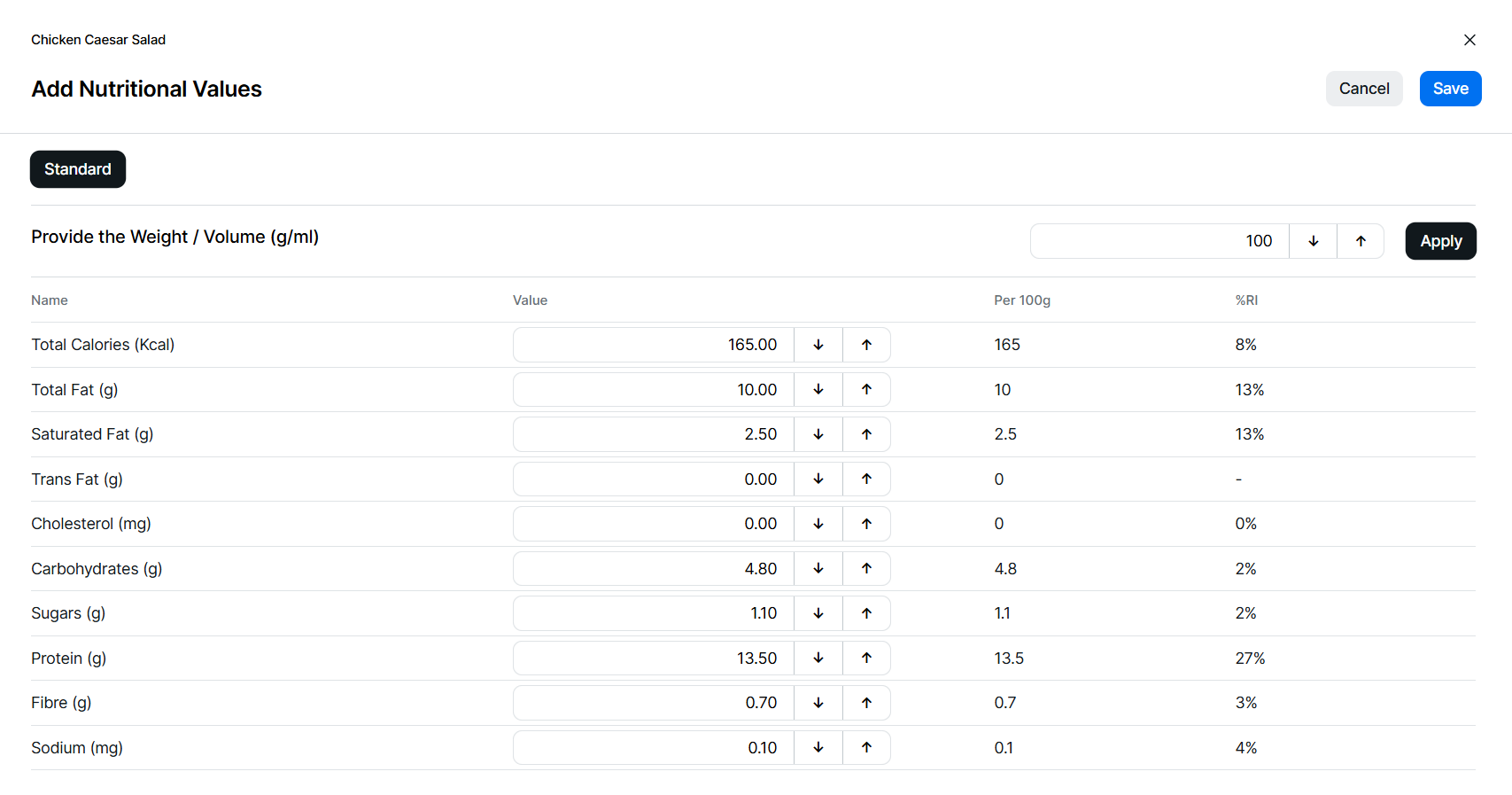
Enter the value per weight or volume in grams or millilitres | click Apply
-
Enter the quantity for each nutritional row as required
-
When entering Energy (KJ) the Total Calories (Kcal) will be automatically calculated
-
When entering Total Calories the Energy (KJ) will be automatically calculated
-
Any information added will automatically calculate each row for the %RI (recommended intake) and per 100g fields
-
-
If multiple portions have been added and nutritional information is required the following functions are available within the other portion tabs
-
Copy Values From - select a portion to copy the nutritional information | click Apply
-
Manually set the calculation value and enter the required nutritional rows as per step 3
-
-
Click Save
Review Nutrition
-
All new nutritional information additions or changes must be approved before it becomes available
-
A user account must have the relevant permissions to be able perform a review and approve or decline the changes
-
A user account without the permission can still view the pending changes but will not be able to approve or decline
Step 2 of 2
Follow these steps to review nutritional information:
-
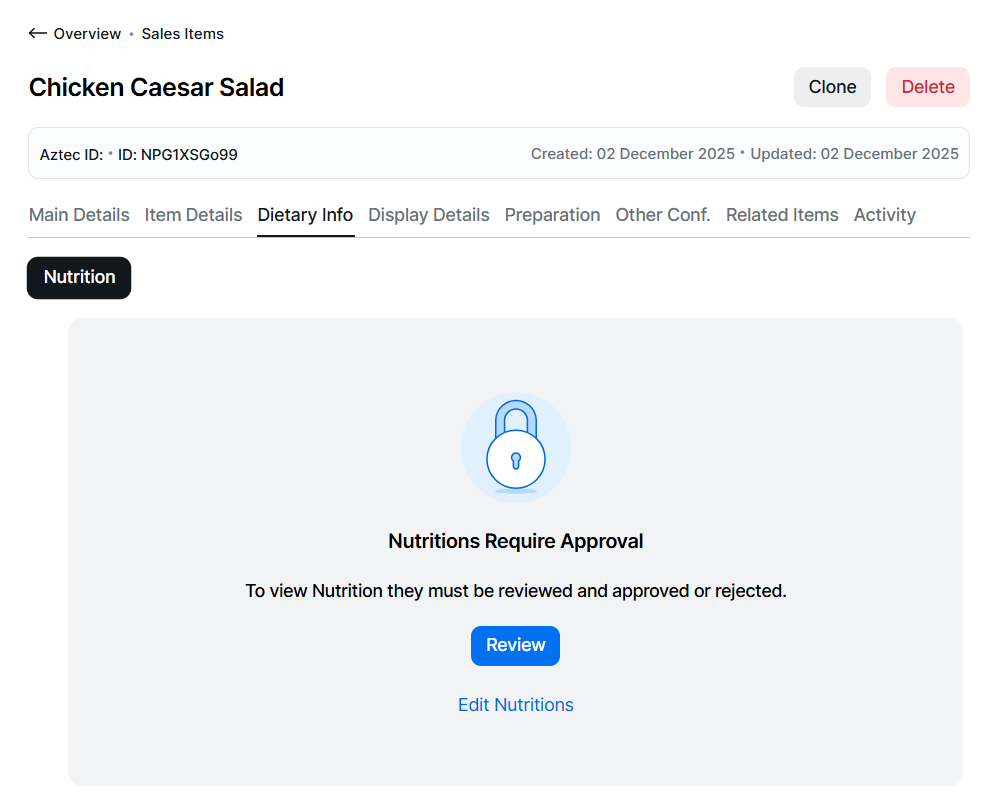
Click Review
-
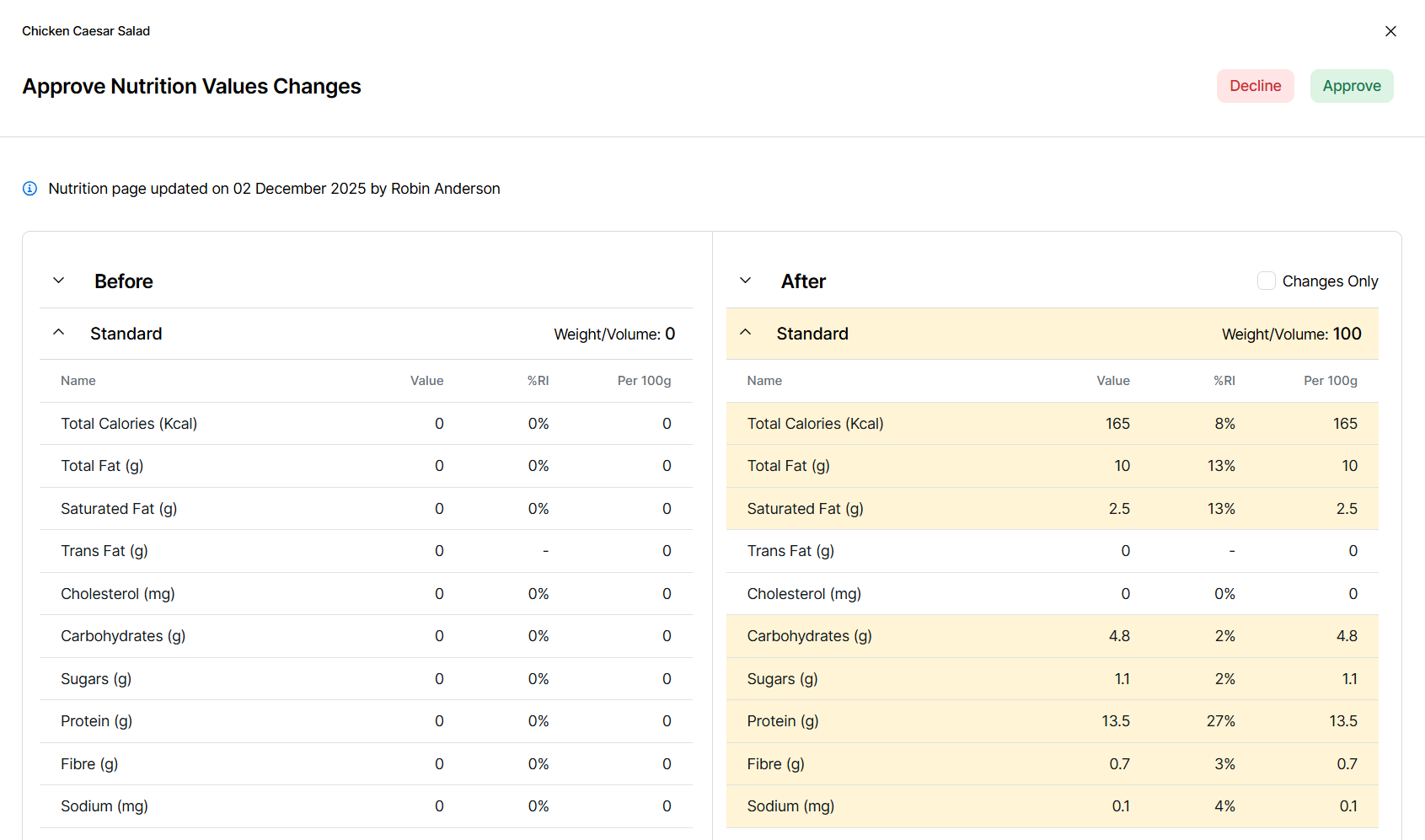
The review screen is displayed with the following information
-
Before - shown on the left will display any values as they were before any changes were made (on the first entry all values will be displayed as 0)
-
After - shown on right will display any values set or changed in yellow
-
Portions - both before and after sections display the nutritional information by portion
Zonal recommends selecting the Changes Only check box to only see those items that have changed -
-
Select to Approve or Decline
When completing the review there are three options
-
Approve - sets the nutritional information to be approved and live
-
Decline - sets the nutritional information back to its previous state
-
Close - clicking the X will enable you to close the screen without making any changes
When selecting decline if this was first initial nutritional information being added it will return to an empty state
-
- The following information is displayed
-
Approved Changes - the name and date of the approver
-
Declined Changes - the name and date of the of the decliner, displaying the previous set values
-
Declined Changes - empty state (if there were no previous entries)
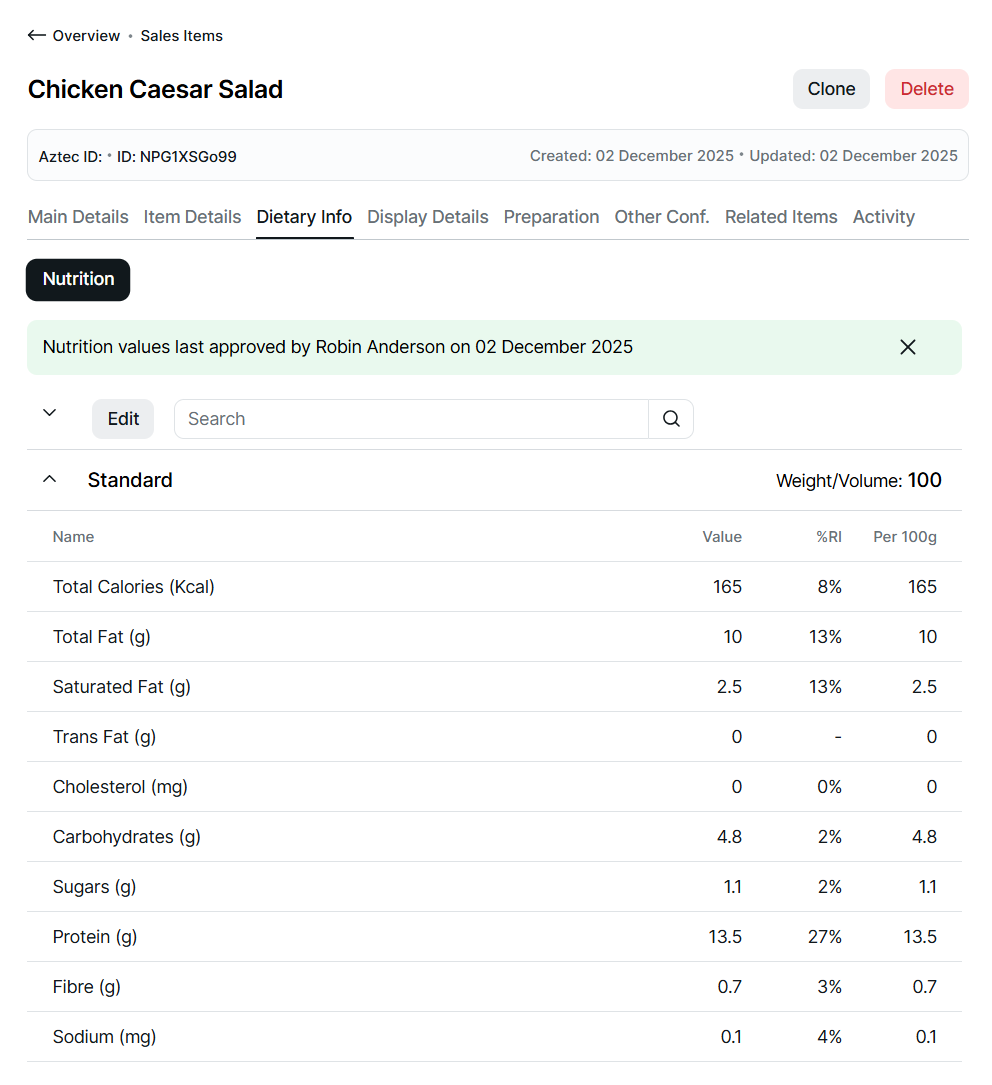
Editing Nutrition
Information on existing nutritional details can be edited, any changes must go through the review process.
Follow these steps to edit nutrition:
-
Click Edit
-
Update any values for any portion
-
Click Save
-
The nutritional information will be displayed in a waiting for review state and should be completed as per the review process above
Displayed values will always reflect the previous state (before change), once approved, they will update to show the approved information
Bulk Review Nutrition
The previous review step demonstrated the process for individual sales items. If multiple reviews are required, the bulk process can be used to expedite approval.
Follow these steps to bulk review nutritional information:
-
Select Sales Items from the side navigation
-
Set any product structure filters or tag filters (optional)
Product Structure Filter Tips
When filtering for parts of the product structure you can:
-
Use the product structure to select 1 or more parts of the hierarchy
-
Click into a drop down and either type to search or scroll through the list of available items and select
-
Select filters from multiple sections, to provide more accurate results
-
Click the X on the selected item to remove
-
-
-
Select the Nutrition filter for "Show Sales Items for Review"
-
Click Apply Filters
The list of sales items displayed based on the filter criteria selected are required for review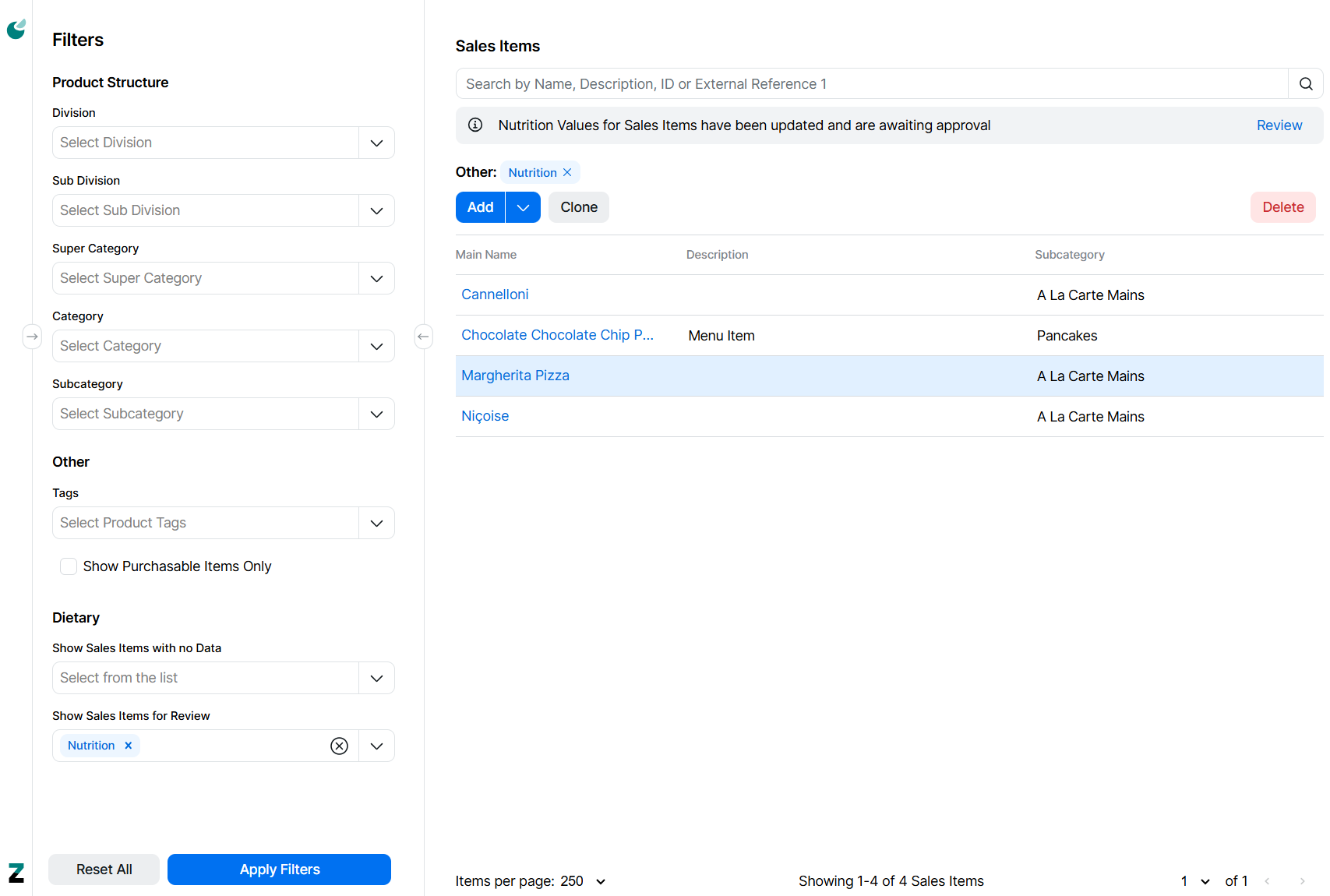
-
Click Review
The items for review are displayed in a list, navigate through items via the list or using the left / right arrow next to the approve / reject buttons, additionally search and filters can be applied to the list to locate specific items -
Select to Approve or Decline, if all items are to be approved click Approve All, confirm to proceed
As items are approved or declined they will be removed from the list, once all items are approved the review screen will close and return to the sales items list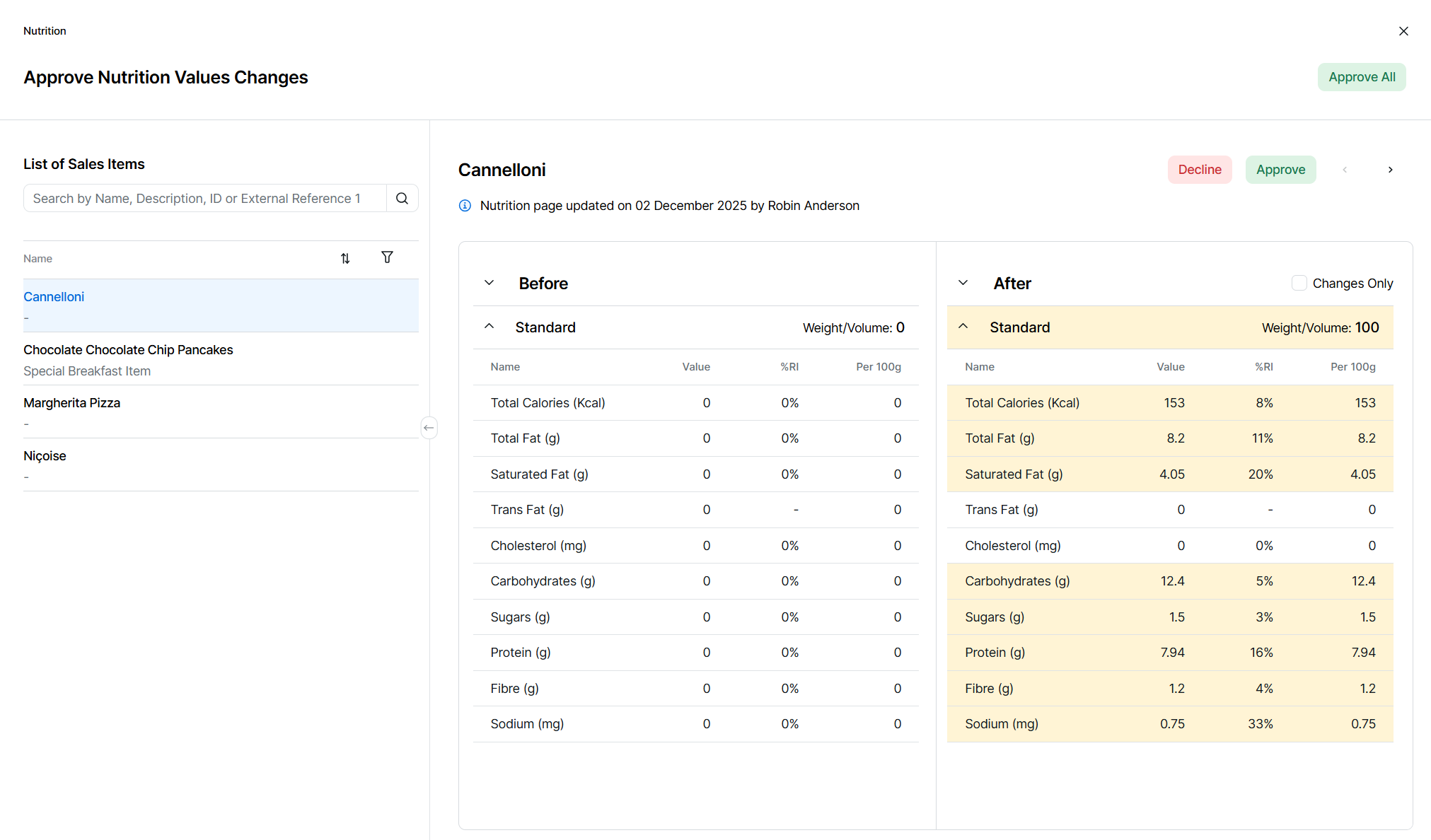
Additional Information
iOrder Platform has two calorie options:
-
A single calorie value within the display data
-
Calorie values by portion (including standard portion)
As Zonal Connect has calorie values by portion only there are some changes to how data will be hydrated and syncs back when updates are made.
When boarding on to Zonal Connect and data is hydrated from iOrder Platform the following rules apply:
Calorie information within the display data tab this will not be hydrated
If you require calorie data to be hydrated this information should be copied to the into the meta data tab for each portion which can be done in bulk following the export / import options here