Turn Times
"Turn times" refers to the estimated duration a table is reserved for a single booking - essentially, how long a party is expected to occupy the table. The main purpose of defining a turn time is to help manage your seating capacity efficiently. They also allow the system to predict when a table will be free for the next booking.
Within Events there are multiple locations where you can configure Turn Times. We've listed them below and they follow a hierarchy when multiple are applied:
-
Occasions (defined in the occasion)
-
Areas (defined in the Turn Times tab - templates can be defined by area)
-
Session (defined either in standard days, or by special day)
If none of the above are defined the systems default turn time is 2 hours.
Turn Times Topics
Creating a Turn Time Template
Follow these steps to create a turn time template:
-
Locate your Turn Time Name e.g. Default Turn Time , and select Edit
A page will display showing any turn times configured. If none show, the system will be using the system default of 2 hours for each booking (unless defined elsewhere as stated above) -
Select to Insert New
In the Table Size field, specify the number of guests (covers) the configuration applies to. Each time you click 'Insert New', the system will automatically add the next table size in sequence. You can override these values if needed - for example, you may want a table for 1 guest set to 01:00, and tables for 3 or more guests set to 01:45 -
Using the drop downs under each session name, set the desired turn time for each booking of that size
-
Click Save Changes
Configuring Turn Times by Area
Follow these steps to configure turn times:
-
Locate your Turn Time template and select Edit
-
Select the Area name from the tabs e.g., Bar
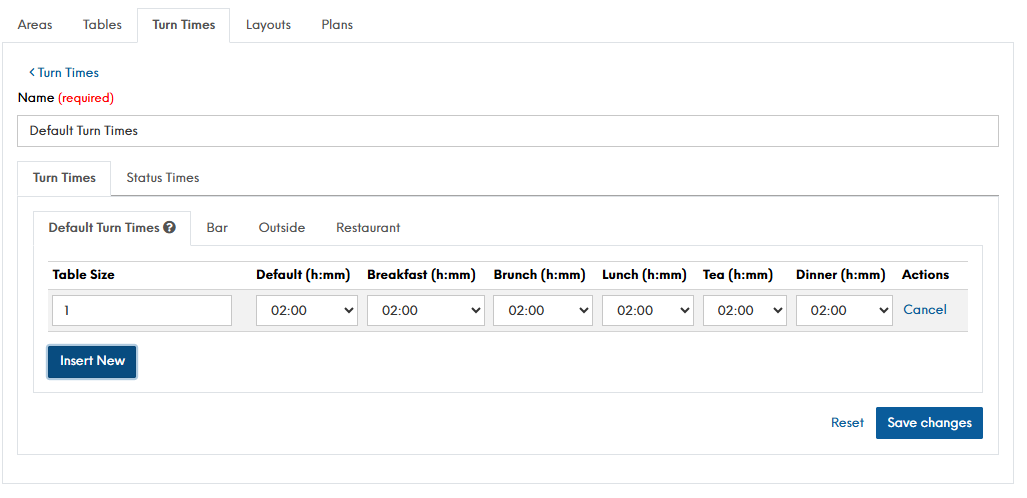
-
If no turn times have been defined Select to Insert New
In the Table Size field, specify the number of guests (covers) the configuration applies to. Each time you click 'Insert New', the system will automatically add the next table size in sequence. You can override these values if needed - for example, you may want a table for 1 guest set to 01:00, and tables for 3 or more guests set to 01:45 -
Using the drop downs under each session name, set the desired turn time for each booking of that size
-
Click Save Changes
Configuring Turn Times by Occasion
To find out where to define the turn time by Occasion, we suggest going to the Occasion setup.