Plans
The Plans tab allows you to create a Tables plan that groups together specific turn times and table layouts. This allows you to save different combinations of table layouts / turn times for specific events, such as only offering tables for 2 on Valentine’s day, or even having varying table joins on a weekend versus a weekday.
Creating a Plan
Follow these steps to create a plan:
-
Click Add new table plan
-
Enter a Name for the plan
-
Select from the drop downs the desired Turn Times and/ or Table Layout
-
Click Save Changes
Applying a Plan to a Standard Day
Follow these steps to apply plans to standard days:
-
Go to the Manage Capacity tab
-
Select the Standard tab
-
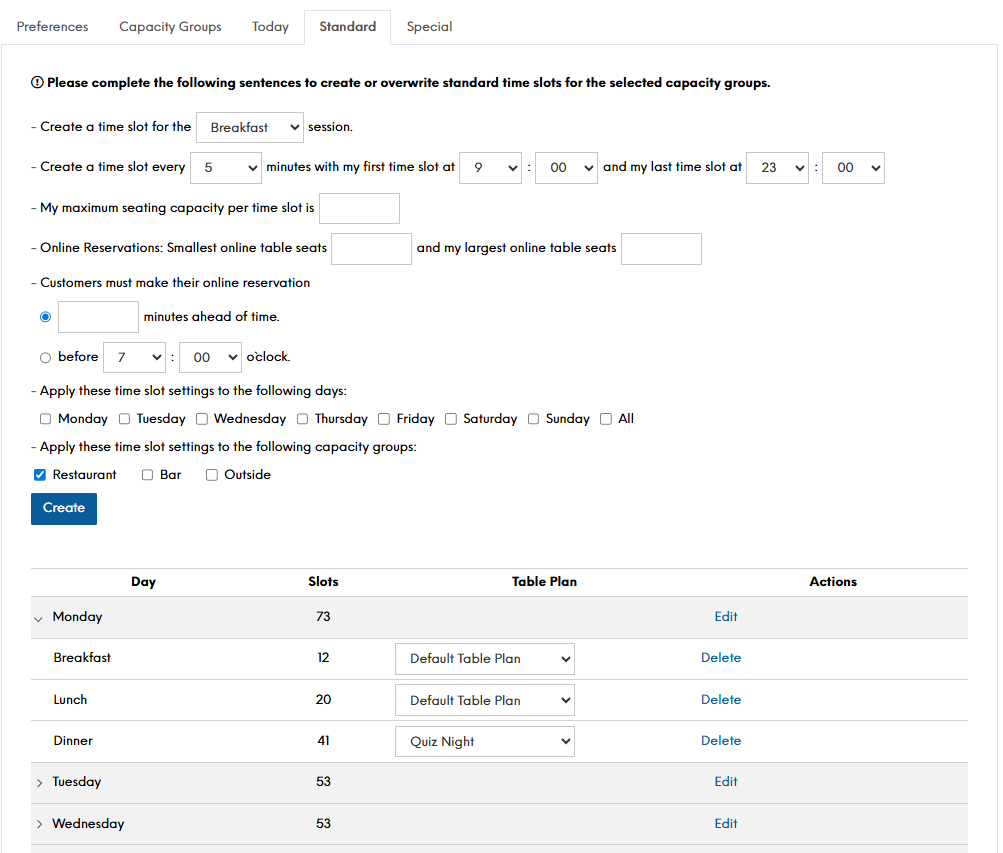
Locate the day of the week you want to amend the plan for. Click the arrow beside the day name and the sessions will appear
-
Select from the drop down, in the Table Plan column, the desired plan name
Applying a Plan to a Special Day
Follow these steps to apply plans to special days:
-
Go to the Manage Capacity tab.
-
Select the Special tab
-
Locate the Special Day you wish to action. Click Edit
-
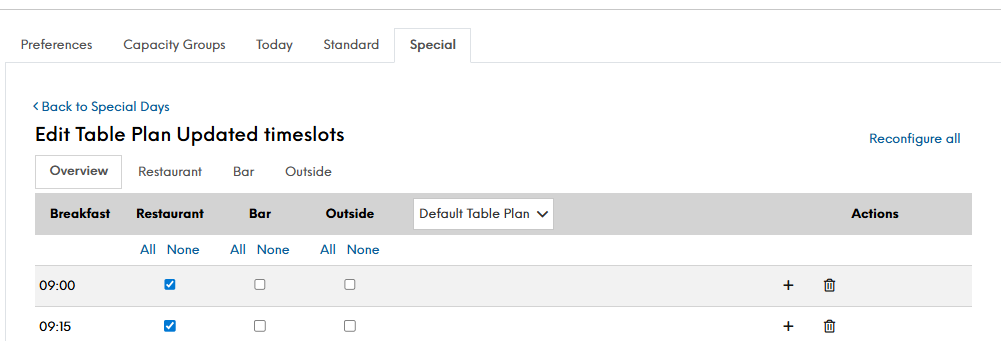
In the header row, using the drop down, select the required Plan name
-
Click Save Changes
A plan can also be changes within the Tables Host app screen within Future Seating