Layouts
The Layouts tab allows you to define the minimum and maximum number of covers allowed for each table, and reserve tables for walk-in customers. You will also be able to define table areas, as well as their priority.
Layouts represent the physical arrangement of tables and seating in your venue. You can create multiple layouts to account for different configurations, e.g. default layout for regular operations, special layouts for weekends, holidays, or events.
Table Layouts are combined with Turn Times into a Table Plan, which will be assigned to your all day or session-based timeslots. This functionality allows you to quickly and easily change plans for different sessions (Breakfast, Lunch, Dinner...) or for special days. You can find out more about Table Plans here: Plans.
Layouts Topics
Configuring a Layout
To configure your layouts, follow the below steps:
-
Locate your Layout Name e.g., Default Layout, and select Edit
Your layout will open, similar to that shown below:
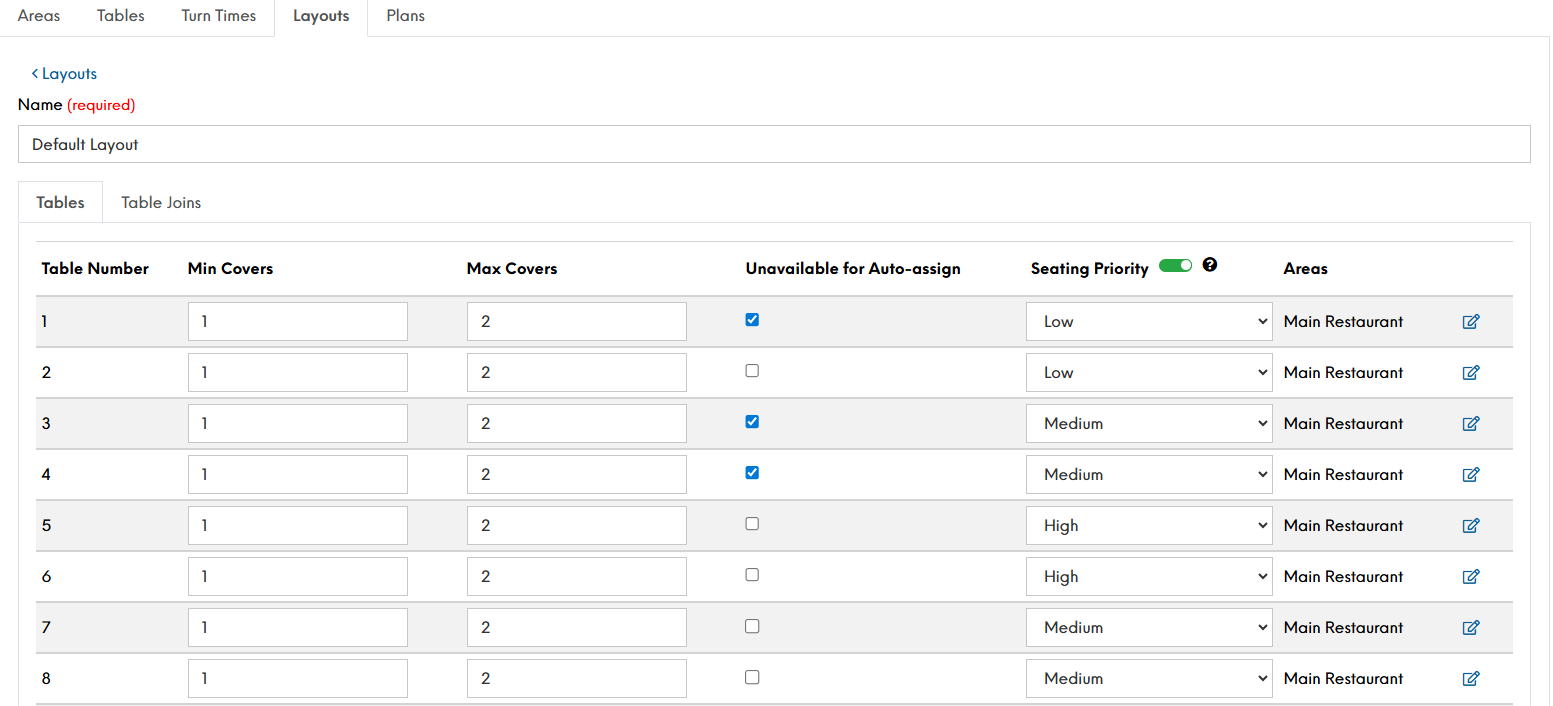
You will be able to view a number of configurable options on the Tables tab, and on the Table Joins tab
Tables
Configurable Fields for Tables Details Min Covers The smallest number of guests that can be seated at the table. This helps ensure tables aren’t used inefficiently (e.g., a 6-person table being booked for 1 person)
Max Covers The largest number of guests that can be seated at the table. This ensures the table isn’t overbooked beyond its capacity
Unavailable for Auto-assign Prevents the system from automatically assigning this table when a booking is made online. This is useful for tables that are held for walk-ins, VIPs, or manual assignment only
Seating Priority Gives this table a higher preference when the system is choosing tables to assign automatically. Useful for showcasing premium tables (e.g., with a view, in a quiet area)
Areas Labels used to group or identify tables by location or type, such as “Terrace”, or “Bar Area”. These tags can be used to direct bookings to specific areas or for reporting purposes (it's worth noting that this feature requires area names being configured - Click here to find out more about configuring areas
Table Joins
Configurable Fields for Table Joins Details Name Give your join a name. Each name needs to be unique. When naming table setups (joins), the format that our Setups team typically follow is as follows: [Lowest Table Number] / [Minimum Covers] – [Maximum Covers]
Min Covers The smallest number of guests that can be seated at the table joins. This helps ensure table joins aren’t used inefficiently (e.g., a 6-person table being booked for 1 person)
Max Covers The largest number of guests that can be seated at the table joins. This ensures the table join isn’t overbooked beyond its capacity
Joined Table Numbers (e.g., 1+2+3) When joining tables, the join must accurately reflect the table numbers being combined. To do this, enter the table numbers using a plus sign (+) with no spaces between them
Seating Priority Gives this table a higher preference when the system is choosing tables to assign automatically. Useful for showcasing premium tables (e.g., with a view, in a quiet area)
Areas Labels used to group or identify tables by location or type, such as “Terrace”, or “Bar Area”. These tags can be used to direct bookings to specific areas or for reporting purposes (it's worth noting that this feature requires area names being configured - Click here to find out more about configuring areas
Actions The ability to delete the join
-
Click Save Changes
Creating a New Layout
When creating a layout, there are two ways to do this:
-
Create a new layout
-
Copying an existing layout
Follow these steps to create a new layout:
-
Select Add New Layout
-
Go down the list of Table Numbers and define the Min Covers for each table
-
Define the Max Covers for each table
-
Select if any tables are Unavailable for Auto-assign
-
Define the Seating Priority (if enabled)
-
Assign Areas (If areas are created)
-
Select the Table Joins tab and create any required joins.
-
Click Save Changes
Copying a Layout
Follow these steps to copy a layout:
-
Select from the Actions column to Copy the required layout
-
A pop-up message will show asking "Are you sure you wish to copy this layout?". Select as required
Once you select Yes, a confirmation message will appear: "Table layout was successfully copied"
The copied layout will then appear in your list, prefixed with "Copy of..." to indicate it's a duplicate of the original
-
Select Edit
-
Go down the list of Table Numbers and edit as required the Min Covers for each table
-
Edit if needed the Max Covers for each table
-
Select if any tables are Unavailable for Auto-assign
-
Edit if needed the Seating Priority (if enabled)
-
Assign Areas (If areas are created)
-
Select the Table Joins tab and edit if needed any required joins.
-
Click Save Changes