Import
The import process will convert non-Events bookings into Events bookings. This can be done on a site-by-site basis, or a grouping of sites. Only future dated bookings will be included in the import process.
Each booking will be converted into Events bookings. The converted bookings will no longer be editable within the Reservations widget. The converted bookings will retain their existing identifiers and will be unchanged within Aztec (if enabled).
Events bookings require that an occasion is selected. The mappings section will allow you to specify which occasion to use for the imported bookings.
Events menus and Reservations menus are incompatible. The mappings section will allow you to specify which Events menu to use for each of the Reservations menus that are in use for the imported bookings. Please note that Events booking rules may cause bookings to have different deposit requirements, due dates and may also require the guests to make selection from a pre-order menu.
Import Bookings Topics
How to Import
Follow these steps to import:
-
Click Select Sites
-
Select from the Outlet drop down the site(s) you want to import bookings
Zonal recommends importing at a site by site level, or by a specific site grouping. This will offer better clarity for mapping -
Click Select Mapping
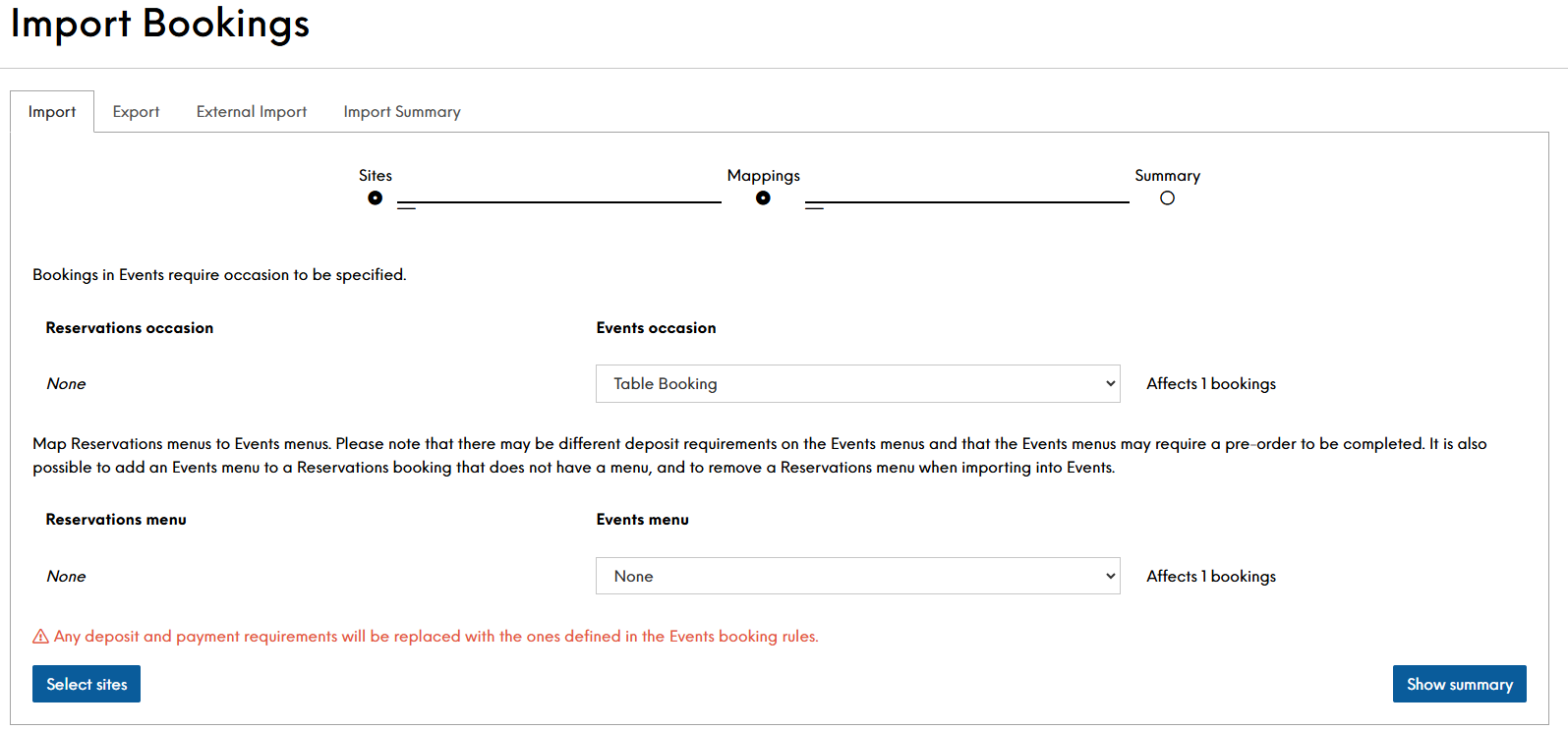
You will see a page outlining all of the bookings that require mapping
-
Select an Events Occasion from the drop down list for all bookings to be applied against
-
Select the required Events Menus from the drop down list
Any deposit and payment requirements will be replaced with the ones defined in the Events booking rules -
Click Show Summary
Review the summary displayed carefully. It is optional as to whether or not you want the booking affected to receive email notifications of this. If you do want them notified, you will need to tick the option for "Send Event Import emails to the event organisers". To find out more about the Event Import template, go to the Emails topic. -
Tick the required field of "I understand that this process is irreversible"
-
Click Import
A green box should display once the import is complete stating "Import Complete".