Import Summary
To review your past imports, or check in on the ongoing ones, you can review these in the “Import Summary” sub-tab. Here you will see a table containing the summary of all previous and ongoing imports in an easy to read format.
Reviewing the Import Summary
To review the import summary, you will be presented with a page, similar to that below, showing all historical attempts of running an external import.
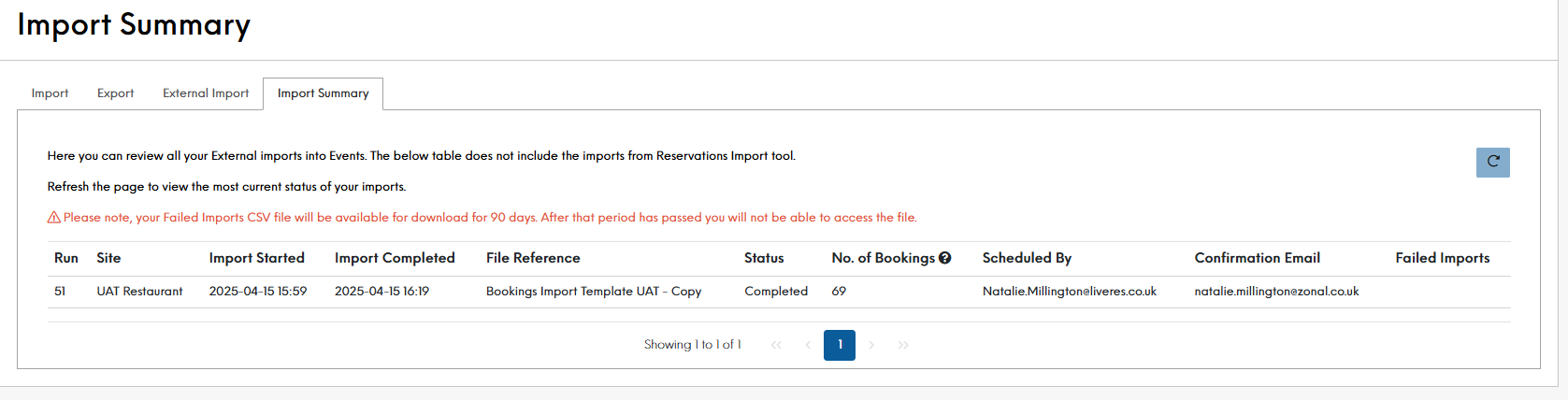
The below table outlines the column headers and their meanings:
| Column | Description |
|---|---|
| Run | The numerical value, unique number of each import in rising order. |
| Site | This shows the name of the site to which the import was done. |
| Import Started | This gives the date & time of when the import began (time and date when user clicked "Complete Import"). |
| File Reference | The name of the uploaded file. |
| Status |
|
| No. of Bookings | The number of successfully imported bookings. |
| Scheduled by | The name of the user who completed the process. This will be the Username set up with access to the Events Estate. |
| Confirmation email | The email that was input into the field on the previous screen. If there was no input, then nothing will show in this cell. |
| Failed Imports | Shown for imports that are in status "Partially Completed", remains active for 90 days from "Import Completed" date. Once user clicks on it, then a download starts with a file with failed imports ONLY. |
Partially Completed & Failed Imports
Imports can fail for a number of reasons (e.g., capacity constraint, occasion deleted after validation has been completed, etc.), even after validation has been completed. For this reason, you will be able to download a CSV file with the failed bookings for up to 90 days from when the import had been completed.
As described above, this “Download” button will appear only appear for any import that is in “Partially Completed” status. This is the final fail-safe to ensure that only correct bookings are imported into the live system. The CSV file will be named “name of the initially uploaded file – failed” and will contain details as to the reason for the failure of the import.