Product Admin
Dietary Export / Import
The dietary export and import function allows a filtered selection of products to be exported to a spreadsheet, where dietary information can be added or updated. The completed file can then be imported back into the system, enabling efficient bulk updates to dietary data.
Dietary Export / Import Topics
Step 1 of 4
Applying Filters
Follow these steps to set filters before exporting dietary information:
-
Select the required Item Type
-
Select the required Dietary Type
-
Select the required filters from the product structure and other filters
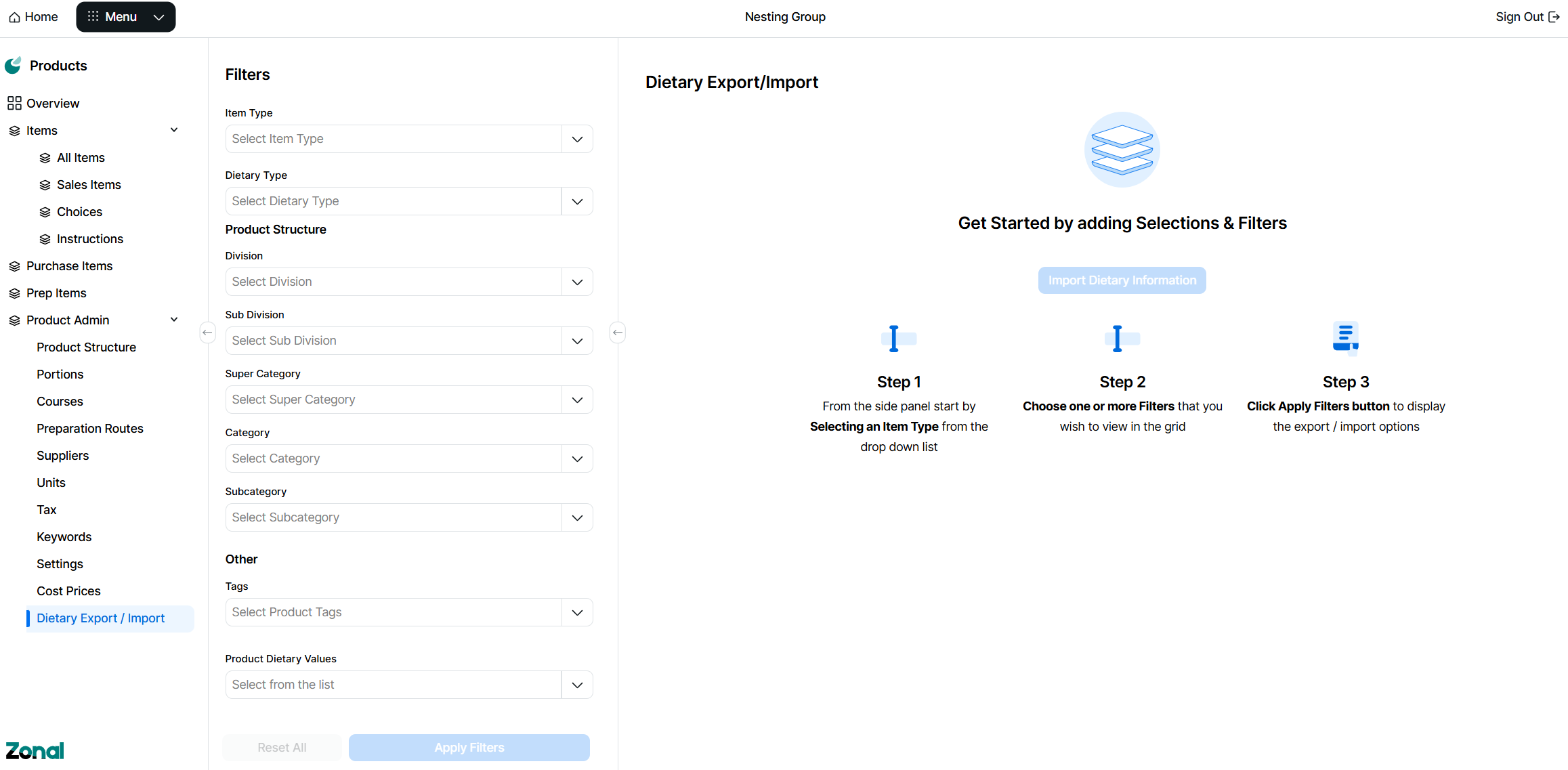 As least one level must be selected from the product structure filters to be able to download a dietary information sheet
Product Structure Filter Tips
When filtering for parts of the product structure you can:
-
Use the product structure to select 1 or more parts of the hierarchy
-
Click into a drop down and either type to search or scroll through the list of available items and select
-
Select filters from multiple sections, to provide more accurate results
-
Click the X on the selected item to remove
-
-
Apply a filter by selecting product tags
-
-
Click Apply Filters
Step 2 of 4
Exporting Data
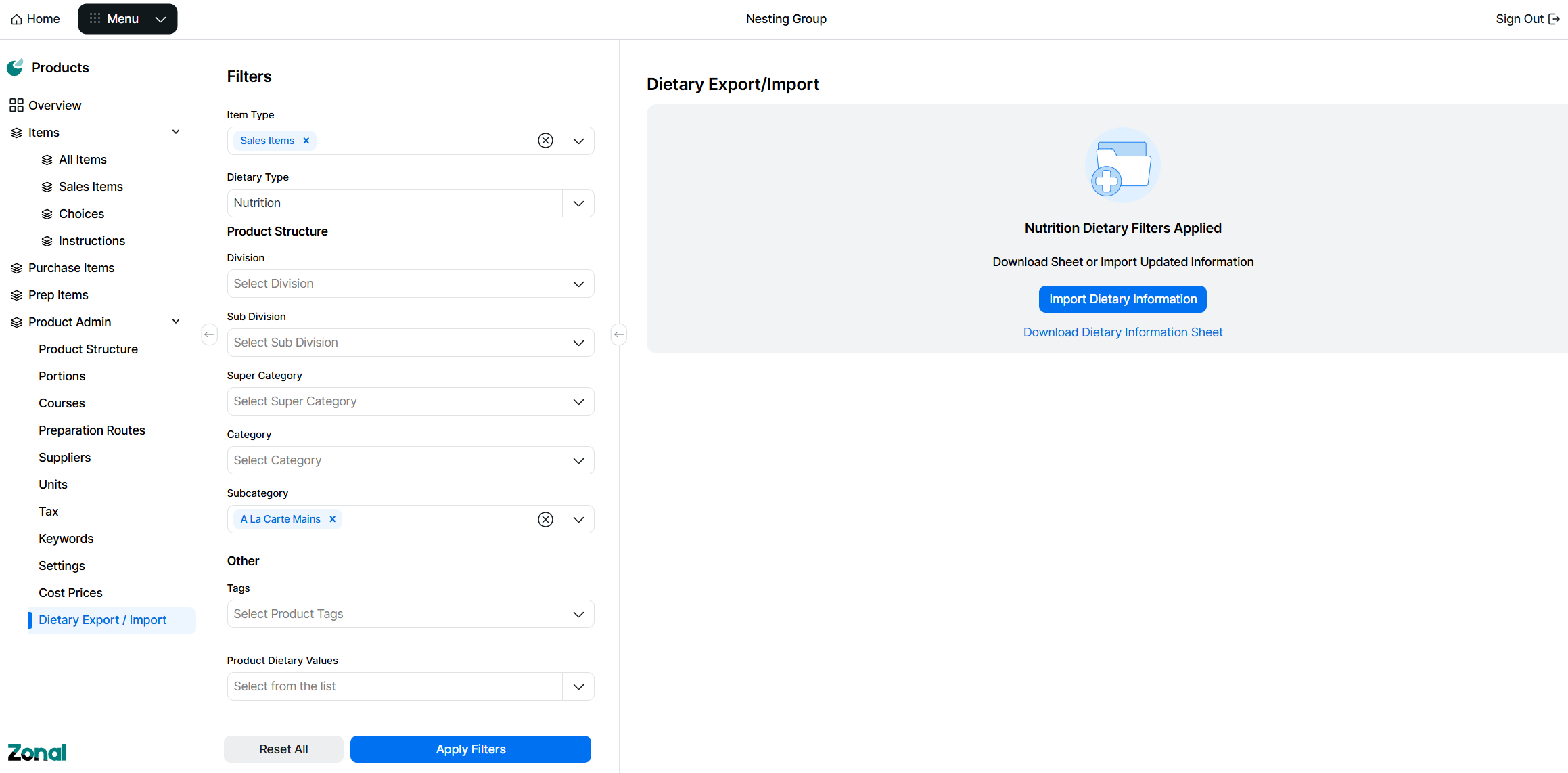
Once filters have been applied a spread sheet can be downloaded which will enable bulk updates for dietary data.
Follow these export and download the spread sheet:
-
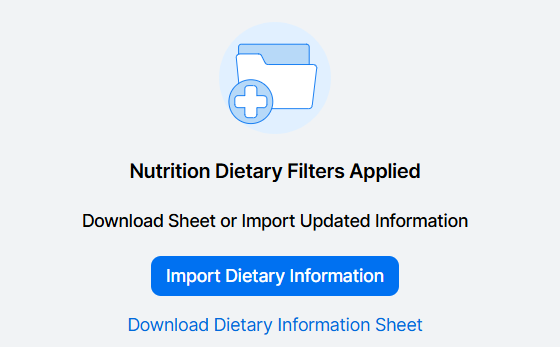
Click Download Dietary Information Sheet
-
The exported spread sheet will be added to your downloads folder, open the sheet to begin editing
The spread sheet will contain all of the items based on the filters applied
The file name of the spread sheet will be the following format: Nutrition_Template_Date_Time
Editing Spread Sheet Data
-
Add or edit dietary information as required in any of the data columns

-
Save the spread sheet
Importing Data
Step 3 of 3
Follow these steps to import the spread sheet:
-
Select Dietary Export / Import
-
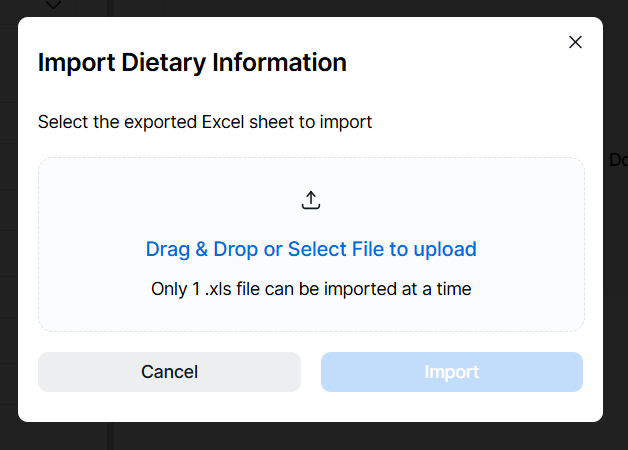
Click Import Dietary Information
-
Drag and Drop the file into the import area or click the link and locate the file to upload
One file can only be uploaded at a time, the file will be validated and displayed that it uploaded correctly, if the wrong file was selected it can be deleted at this time and the process repeated to select the correct file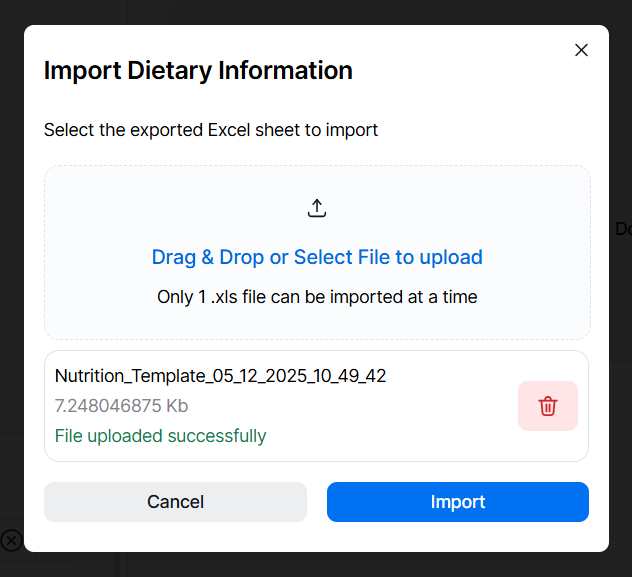
-
Click Import
After the import has finished, complete the bulk approval of the updated dietary information