Cost Prices
When suppliers update their prices, cost prices for purchasable sales items and purchase items can be managed and updated in bulk within the Cost Prices section.
Cost Prices Topics
Step 1 of 2
Applying Filters
Follow these steps to set filters before loading the cost price grid:
-
Select the required Item Type | Purchase Items / Sales Items
-
Select the required filters from the product structure and other filters
As least one level must be selected from the product structure filters to be able to load the cost price grid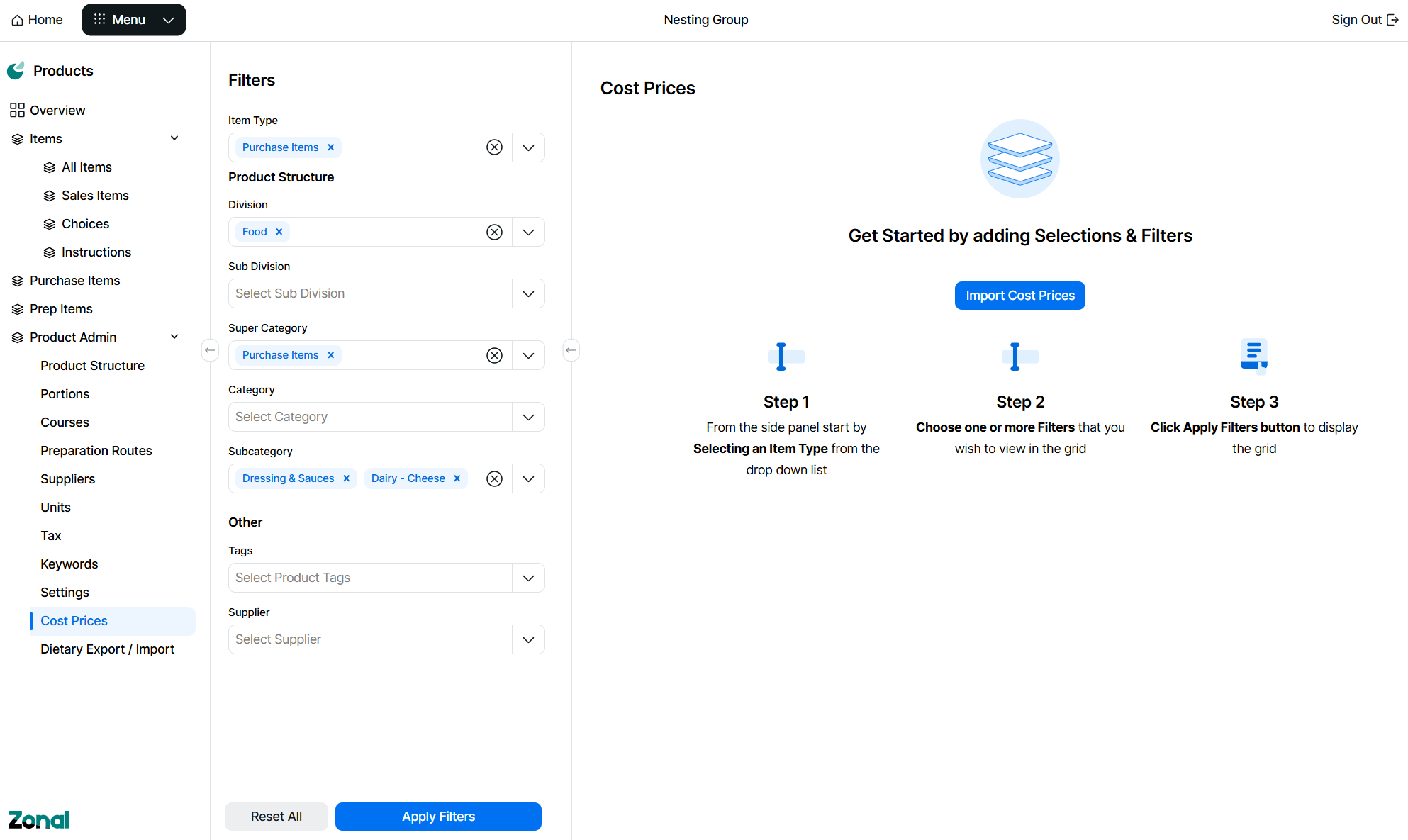
Product Structure Filter Tips
When filtering for parts of the product structure you can:
-
Use the product structure to select 1 or more parts of the hierarchy
-
Click into a drop down and either type to search or scroll through the list of available items and select
-
Select filters from multiple sections, to provide more accurate results
-
Click the X on the selected item to remove
-
-
Apply a filter by selecting product tags
-
-
Click Apply Filters | the cost price grid should now be displayed based on the filter criteria selected
By default 250 rows will be displayed in the grid, if there are more sales or purchase items these will be displayed on further pages, alternatively the number of items displayed on a page can be increased to either 500 or 750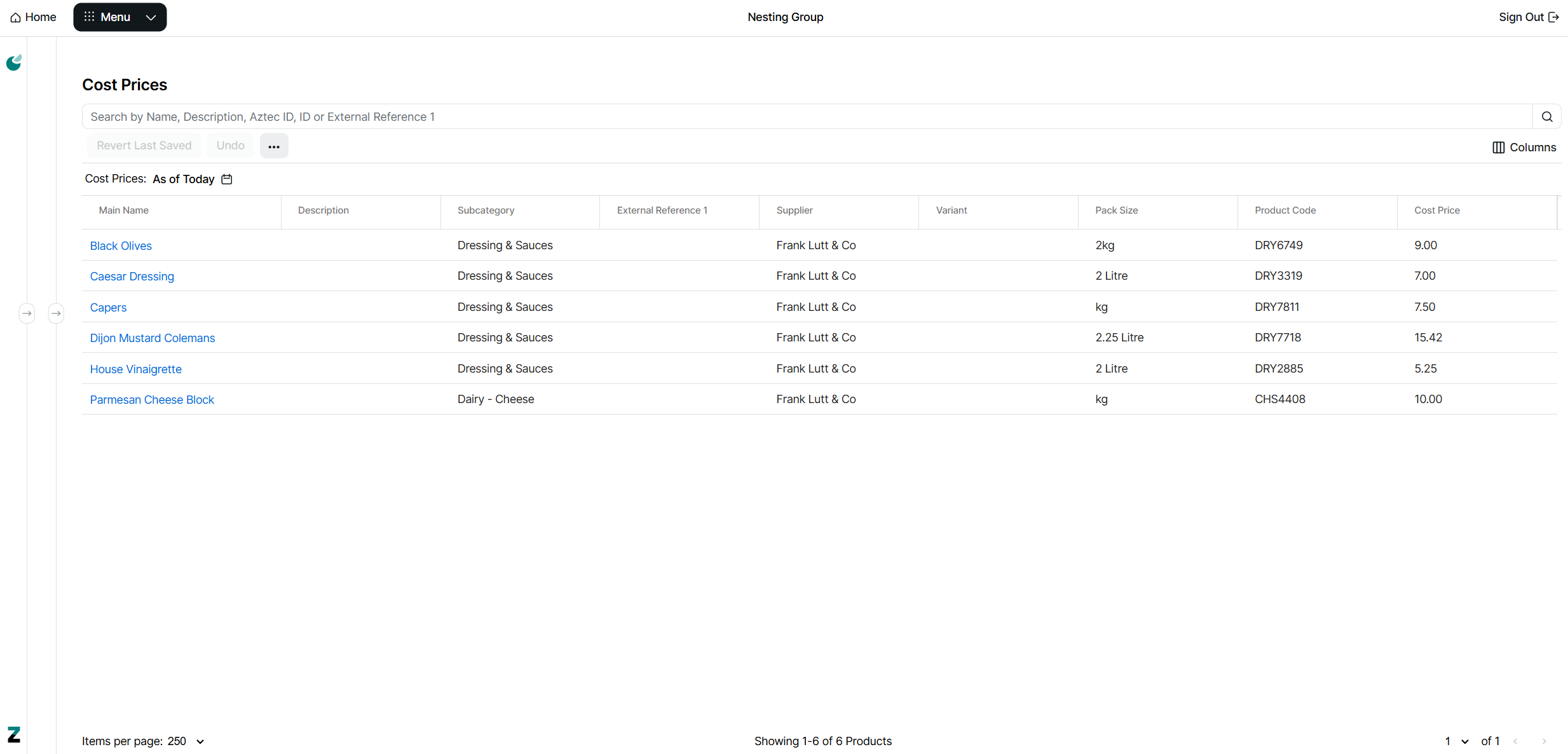
-
Additional searching can be applied to the grid using the search, this will return any results based on the search term entered, you can search by Name, Description, Aztec ID or External Reference 1
-
By default the following columns are displayed:
-
Main Name
-
Description
-
Category
-
Subcategory
-
Aztec ID
-
External Reference 1
-
Supplier
-
Variant
-
Pack Size
-
Product Code
-
Cost Price
-
Step 2 of 2
Managing Cost Prices - Grid View
Follow these steps to manage cost prices in the grid:
-
If the cost price updates are for a future date select the calendar at the top of the screen titled "As of Today" and choose a date in the future for which you wish to set prices | click Apply
If cost prices are changing price today start editing prices for "As of Today" -
Click into the cost price cell and add or edit prices as required | navigate around the grid by using mouse and clicking into a cell or by the keyboard up / down arrows, enter or tab keys
-
Cells displayed in "Purple" are new prices that have been entered but not yet saved
-
Cells displayed in "Green" are prices that have been saved
-
Cells displayed with an indicator icon
 shows there is future cost prices set, hovering over the indicator will display "Show Details" which will provide further information for the future dates where cost prices are set
During a pricing session and prior to save clicking "Undo" will remove or changes prices back to their original stateIf the cost price grid has been loaded with multiple pages before changing the page any price changes must be saved -
-
Click Save
After price changes have been saved clicking "Revert Last Saved" will cancel all changes made in the last saved session and revert to the previous saved session
Managing Cost Prices - Export & Import
Follow these steps to manage prices in the via export to spread sheet and import:
-
Click the 3 dot menu | select Export Cost Prices
-
Confirm the export by clicking Export
-
The exported spread sheet will be added to your downloads folder
The spread sheet will contain all of the items that were shown in the cost price grid (across all pages) at the time of export
The file name of the spread sheet will be the following format: CostPrice_YearMonthDate
Editing the Spread Sheet
-
Add or edit cost prices as required in the cost price column
Only the cost price field can be edited all other cells are blocked from entry -
Save the spread sheet
Importing
-
Select Cost Prices
-
Click Import | or from an open Cost Price Grid click the 3 dot menu, select Import Cost Prices
-
Set the required Date of Change from the calendar
-
Drag and Drop the file into the import area or click the link and locate the file to upload
One file can only be uploaded at a time, the file will be validated and displayed that it uploaded correctly, if the wrong file was selected it can be deleted at this time and the process repeated to select the correct file -
Click Import
-
When the file has imported the cost prices will be updated, when displaying the grid after an import any changed cost prices will displayed in green
After cost price changes have been imported "Revert Last Saved" will cancel all changes made in the last import and revert to the previous saved session