Vouchers
Vouchers Topics
Overview
Vouchers can be set up to discount the prices of bookings for a wide variety of reasons such as a hotel promotion.
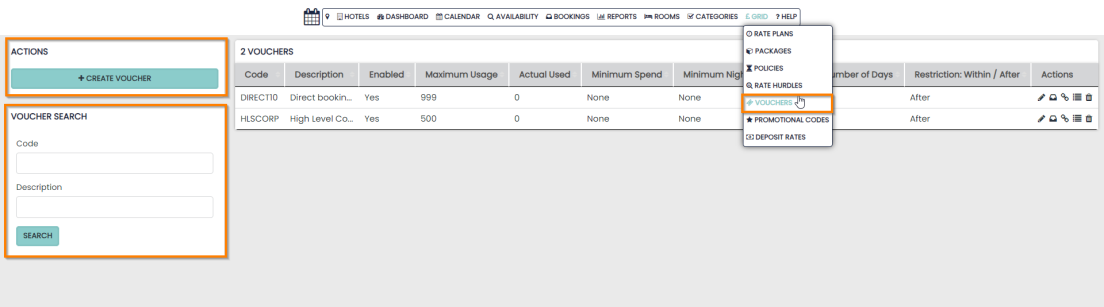
Vouchers are found in the Grid drop down menu
Located on left-hand side is the ‘create voucher‘ button.
Below the creation button is the search. A user can search for Vouchers by code and description. Once created, Vouchers are displayed in the table displaying their set up configuration.
Create a Voucher
When creating a new Voucher, the following data is required:
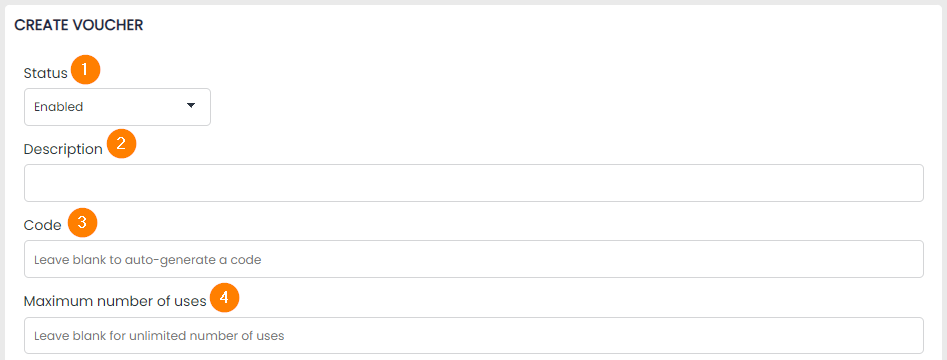
1 Status – this is defaulted to ‘Enabled’ but can be changed to ‘Disabled’ to ensure the voucher is/not available on the booking engine or booking hub page
2 Description – this is for internal use only
3 Code – this is the code that needs to be entered in order to apply the discount. It needs to be unique. This field can be left blank to auto-generate a code
4 Max number of uses – once the number of bookings using this voucher reach this number, the voucher will no longer be valid. This field can be left blank if the voucher can have unlimited usage
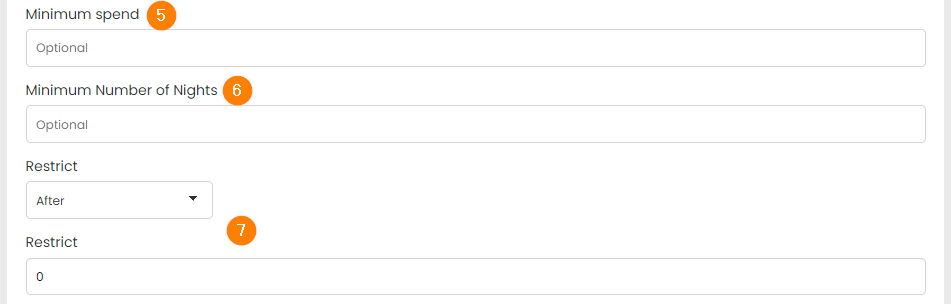
5 Minimum Spend – an optional value that is the minimum spend of the booking
6 Minimum number of nights – an optional value of the number of nights the booking must be for the offer to be valid
7 Restrict – this can be set to After or Within. A value must be entered below it. An example of each use is:
-
After 14 – The Booking must have an arrival date 14 days further into the future than the current day
-
Within 1 – The Booking must have an arrival date within 1 day of the current day
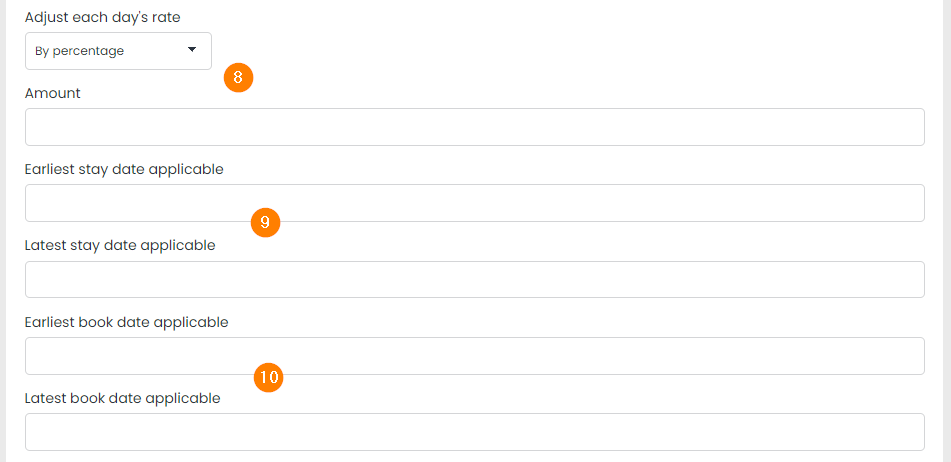
8 Adjust Each Days Rate – this can be set to By Percentage, By Amount or To Amount. A value must then be entered below. An example of each is shown below:
-
By Percentage 10 – This will discount by 20%
-
By Amount 25 – This will discount by £25
-
To Amount 99 – This will override the price to £99Earliest stay and latest stay date applicable
9 Earliest and latest stay date applicable – this is a YYYY-MM-DD format which restricts the voucher to only apply from, between or to the dates selected for when the stay can be booked.
10 Earliest and latest book date applicable – this is a YYYY-MM-DD format which restricts the voucher to only apply from, between or to the dates selected for when the booking can be made
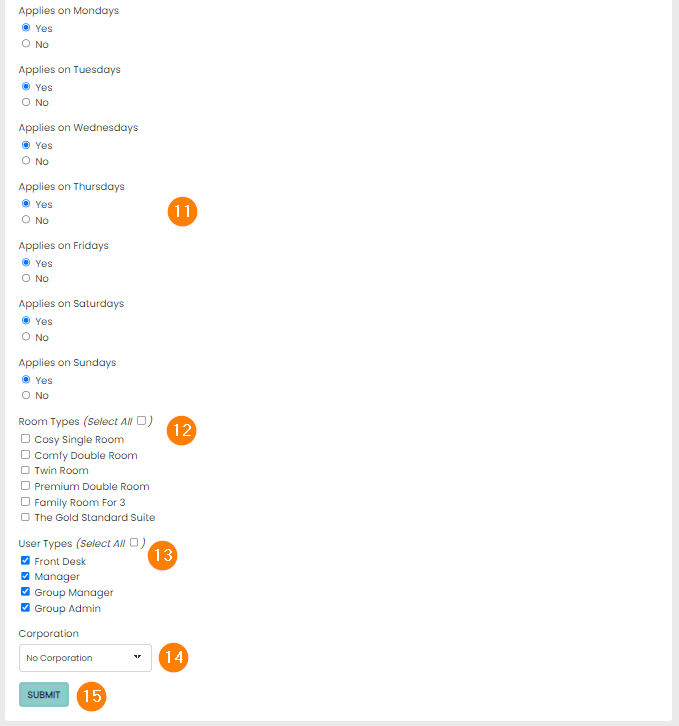
11 Day of the Week selector – select ‘Yes’ for the days you wish the discount to apply to. These dates will cycle if the date selector above is set longer than 7 days.
12 Room Type Selector – select the Room Types that you wish the discount to apply to. Multiple rooms can be selected.
13 User Types – ticking user types enables them to have permission to view vouchers in the booking engine, booking hub page, or voucher overview page. If a user is not ticked, they will be restricted from viewing the voucher in these locations.
14 Corporation – allows a voucher to be linked with a corporate profile from a drop-down list. If a corporation is added to a voucher at the time is it created, the booking will be created in the name of the corporation and will be marked as ‘Business’ for its purpose.
15 Submit – Creates the voucher
Apply a Voucher
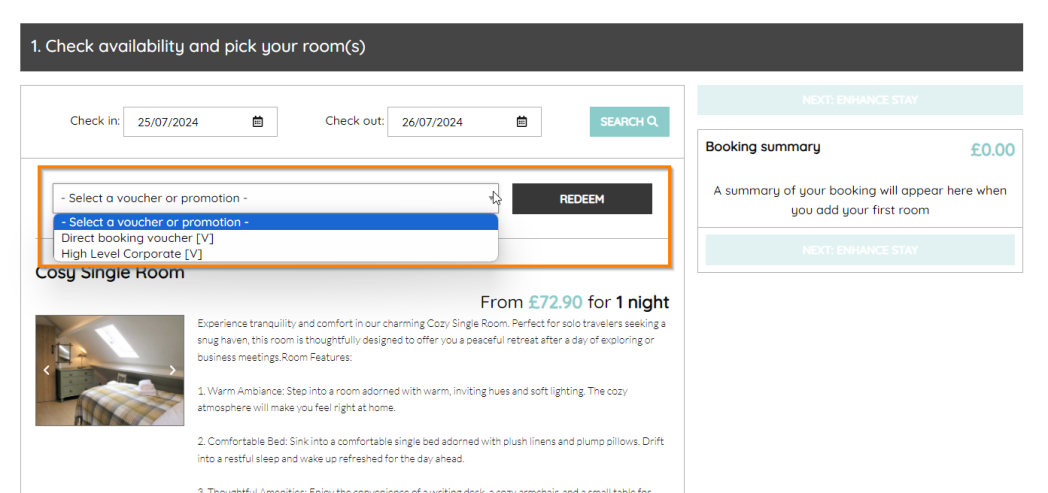
Once a voucher has been created and a user level ticked so it has permission to view the voucher, staff at your hotel will be able to view the voucher in a drop-down on the booking engine (availability) if it is enabled.
Select ‘Check in’ and ‘Check out’ dates, followed by ‘Search’.
From here, you can select a voucher from the drop-down available.
Select ‘Redeem’ and the price of the assigned rooms will update.
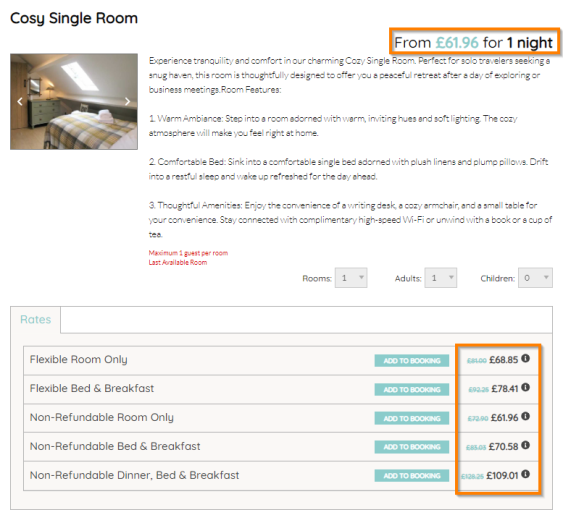
The prices will update by striking through the original price then displaying the updated price beside it and updating the view.
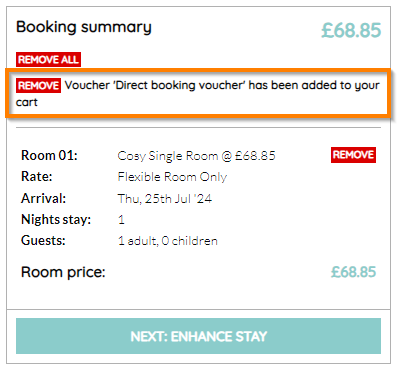
The booking summary will then update with ‘Voucher {your voucher name} has been applied to your booking.”
A success message will appear, “Voucher has been applied to the booking.”
Then select ‘Add to Booking’.
You will now see an updated booking summary.
Multiple rooms booked with the same dates can be added and benefit from the same discount if the rooms have been associated with the voucher from the ‘Create a Voucher’ form.
Select ‘Next: Guest Details’ to complete the booking journey as usual.
Removing a Voucher after it has been applied
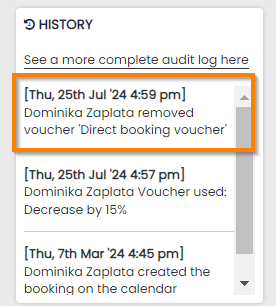
Vouchers can be removed from the booking after they have been applied. This is done by opening the booking itself and selecting the ‘Remove Promotion’ button to the right side of the screen.
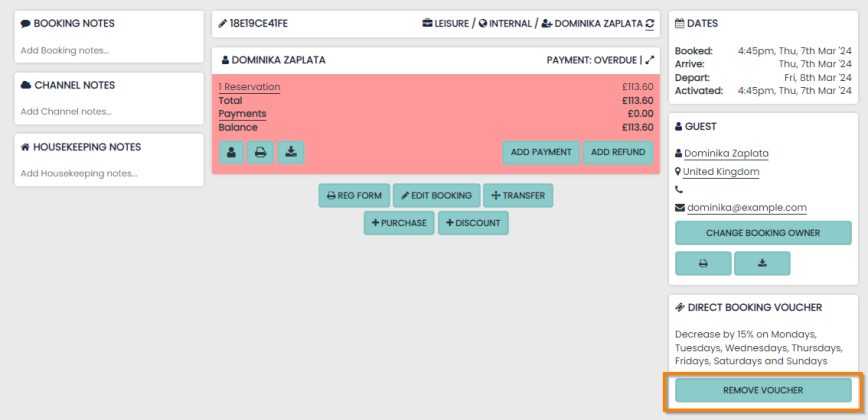
Vouchers can be removed from the booking after they have been applied. This is done by opening the booking itself and selecting the ‘Remove Promotion’ button to the right side of the screen.
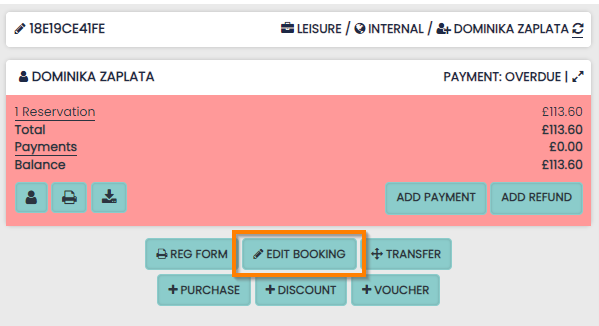
The price of the booking will remain the same as was originally reduced by the voucher. If you need to update the price to a new amount, you can use the ‘Purchase’ or ‘Edit Booking’ options from the booking reference overview:
Deleting a Voucher
A voucher can be deleted after selecting ‘Vouchers’ from ‘Grid’ and selecting the bin on the voucher row within the ‘Actions’ column.

Searching Bookings by a voucher filter
Bookings with a voucher applied will be searchable from ‘Bookings’, ‘Booking Search’.
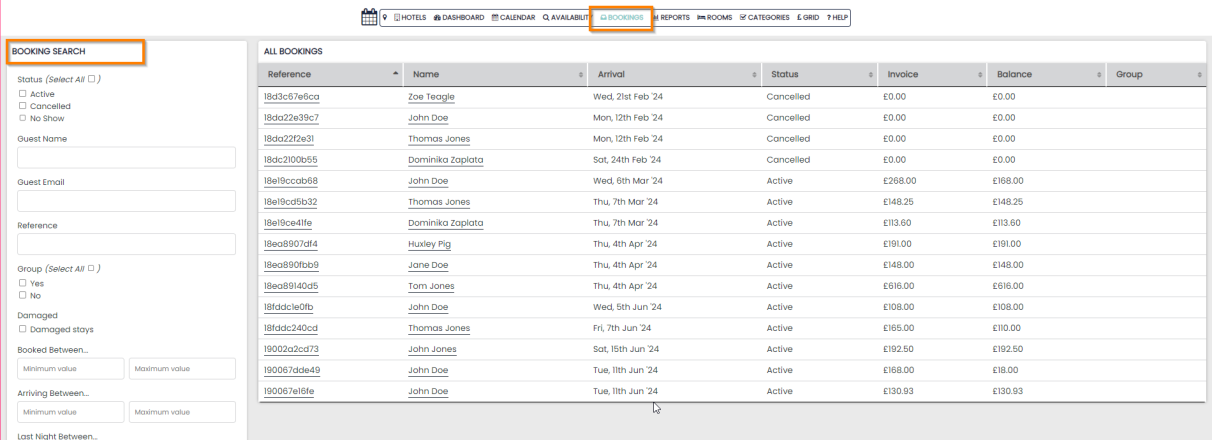
This filter can be applied by ticking the voucher name from the ‘Voucher’ section of the booking search.
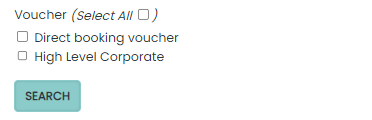
A voucher can also be searched after selecting the ‘Show bookings with this voucher’ icon from ‘Grid’, ‘Vouchers’ :

After selecting this button, you can ‘Search’ for vouchers from a ‘Voucher’ filter in ‘Booking Search’ panel to the left of the screen.
URL Link for Vouchers
Hotel staff with permission can copy a voucher URL Link to share on social media as a call-to-action. This can be done by selecting the ‘Copy link to clipboard’ icon from the row of the relevant voucher’s ‘Actions’ after ‘Grid’, ‘Vouchers’ has been selected.

The following URL can be shortened using online tools and pasted into social media platforms like Twitter and Facebook, alongside your text of choice to get more customers onto your booking engine with the voucher pre-applied
The customer will be taken to the booking engine. They will see a successful message, ‘Voucher has been applied to the booking’.
Vouchers API Output
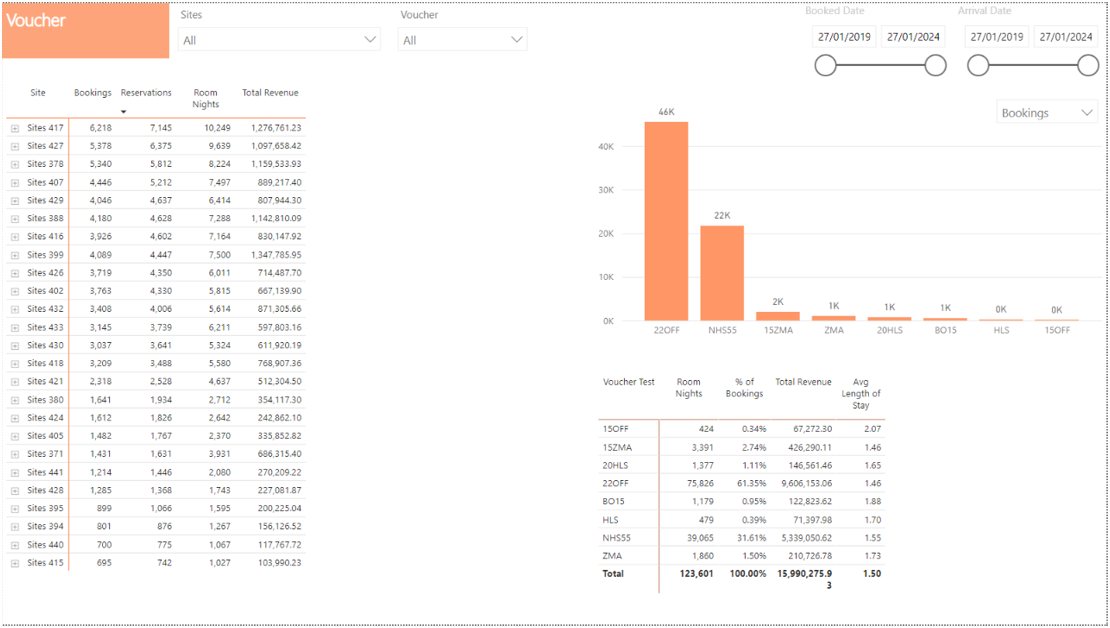
Will be available on the booking and guest APIs for use with Power BI and other reporting platforms.
On the right hand side of the screen, you can see the current voucher Power BI dashboard displaying voucher usage across your estate and total revenue generated.