Rate Hurdles
Rate Hurdles Topics
Overview
Rate Hurdles can automate changes to your Rates. They are found under the Grid drop down.
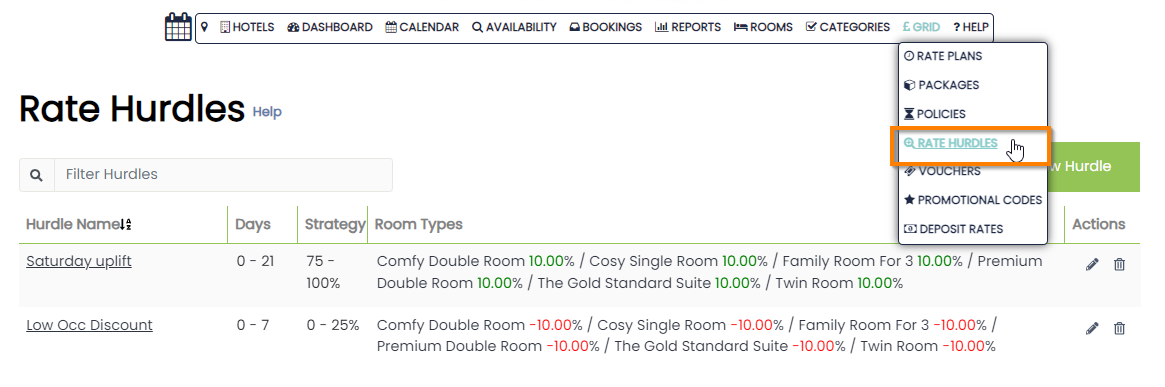
The changes that the Rate Hurdles automate are based on the overall Occupancy of the hotel.
Creating Rate Hurdles
Use the ‘Create New Hurdle’ button to enter the setup lightbox.
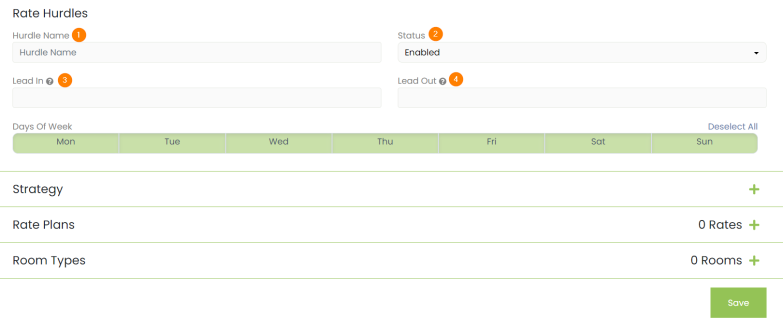
The first step is to enter the following:
- A name for the hurdle
- Whether it should be enabled / disabled
- Lead In value
- Lead Out value
Lead In and Lead Out values refer to how many days, from the current day the hurdle with affect. E.g. if you would only like the hurdle to affect the following 30 days, you would enter the values 0 and 30 respectively.
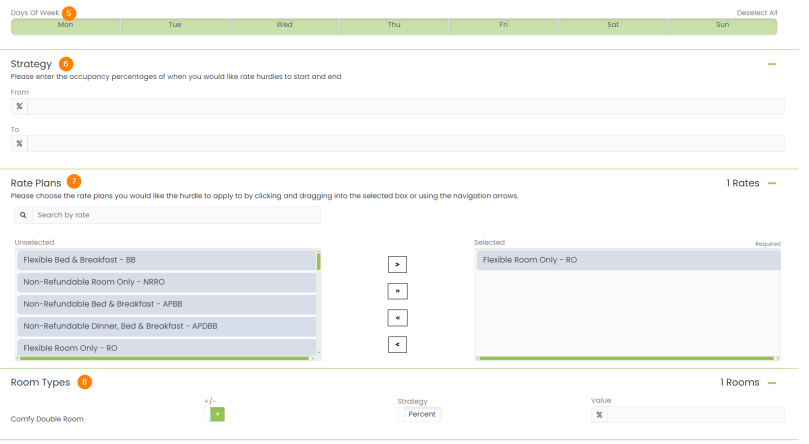
- Days of the Week that the hurdle will be applied to
- Occupancy Percentage Strategy allows you to control the threshold at which the hurdle will come into effect. The rate hurdles will affect the figures between these two values
- Rate Plans. Single arrow moves across one highlighted rate plan at a time, double arrows move all rate plans or you can manually drag and drop each rate plan
- Room Types will only appear once rates have been selected. From here you can choose your strategy for the hurdle
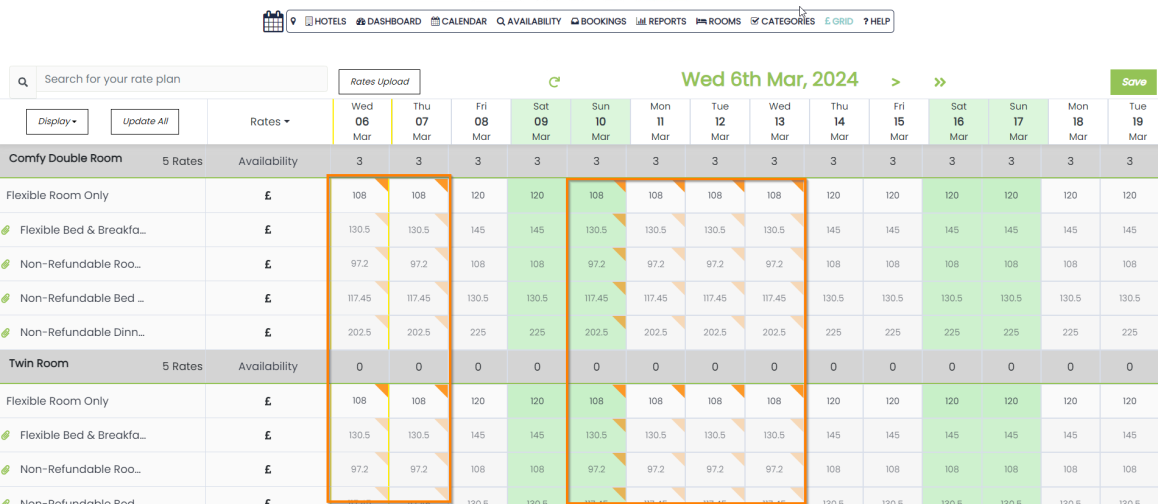
Rate Hurdles within the Grid
If a rate has an active rate hurdle applied, there will be a small orange triangle within the grid to indicate this.