Rate & Restrictions Grid
Rate & Restrictions Grid Topics
Overview
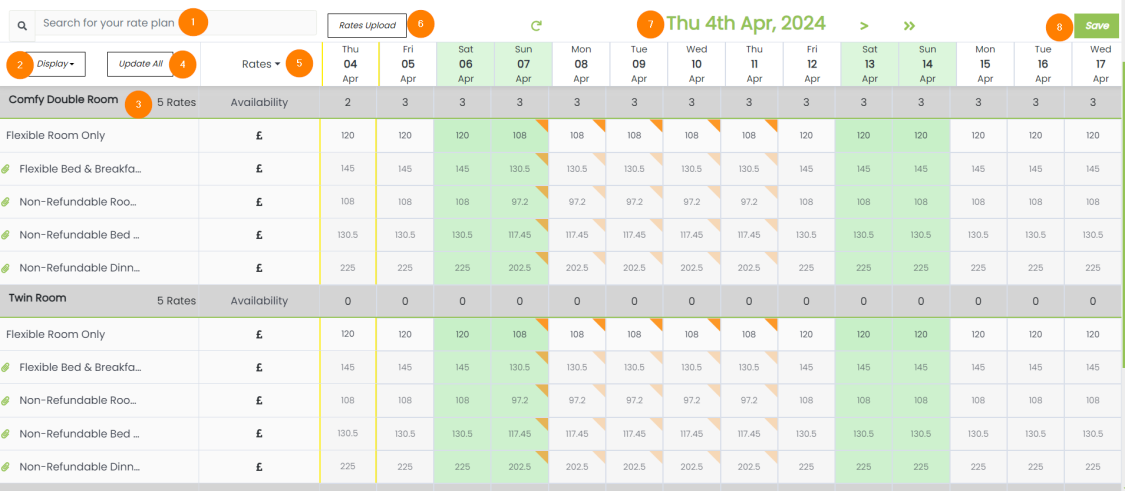
The Grid is an editable calendar where you can manage your rates and restrictions.
The below features can be found within the Grid:
1 Search / Filter for Rooms or Rates
2 Toggle between editable and derived rate plans.
3 Room types and rate plans
4 Update All (Bulk Update)
5 Rates / Restrictions selector
6 CSV Rates Uploader
7 Grid micro calendar
8 Save Button
Grid Data
The Grid will, by default, show the daily rates for all rate plans in the PMS. Rates for individual days can be updated by entering a new value in the cell and pressing save. Derived rates cannot be edited in this way, these are indicated by the green paperclips.

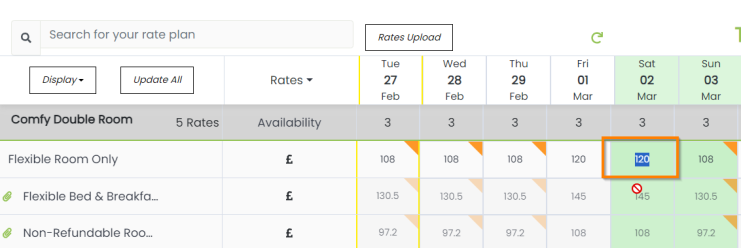
Stop sells allow you to stop selling specific rooms or rates. Stop sells will display a no entry sign when they are correctly applied.

Minimum and Maximum stay sets the minimum / maximum days the room / rate needs to be booked for. The default minimum stay is 1.

Closed to Arrival and Closed to Departure settings are also either set to On or Off. Closed to Arrival / Departure means a Guest cannot check in / out these days but Guests can stayover. Eg Christmas Day.

Icons
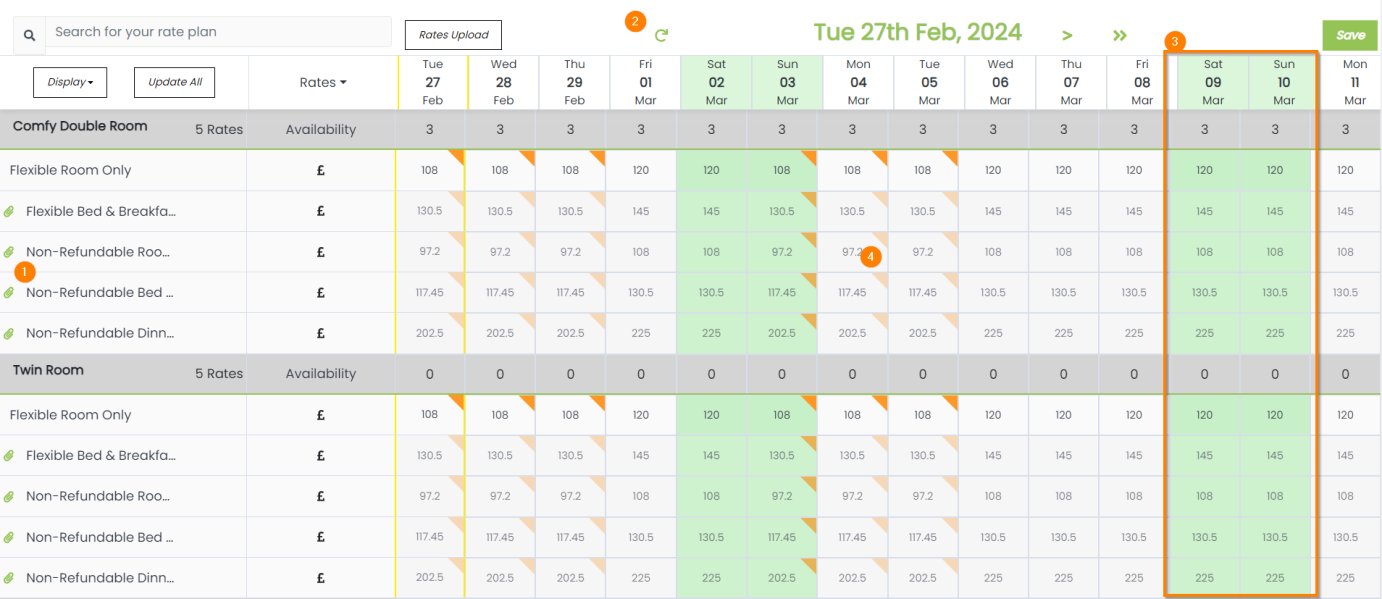
The following icons will display on the grid:
1 The paper clip icon indicates that the Rate price is derived from another Rate Plan and cannot be updated in the Grid.
2 Refresh Arrow will return the Grid to the current day when clicked.
3 Weekends are highlighted in green.
4 If an orange triangle displays within the cell, a rate hurdle is auto-adjusting the rate
Manual (Small Scale) Changes
Small scale changes can be made very quickly on the Grid page.
To change the rate cost shown within the Grid, click on the cell for the rate plan on the correct date. Be sure to click the ‘SAVE’ button to update the PMS.
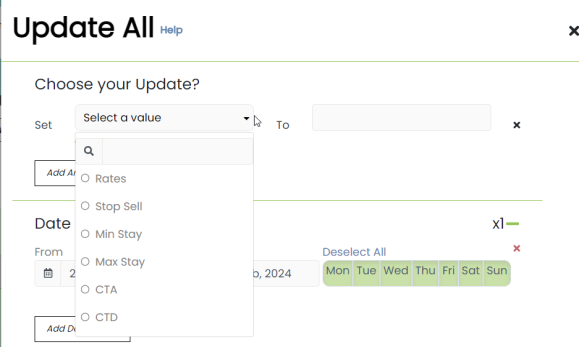
The same logic applies for all of the restrictions available in the drop down:
- Stop Sells
- Min Stay
- Max Stay
- CTA (Closed to Arrival)
- CTD (Closed to Departure)
Update All (Bulk Update)
To update multiple rates and restrictions over a period of time, click update all.
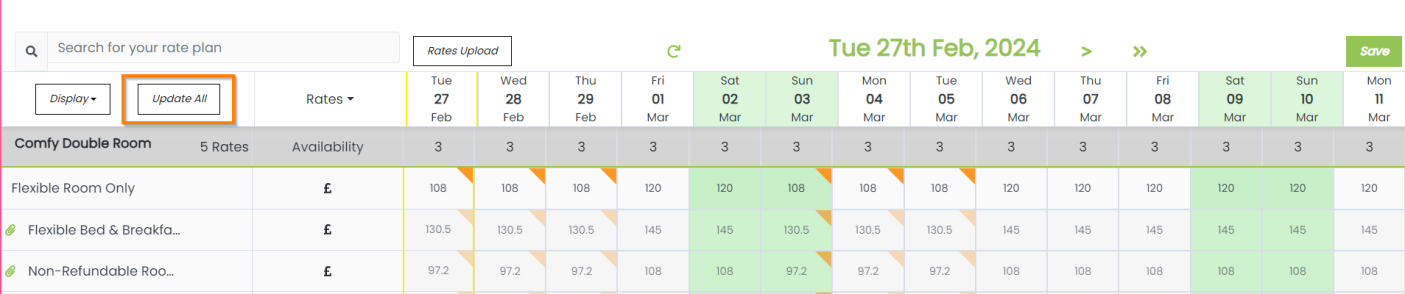
Once clicked, a lightbox will open up on the right hand side of the screen.
-
Choose the data type to be updated from the first drop down
-
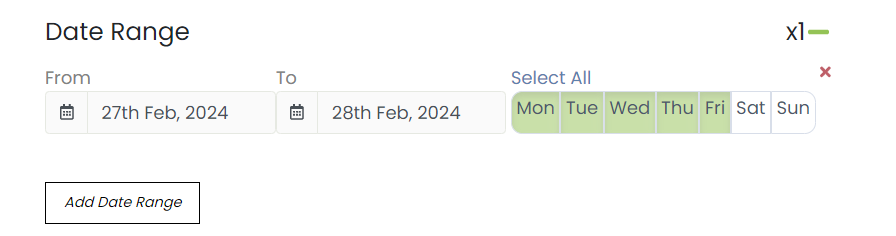
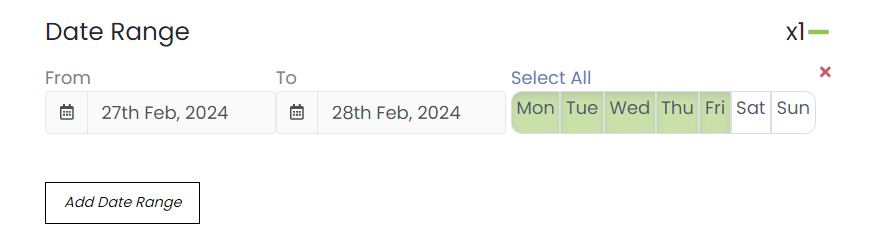
Supply a date range (max. 2 years at a time) and select the days of the week to apply the update to
-
Select the Rate Plans you wish to update. You can select multiple. Be sure to click Save once you are happy with the selected update details
Some restrictions will have a toggle which can be set to green (on) or grey (off)
