Emails
Within the system, you can create automated emails that are sent to guests at key moments in their journey,14 days before arrival, 14 days before departure, or even during their stay.
These emails can be used to share important property information before the guest arrives, highlight upsell opportunities, encourage repeat bookings, or request a post‑stay review.
Emails Topics
Overview
You can create email templates in the PMS to automatically send before or after a guest stays.
The emails are located under the dashboard button.
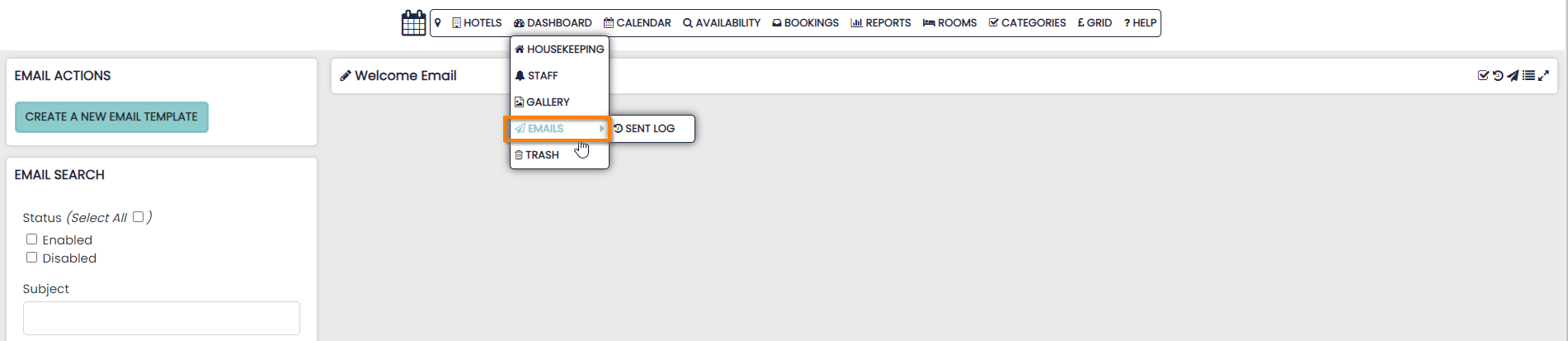
Create a New Template
To create a new email template select the button located in the top left-hand corner of the page.
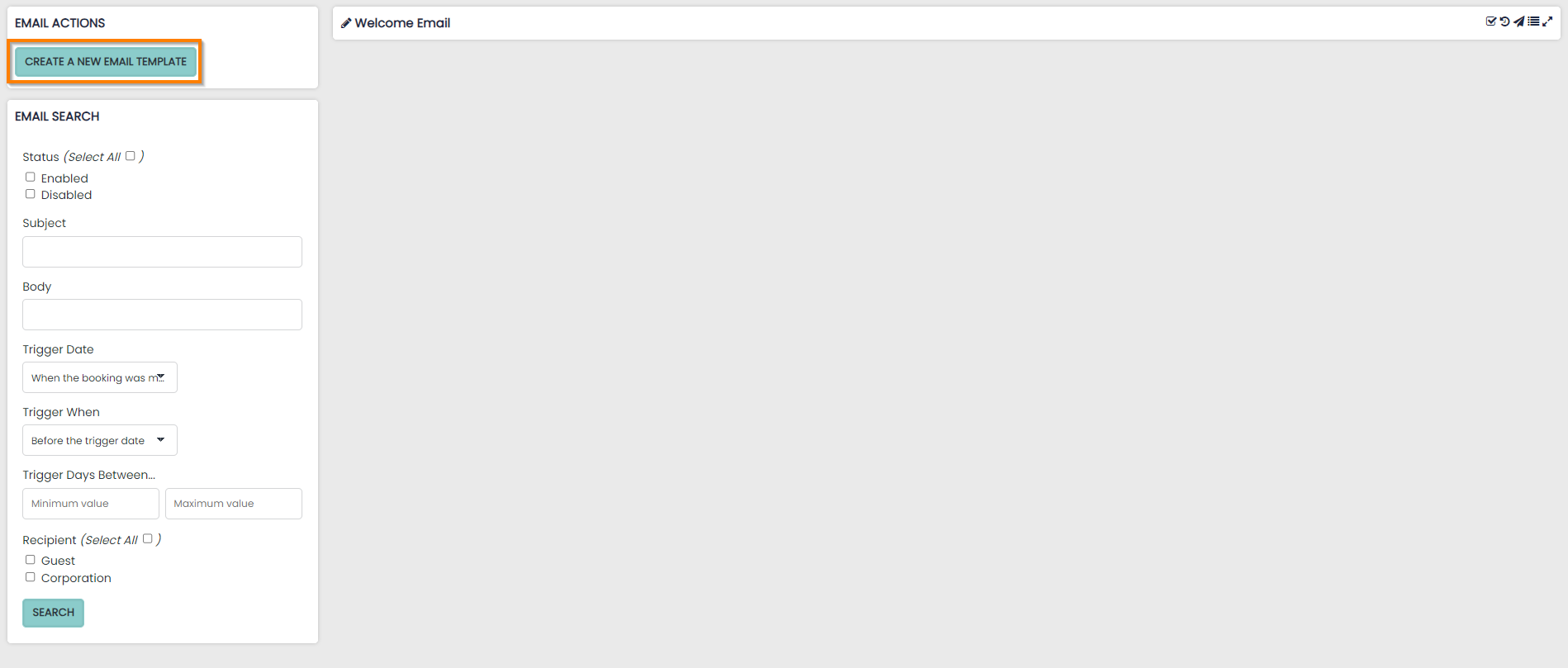
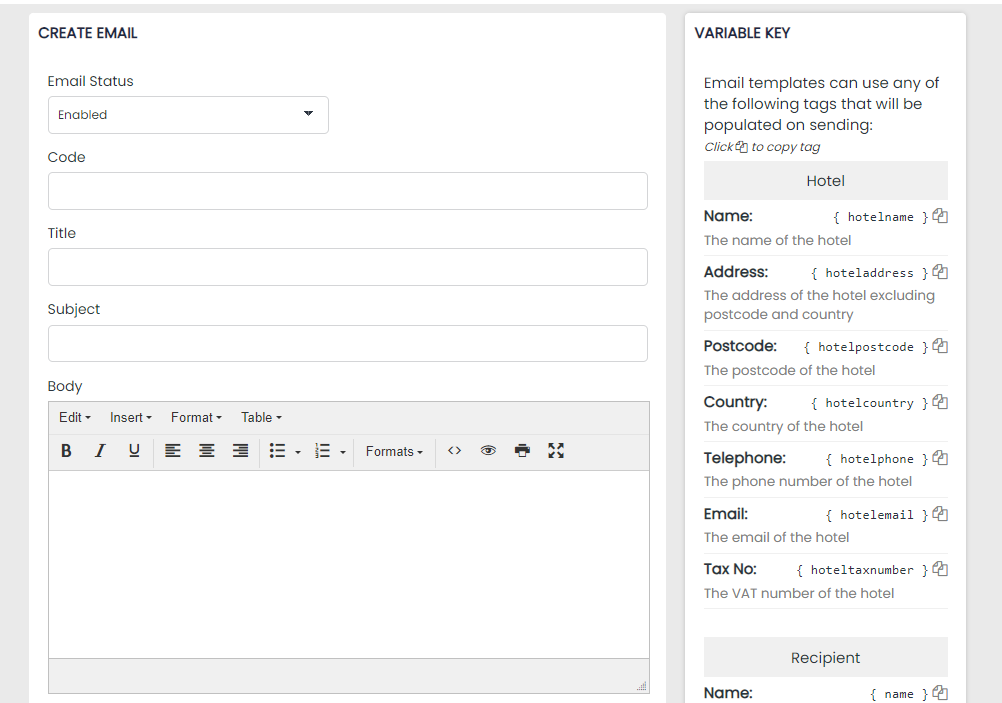
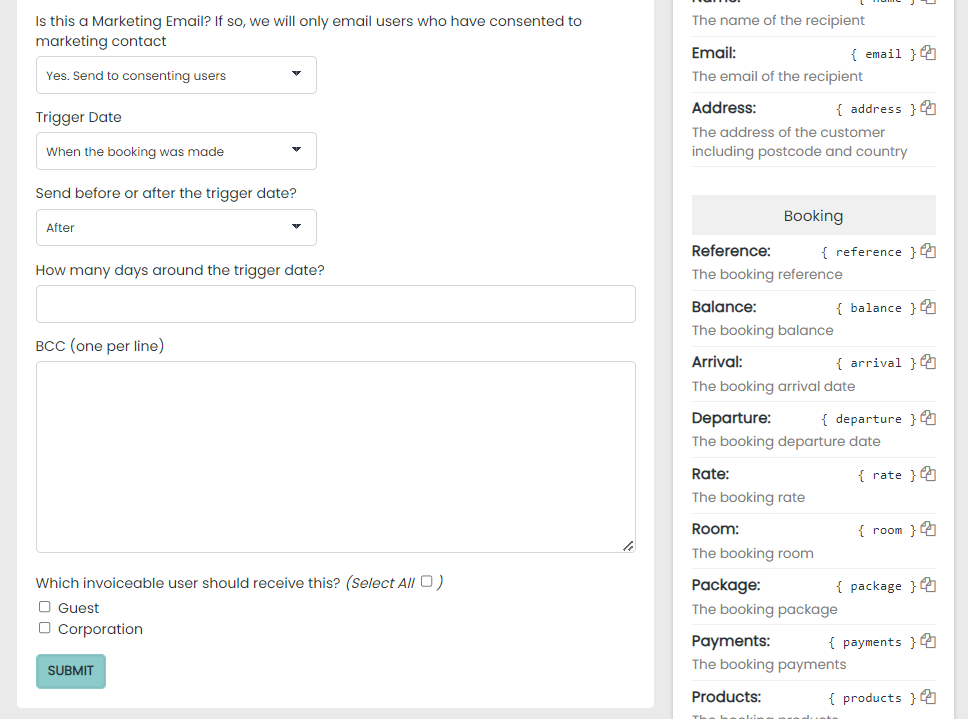
When creating a new template you must choose the following settings:
- Turn your email template On (Enabled) or Off (Disabled)
- Set the unique identifier code for the template (internal use only)
- Set the name (Title) of your email template
- Input the subject matter of your email template e.g. Summer Deals, Special Offers etc
-
Compose your email content using the body text box. You may include:
-
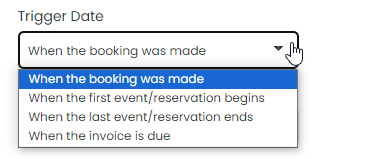
Set the specific circumstance (Trigger) after which you would like the email to be sent
-
Select whether you would like the email to be sent Before or After the trigger date
-
Set how many days before or after the trigger date the email will be sent
Using Variables
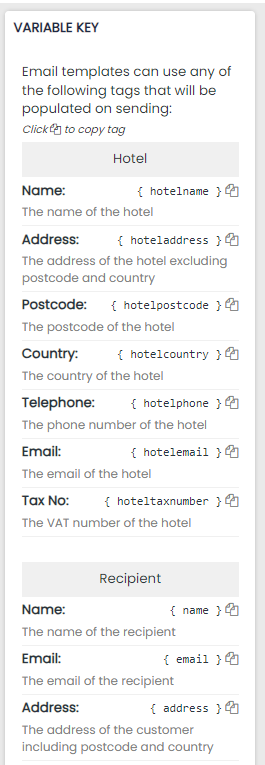
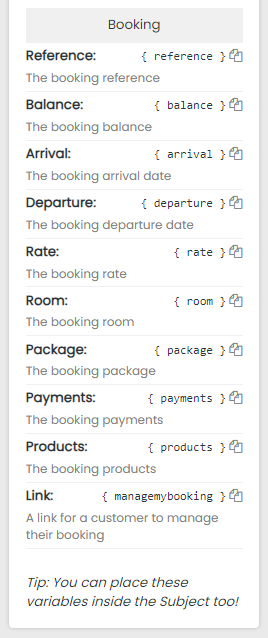
When creating or editing a template, be aware of the variables available to use which will transpose information from the Booking into your email content.
The format of the variables is very important so it is recommended to copy and paste the variables from the key found on the right hand side.
These variables can also be used in your subject line to create a more personalised email for your Guests.
Current Templates
Once the email template has been created it will appear on the right-hand side of the email screen.
Every template will have a series of icons located to the right-hand side of the email title.
- The ticked box displays when the email template is active. If the email campaign is inactive the box will appear empty
- Selecting the Clock / Arrow icon displays a log history of emails sent
- Selecting the Paper Aeroplane icon will send a test email to your email address
- Selecting the Drag to Sort icon will allow you to reorder the current email campaigns in the list