Image Gallery
Image Gallery Topics
Overview
The PMS has an Image Gallery which can store all the images you may want to use within the system.
It is located in the Dashboard drop down menu.
It can hold as many images as you require as long as each image is under 2Mb in size. Preffered formats are JPEGs or PNG.
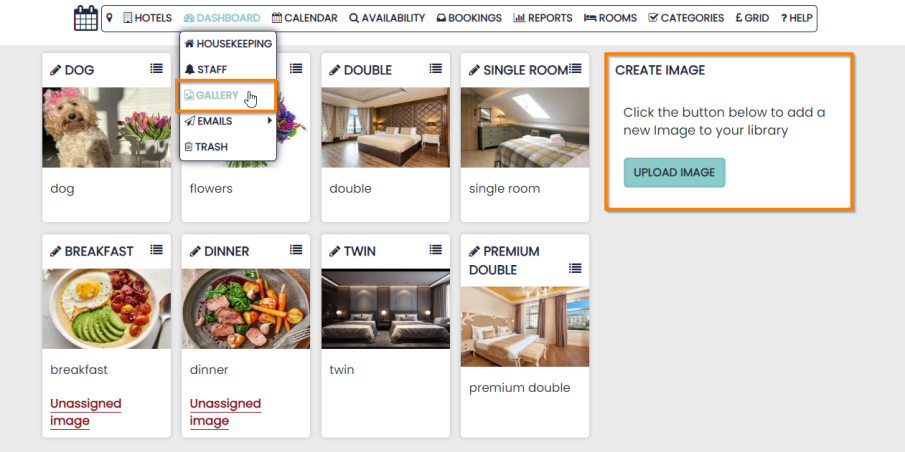
Each existing Image can be updated / edited in a number of ways:
- Use the edit pencil to edit the name or description
- Use the Drag to Sort icon to re-order the images within the Gallery
- Assign the image to Rooms, Rate Plans or Products (only displayed on the edit page)
Upload Images
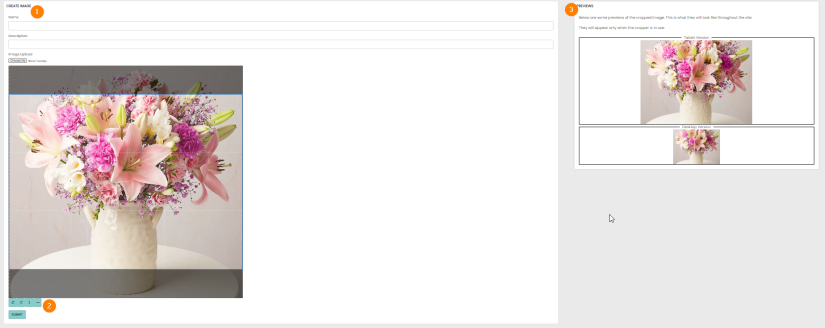
Once you have clicked on the ‘Upload New Image’ button, the Create page will prompt for a new image to be selected. Use the Choose File option to open your file explorer.
-
The name and description are for internal use only. Your Guests will not see this information
-
A preview of your image will be displayed showing how it will be cropped. You can adjust this accordingly
-
A further preview panel will show how the image will be altered when viewed on a mobile phone or tablet
Assigning an Image from the Gallery
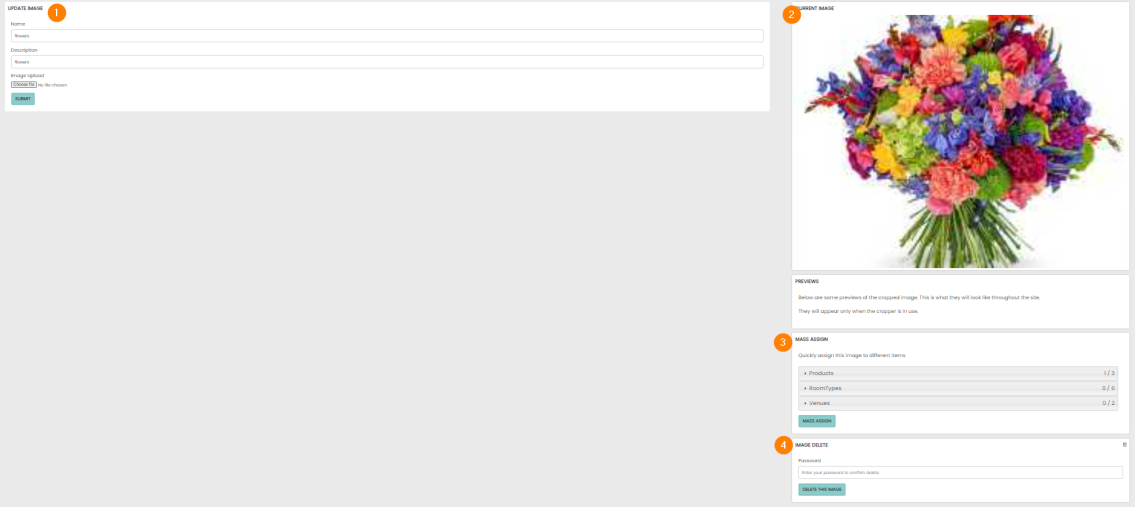
Once an image has been uploaded to the Gallery it can be edited and assigned from the Gallery page.
- The name and description can be edited from this page
- The current image will be displayed
- The image can be assigned to any of the already-created Products, Packages, Room Types or venues
- A further preview panel will show how the image will be altered if viewed on a mobile phone or tablet
Assigning an Image from a Module
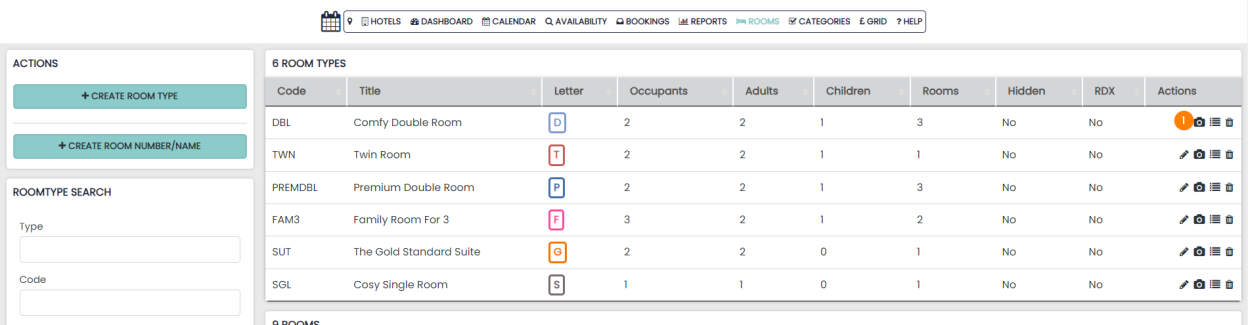
Images can also be assigned and managed from the modules themselves. These are Rooms, Rate Plans, Packages and Venues.
-
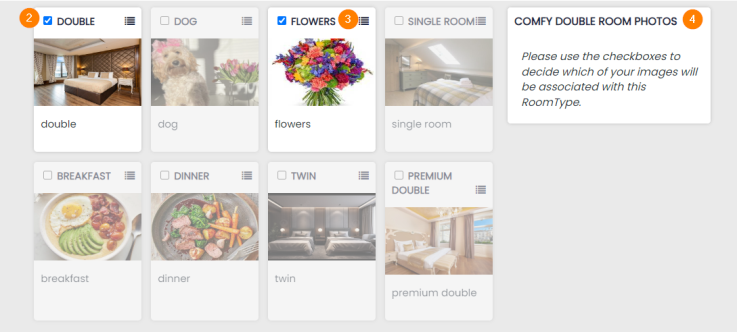
Look for the camera icon in the Actions column on any of the modules to display a list of all Gallery images available
-
Any images that are ticked will display on the Booking Engine
-
The Drag to sort icon will allow you to re-order the images assigned to the selected item
-
The Selected item will be displayed to indicate what you are editing