Rooms
Here you will find guidance on how to create and manage new room types and room numbers that can be sold on your website and connected to third‑party platforms. Any updates you make to room content are applied in real time, ensuring that changes instantly appear across your system and booking engine. This gives you full control over the information your staff and customers see.
You can also adjust the priority of each room type and assign multiple functionalities, helping your hotel optimise visibility and achieve the highest possible conversion rates.
Rooms Topics
Overview
Here you can create new room types and physical rooms and view and manage your existing ones.
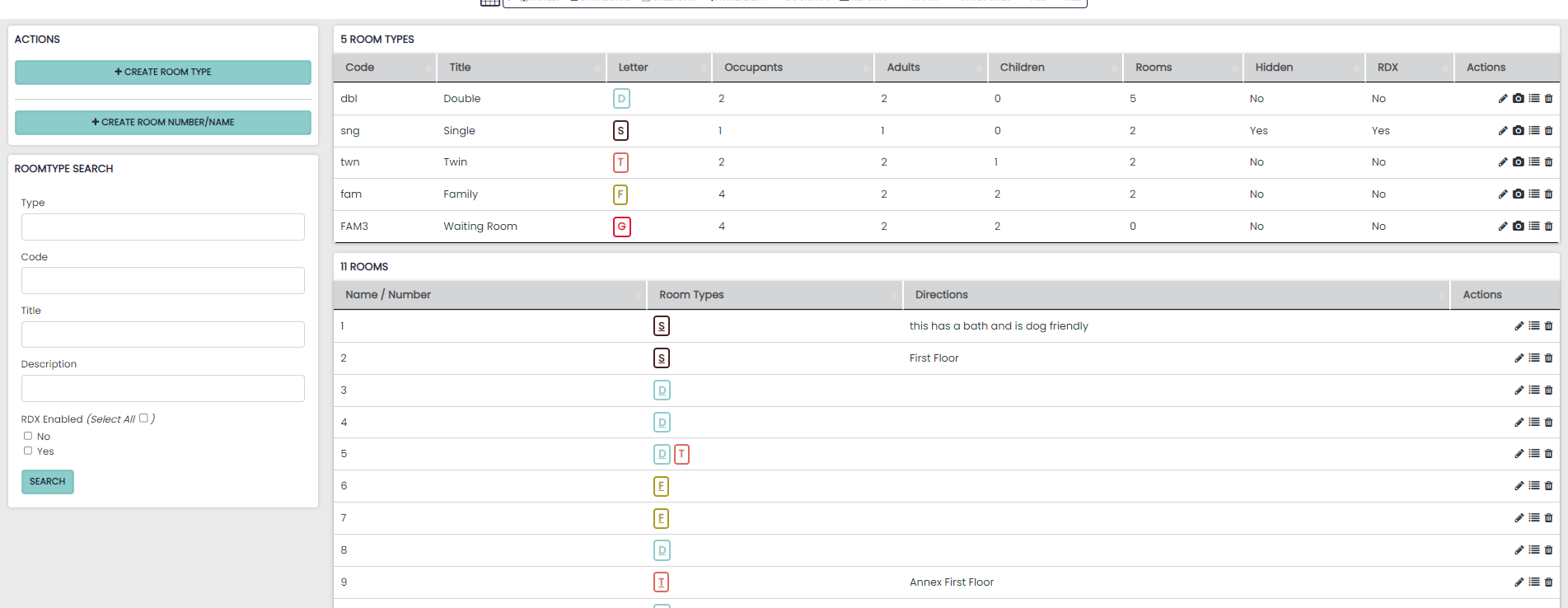
Actions Overview
The action buttons located to the right will allow you to edit and update any room / room type. The actions include the following options:
Opens the Edit Menu to Change the Room Type and settings
Allows you to add or edit photos for each Room
Allows you to drag and drop to change the order of the Room
Allows you to delete a Room Type or Room
Updating a Room Type
Due to the potential risks associated with editing your rooms, we would only recommend a hotelier access this area to make the following changes:
-
Room Description – This will be fed to your availability page and can be seen by prospective guests
-
Colour – This will change the colour displayed in your calendar
To action these changes select the edit pencil icon:

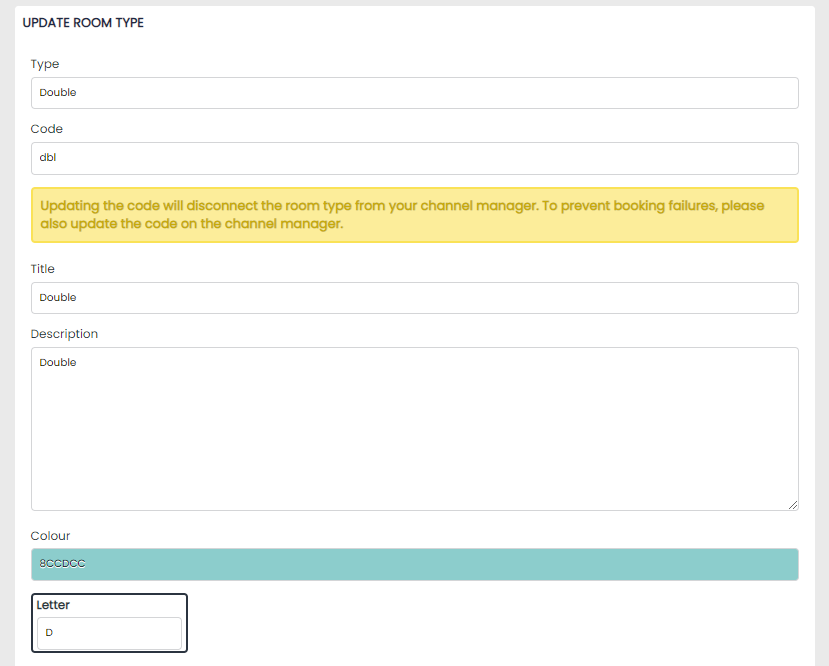
Here you can make the following changes:
-
Type – how the system refers to the room internally (not seen by guests)
-
Code – unique code to identify the room type within the system
-
Title – the name which will be displayed to guests
-
Description – The description shown on the Booking Engine
-
Colour – displayed in Calendar to help identify this Room Type
-
Letter – displayed in Calendar