Categories
Categories are sales areas you can set up to help organise and analyse your reports, especially when reviewing sales performance and discounts over a specific period of time. Sales categories always represent the upper tier of a product. For example, Drinks could be a category that includes multiple drink brands and product types sold through your system.
Categories Topics
Overview
The Categories section is found on the Navigation bar and will allow you to assign any sales made in the system to Hotel specific categories.
The PMS comes with four pre-set sales categories:
- Accommodation
- Food
- Drink
- Miscellaneous
In addition to these, you can also set any Categories required, for example:
-
Bar Drinks
-
Wedding Food
-
Cancellation / No Show Charges
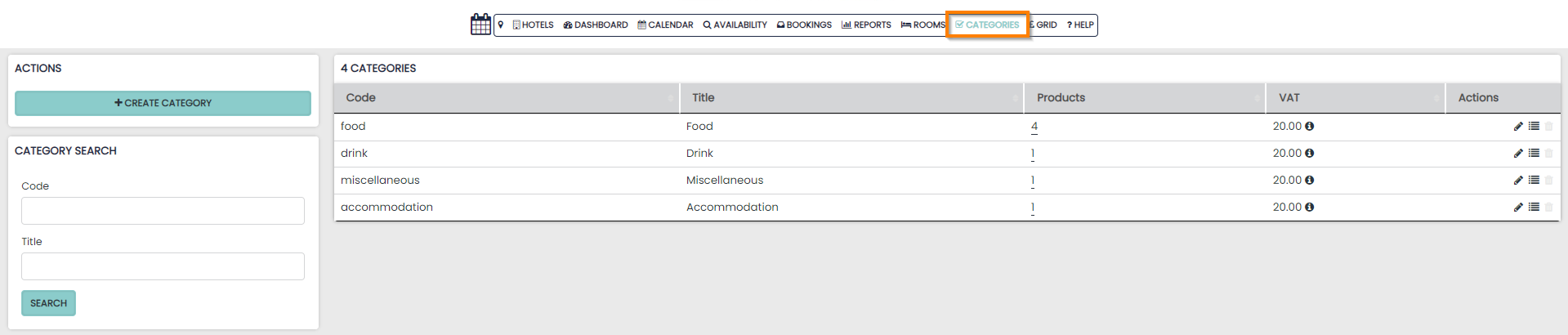
The categories page displays all live sales categories that have been set up for the hotel.
Use the Actions column to make changes or update your Products:
- Edit Pencil
- Drag to Sort (re-order)
- Delete
The column Products will display how many live products are assigned to the category. If you select the number you will be redirected to the products page to view and edit.

Creating Categories
You can set up as many Categories as required and items are not restricted to having just one category.
New categories are created on by selecting the ‘create category’ button on the left hand side and simply require:
- A Code
- A Title
- A Tax Rate
Assigning Categories to ad-hoc Sales
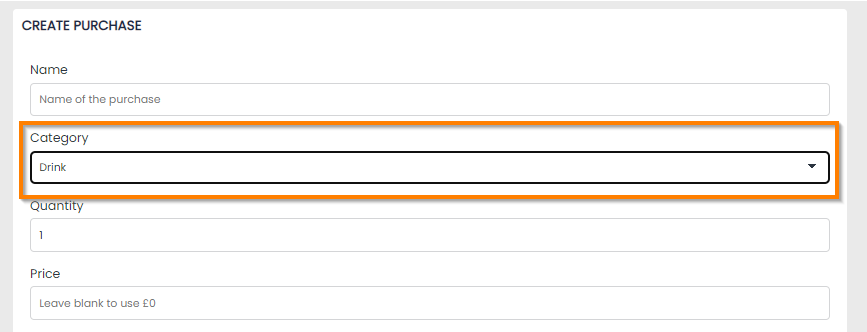
If you need to add an ad-hoc purchase or discount to a booking in the system, you must ensure it is reported within the correct Revenue Category.
In this case you will have all categories displayed in a drop down ready for tagging. Simply select a category from the dropdown to assign the purchase or discount.
Categories in Reports
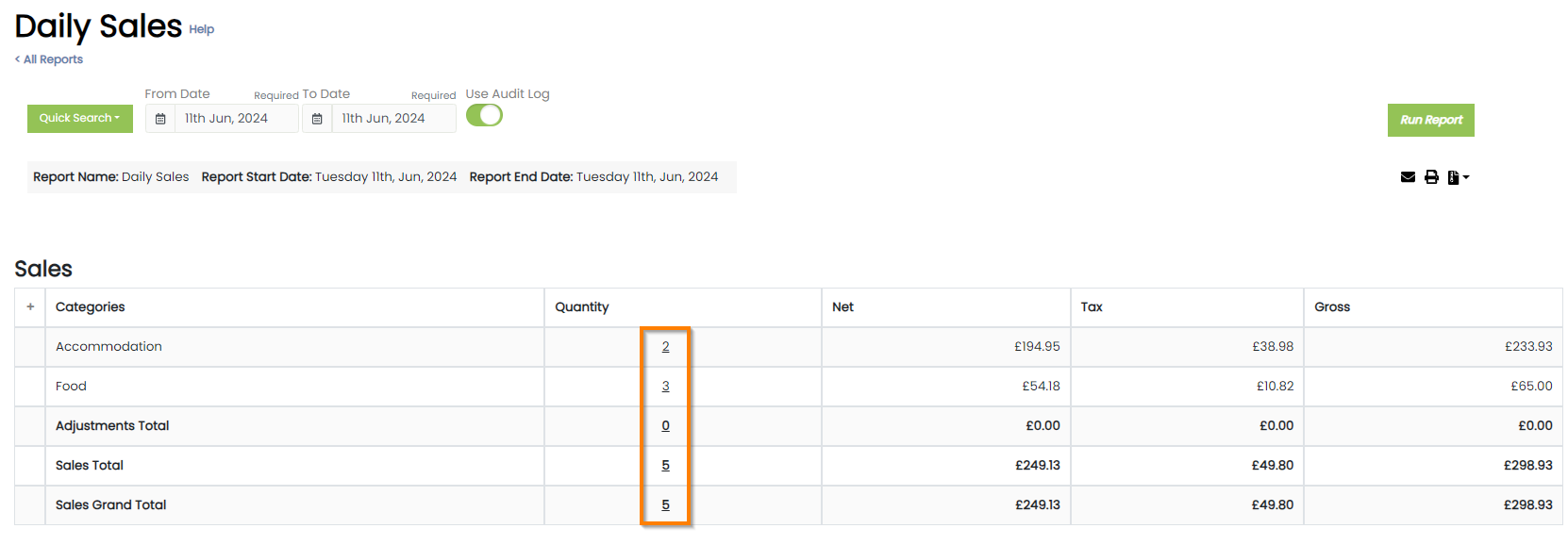
The Categories you have set up will then appear in your reports when a sale is made against them.
All categories sales are displayed under the Accommodation line.
All values in the quantity column will be hyperlinked when selected the user will be redirected to reports where you can investigate all the sales made under the category.