Analytics
Google Tag Manager is a tag management system created by Google to manage JavaScript and HTML tags used for tracking and analytics on many websites without development. Google tag manager is built into the Bookings Events Widget.
More information: https://tagmanager.google.com
If you would like to include Google tag manager in the Bookings Events widget, please contact your Zonal Account Representative to enable this feature within your Estate.
Please note – you will require knowledge and experience on how to use and implement Google Tag Manager as this is not an ‘out of the box’ solution.
Google Tag Manager Topics
Enabling Google Tag Manager in Events
-
To display the Analytics tab in Events Admin, your Zonal Account Representative will need to enable the feature flag

Once enabled, within the Events Estate Admin, you will see a new topic header under widgets, where you can now begin configurations
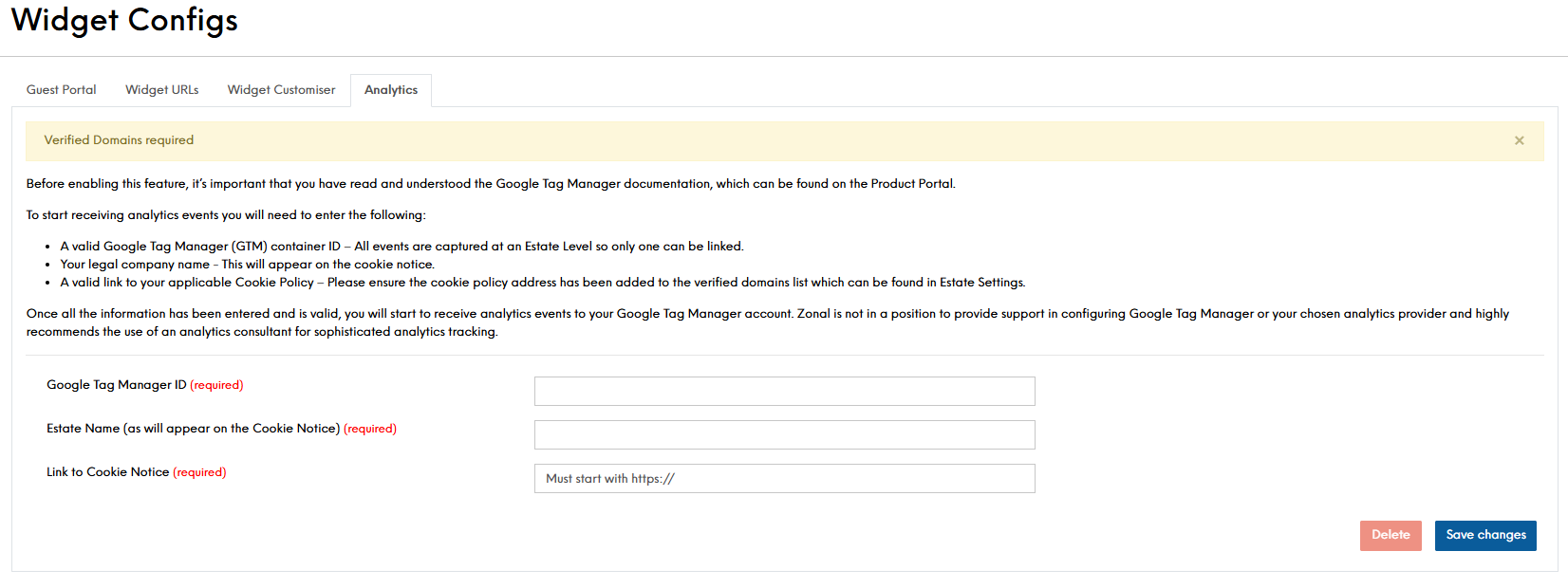
Configuring Google Tag Manager
To configure Google Tag Manager within your Estate, follow the below steps:
-
Enter your Google Tag Manager ID
A valid Google Tag Manager (GTM) container ID – All events are captured at an Estate Level so only one can be linked.Estate admin, input Estate name, container ID and link to customer cookie notice (ensure link to cookie notice is in verified domains).
-
Enter your Estate Name
This must be your legal company name - This will appear on the cookie notice -
Enter your Cookie Notice
A valid link to your applicable Cookie Policy – Please ensure the cookie policy address has been added to the verified domains list which can be confirmed by your Account Representative (this setting is set in the Events system settings and is only accessible by a Zonal Employee) -
Click Save Changes
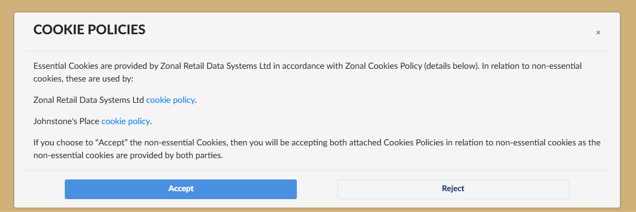
Once your account details are entered, the stock widget will display an option to view Cookie Policy links to both the Zonal Cookie Policy and your Cookie Policy
Understanding what can be tracked
Global Tracking
| Action | Description | Category |
Data |
|---|---|---|---|
| Widget loaded | GlobalWidget |
Timestamp – date, month, year, time |
|
| Widget loaded failed | GlobalWidget |
Timestamp – date, month, year, time |
|
| Widget template loaded | Styling configured in customiser | GlobalWidget |
Timestamp – date, month, year, time |
| Widget stylesheet loaded | &styleSheetUrl=… |
GlobalWidget |
Timestamp – date, month, year, time |
| Step Changed (breadcrumbs) | 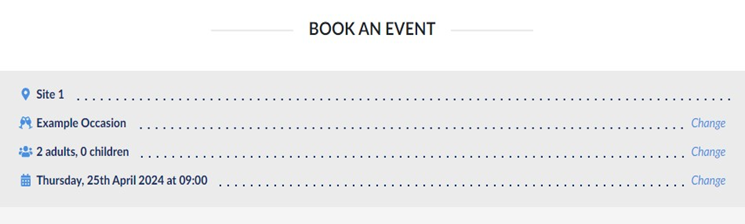
|
GlobalWidget |
<step selected> - name of the steps shall be returned |
Outlets - Estate & Company
Actions
| Action | Description | Category |
Data |
|---|---|---|---|
| Site selected | 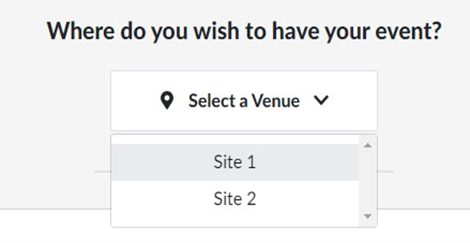
|
WidgetOutlets |
SiteIDs |
| City selected | 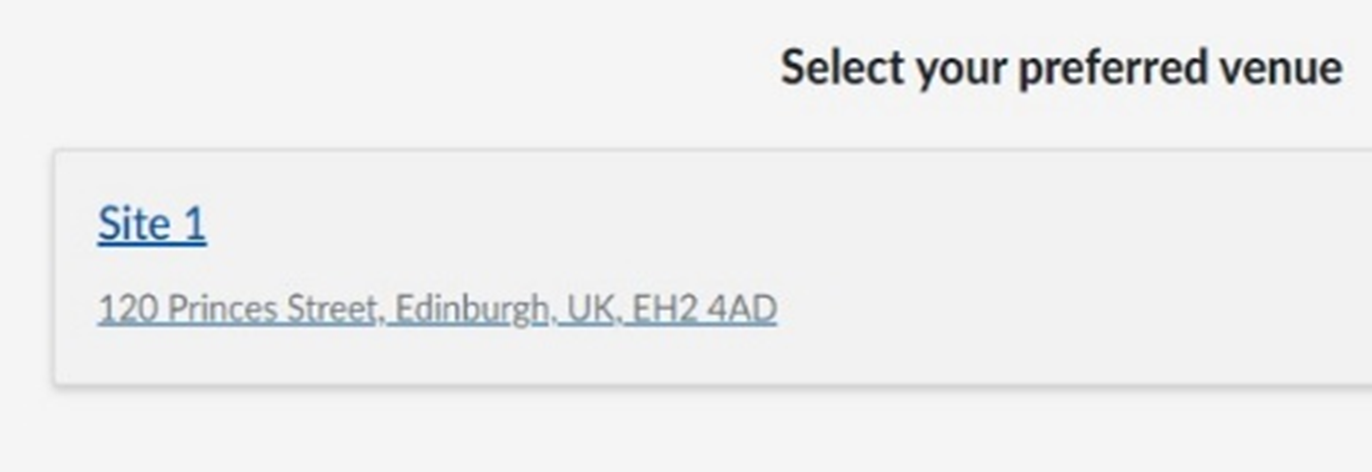
|
WidgetOutlets |
City selected – after selected in the list available |
| City searched again | 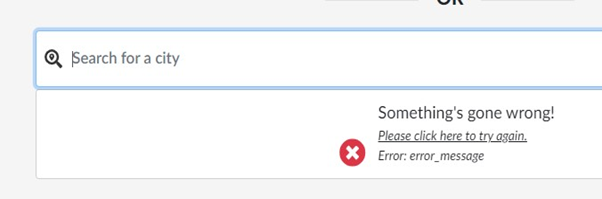
|
WidgetErrors |
Timestamp – date, month, year, time |
| Sites searched again | 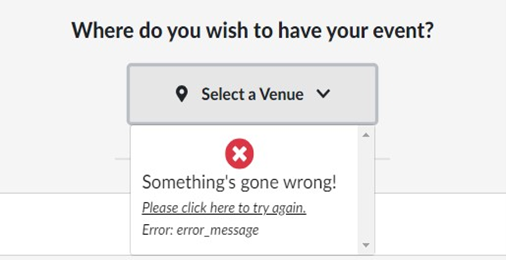
|
WidgetOutlet | Timestamp – date, month, year, time |
Errors
| Action | Description | Category |
Data |
|---|---|---|---|
| Sites load | 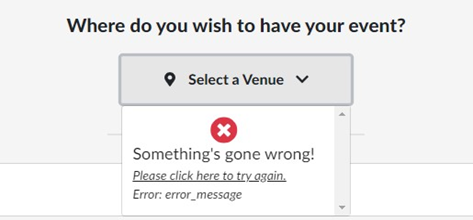
|
WidgetErrors |
Timestamp – date, month, year, time |
| Cities load | 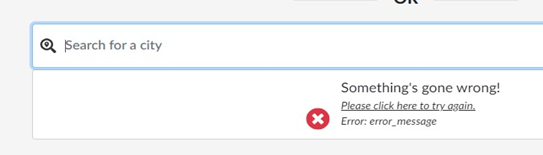
|
WidgetErrors |
Timestamp – date, month, year, time |
| City's locations load | 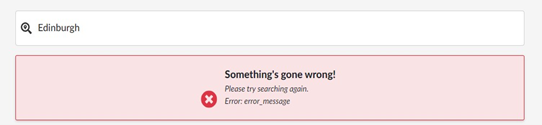
|
WidgetErrors |
Timestamp – date, month, year, time |
Outlets - Sites Only
Errors
|
Error |
Description | Category | Data |
|---|---|---|---|
| Site load | 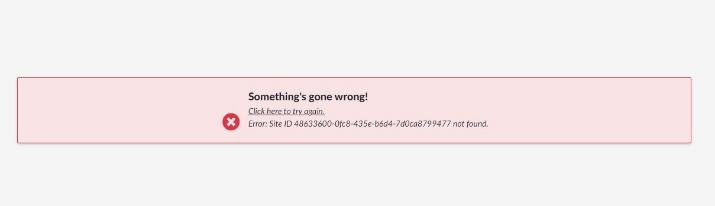
|
WidgetErrors |
Timestamp – date, month, year, time |
Occasions
(On this step, Occasions, cssLink, termsAndConditionsUrl, BA settings and regional settings are loaded)
Actions
|
Action |
Description | Category | Data |
|---|---|---|---|
| Occasions loaded | 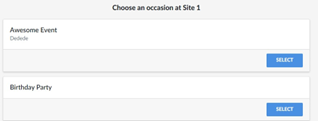
|
WidgetOccasions |
Timestamp + occasions IDs |
| Occasion selected | 
|
WidgetOccasions |
Occasion ID + timestamp – clicking on ‘select’ button |
| Occasions load (try again) | 
|
WidgetOccasions |
Timestamp – date, month, year, time |
Errors
|
Action |
Description | Category | Data |
|---|---|---|---|
| Occasions load | 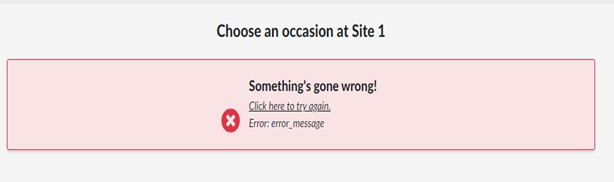
|
WidgetErrors |
Timestamp – date, month, year, time |
Covers
Actions
|
Action |
Description | Category | Data |
|---|---|---|---|
|
Covers adults decreased Covers adults increased Covers adults changed Covers children decreased Covers children increased Covers children changed |
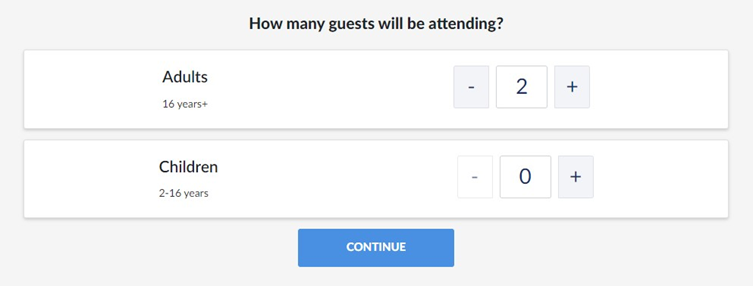
|
WidgetCovers |
Increase, decrease, change no change on continue |
| Above cover limit | 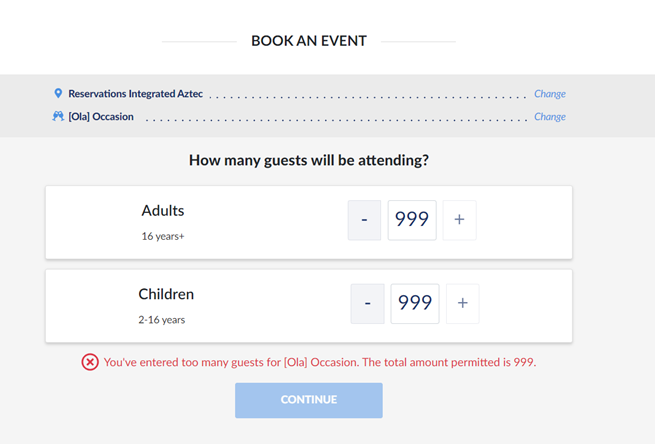
|
Widgetcovers | Timestamp – date, month, year, time |
| Below covers limit | 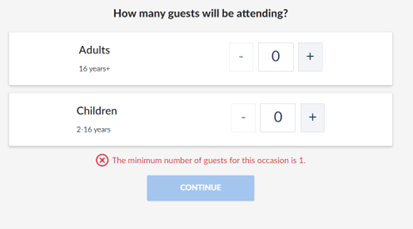
|
Widgetcovers | Timestamp – date, month, year, time |
| On limit | 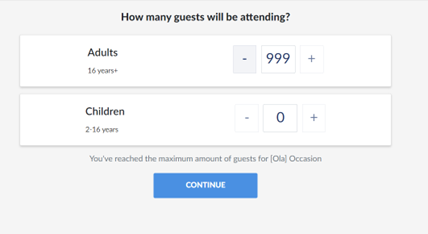
|
Widgetcovers | Timestamp – date, month, year, time |
Date & Time
Actions
|
Action |
Description | Category | Data |
|---|---|---|---|
|
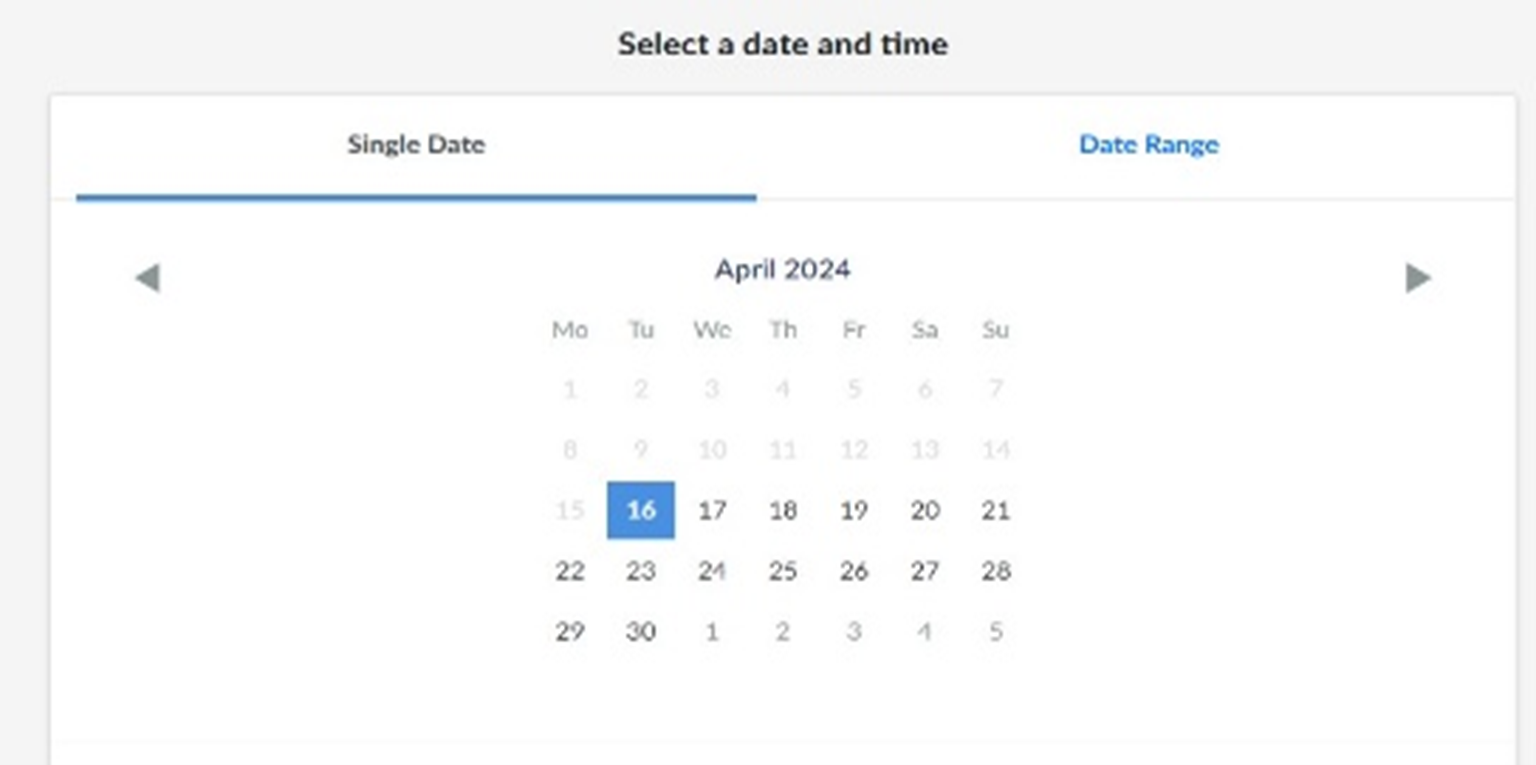
“Single Date” selected Date selected Previous month selected Next month selected |
|
WidgetDate&Time | Actions + timestamp |
|
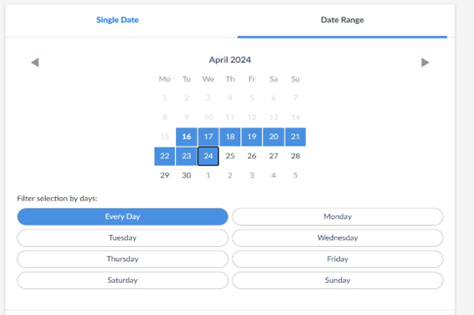
‘Date range’ selected Date - selected Filter selection by day selected |
|
WidgetDate&Time | Actions + timestamp |
| Time selected | 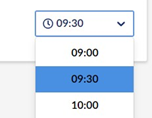
|
WidgetDate&Time | Actions + timestamp |
| Search clicked | 
|
WidgetDate&Time | Actions + timestamp |
| Enquire clicked | 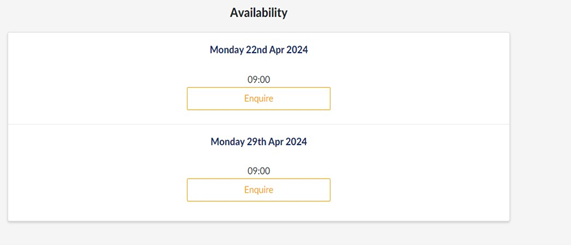
|
WidgetDate&Time | Actions + timestamp |
| Book Now clicked | 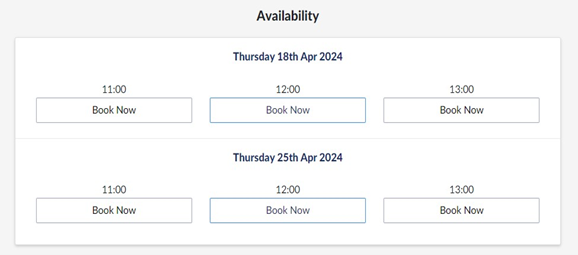
|
WidgetDate&Time | Actions + timestamp |
Errors
|
Action |
Description | Category | Data |
|---|---|---|---|
| No timeslots | 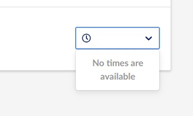
|
WidgetErrors | timestamp |
| Get availability of selected date & time | 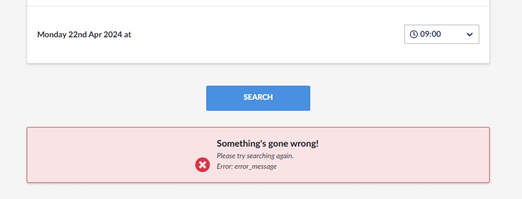
|
WidgetErrors | timestamp |
Personalisation
Actions
|
Action |
Description | Category | Data |
|---|---|---|---|
| Name inserted | 
|
WidgetPersonalisation | Filled or blank |
| Area selected | 
|
WidgetPersonalisation | timestamp |
| Menu selected | 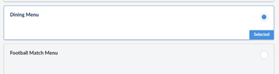
|
WidgetPersonalisation | timestamp |
|
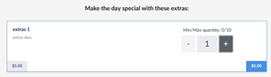
Extras decreased Extras increased |
|
WidgetPersonalisation |
Increase, decrease, change no change on continue |
| “Click here” (continue) clicked | 
|
WidgetPersonalisation | timestamp |
| Continue clicked | 
|
WidgetPersonalisation | timestamp |
Errors
|
Action |
Description | Category | Data |
|---|---|---|---|
| Get availability Areas | 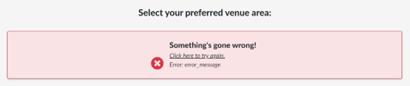
|
WidgetErrors | timestamp |
| Get availability Menus | 
|
WidgetErrors | timestamp |
| Get availability Extras | 
|
WidgetErrors | timestamp |
| Extras try again | 
|
WidgetErrors | timestamp |
| Menu try again | 
|
WidgetErrors | timestamp |
| Area try again | 
|
WidgetErrors | timestamp |
Booking Requirements
Actions
|
Action |
Description | Category | Data |
|---|---|---|---|
| Booking requirements confirmed (continue) | 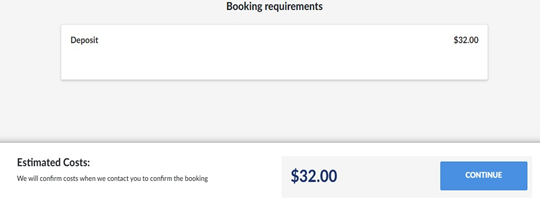
|
WidgetBookingRequirements | timestamp on ‘continue’ button’ |
| No online availability | 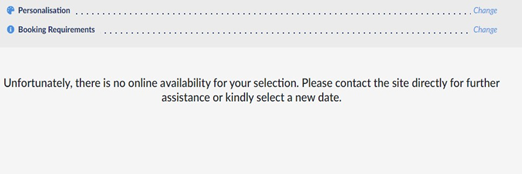
|
WidgetBookingRequirements | timestamp |
Guest Information
Actions
|
Action |
Description | Category | Data |
|---|---|---|---|
|
First Name filled Last Name filled Email filled Phone filled Special Requirements |
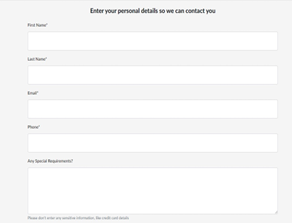
|
WidgetGuestInformation | Timestamp on each field |
|
ReferralSource/ Email/ Phone/ SMS/ Postal/ Push Notification/ Profiling/ Terms and Conditions selected & unselected Privacy Statement visited Terms and conditions visited |
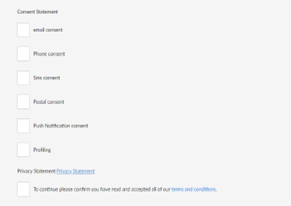
|
WidgetGuestInformation | Timestamp on each field |
|
“Book your event” clicked "Send Enquiry” clicked “Card guarantee” clicked "Pay” Clicked |
|
WidgetGuestInformation | Action + Timestamp |
Errors
|
Action |
Description | Category | Data |
|---|---|---|---|
| Error when making Booking | 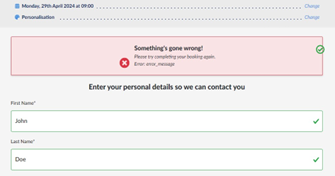
|
WidgetErrors | Timestamp |
| Error loading consents | 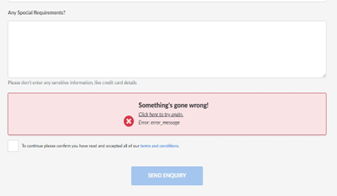
|
WidgetErrors | Timestamp |
| Try again loading consents | 
|
WidgetErrors | Timestamp |
Payments
Actions
|
Action |
Description | Category | Data |
|---|---|---|---|
| Pay clicked | 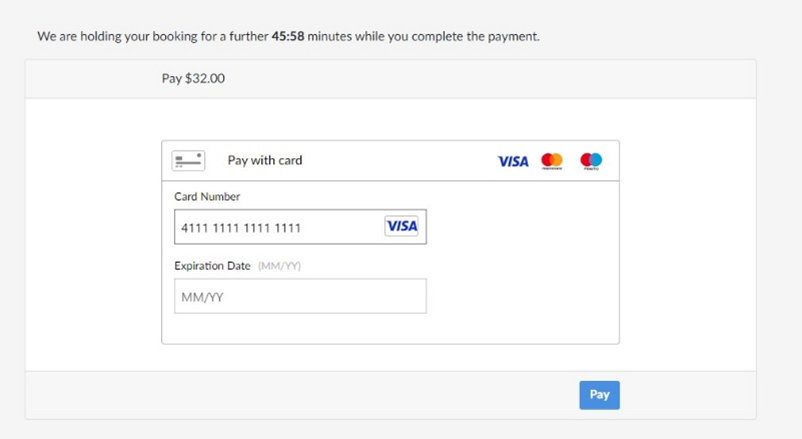
|
WidgetPayments | Action + timestamp |
| Card guarantee terms continue | 
|
WidgetPayments | Action + timestamp |
| Card guarantee save clicked | 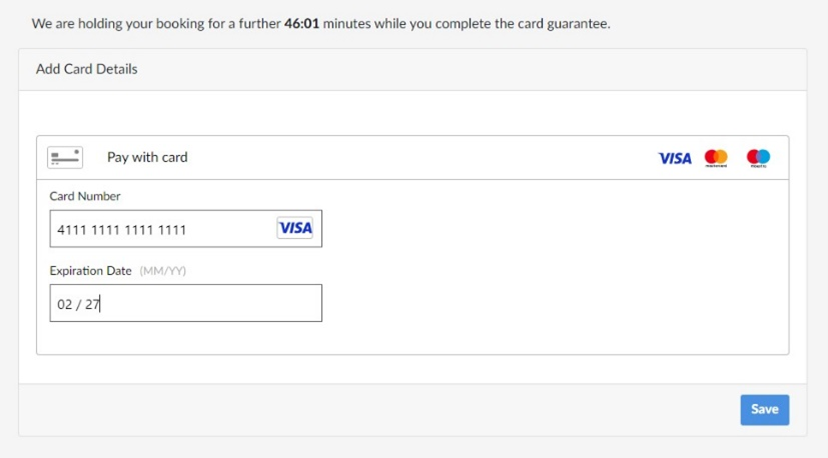
|
WidgetPayments | Action + timestamp |
| (Similar only for Worldpay) |
Errors
|
Action |
Description | Category | Data |
|---|---|---|---|
| Braintree – card guarantee – fetch client token failed | 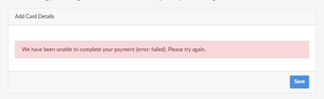
|
WidgetErrors | Timestamp |
| Braintree – card guarantee – request payment method failed | 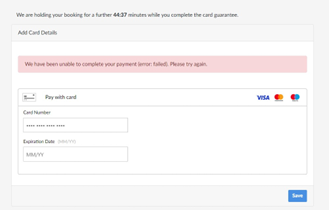
|
WidgetErrors | Timestamp |
| Braintree – save payment details failed | 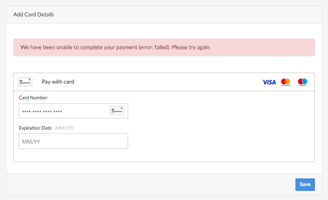
|
WidgetErrors | Timestamp |
| Braintree – payment – fetch client token failed | 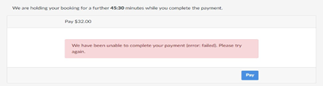
|
WidgetErrors | Timestamp |
| Braintree – payment – request payment method | 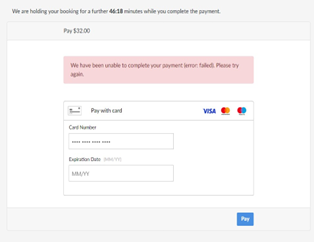
|
WidgetErrors | |
| Braintree – payment- save payment details failed | 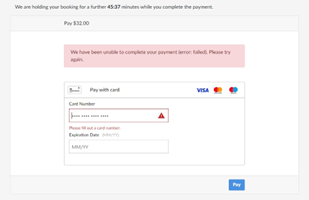
|
WidgetErrors | |
| Worldpay – complete card guarantee failed | |||
| Worldpay – get config failed | |||
| Worldpay – validate card details failed | |||
| Worldpay – create token failed | |||
| Worldpay – verify token failed | |||
| Worldpay – send payment failed |
Summary
Actions
|
Action |
Description | Category | Data |
|---|---|---|---|
| Booking Portal clicked | 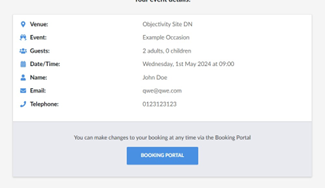
|
WidgetSummary | Action+ timestamp |