Declarations
Depending on your organisation’s configuration, declarations can be made against terminals, drawer inserts, or money belts. They serve as a confirmation of the money counted, though not all options may be used, as this depends on your setup and operating practices.
Declarations Topics
Terminals
The declaration status screen will show you the status of terminals.
To complete a declaration, a 'Session Change' must first be performed on the point of sale terminal. Depending on your organisation’s configuration, you may be prevented from ending sessions while accounts remain active. All accounts must be closed before sessions can be ended whether for all terminals, the final terminal, or the final terminal within a sales area
The session change button is normally found in the 'Manager Functions' screen, but this could be different on your setup
Status Information
The following information is displayed when terminals are trading:

-
Terminal Name
-
Trading - 'Yes' or 'No'
-
Awaiting Declaration - 'No'
The following information is displayed when terminals are session changed but requires the finance day / week to be signed off:

-
Awaiting Declaration - 'Session Count (requires sign off)'
Action: Complete Sign Off - Navigate to Finance → Admin → Sign Off
The following information is displayed when terminals are session changed and ready for declaration:

-
Awaiting Declaration - 'Session Count'
Action: Complete Declaration
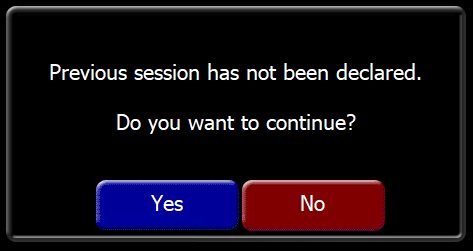
The following information is displayed when terminals are re-opened and a session change attempted when the previous declaration has not been completed:
-
When attempting to perform a session change on the point of sale terminal if the previous session has not been declared this warning prompt will be displayed
Action: Answer No and complete the declaration or Answer Yes and handle either separate or combined declarations in finance

-
Awaiting Declaration - 'Session Count' will be display the number of sessions now available for declaration when answering Yes on the point of sale terminal
Action: Complete Declaration either as individual sessions or a combined for both all / selected session
Declaration
Select the required terminal to complete the declaration:
| Click Declare | Select Safe | Click Next | → | Enter the Declared Amounts | Click Finish | |||
|
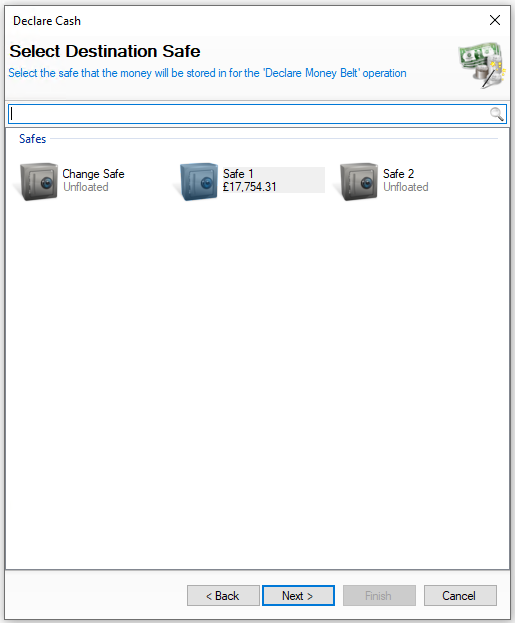
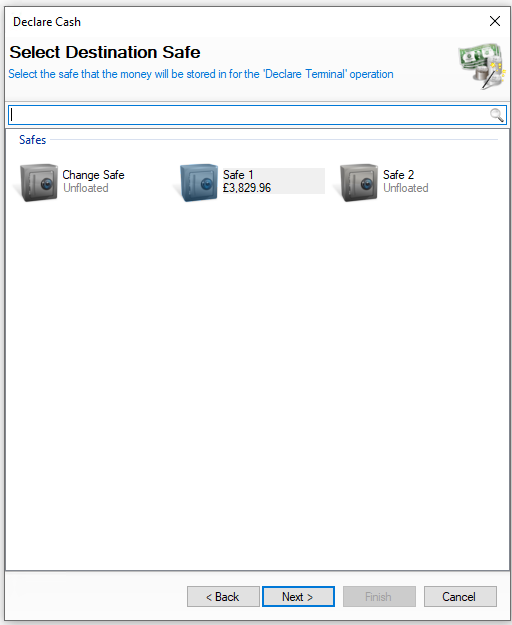
Select the required safe where money will be added to You will not be shown this step if:
On this step you might:
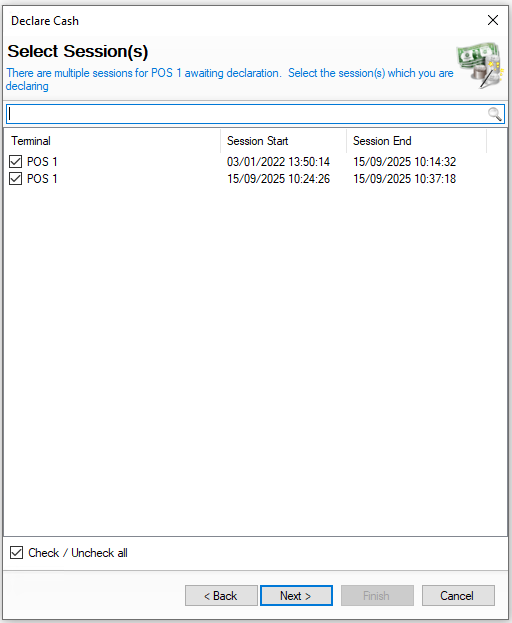
Prior to this step if there are is more than 1 declaration you will see the selection list where you can choose to declare each session individually or combine all sessions together (where all monies will be added together to be declared) |
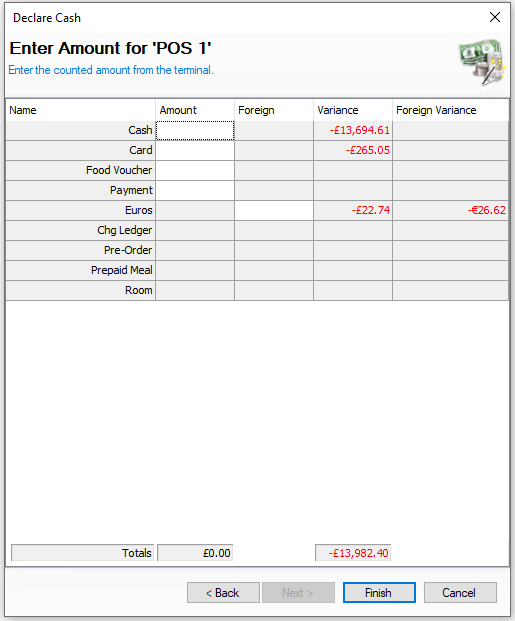
For the values that require entry enter the amount of money to be declared Remember you should no be including any skimmed values On this step you might:
|
|
|||
|
|
|
Drawer Inserts
The declaration status screen will show you the status of inserts.
To complete a declaration, a 'Session Change' must first be performed on the point of sale terminal. Depending on your organisation’s configuration, you may be prevented from ending sessions while accounts remain active. All accounts must be closed before sessions can be ended whether for all terminals, the final terminal, or the final terminal within a sales area
The session change button is normally found in the 'Manager Functions' screen, but this could be different on your setup
Status Information
The following information is displayed when insert floats are created but not assigned to any terminals:

-
Drawer Insert
-
Terminal - None Shown as Not assigned to Terminal during 'Open Terminal' process
-
Trading - 'Yes' or 'No'
-
Awaiting Declaration - 'No'
The following information is displayed when a drawer insert is assigned when a terminal is opened:

-
Terminal - Name of Terminal assigned to the Drawer Insert
-
Trading - 'Yes'
The following information is displayed when a drawer insert is ready for declaration:

-
Awaiting Declaration - 'Session Count'
Action: Complete Declaration
The following information is displayed when a point of sale terminal has been opened but with no drawer insert assigned:

-
Terminal displayed as trading
Action: Continue trading as required and 'Session Change' or use the 'Assign Drawer' to later assign a drawer to a terminal when ready
The follow information is displayed when the opened terminal is assigned to a drawer insert:

-
POS 1 is shown as being assigned to both Insert 1 and Insert 2 but has different trading states
Action: Complete Declaration for awaiting sessions
Declaration
Select the required drawer insert to complete the declaration:
| Click Declare | Select Safe | Click Next | → | Enter the Declared Amounts | Click Finish | |||
|
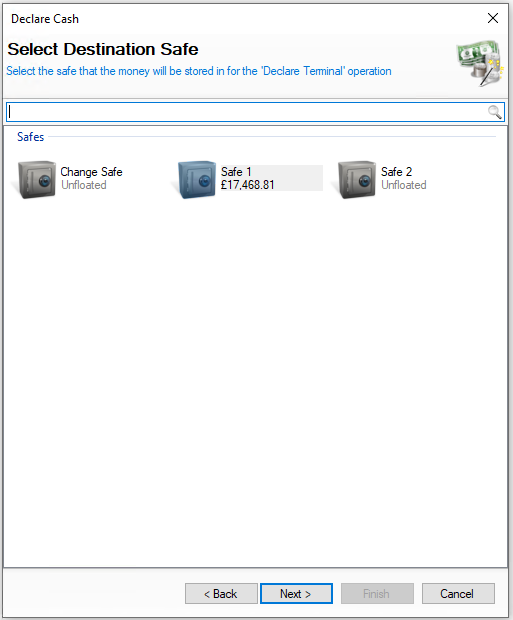
Select the required safe where money will be added to You will not be shown this step if:
On this step you might:
|
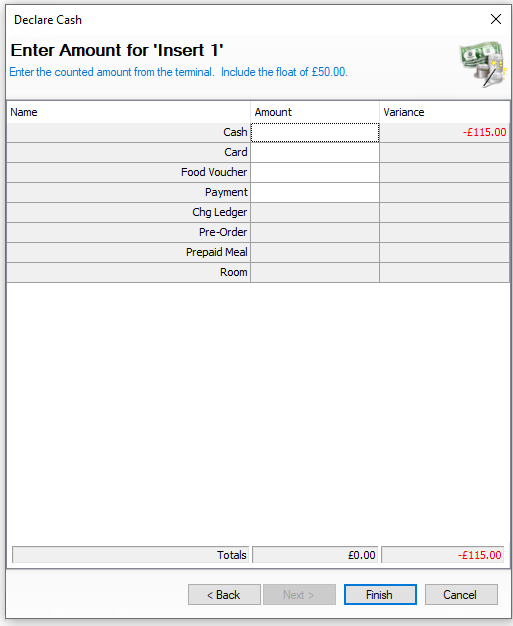
For the values that require entry enter the amount of money to be declared Remember you should be including the original float amount and any increases in float, less any skims On this step you might:
|
|
|||
|
|
|
|
Money Belts (Employees)
Money belt sessions are usually reconciled at the end of a session and automatically declared, so no manual declaration is required. If they are configured for manual declaration, the process is the same as declaring drawer inserts.
To complete a declaration, a 'End Money Belt Session' must first be performed on the point of sale terminal. Depending on your organisation’s configuration, you may be prevented from ending sessions while accounts remain active against a point of sale operator and must be paid or transferred to another operator
Status Information
The following information is displayed when a money belt session is started and no float assigned:

-
Terminal Name / Employee Name
-
Trading - 'Yes' or 'No'
-
Awaiting Declaration - 'No'
The following information is displayed when a money belt session has been ended and ready for declaration (with no float assigned):

-
Awaiting Declaration - 'Session Count'
Action: Complete Declaration
The follow information is displayed when a point of sale operator starts and ends more than 1 session (where the previous session was not declared):

-
Awaiting Declaration - 'Session Count' will be display the number of sessions now available for declaration
Action: Complete Declaration either as individual sessions or a combined for both all / selected sessiosn
Declaration
Select the required employee to complete the declaration:
| Click Declare | Select Safe | Click Next | → | Enter the Declared Amounts | Click Finish | |||
|
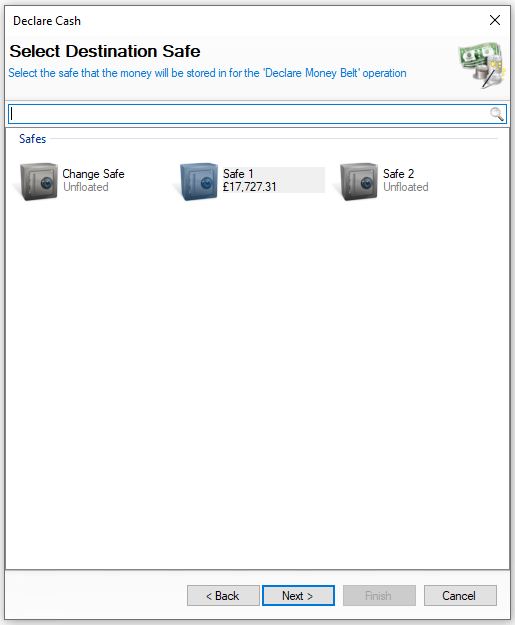
Select the required safe where money will be added to You will not be shown this step if:
On this step you might:
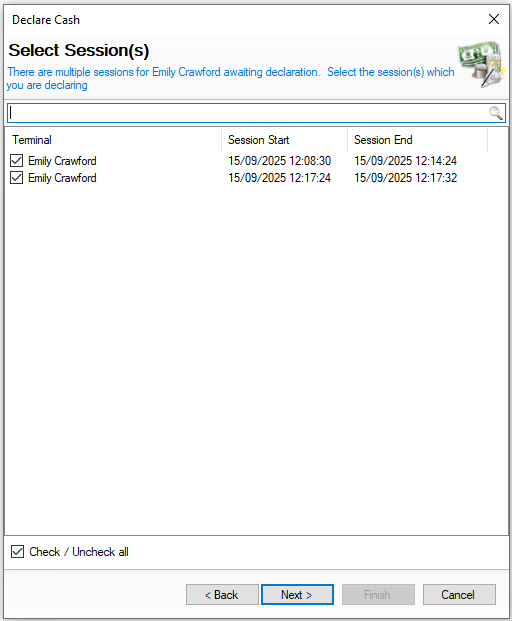
Prior to this step if there are is more than 1 declaration you will see the selection list where you can choose to declare each session individually or combine all sessions together (where all monies will be added together to be declared) |
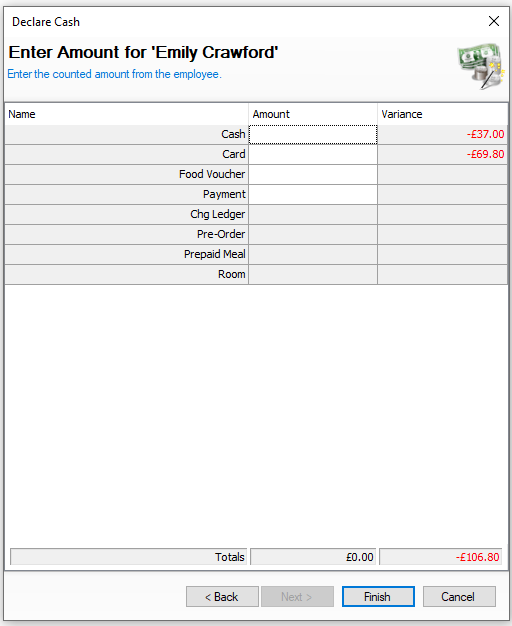
For the values that require entry enter the amount of money to be declared On this step you might:
|
|
|||
|
|
|
|
Money Belts (Floats)
Money belt sessions are usually reconciled at the end of a session and automatically declared, so no manual declaration is required. If they are configured for manual declaration, the process is the same as declaring drawer inserts.
To complete a declaration, a 'End Money Belt Session' must first be performed on the point of sale terminal. Depending on your organisation’s configuration, you may be prevented from ending sessions while accounts remain active against a point of sale operator and must be paid or transferred to another operator
Status Information
The following information is displayed when insert floats are created but not assigned to any point of sale operators:

-
Money Belt
-
Employee - None
-
Trading - 'Yes' or 'No'
-
Awaiting Declaration - 'No'
The following information is displayed when a money belt is assigned when a session is started:

-
Employee - Name of Employee assigned to the money belt
-
Trading - 'Yes'
The following informations is displayed when a money belt session as ended and ready for declaration:

-
Awaiting Declaration - 'Session Count'
Action: Complete Declaration
Declaration
Select the required money belt to complete the declaration:
| Click Declare | Select Safe | Click Next | → | Enter the Declared Amounts | Click Finish | |||
|
Select the required safe where money will be added to You will not be shown this step if:
On this step you might:
Prior to this step if there are is more than 1 declaration you will see the selection list where you can choose to declare each session individually or combine all sessions together (where all monies will be added together to be declared) |
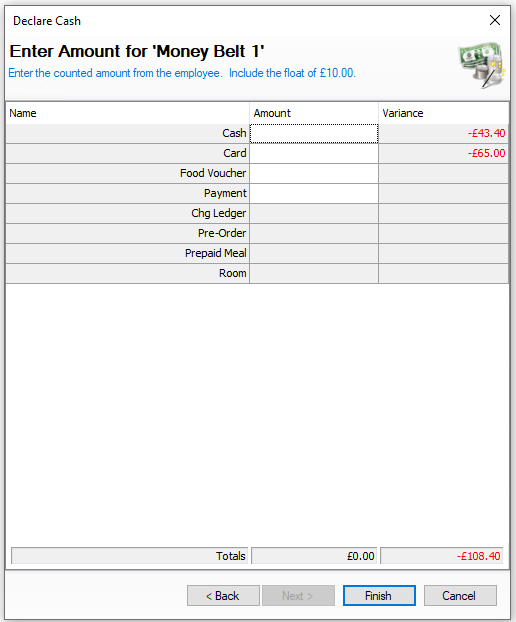
For the values that require entry enter the amount of money to be declared On this step you might:
|
|
|||
|
|
|
|