Change Received
Change received is used for sites where cash is delivered by a security company, or where coins are brought into the site without being exchanged for notes.
Change Received Topics
Adding Change Received
Follow these steps to add change received:
| Click Add Change Received | Select Safe | Click Next | → | Select the Change Received Date | Click Next | → | Enter the Reference | Click Next | |
|
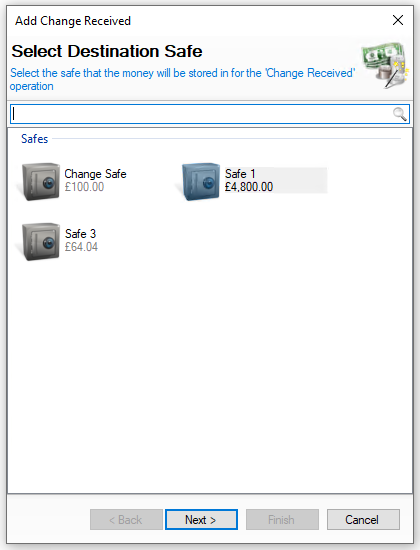
Select the required safe where money will be added to You will not be shown this step if:
On this step you might:
|
Select the date the change was received You will not be shown this step if:
|
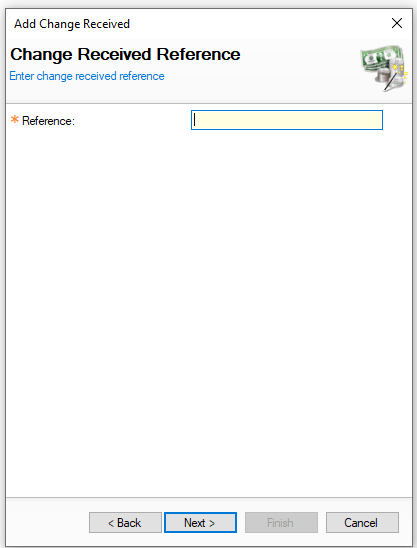
Enter the change received reference You will not be shown this step if:
On this step you might:
|
|||
|
|
|
|||
| → | Enter the Amount Received | Click Finish | ||||
|
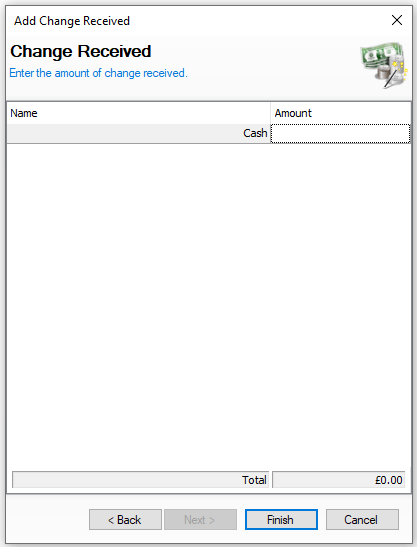
Enter the amount of money to be received On this step you might:
|
|
||||
|
|
|

Editing Change Received
When selecting change received the list of entries are displayed by day and the options available are View | Edit | Delete
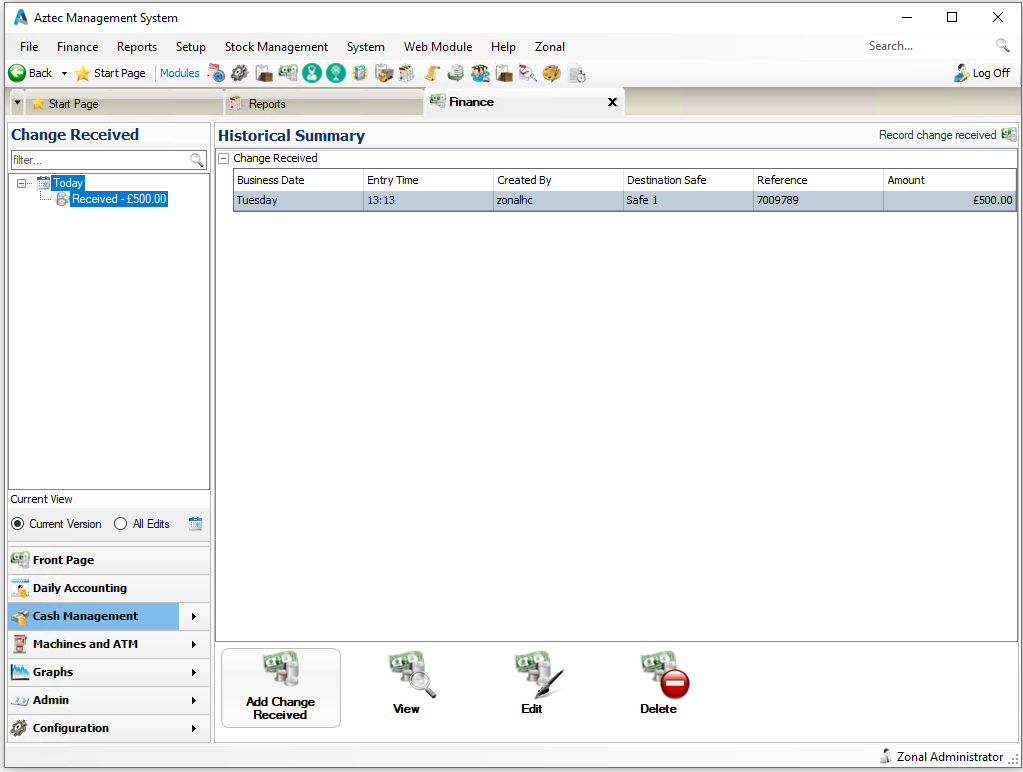
The following rules apply to editing change received:
-
An entry can only be edited if the back of house operator has permission configured against their job role to edit change received
-
When operating with daily sign off only the current days entries can be edited, once a day is signed off the entry for previous days cannot be changed
Select a change received entry and follow these steps to edit:
| Click Edit Change Received | Select Safe | Click Next | → | Confirm the Reference | Click Next | → |
Confirm the Amount Received | Click Finish |
|
|
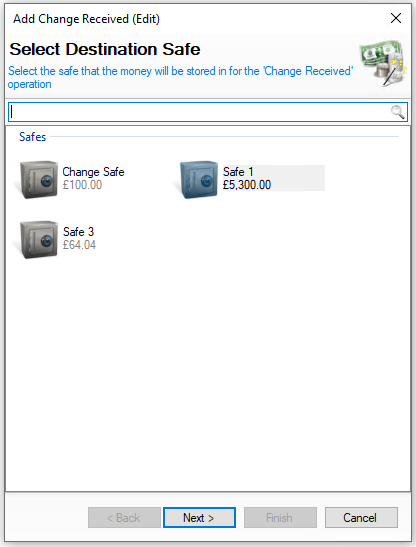
Confirm the required safe where money will be added to You will not be shown this step if:
On this step you might:
|
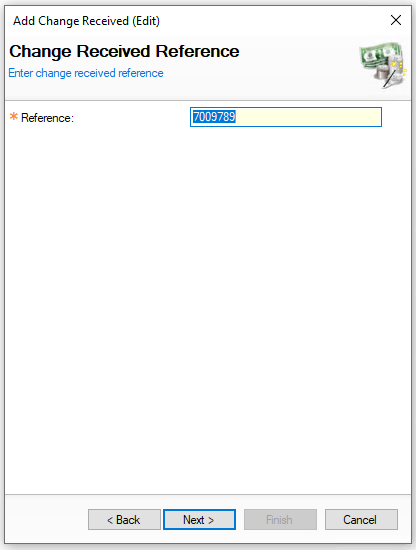
Confirm the change received reference You will not be shown this step if:
On this step you might:
|
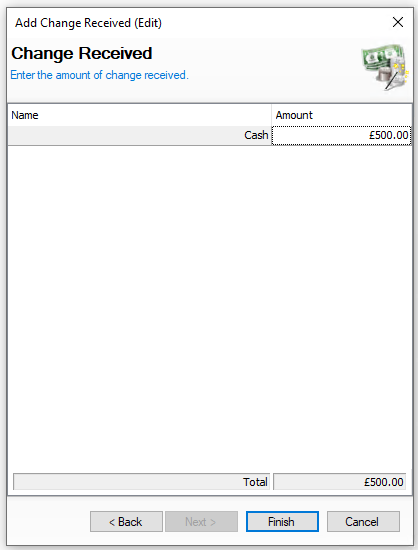
Confirm the amount of money to be received On this step you might:
|
|||
|
|
|
Deleting Change Received
When selecting change received the list of entries are displayed by day and the options available are View | Edit | Delete
The following rules apply to editing change received:
-
An entry can only be deleted if the back of house operator has permission configured against their job role to edit change received
-
When operating with daily sign off only the current days entries can be deleted, once a day is signed off the entry for previous days cannot be deleted
Select an entry and follow these steps to delete:
-
Click Delete
-
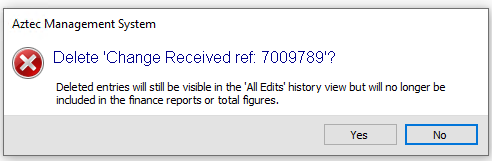
Confirm Yes to delete the change received entry
-
The value of the change received will be removed from the Destination Safe