Misc Expense
Miscellaneous expenses is used to reduce onsite cash by recording an entry in the finance module that details the amount spent along with additional information relevant. These records can then be used for reporting or exported to third party accounting and finance systems if required.
Misc Expense Topics
Adding Misc Expenses
Follow these steps to add misc expense:
| Click Add Misc Expense | Select Safe | Click Next | → | Select the Expense Date | Click Next | → | Enter Expenditure Information | Click Finish | |
|
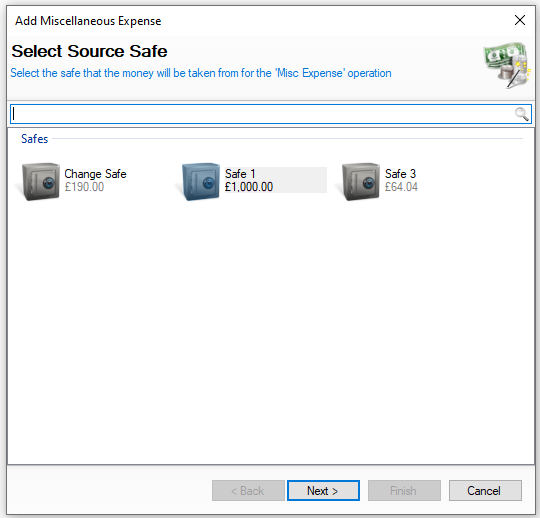
Select the required safe where the expense will be coming from You will not be shown this step if:
On this step you might:
|
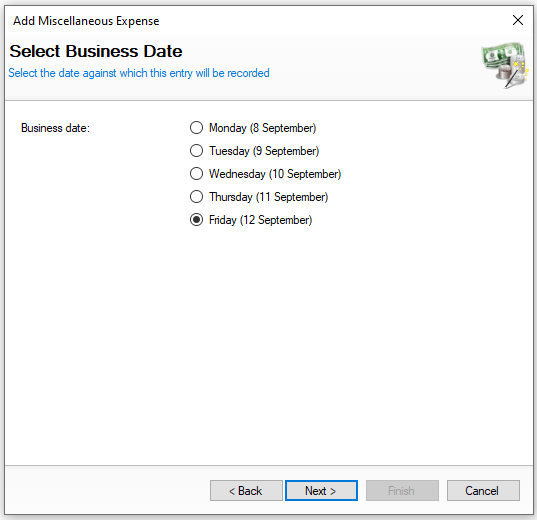
Select the date of the expense You will not be shown this step if:
|
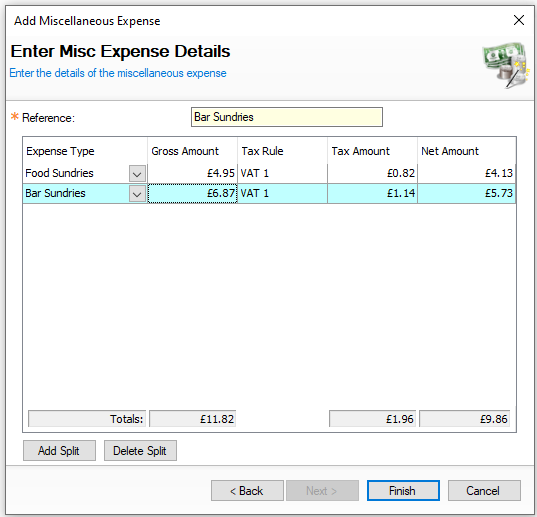
Enter the expenditure information
If the expense receipt contains multiple expense types click Add Split and enter another entry On this step you might:
|
|||
|
|
|
Editing Misc Expenses
When selecting misc expenses the list of entries are displayed by day and the options available are View | Edit | Delete
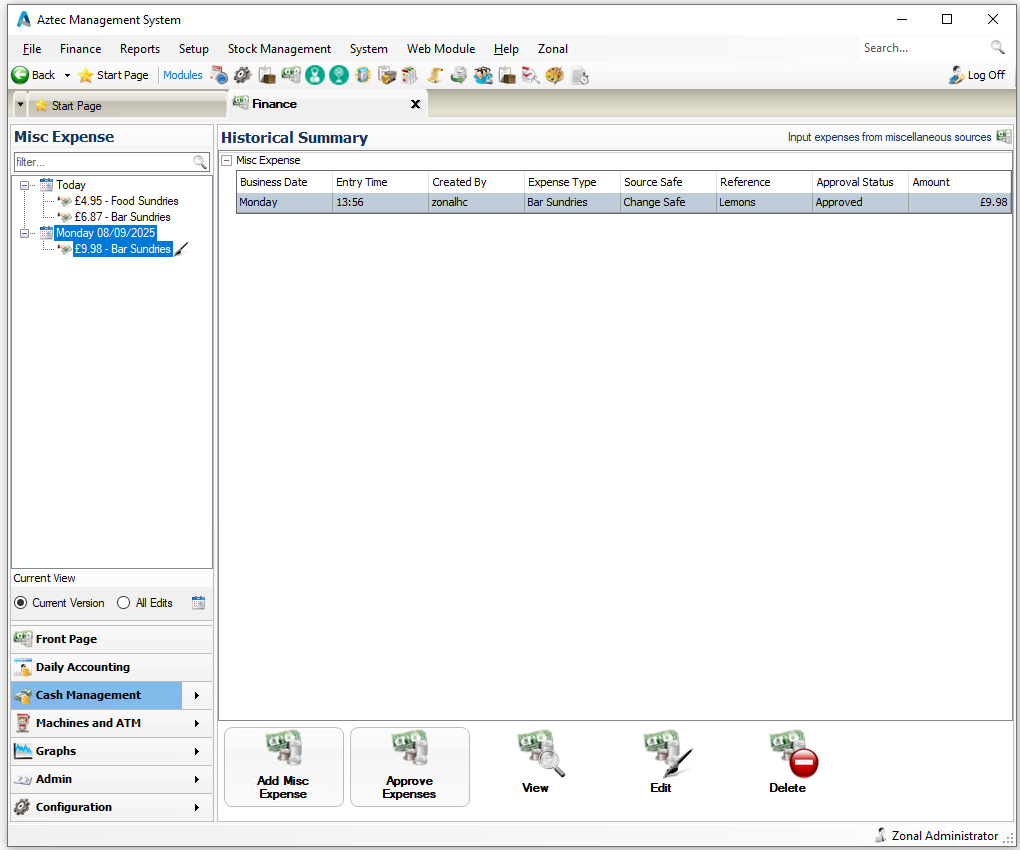
The following rules apply to editing misc expenses:
-
A entry can only be edited if the back of house operator has permission configured against their job role to edit misc expenses
-
When operating with daily sign off only the current days entries can be edited, once a day is signed off the misc expenses for previous days cannot be changed
Select an expense and follow these steps to edit:
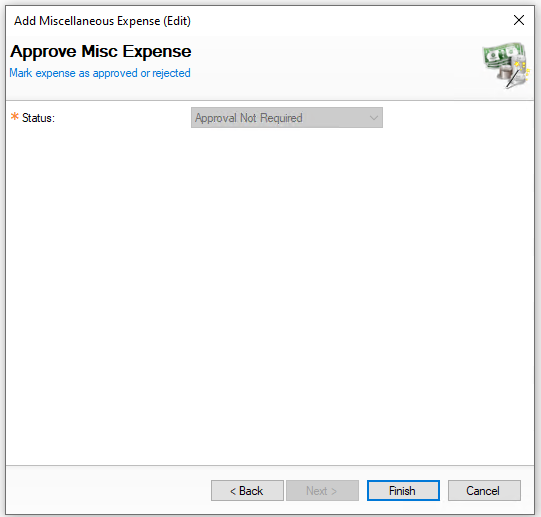
| Click Edit | Confirm Safe | Click Next | → | Confirm / Edit Expenditure Information | Click Next | → | Update Status | Click Finish | |
|
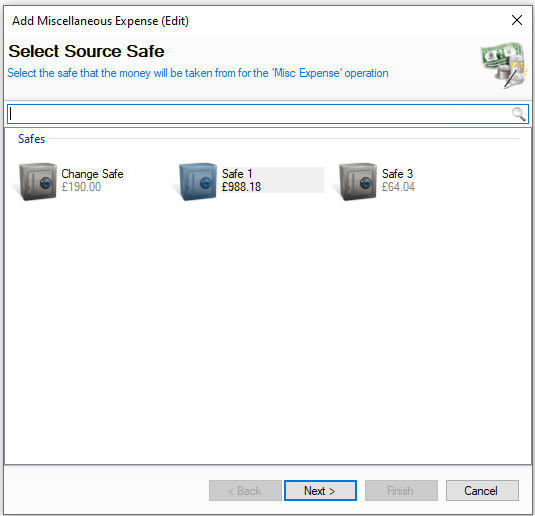
Confirm the required safe where the expense will be coming from You will not be shown this step if:
On this step you might:
|
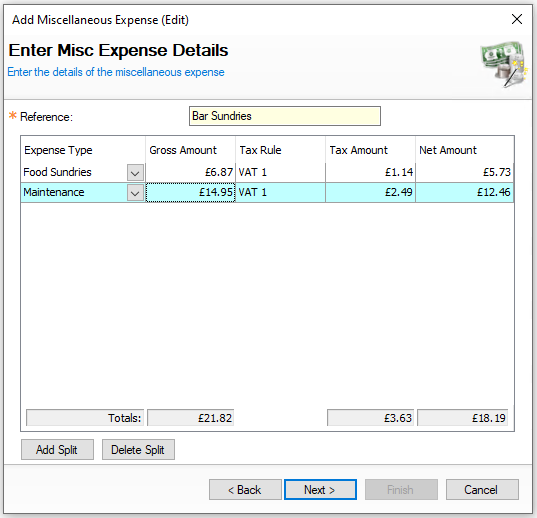
Confirm / edit the expenditure information
If the expense receipt contains multiple expense types click Add Split and enter another entry |
On this step you might:
|
|||
|
|
|
Deleting Misc Expenses
When selecting misc expenses the list of entries are displayed by day and the options available are View | Edit | Delete
The following rules apply to deleting misc expenses:
-
A entry can only be deleted if the back of house operator has permission configured against their job role to delete misc expenses
-
When operating with daily sign off only the current days entries can be deleted, once a day is signed off the misc expenses for previous days cannot be changed
Select an expense and follow these steps to delete:
-
Click Delete
-
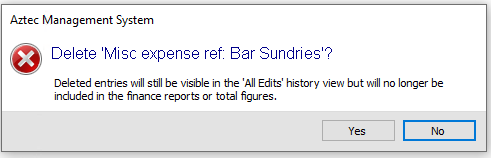
Confirm Yes to delete the expense
-
The value of the expense will be returned to the original Source Safe