Dynamic Fields
Dynamic fields are used to insert booking and site specific data into your email templates. When used, your guests can then receive a more personalised email with their own booking detail automatically inserted.
To note, dynamic fields will only work down two steps, i.e. if you use the Occasion E-mail Description dynamic field in your template, then include the Area E-mail Description in that Occasion Description, these will pull accurately, but any dynamic fields in the Area Description will only pull through as plain text, to prevent any accidental cyclical chains.
Dynamic Fields Topics
How to Find Dynamic Fields
Select Dynamic Fields in the email template header bar to see the full list of available fields for that template.
Tag Types / Information
Each tag will pull down data from the customers booking or your Events Admin set up:
| Tag Name | Description of information pulled down |
|---|---|
| Area Email Description |
This displays any configured content of the "Email Template section against the selected area for that booking. This content is configured in Manage Sites |
| Area Name |
Displays the name of the area that is selected when the booking is created. If no area is selected a "no area selected" message is displayed in the email Attendee |
| Attendee First Name |
Displays the first name of the attendee as entered. This is only available for Attendee Invite email templates |
| Attendee Last Name |
Displays the last name of the attendee as entered. This is only available for Attendee Invite email templates |
| Booking Cancel Link |
By default, this displays a unique to the guest portal where the guest can cancel the booking in question |
| Booking Date |
Displays the date of the booking |
| Booking Duration |
Displays the duration of the table booking. This will default to 2 hours but can be changed per cover size in Events Admin |
|
Booking Edit Link |
By default, this displays a unique link to the guest portal for the booking in question |
| Booking Reference |
Displays the unique reference generated when the booking was created |
| Booking Status |
Displays the status of the booking at the time the email is generated (Enquiry, Provisional, Confirmed, Cancelled) |
| Booking Time |
Displays the time of the booking |
| Card Guarantee Amount Required |
Displays the amount for card guarantee set in the Booking Rule |
| Card Guarantee Cut Off Date |
Displays the date and time of the cut off for the card guarantee set in the Booking Rule |
| Child Covers |
Displays just the child covers for the booking |
| Company Name |
Displays the company as it is set-up in Launchpad under Display Name (if this needs amended please contact your Zonal Account Manager) |
| Deposit Cut Off Date |
Displays the cut-off date for the deposit. This is the number of days prior to the date of the event as set in the booking rule |
| Deposit Required |
Displays the value of the deposit required. If there is no deposit required £0.00 will be shown |
| Estate Name |
Displays the name of the estate set-up in Launchpad |
| Event ID |
Displays the Booking reference |
| Event Plan Name |
Displays the Event Name as specified by the guest or the host in the booking journey. If no event name is added in the booking journey, this will remain blank in the generated email |
| Guest Email |
Displays the guest's email address |
| Guest First Name |
Displays the guest's first name. If the first name was not provided, this will remain blank in the generated email |
| Guest Last Name |
Displays the guest's last name |
| Guest Phone |
Displays the guest's contact number |
| Host Message |
Displays the most recent message written to the guest by the host using the 'Message with Guest' function in Events Host |
| Menu Email Description |
This displays any configured content of the "Email Template" section against the selected menu details for that booking |
| Menu Link |
Displays the URL for the menu as configured in the Menu details. If no URL is set, or no menu is chosen as part of the booking journey, a 'no menu link is available' message is displayed |
| Menu Name |
Displays the name of the menu that is selected when the booking is created. If no menu is selected, a 'no menu selected' message is displayed in the email |
| Menu Payments Email Description |
Relates to pre-order menu payments. This will display any configured content of the 'Payments Email Template' This is configured in the pre-order tab within the menu |
| Menu Pre-Order Email Description |
This displays any configured content of the 'Email Template' section against the selected menu or Pre-order for that booking. This is configured in the menu |
| Occasion Email Description |
This is configured in the Occasion and will display any information specific to that occasion you have added |
| Occasion Name |
Displays the name of the occasion selected at time of booking |
| Payment Amount Received |
Displays the amount of the payment that was received |
| Payment Amount Refunded |
Displays the amount of the payment that was refunded back to the customer |
| Payment Link |
Displays the link to the Guest Portal |
| Pre Payment Cut Off Date |
Displays the date and time of the cut off for the pre-payment set in the Booking Rule |
| Pre-Order Cut Off Date & Time |
Displays the date and time of the cut off for the pre-order set in the Booking Rule |
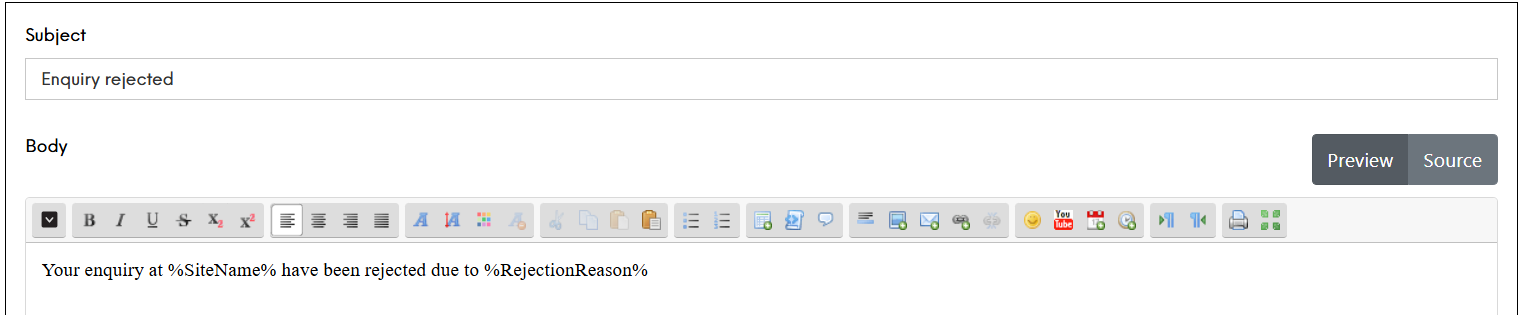
| Rejection Reason |
Displays the selected rejection reason when the enquiry was rejected. Rejection reasons configured in Enquiries → Rejection Reasons |
| Requested Payment Amount |
Displays the amount of the requested payment |
| Requested Payment Cut Off Date |
Displays the cut off date for the requested payment. This is set in the booking requirements tab in host |
| Site Address |
Displays the address fields set-up in Launchpad (if this needs amended please contact your Zonal Account Manager) |
| Site City |
Displays the City fields set-up in Launchpad (if this needs amended please contact your Zonal Account Manager) |
| Site Email |
Displays the email address of the site set-up in Launchpad. This also appears as a link in the email allowing the guest to click on it to send an email to the site |
| Site Name |
Displays the name of the site set-up in Launchpad. This also appears as a link in the email allowing the guest to click on it to send an email to the site |
| Site Telephone |
Displays the telephone number of the site set-up in Launchpad. This also appears as a link in the email allowing the guest to click on it to send an email to the site |
| Special Request Note |
Displays any special requests that have been added to the booking through the Special Request text field. If there are no special requests, this will remain blank in the generated email |
| Table Return Time |
When timeslots are configured with a turn time, this will return the time that the guest has that table until |
| Total Covers |
Displays the total number of covers booked (adults and children) |
| Upsell Email Description |
Relates to the Extras section - Displays any configured content of the 'Email Template' section against all of the selected upsells for that booking. This content is configured in Events Admin → Extras |
| Upsell Names |
Displays the name of any Upsells selected when the booking is created |