Labels
Labels help you organise your enquiries and speed up your sales process. With this feature, you can organise and track bookings across the business by applying labels. While similar to Tags, Labels are managed by the Events Admin user so they have full control over creating, editing and deleting labels.
Labels Topics
Creating a Label
Follow these steps to create Labels:
-
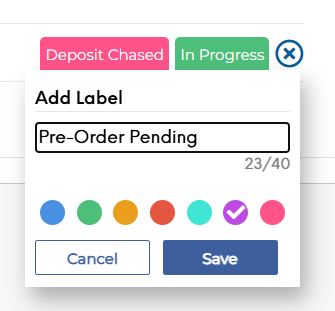
Click the + icon to add a new label
-
Enter in the required label name and choose a colour
-
Click Save
Once a label is created, it is displayed on the main tab
Conditions when creating a label:
-
Labels are assigned per estate
-
Label name is a mandatory field; hence labels cannot be created without any ‘label name’
-
Label name field has 40-character limit
-
User can choose between 8 colours only
Editing a Label
To edit an existing label, follow the below steps:
-
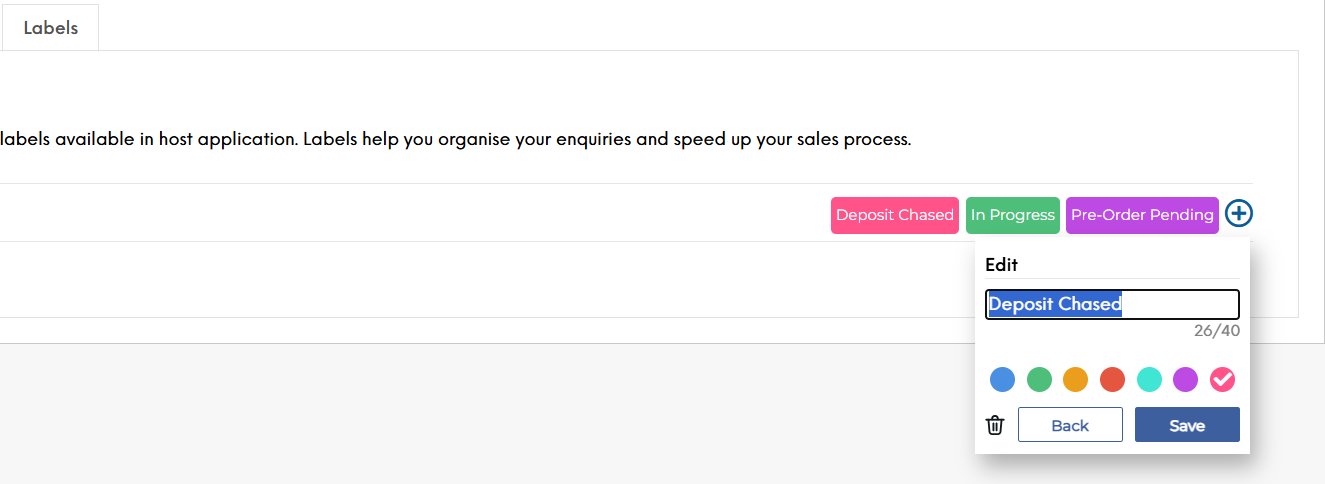
Click on the existing label
-
Enter in the new name, or change the colour
-
Click Save
A prompt will display, "Warning! Changing to "XXX" will change all instances of this label"
Conditions of editing a label:
-
You can only edit existing labels
-
You can change name/ colour of existing labels
-
Any changes made in Events Admin will update new, future, current and historical bookings and enquiries
-
Click Save.
Deleting a Label
Follow these steps to delete a label:
-
Click an existing label
-
Click the bin icon
A prompt will display: "Warning! Deleting "XXX" will remove all instances of this label". -
Click Save
Conditions of deleting a label:
-
Past bookings are not impacted by a deleted label – they will remain visible on Host App
-
Future bookings are impacted by a deleted label – It will not visible any more on Host App