Standard Stock Counts
A standard stock count does not include counting by holding zone or location. Instead, it allows all counted products across the site to be entered into a single grid to produce an overall stock result.
Standard Stock Topics
New Stock
Step 1 of 4
Follow these steps to start a new stock:
-
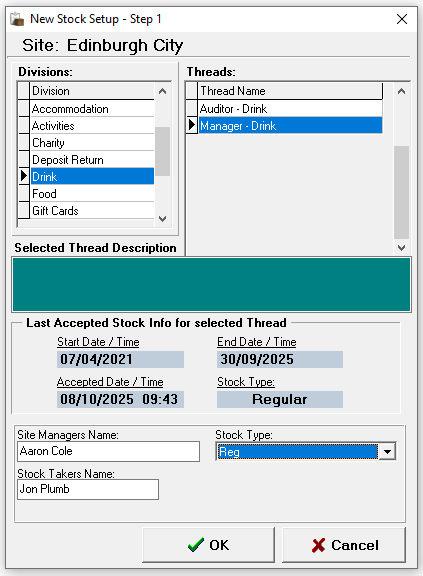
Select the required Product Division
-
Select the required Thread
Depending on the security settings applied to job roles you may only see one stock thread per division -
Enter the Site Managers Name, Stock Takers Name and select the required Stock Type
-
Click OK
-
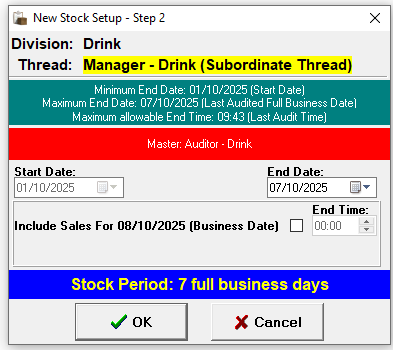
Confirm the End Date
-
The start date will be the closing date of the last stock
-
The end date defaults to yesterday, a part day stock can be included for today by selecting the check box and setting a time
-
-
Click OK
-
Click Yes or No to print the Count Sheets as required
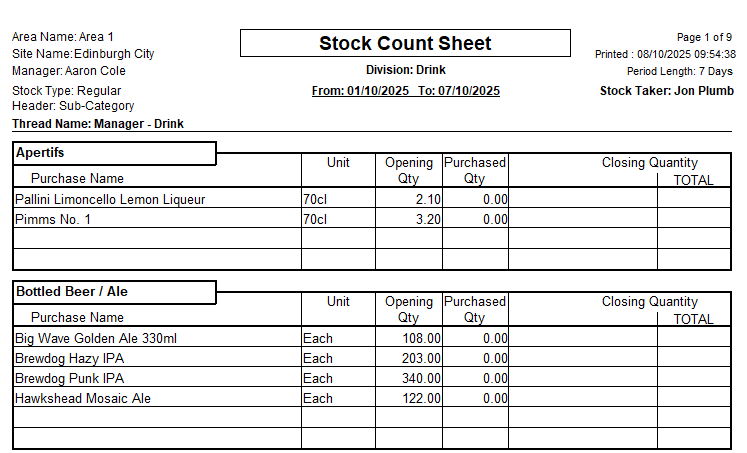
When selecting 'Yes' count sheets will be displayed on screen which can then be printed
-
Count sheets are displayed in either Category or Subcategory Order
-
Count sheets may contain additional fields and have large spacing depending on the organisations setup
-
-
From the Confirmation prompt select the required option
-
Yes - to proceed to entering the closing stock values
-
No - saves any figures (if already entered) and closes
If 'No' is selected selecting 'Current Stocks' from the main stocks menu will display this stock for selection -
Abort - cancels the stock
-
Entering Stock Counts
Step 2 of 4
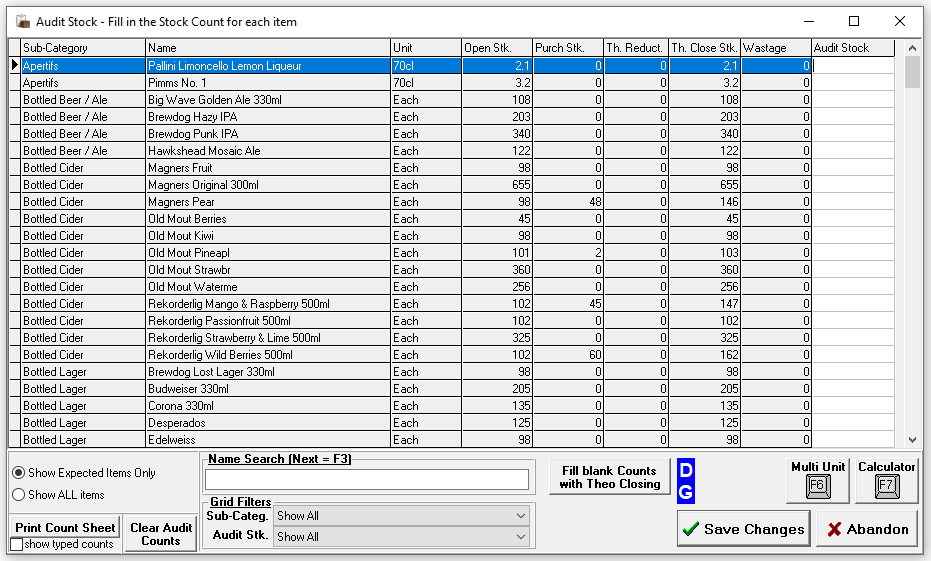
The audit screen is displayed in the same order as the printed count sheets, allowing quick and efficient entry of the closing count figures.
Follow these steps to complete the stock count entry:
-
Enter the counted value into the Audit Stock Column
-
The count value should be representative of the Unit column
-
Two decimal places can be entered
-
All expected items must have an entry a in the audit stock column, if there is no stock an entry of 0 must be added
-
Any products that have a 'minus' theoretical closing stock value must be entered either as a positive or 0 value entry
Additional information and options in the audit stock screen-
Th. Closing Stk column on the grid might not be displayed for all threads
-
Fill Blank Counts with Theo Closing button might not be displayed for all threads
-
Clicking will enabled the theoretical closing values to be automatically added to the Audit Stock column
-
-
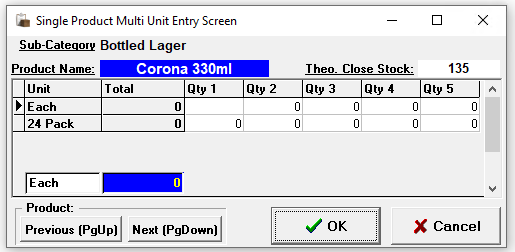
Clicking Multi Unit will enable multiple count entries to be added, if there are different purchase unit sizes (vs stock unit) these can be also entered
-
Pressing <Page Up> or <Page Down> on the keyboard will allow navigation to the next or previous products
-
-
Making selections from the Grid Filters can help show a smaller list selection
-
Category or Subcategory
-
Audit Stk - No Audit Entry | Audit Entry = 0 | No Audit Entry or Entry = 0
-
-
Name Search enables a search by product name
-
Show Expected Items Only is selected by default - this option shows all expected products that were either
-
Included in the last stock count and or had stock movement either by Sales | Waste | Delivery | Transfer
If a product is missing from the list that has been found select Show ALL Items and populate the count for the product
-
-
Clear Audit Counts will remove all entries from the Audit Stock column
-
Print Count Sheets will re-print the count sheets, selecting show typed counts will add the entries from the Audit Stock column on to the printed sheets
-
-
Click Save Changes to proceed
To proceed to getting the initial stock result all entries must be completed in the Audit Stock column, if this not completed the stock result cannot be accurately calculated and the stock finally accepted -
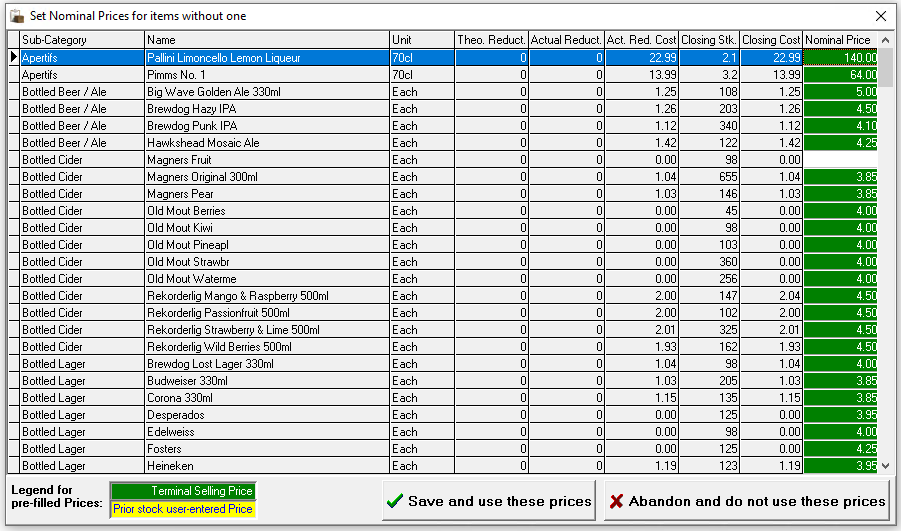
If prompted enter Nominal Prices for those products without one, the rules for population of this prompt are as follows
-
Use the tariff price for this product as currently set on the point of sale. This will only be available for Standard Line products where the ingredient is the same as the priced sold item
-
Use the price as entered by the last auditor for this product (if any)
-
If none of the above rules provide a price the field will be left empty for the auditor to populate
-
-
Click Save and Use these Prices
-
If prompted enter any Miscellaneous Stock Figures
-
Allowances enable a reason and cash value to be entered
-
Notes enable additional information to be added which will be displayed on stock reports
-
-
Click Save Changes & Exist
-
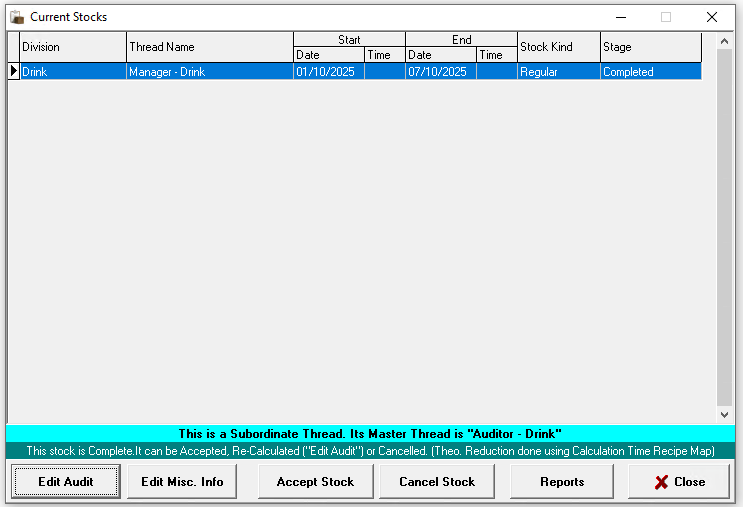
The Current Stocks list will be displayed if the stock is displayed as stage 'Completed' the stock is finalised and can be reviewed
Reviewing
Step 3 of 4
Once a stock take has been completed, the results should be reviewed and checked to identify and correct any obvious errors, miscounts or missing deliveries.
-
Use the Loss / Gain Report to check for large surpluses or deficits which could be as a result of
-
Miscounting stock
-
Incorrect typed on the entry of the closing count figure
-
Missing waste entry
-
Missing delivery entry
-
Cross sales on the point of sale where 'Product A' has been sold instead of 'Product B'
-
Incorrect recipes for ingredient reduction
-
Transfers to other sites were not completed / or accepted by the receiving site
-
If any updates to the above have been made the stock must be re-calculated in order to generate new results:
-
Select the Current Stock | click Edit Audit | either update any counts and / or click Save Changes (which will complete the re-calculation)
-
Check the results, if you the results are now as expected the stock can be accepted
Accepting
Step 4 of 4
When the stock has been reviewed a stock should be accepted which will close it and move it into the accepted stocks section.
-
Select the Current Stock | click Accept Stock | click OK to confirm the acceptance