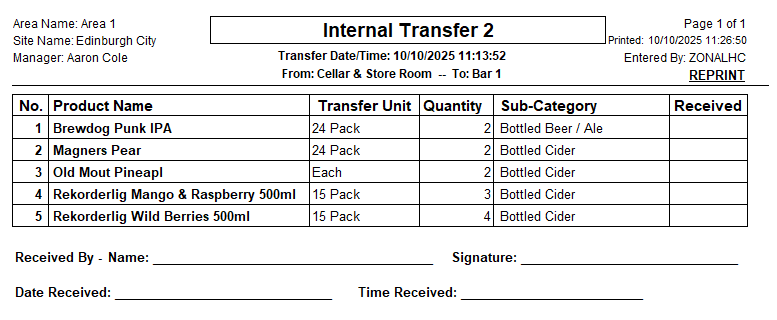
Internal Transfers
When using holding zones, any stock received will be added to the zone configured for purchases. To maintain accurate stock levels, products must then be transferred from the purchase zone to their appropriate zone as needed (or between other zones if required). If these stock transfers are not completed, discrepancies will appear in stock reports at the end of a stock count.
Internal Transfer Topics
Adding Transfers
Follow these steps to add a transfer:
-
Click Make Internal Transfer
-
Select the Transfer From and Transfer To holding zones
-
Update (if required) the Move / Date Time
This will default to the current date and time, if a transfer was done earlier on a previous day the date and time should be updated to correctly reflected the stock in the 'To' holding zone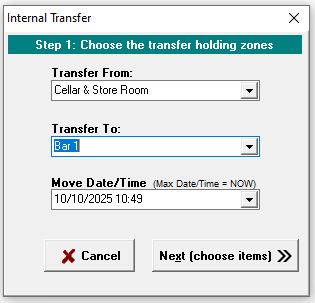
-
Click Next
-
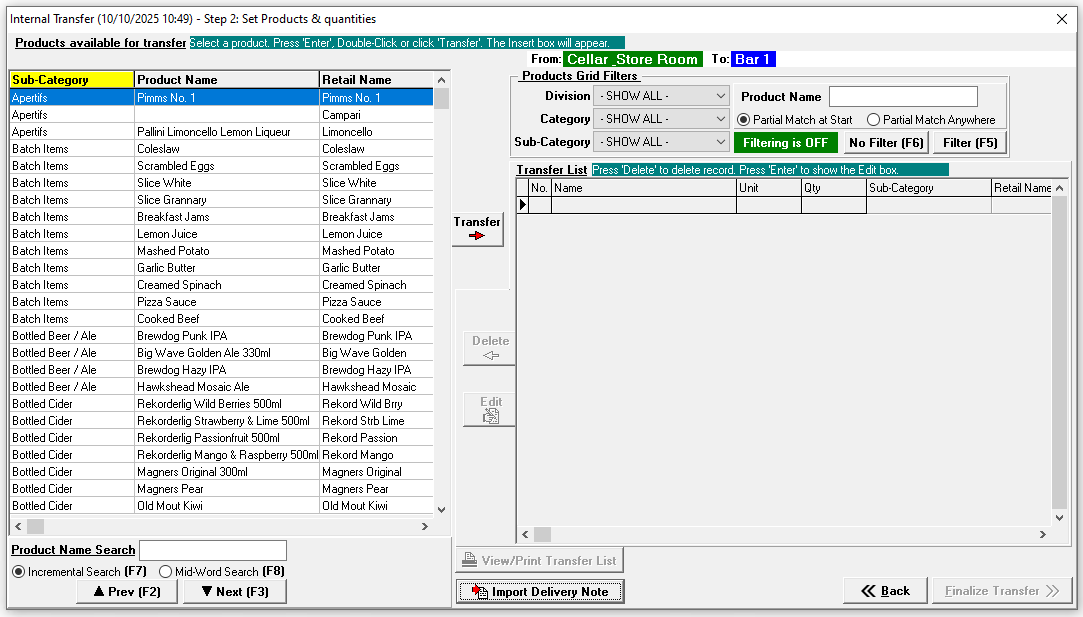
Apply filters or search criteria to find the required products to transfer
-
Click Transfer on the selected product | enter the required Quantity to transfer | click OK or use Prior / Next to navigate to other direct items in the product list
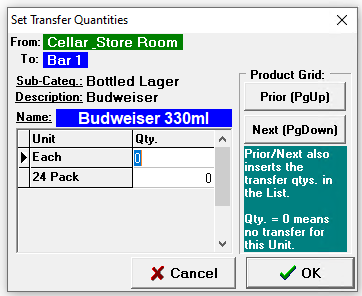 Products will be listed with both their stock count unit and all purchase units available for the selected product
Continue adding products to the transfer list as required
Additional information and options in the transfer screen-
Edit - enables the editing of a transfer product quantities
-
Delete - removes a transfer product from the list
-
View / Print Transfer List - enables a transfer list to be printed and reviewed prior to finalising
-
-
Click Finalize Transfers
-
Confirm all the correct products and quantities have been transferred, if required add an optional note
-
Click Back to go make any amendments
-
Click Confirm & Save to complete
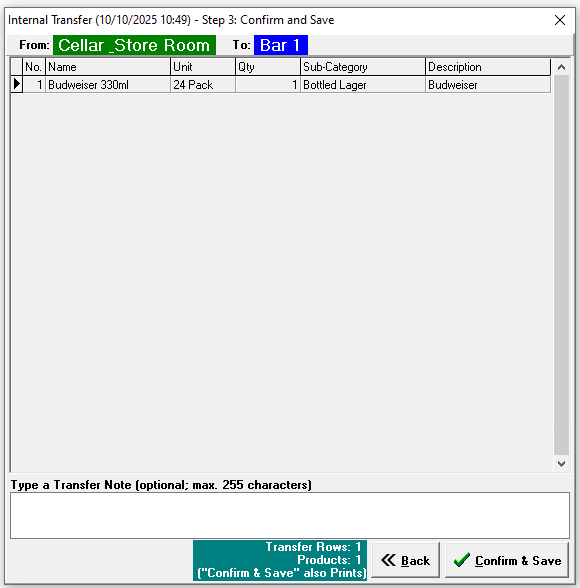
-
Importing Delivery Notes
When stock is added into the system via a delivery it is automatically assigned to the holding zone designated for purchases.
If an entire delivery is to move directly to a holding zone using the 'Import Delivery Note' feature can be an efficient way to quickly transfer stock.
Follow these steps to import delivery notes:
-
Start the transfer as normal, on the product selection screen click Import Delivery Note
-
From the delivery note list select the required note | click Import
-
Click OK to confirm the import of the delivery note, all products for the selected delivery note will be added to the transfer list
-
Add any other products, edit or delete entries in the list as required
-
Complete the finalisation as normal
Viewing Transfers
Follow these steps to view transfers:
-
Click View Internal Transfer
-
Select a transfer from the list
Any notes added to the transfer will be displayed at the bottom of the screen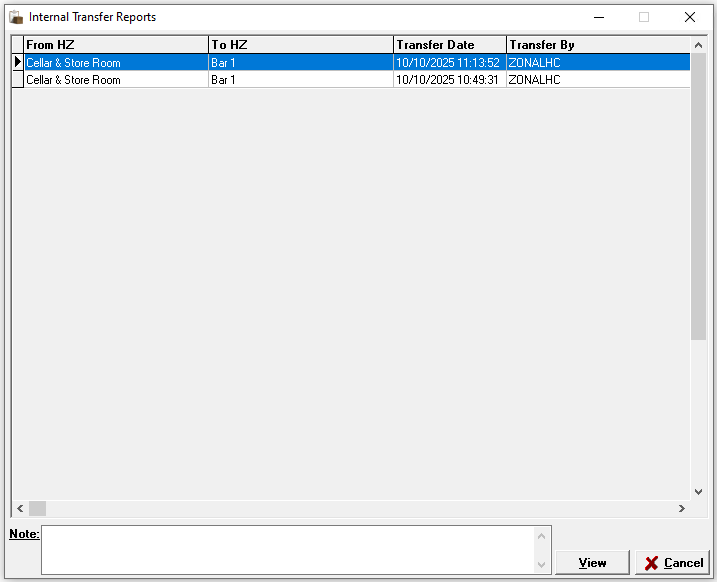
-
Click View | the transfer product list will be displayed or printed