Counts by Location
Counting stock by location makes the process more efficient. Setting up locations and ordering products as they appear on site speeds up counting and improves accuracy. Locations are for counting purposes only and do not affect stock results, which remain the same as a standard count.
Counts by Location Topics
Stock Process with Locations
Follow these steps to start a new stock:
-
Select the required Product Division
-
Select the required Thread
Depending on the security settings applied to job roles you may only see one stock thread per division -
Enter the Site Managers Name, Stock Takers Name and select the required Stock Type
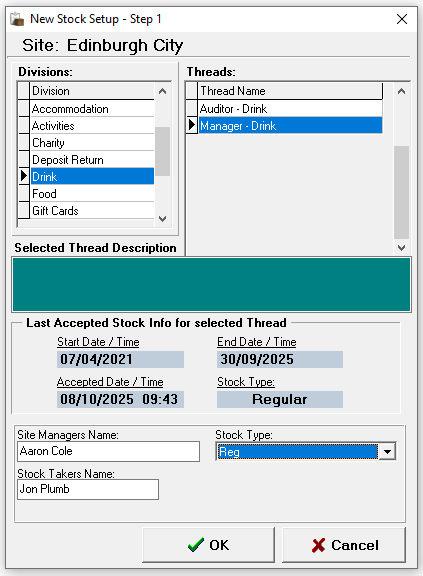
-
Click OK
-
Confirm the End Date
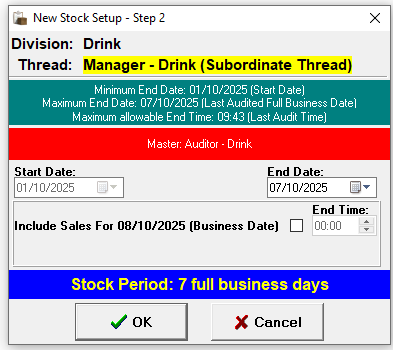
-
The start date will be the closing date of the last stock
-
The end date defaults to yesterday, a part day stock can be included for today by selecting the check box and setting a time
-
-
Click OK
-
Click Yes or No to proceed
If there are products not assigned to a location these will be reported as expected to be counted but automatically set against <No Location> -
Click Yes or No to print the Count Sheets as required
When selecting 'Yes' count sheets will be displayed on screen which can then be printed
-
Count sheets are displayed in either Category or Subcategory Order for the <No Location> list
-
Count sheets for locations will display the location name and product list as defined in the template
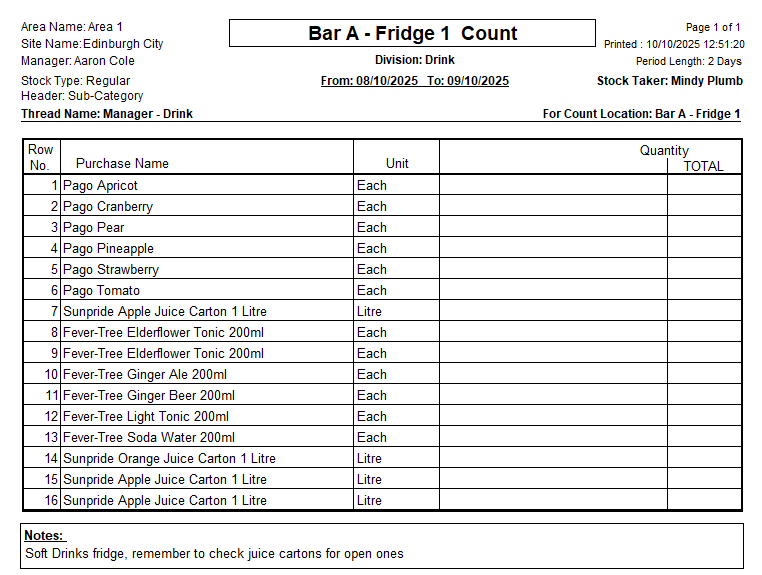
-
Click Close and the next set of count sheets will be generated for each location | repeat until all count sheets printed as required
-
-
From the Confirmation prompt select the required option
-
Yes - to proceed to entering the closing stock values
-
No - saves any figures (if already entered) and closes
If 'No' is selected selecting 'Current Stocks' from the main stocks menu will display this stock for selection
-
-
Enter the counted value into the Audit Stock Column
-
The count value should be representative of the Unit column
-
All closing stock values should be entered for each location
-
The Complete Site tab is read only and will calculate the overall total closing stock from each location / no location tabs
-
Two decimal places can be entered
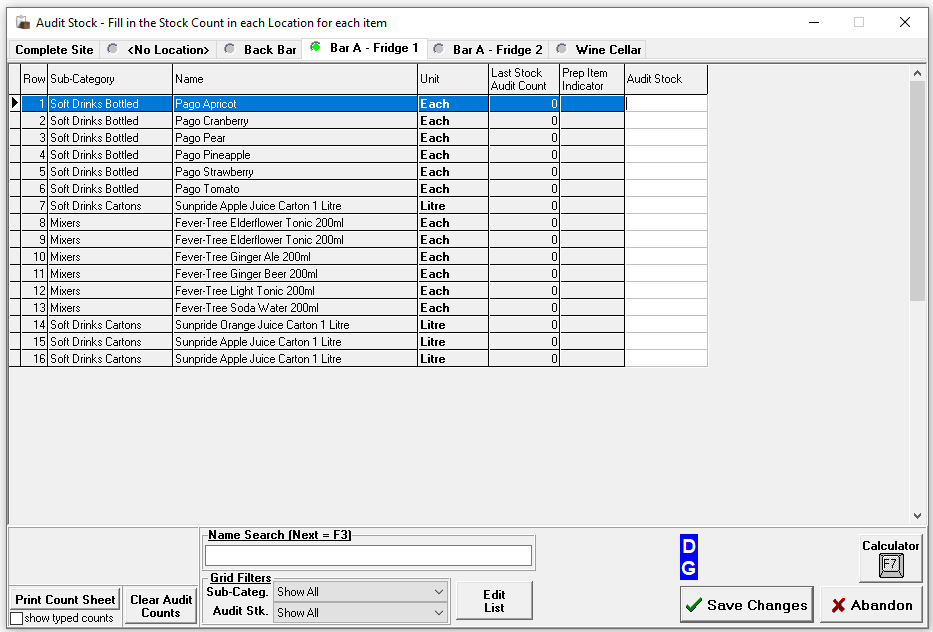
-
-
Complete the remaining processes as per standard stock entry, review and acceptance