Daily Sales Report
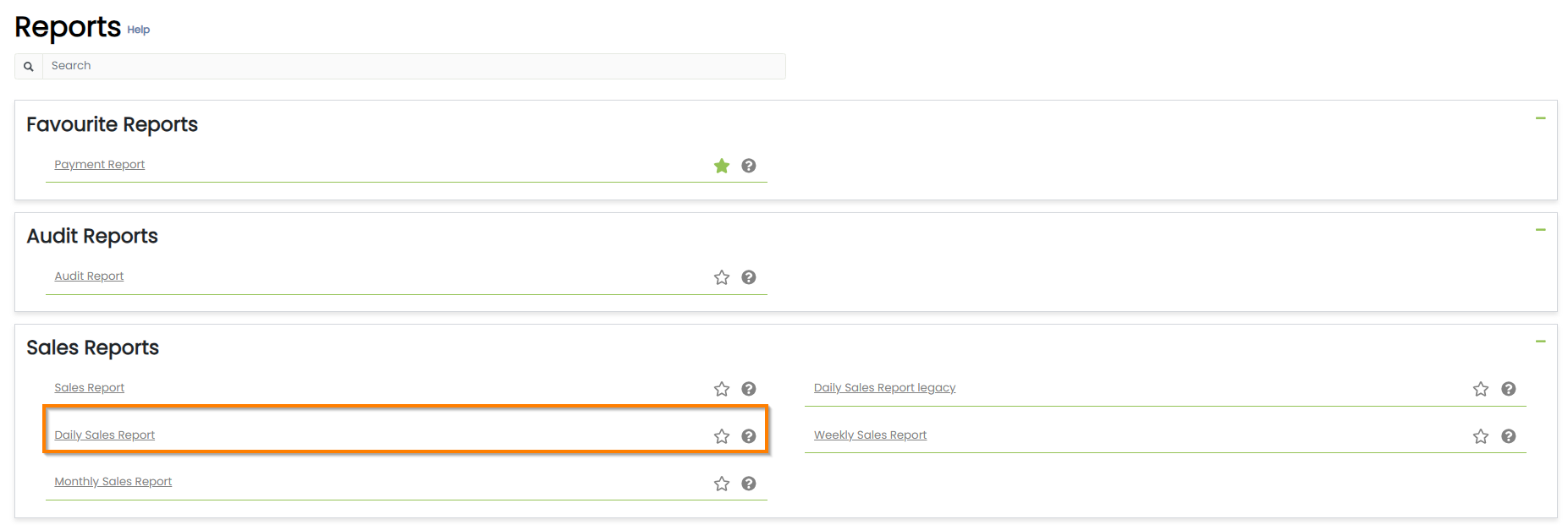
The Daily Sales Report is found within the Sales section of the suite and displays all sales information for the selected day.
Daily Sales Report Topics
Report Details
This report is the most important for general day to day use as it will give the following information:
- Total Daily Sales
- Sales breakdown based on your Revenue Categories e.g. Food, Drink, Accommodation.
- Total Payments for the day
- Payment Method breakdown e.g. Cash, Card.
- Access to the hotel ledger
- Reservation Stats e.g. Rooms Sold, RevPAR, Occupancy % etc
The Daily Sales could be thought of as and End Of Day report as it will close at 23:59 and move on to the following day.
Any Changes made to historic sales data will be logged on the day it takes place making sure your data is up to date.
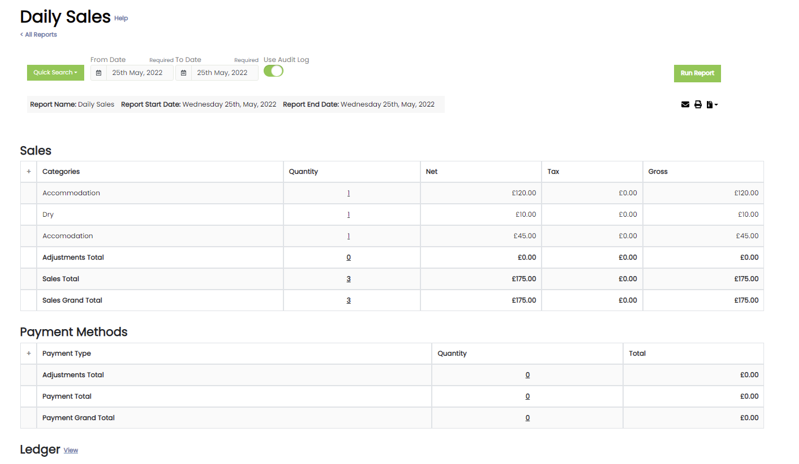
Lets breakdown the data displayed on the Daily Sales Report:
-
Sales are considered to be any service rendered or 'posted' on a day
For example a 3-day reservation at £100 per night will show as £100 on each day in the 'Accommodation' revenue -
Payments are considered to be any transactions logged in the PMS on a day
To continue the above example, a guest may not pay the £300 until checking out on the 4th day. This appears in the payments section, as money received -
The Ledger will display a ‘Financial Status to Date’
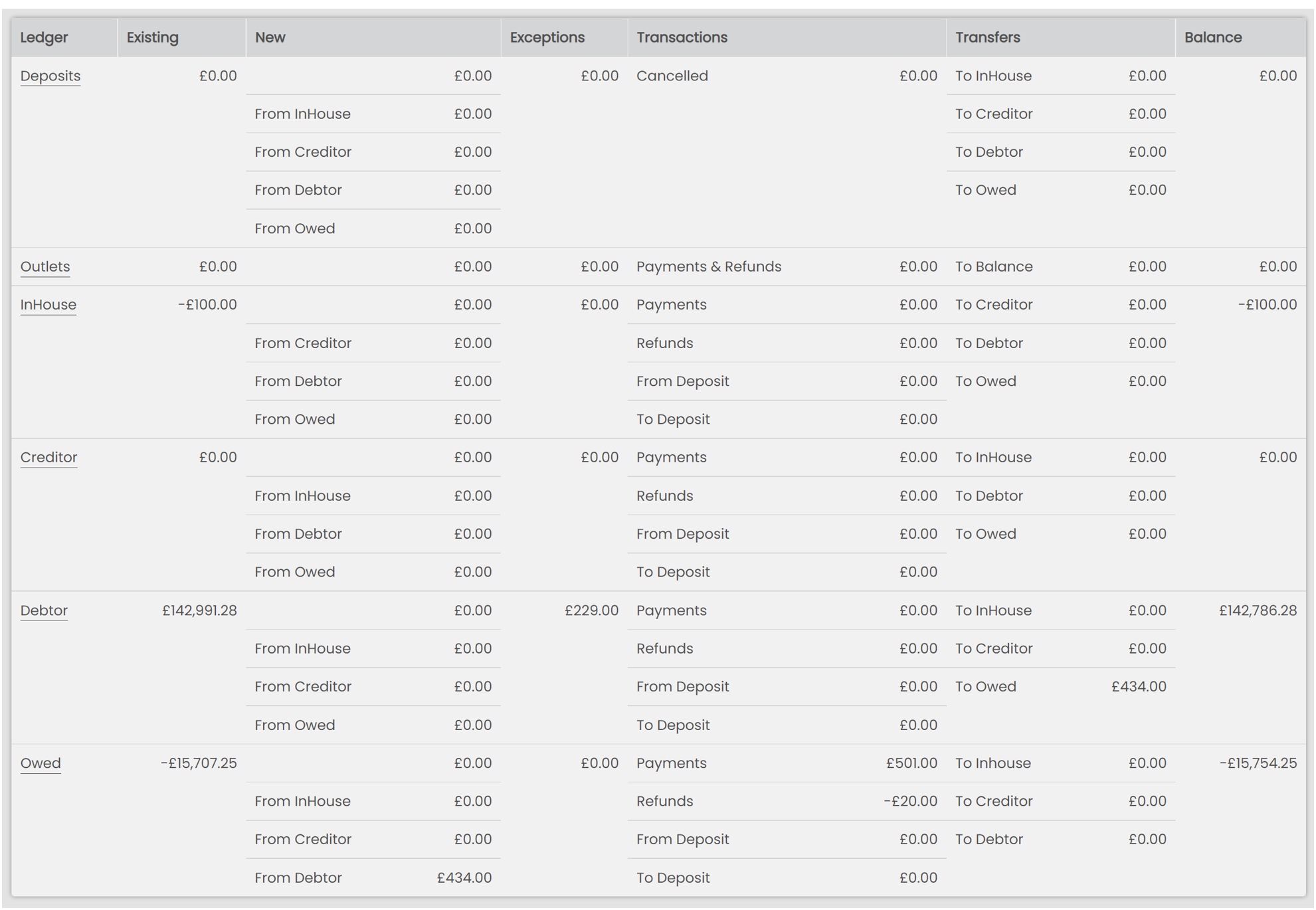
The Ledger sections displayed are Deposits, in House, Creditor, Debtor and Owed which are all automated by Bookings being paid by the due date. These give a overview of all balances that need attention
Ledger
Within the Daily report you will see the Ledger section.
- Deposits any Payments that are made on a Booking before the date of arrival are stored in the Deposits ledger until the booking arrives. On that day it will be converted to a Payment in the In House ledger
- In-House sales will list monies attributed to guests that are currently staying in the hotel but have not yet settled the bill (as this is usually settled on departure)
- Creditor will list any companies that you have added a grace period within the Corporations settings. If no corporations have been set up (and your guests pay on check out), this section should not be showing any figures
- Debtor shows any overdue invoices. Corporations that are outside of their terms, or guests that haven’t fully paid and have checked out
- Owed balances are made up of any money that the hotel will owe to a guest. If a guest has paid more than the balance of their stay, it will show here
Columns Explained
- Existing – This is the balance (for the corresponding ledger section) brought forward from the close of the previous day
- New – This is the total revenue for the new items posted to the corresponding ledger section
- Transactions – These are the new transactions posted to the system
- Transfers – The revenue listed here will transfer to the ledger sections displayed
- Balance – This is the closing balance (after your New, Transactions and Transfers have been added) and this will be carried forward to the next day’s report
Statistics
The Daily Sales report has a summary listed at the foot of the page labelled Statistics.
1 The number of Sold Rooms shows how many new Bookings have been entered into the calendar that day
2 Available refers to the remaining available rooms (empty rooms + your blocked rooms)
3 The number of Arrivals and Departures indicates the number of reservations (not bookings or adults) with arrival / departure dates on the date
4 The number of adults and Children is then displayed
5 Complimentary refers to any room sold at a zero balance.
6 Blocks refer to any blocks set in your calendar for the date / date range
7 Occupancy is shown as a percentage figure
8 ADR stands for Average daily Rate and is calculated by: total revenue / number of reservations
9 RevPAR is the revenue per available room. This is calculated by taking the total accommodation and dividing by total available rooms
