Loyalty Pass Templates
Once templates have been created in the Pass Creator app, they can be assigned within the Loyalty platform. You can also customise email templates to include Add to Wallet buttons, making it easy for guests to add their pass directly to their device.
Loyalty Pass Template Topics
Link Pass Templates to Loyalty
Follow theses steps to link the pass template:
-
Select the required Company
-
Click Template Configuration
-
Click Edit
-
Select the required Template from the drop down
-
Click Save
Insert 'Add to Wallet' Button in Emails
For guests to be able to add their loyalty card into their wallet a button should be added into the required email communications.
Follow these steps to customise the email template:
-
Select the required template, for example Registration
-
Click Edit
-
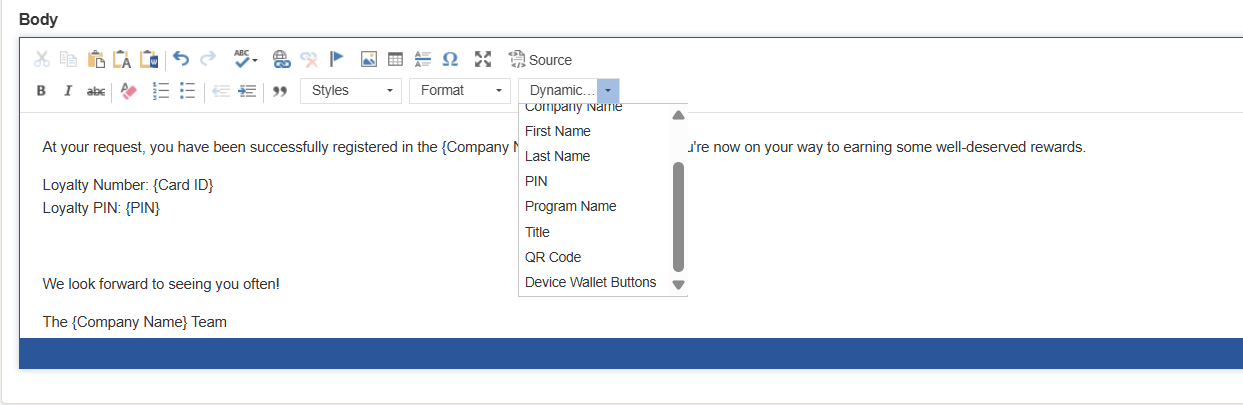
Add to the template from the Insert Dynamic Text drop down the Device Wallet Buttons
This will be displayed in the template as {Device Wallet Buttons}
-
Click Save
Insert 'Add to Wallet' Button in Balance Widget
For guests to be able to add their loyalty card into their wallet a button should be added on to the balance widget.
Follow these steps customise the balance widget:
-
Select the required Company
-
Select Widget Configuration
-
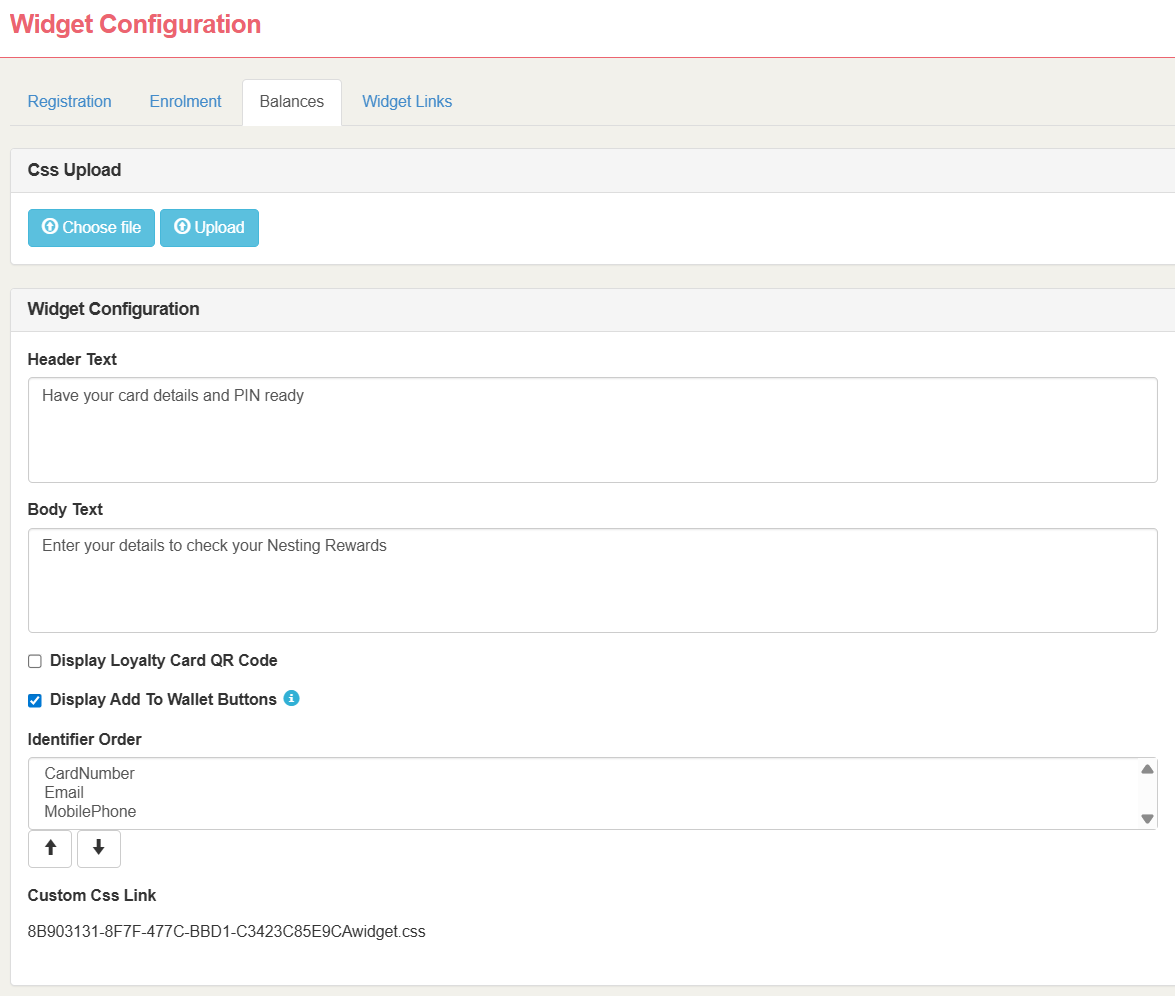
Select Balances tab | click Edit
-
Set the check box Display Add to Wallet Buttons to be selected
-
Click Save