Google Approval
This page explains how to obtain publishing access from Google, allowing your guests to add their loyalty cards to Google Wallet. It assumes that Google credentials, created by Zonal, have already been provided and that a pass template has been created. Please confirm these steps have been completed before continuing.
Google Approval Topics
Requesting Publishing Access
Publishing access can be secured by doing the following:
-
Login to the Google Pay & Wallet Console
Ensure you are signed in with the Google Developer Account used to generate the pass credentials -
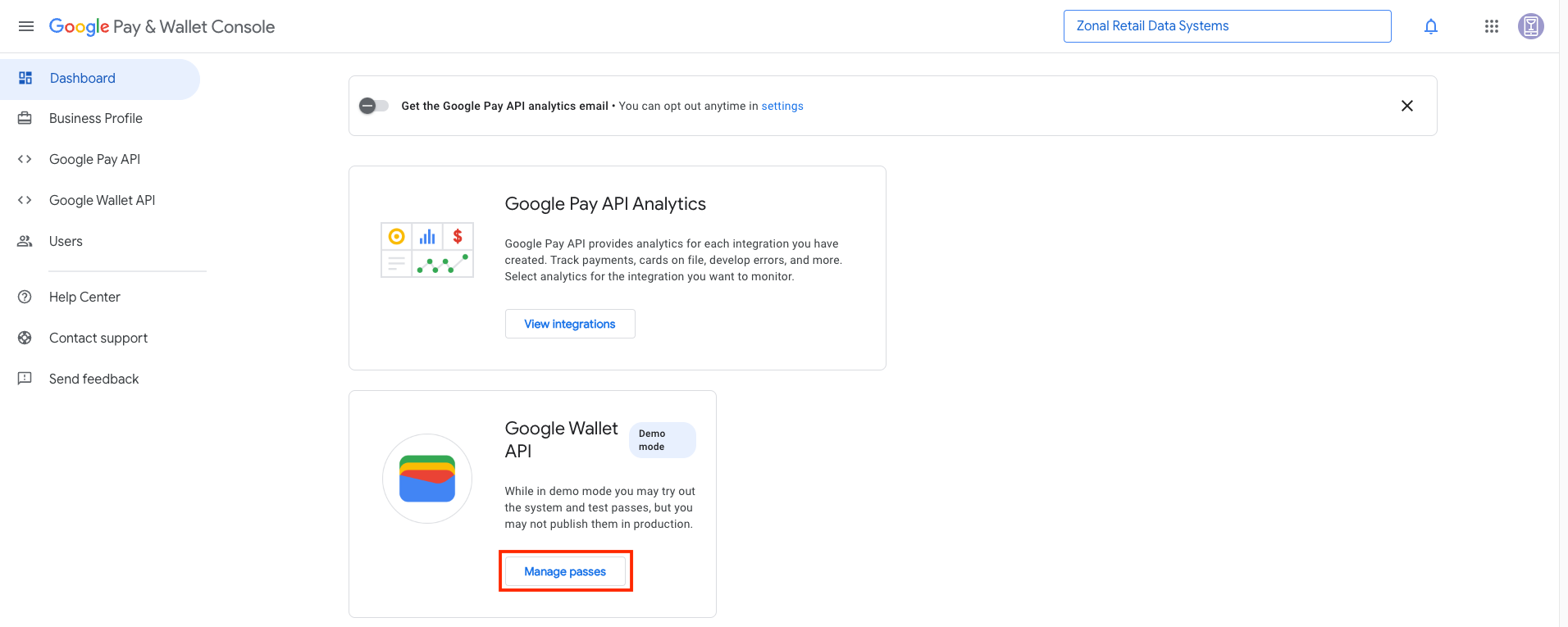
From the Dashboard select the Manage Passes option in the Google Wallet API section
-
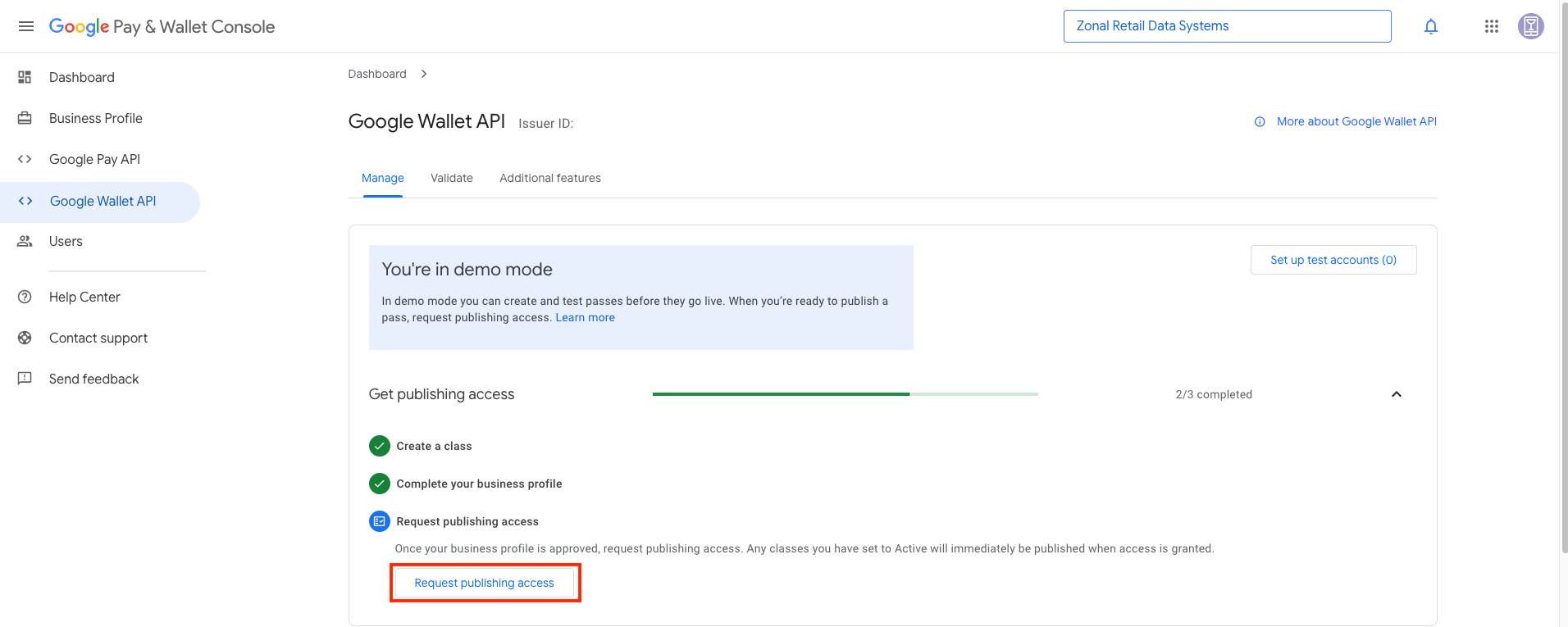
You will see that before you can request Publishing Access there are 2 steps to be completed (Create a Class & Complete your Business Profile). Both of those should already be complete as these are required to generate the credentials needed to save a template in Pass Creator
-
Click Request Publishing Access a dialogue box will appear which requires you to write a short summary of how the passes will be used
Zonal Recommended Example:
We will distribute these passes to our users via email and they will use the barcode on the pass to scan and accrue loyalty points every time they make a purchase at one of our venues. Users will also be able to scan and redeem any rewards they are entitled to. The pass will include Customer Name and Program Name as we have multiple loyalty programs that we support and we will include appropriate branding
-
Submit the Request
When complete you can move on to submitting additional information for approval
Submitting Additional Information for Approval
Once the access request has been submitted, you will receive an email from Google advising that some additional information is required.
The email will look like this:
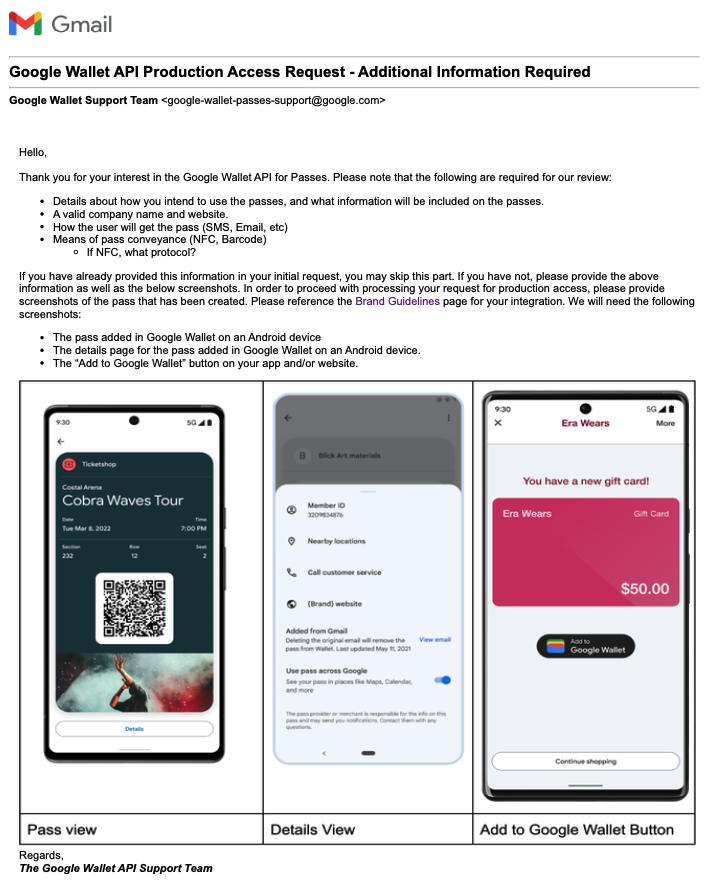
The majority of the information required will already have been included in your publishing request, so the key additional things to add will be:
-
A screen shot of the front of the Pass when added to a user's wallet (pass view)
-
A screen shot of the back of the pass when added to a user's wallet (details view)
-
Screen shots of the Add to Wallet button from the email sent to the user and / or the Balance Widget (this is for Google to verify that the correct button with the correct dimensions is being used)