Email Templates
Within Loyalty, built in email templates are available to support key customer journeys. These templates trigger automatically for members at the right moments and can be configured at program level.
Email Templates Topics
Types of Templates
The following table outlines each template and its corresponding functionality.
| Template | Description | Additional Information |
|---|---|---|
| Welcome |
Sent when a member signs up via POS using Lite Registration |
|
| Registration |
Sent after a customer completes the Registration Journey (via Widget, Loyalty Platform, iOrder, or API) Emails are not triggered when adding members via the Import Tool
|
For customers who already have a Loyalty Card number and are registering their personal details to link with that card |
| Enrolment |
Sent after a customer completes the Enrolment Journey (via Widget, iOrder, or API) Emails are not triggered when adding members via the Import Tool
|
For customers who do not have a Loyalty Card number. A card is allocated during sign-up from the Enrolment Card set |
| PIN Reminder |
Triggered when a member selects Forgotten PIN on the Balance Widget login page |
Configuring Templates
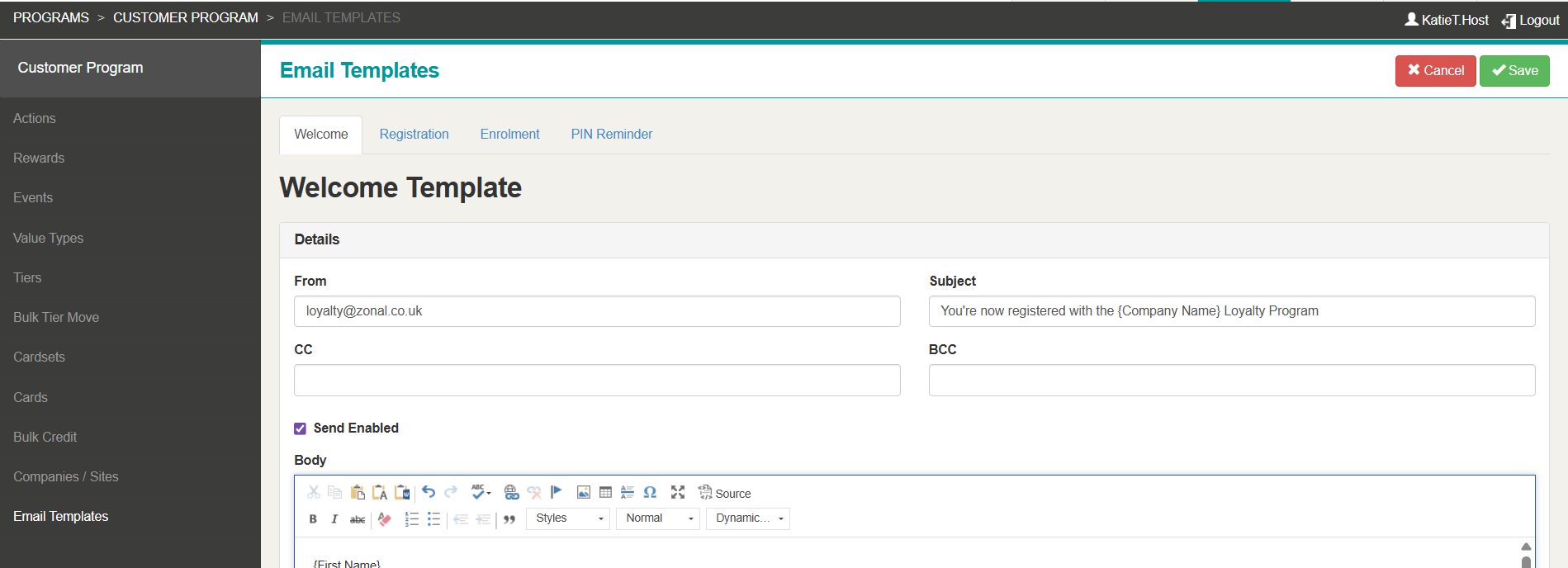
Follow these steps to configuration each template.
-
Select the required template tab: Welcome, Registration, Enrolment, PIN Reminder
-
Click Editand complete the required information:
-
From: Email address used by Zonal to send emails. Ensure compliance with Email Sender Profile requirements
-
Subject: Recommended to reduce spam risk
-
CC / BCC:ds copies to specified addresses (not recommended)
-
Send Enabled: Must be set to True (tick to enable)
-
Body: Main email content. Use style options and dynamic fields
-
-
Click Save
Recommendations for Templates
-
Send Sample To: Test email before going live
-
HTML Mode: Use the Source button to switch to HTML and paste branded content created outside the platform
-
Hyperlinks: Highlight text and link to external URLs (e.g., brand website)
-
Dynamic Fields: Personalise emails with member details (e.g., name)
Sign Up Emails Recommendations
-
Include Loyalty Card details: Card Number, QR Code, Add to Wallet
-
Ensure Pass Creator is configured for Add to Wallet
Add to Wallet buttons will not display in the email body for Loyalty Platform registrations
-
-
If using Balance Widgets, include PIN dynamic field and Balance Widget URL
PIN Email Recommendations
-
Use table-style formatting for clarity
-
Include the PIN and link to the Balance Widget for a smooth user journey