Managing Programs
The Programmes screen shows all loyalty programs set up for the selected estate. Each entry displays the programme name and programme type, making it easy to see what is available at a glance.
Getting to know the Programs window
On the main Programs screen, you can filter the displayed list by using specific entries in the Program Name or Program Type drop-down lists. You can also search for a specific program by entering part of the name / type in the search field.
You can drill-down on any specific program to view the Name and Type details of that program and from within that program’s own window, you can edit (name only), edit the enrolment cardset or delete the entire program.
The Create New button is used to create a completely new loyalty program on the system. Refer to the section overleaf (Program creation process) for a full description of all the steps required to do this effectively.
When creating new items such as Rewards, Actions and Events, the Save action button will always be displayed at the top of the window for quick access.
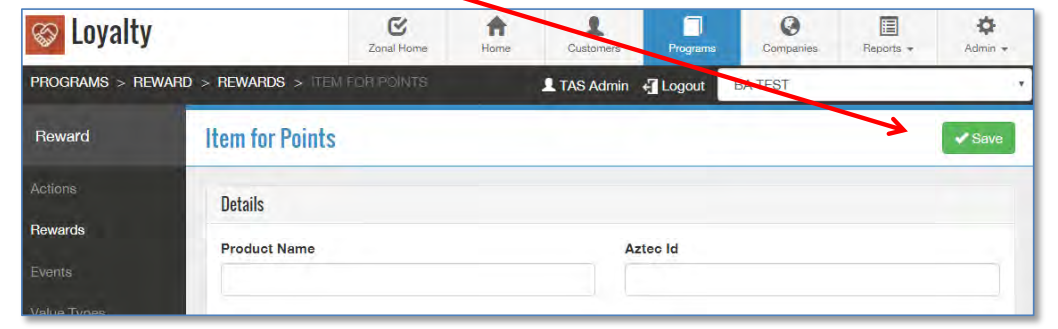
When editing existing items (for example Rewards, Actions, Value Types, etc.) the Cancel and Save action buttons will always be displayed at the top of the window for quick access.
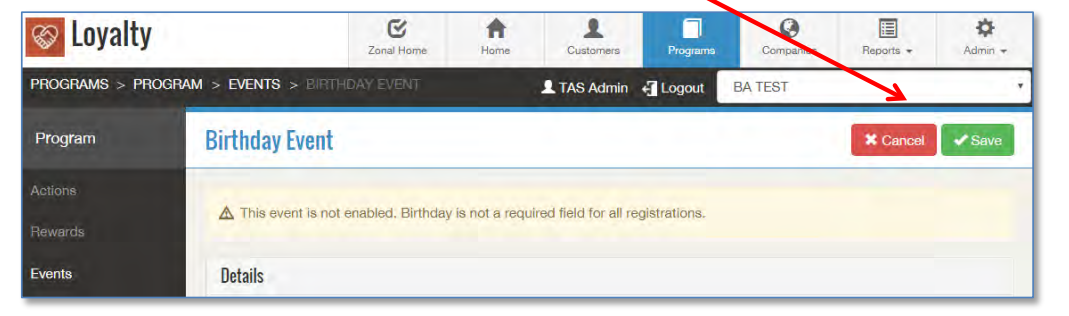
Some windows have additional action buttons, such as View Cards, Upload Cards or Advanced. Where these are included in a window type, as with all common action buttons described above, they too are displayed at the top of the window for quick access.

Creating a new loyalty program
-
Within the appropriate estate, in the main menu bar click the icon and click the button.
-
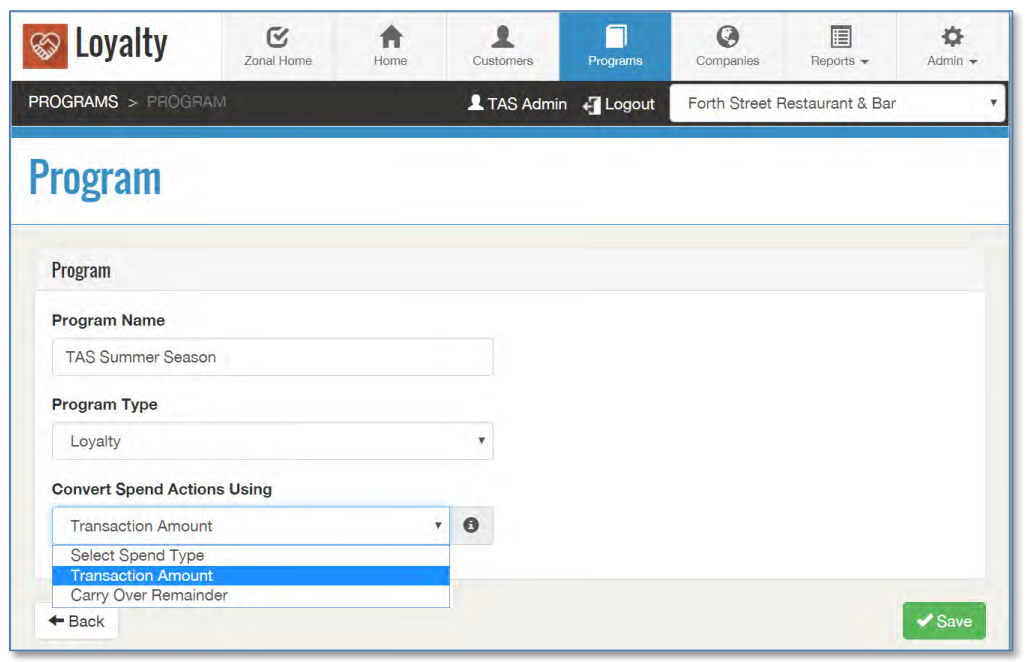
Enter a meaningful and recognisable Program Name and choose which Program Type:
-
Gift – Gift functionality is simpler in concept than loyalty in that no customer information is required to use the card. If a balance is available on the card it can be spent as cash and if no balance exists, then the card can be topped up. Corresponding e-gift POS buttons need to be created for use and the card prefix needs also to be configured in Aztec Base Data as `e-gift’.
-
Loyalty - Every card issued relates to a specific loyalty account and, when registered, as the holder makes transactions, rewards are credited and benefits (in the form of rewards) can be made available to the loyalty account card holder.
-
-
From within the `Convert Spend Actions Using’ drop-down list, choose the relevant criteria:
-
Carry Over Remainder - Loyalty credits (points/currency) will be calculated on an accumulative basis. If the transaction amount includes pence, this will be stored as a balance and carried over to the next transaction, until the Spend threshold is met.
-
Transactional Amount - Loyalty credits (points/currency) will be calculated on a transactional basis per Spend on the POS. The calculated points amount is subject to the configured rounding method
-
-
Click and a confirmation message is displayed by the system. You are returned to the main Programs screen where all programs currently defined within the system are displayed.
Run Expiry (if used on a program), will run the process that expires balances (points, currency) for the expiry periods that have been defined for each individual Action or Reward. Only request this feature if you want balances to expire automatically. Run Expiry cannot be carried out by estate users. If this is required, please contact your Account Representative.
If the new program is for customers using the enrolment approach, that is they do not have a card or a loyalty ID and have signed up for your loyalty program via the Enrolment Widget, you can create an appropriate Enrolment Cardset for that program.
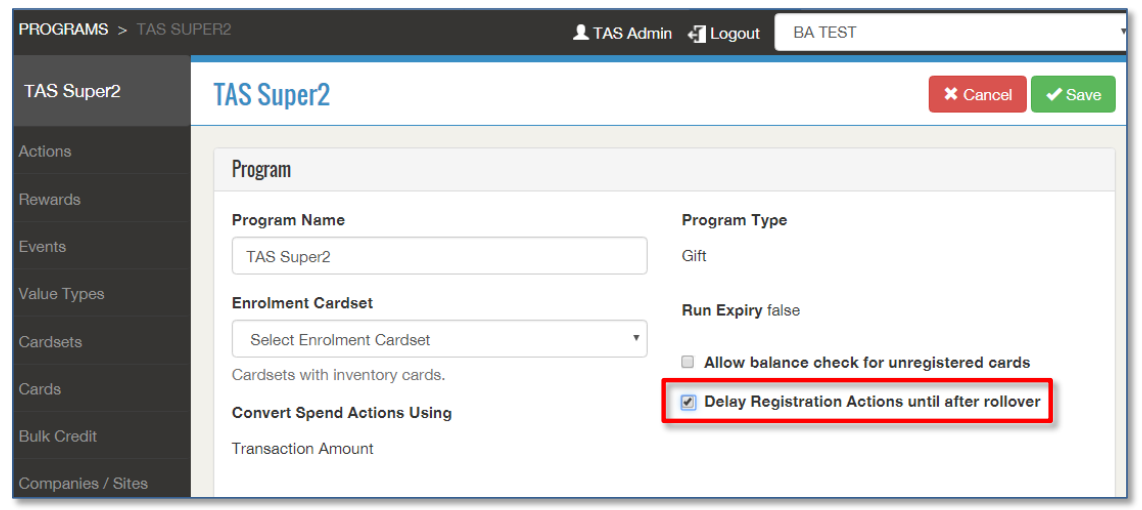
If the new program type is for Gift cards, you can click Edit to reopen the new program and select the `Allow balance check for unregistered cards’ check-box to enable your customers to check their gift card balances.
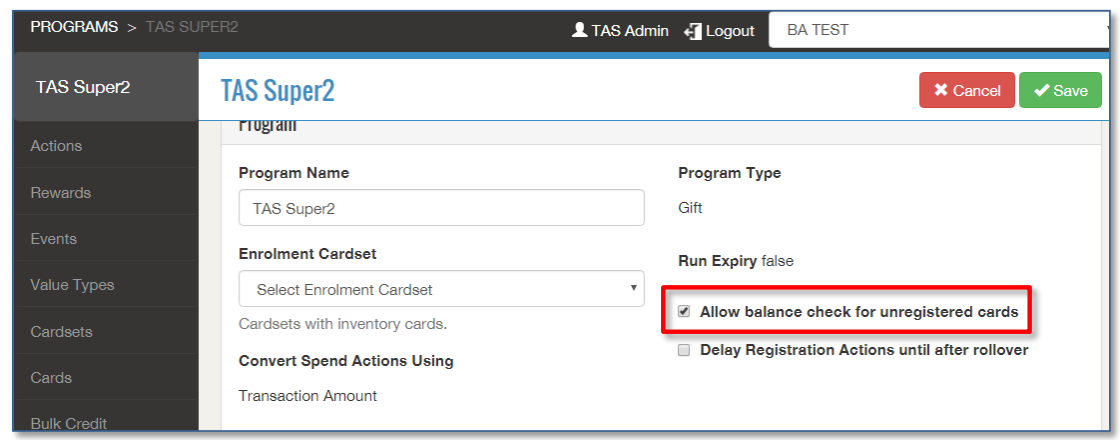
In cases where you issue new loyalty cards but want any registration actions to be unavailable to customers until their next visit (i.e. not used immediately on receipt of the card), you can delay any registration actions until after the estate rollover time.