Points for Spend
Loyalty customers can turn their hard earned points into instant savings, redeeming them for discounts or spend equivalents, for example using 1,000 points to get £10 off. It is the exciting reverse of earning points from currency.
Points for Spend Topics
Configuration Fields
Points are credited against the loyalty account for all transactions made.
-
Points and Spend fields require the amount of points that will be gained for a specific amount of spend, for example 10pts gained for each £10 spent
-
Valid From 00:00 (12am) On and Valid To 00:00 (12am) On show the only date range that this Action can be active. If these fields are left blank, then the action will come into effect as soon as it is enabled (and will run indefinitely). Valid To 00:00 (12am) On is not inclusive. For example, if 02-Dec-2025 is entered, the Action is only valid up until that date; it does not include the 2nd
-
The Available to Account Tiers section allows you to make this action only available to specific account tiers. By selecting the Available To Account Tiers check-box, you can select one or more tiers from the list of tiers displayed in the drop-down list. Click to highlight a single tier or Ctrl+Click to multi-select tiers. Leave this check-box unselected for this action to apply to all accounts, regardless of their tier
-
The Available at Sites section allows you to apply the action to certain sites only. In the adjacent example, this action is only available in the Coffee & Cake outlet. To apply to specific sites, click the Only Available at Specific Sites check-box and then select the site(s) from the estate structure. To ensure the action is applicable to all sites, leave the check-box unchecked
-
The Expiry section allows you to set an expiry on the use of any reward or benefit credited by this Action. For example, you can set a benefit credited (such as currency for spend) to be available to redeem for up to 3 months from when it was added to the account. Note that this is separate to the From/To Dates above in that even if the To Date has passed and the Action no longer credits currency for spend, currency benefits previously awarded can still be redeemed for up to 3 months after they were added to the account. If used, Expiry Interval Type can be set to Day, Week or Month and Expiration Intervals requires the entry of a number to define the length of the expiry period
Setting an expiry interval will expire any credits for this action from the date of credit plus the expiration interval
If you set an expiry for this action, it will overwrite any default expiry intervals you may already have set up for the value type it is crediting. Value type expiry intervals are configured in the value type menu
If you leave expiry blank for the action, the expiry intervals will follow the default, if one is set on the value type
-
The Limit Action to section (if used) provides the ability to specify exact days or times on which the action is only available. Click Add Schedule to choose a specific day, date, or month or time (24 hours). You can add more than one day by repeating this action. If not used 'All' is displayed and the action is always available
Example Setup
The most common benefit for loyalty cardholders is one where their spending is recorded and points (based on that spending) are credited to their loyalty accounts. In this case, you must decide how much spend translates into how many points gained.
-
Click + Create New
-
Select Points for Spend
-
Enter the Number of Points, for example 1
-
Enter the spend Value, for example £1.00
-
Set the Valid From and Valid To date range
Leaving the valid to blank if you do not want it to end on any specific dateIgnore the Available To Account Tiers check box if you want this action to be available to all accounts, regardless of tier
Ignore the Available at Sites check box if you want this action to be available to all outlets
-
Select Month from Expiration Interval Type drop down and enter Expiration Intervals to 12
In this example this means that the points that are gained by this account must be used within 12 months of when they were awarded. After this date, they expire and cannot be used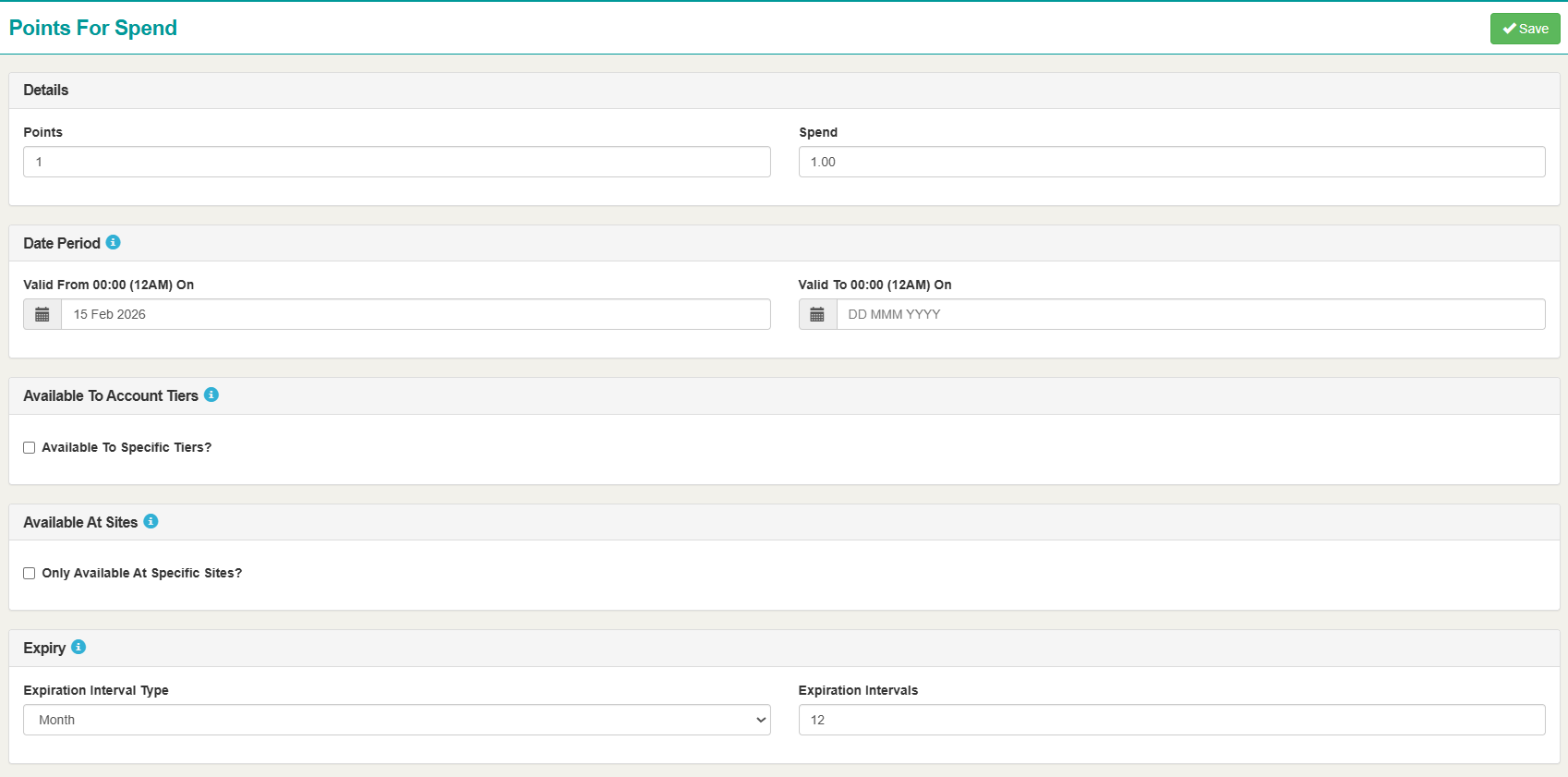
-
Click Save
A confirmation message is displayed by the system. You are returned to the main screen for the loyalty program where you can make other adjustments if necessary