Advanced Action
Designed for custom or complex actions, such as referrals, reviews, milestone completions, or engagement in campaigns. Useful for tailoring the program to specific behaviours. Advanced Actions are intended for bespoke setup, which cannot be achieved using the standard action wizards.
Advanced Action Topics
Example Action 1 – Points for Spend
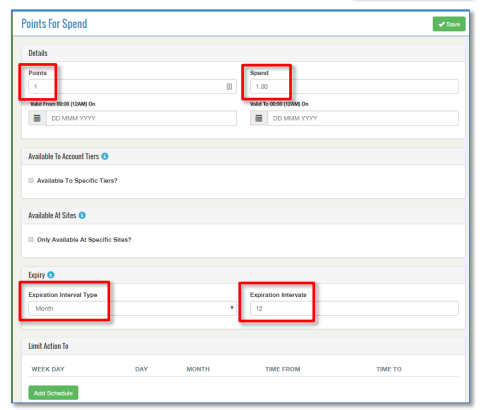
The most common benefit for loyalty card holders is one where their spending is recorded and points (based on that spending) are credited to their loyalty accounts. In this case, you must decide how much spend translates into how many points gained. In our example, we will define an action within a program so that 1pt is credited for every £1 spent.
-
Click + Create New
-
Select Points for Spend
-
Enter the Number of Points, for example 1
-
Enter the spend Value, for example £1.00
-
Set the Valid From and Valid To date range
Leaving the valid to blank if you do not want it to end on any specific dateIgnore the Available To Account Tiers check box if you want this action to be available to all accounts, regardless of tier
Ignore the Available at Sites check box if you want this action to be available to all outlets
-
Select Month from Expiration Interval Type drop down and enter Expiration Intervals to 12
In this example this means that the points that are gained by this account must be used within 12 months of when they were awarded. After this date, they expire and cannot be used -
Click Save
A confirmation message is displayed by the system. You are returned to the main screen for the loyalty program where you can make other adjustments if necessary
This example shows how to create an action so that a loyalty card holder’s spending will credit points on their account. You must ensure that a secondary Action or a Reward is also created so that these credited points can be redeemed in some way.
Example Action 2 – Currency for Points
When the spending by a loyalty card holder has resulted in credited points building up on their account, a method of converting these points to something desirable is necessary. This example is known as a secondary action and follows on from Example Action 1 as described above.
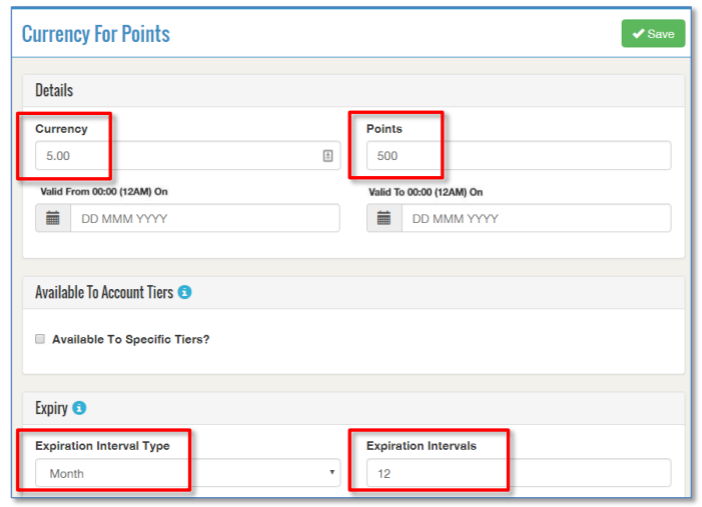
In our example, we will define a secondary action within a program so that £5 in cash is given when 500 points are reached.
-
Click + Create New
-
Select Currency For Points
-
Enter the Currency amount, for example 5.00
-
Enter the Points amount, for example 500
-
Set the Valid From and Valid To date range
Leaving the valid to blank if you do not want it to end on any specific dateIgnore the Available To Account Tiers check-box if you want this action to be available to all accounts, regardless of tier
Ignore the Available at Sites check-box if you want this action to be available to all outlets
-
Select Month from Expiration Interval Type drop down and enter Expiration Intervals to 12
In this example this means that the points that are gained by this account must be used within 12 months of when they were awarded. After this date, they expire and cannot be used
-
Click Save
A confirmation message is displayed by the system. You are returned to the main screen for the loyalty program where you can make other adjustments if necessary.
Example Action 3 – Registration gets a Reward
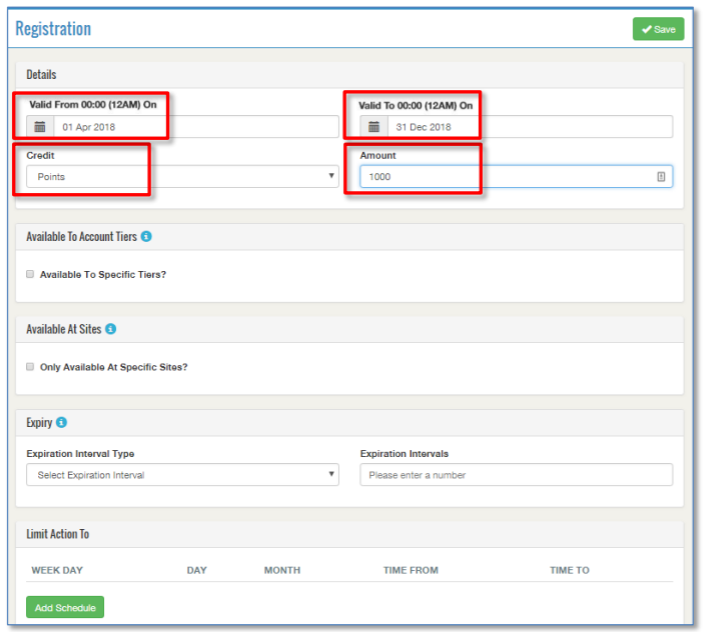
To tempt potential loyalty customers into taking out a loyalty card, you can offer a reward that is provided immediately on registering their new card for the first time. In this example, we define a registration action that credits the loyalty account with 1000 points.
-
Click + Create New
-
Select Registration Action
-
Set the Valid From and Valid To date range
In our example, this points offer is only available to cards between 1st April 2018 and 31st December 2018
-
Select Credit Type Points and enter the Points Amount, for example 1000
Ignore the Available To Account Tiers check box if you want this action to be available to all accounts, regardless of tier
Ignore the Available at Sites check box if you want this action to be available to all outlets
Ignore the Expiry section and the Limit Action To section - we do not want to define expiration or limits for the action, therefore we recommend you leave these fields blank
-
Click Save
A confirmation message is displayed by the system. You are returned to the main screen for the loyalty program where you can make other adjustments if necessary.