The first section when configuring a choice is the main details, this holds all of the primary information for the choice and its behaviour when ordering.
There are three options when adding a new choice:
-
Select an existing choice and click Add, this will automatically pre-fill the subcategory and portions within the choice
-
Click add without selecting an existing choice, this will leave all fields blank
-
Select an existing choice and click Clone, this will copy all details from the previous choice
When adding choices from the All Items view:
-
Selecting an existing choice will update the Add button to show "Add Choice"
-
Selecting no item will default the Add button to a drop down list where an empty choice can be added
Main Details Topics
Completing Main Details
Follow these steps to configure this section:
-
Click Add
-
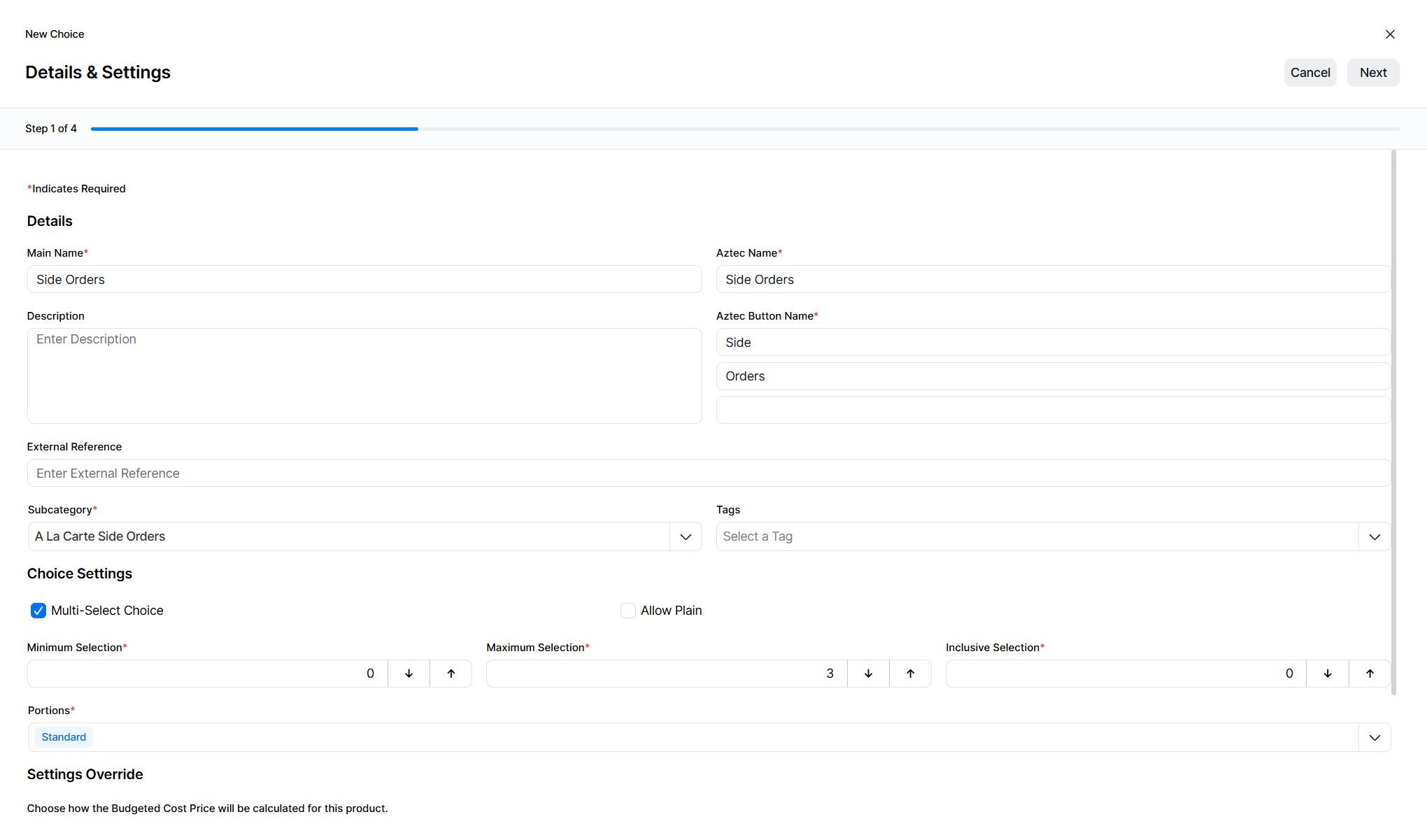
Enter the following details, Main Name | Aztec Name (update as required) | Description (optional) | Aztec Button Name (update as required) | External Reference 1 (if required)
The external reference 1 is the new term for an Aztec Product Modelling Import / External Ref - additional references 2 and 3 can be located in the References tab, from Main Details -
Select a Subcategory (if not already preselected) | assign any Product Tags
-
Set the required choice settings, Multi-Select, Minimum, Maximum, Inclusive and Portions (if not already preselected)
-
If required, update the Budget Cost Price settings or leave at the default setting
-
Click Next or the split button menu (if multi-select is not enabled) and select Save & Close
Choices can be added with their primary information and the options can be added later
Field Settings & Information
Details
The details section allows you to set the names and other primary choice information.
| Field | Description |
|---|---|
| Main Name | Main choice name used across the platform and will be the initial name given to the default display record |
| Aztec Name | Shorter choice name used by Aztec product modelling, pre-populated by entering the main name but will stop at 16 characters |
| Description | Description of the choice |
| Aztec Button Text | Button text used for Aztec choices |
| External Reference | External reference of any third party systems |
| Subcategory | Subcategory from the product structure |
| Tags | Product tags associated to the choice |
Choice Settings
The choice settings section allows you to configure how the choice behaves when ordering.
| Field | Description |
|---|---|
| Multi-Select Choice | If selected the choice will be configurable to set the minimum, maximum and inclusive selections |
| Minimum Selection | Minimum selection value defines the minimum number of selections that must be made during the ordering process |
| Maximum Selection | Maximum selection value defines the maximum number of selections can be made during the ordering process |
| Inclusive Selection | The inclusive selection value is optional, when a value is set the guest will not pay for any items until this value is reached |
| Allow Plain | When choices have default items selected (items that come with the sales item as standard) the allow plain option is a quick way on the POS terminal to deselect all default choices, indicating that the guests wishes to have a plain item |
| Portions | The portion selector defines which portions will be available within the choice, the standard portion is always preselected, up to 19 other portions can be configured against the choice. When adding options into the choice you are able to add additional portions if they have not been added here |
Settings Override
The settings override section allows you to choose how you view costings.
| Field | Description |
|---|---|
| Use System Default | When this is selected it will automatically use the system default as defined in product admin → settings, deselecting this check box will enable selection of any other item cost types |
| Average Item Cost | |
| Minimum Item Cost | |
| Maximum Item Cost |
References
The references section allows you to set additional IDs against the choice.
| Field | Description |
|---|---|
| External Reference 1 | Third party / optional reference of the choice - 15 characters |
| External Reference 2 | Additional third party / optional reference of the choice - 15 characters |
| External Reference 3 | Additional third party / optional reference of the choice - 15 characters |