The display details tab allows you to manage the sales item customer and staff facing names, descriptions, images and keywords that would be displayed within a menu. When creating menus you can choose which display record is shown.
The following rules are used for display records:
-
Products configured in iOrder Platform will show any display records as created
-
Products unconfigured in iOrder Platform will not show any display records in Zonal Connect and will require a require a record to be added (if needed)
-
New products created in Zonal Connect will automatically add a 'Default' display record
Display Details Topics
Default Record
Each new choice created will automatically be added with a default record, which is shown in the display details tab.
Managing Default Record
Follow these steps to configure this section:
-
Update the Main Name (optional)
When a choice is created the main name entered will become the default record name -
Add an External Description
-
Add one or more Keywords
-
Add an optional image to the display record, click the "Choice Image" option, and the media manager will be displayed, follow the option to either upload a new image or find an image from a folder
-
Add any optional Alt Text description if any images are being assigned to the display record
-
The items contained within a choice can be updated within the Options and Related Choice section, click Edit | update the Name, Description (optional) and add an image if required
-
Click Save
Other Records
Multiple display records can be added, these will be displayed as tabs across the top of the screen.
Adding Additional Records
Following these steps to create additional blank records:
-
Click Edit
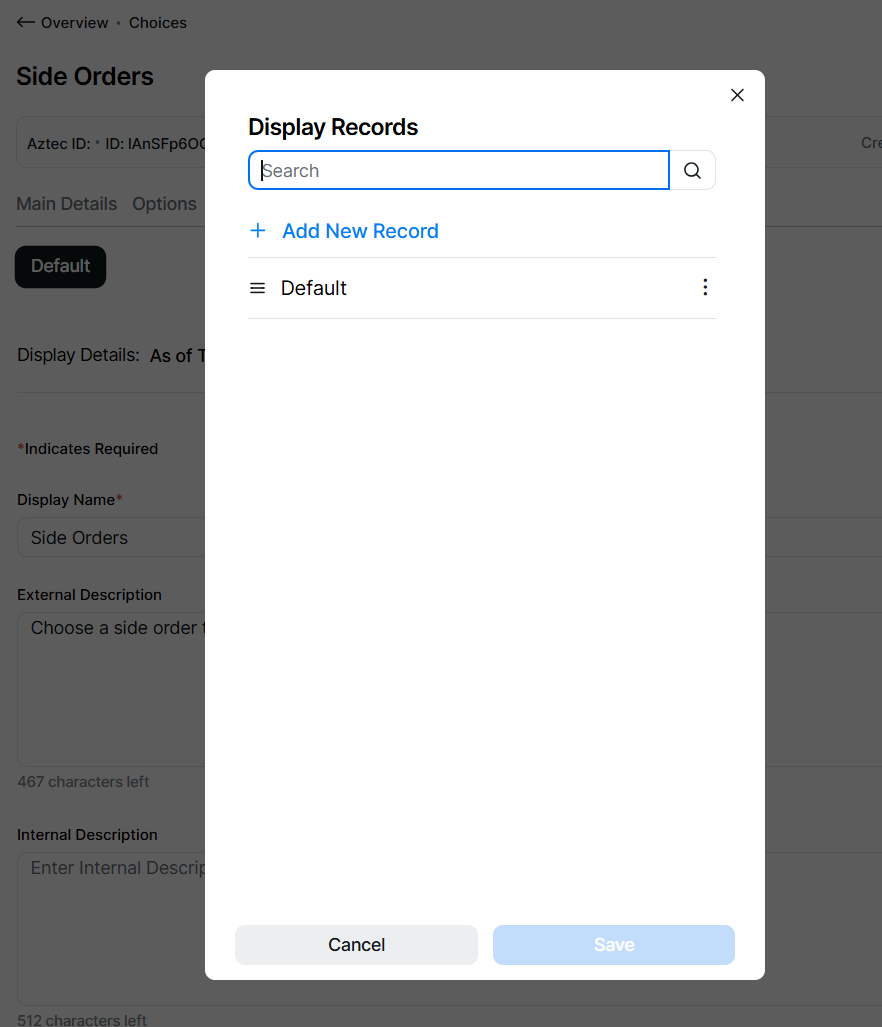
-
Click Add New Record
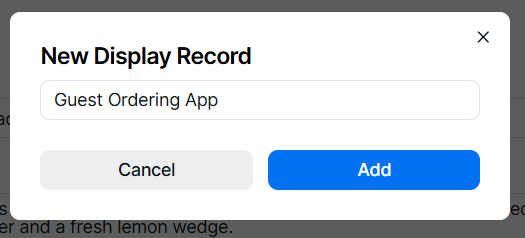
-
Enter Display Record Name | click Add
-
Click Save
Follow these steps to create additional duplicate records:
-
Click Edit
-
Select the 3 dot menu against an existing record | click Duplicate
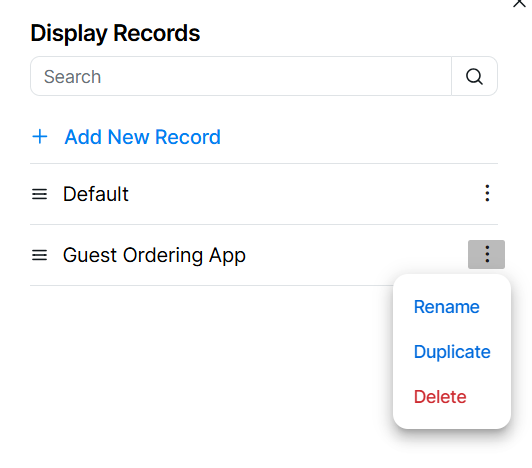
-
Click Yes
Duplicate will copy all fields from the selected display record -
Select the 3 dot menu against the cloned record | click Rename
-
Enter the new name | click Apply
-
Click Save
Editing & Reordering Records
Follow these steps edit existing records:
-
Select the required display record tab
-
Make any updates to Display Name | External Description | Keyword
-
Click Save
The order of display record tabs can be adjusted as required.
Follow these steps to reorder existing records:
-
Click Edit
-
Use the drag and drop icon to reposition the records in the required order
-
Click Save
Deleting Records
Follow these steps to delete display records:
-
Click Edit
-
Select the 3 dot menu against the record to be deleted | click Delete
-
Click Delete to confirm
-
Click Save
Field Settings & Information
Display Record Settings
The display settings section allows you to set guest facing names and descriptions of sales items.
| Field | Description |
|---|---|
| Display Name | Guest facing name of the sales item - |
| External Description | Guest facing description of the display record - 512 characters |
| Keywords | Keywords for the display record |
| Alt Text | Alt text for any images supplied on to the display record (used with iOrder) - 150 characters |