Media uploads are stored in folders, and can consist of either physical image files or URLs linking to external storage locations.
Uploading Media Topics
Uploading New Media Files
Follow these steps to upload a new media file:
-
From the browser section search or find the required folder by navigating each level and select
-
Click Upload
-
Drag and Drop the media image file into the window or click Select Media
When using Select Media option multiple files can be selected at once to upload -
Each image selected will automatically be uploaded, if an incorrect file has been selected click Delete, it is also possible to edit the meta data for the image by clicking the edit icon
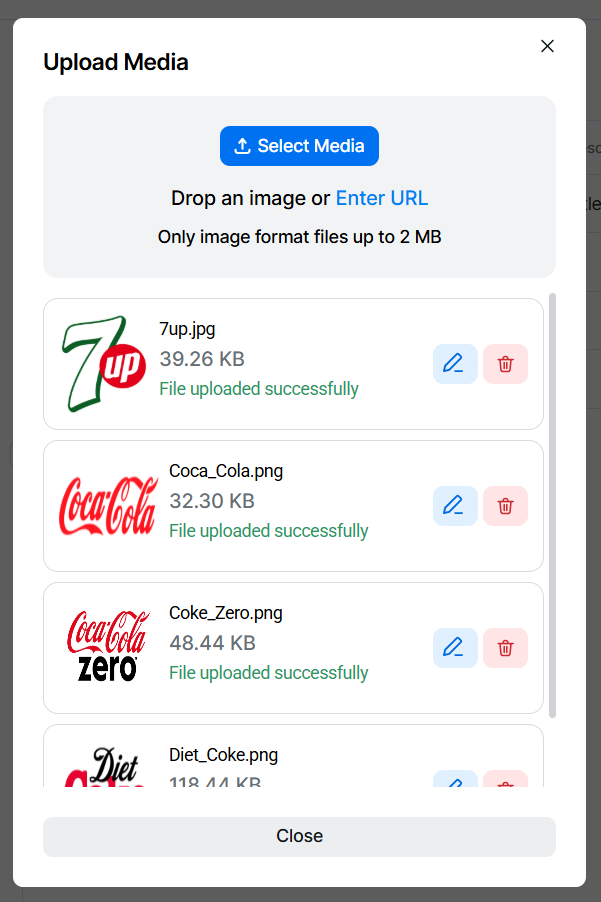 For more information on editing view the managing media help topic
 -
Click Close
Images are displayed in a table with the following information:
-
File Name (as uploaded)
-
Title
-
Description
-
Upload Date
-
Size
Uploading New Media File URLs
Follow these steps to upload a new media file by URL:
-
From the browser section search or find the required folder by navigating each level and select
-
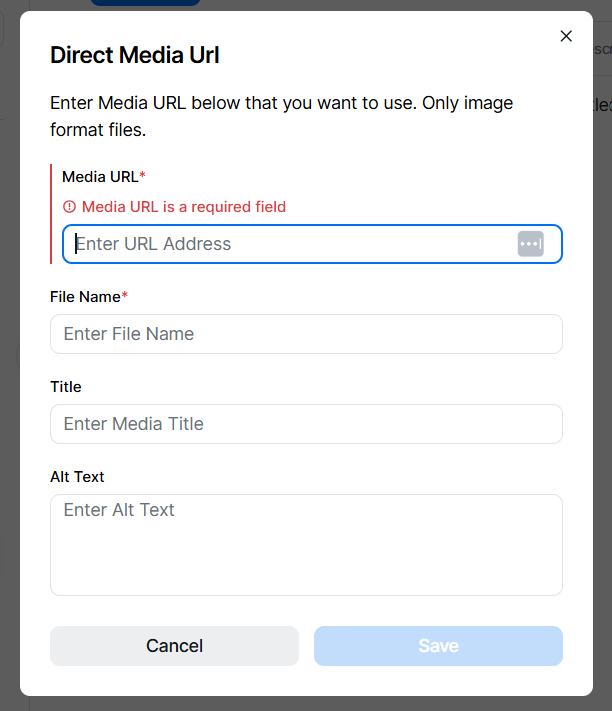
Click Upload | click Enter URL
-
Enter Media URL | File Name | Title (optional) | Alt Text (optional)
-
Click Save
Media files added by URL will be displayed in the same table as uploaded files
Searching and Filtering
Follow these steps to search for a course:
-
From the file section click into search
-
To search enter the search term, press <enter> or click the search icon, the results will be displayed matching the search term including any mid-word matches
-
To filter click the filters option | choose the required filters | click Apply Filters
-
Uploaded Date
-
File Type
-
Tags
-